My Assets
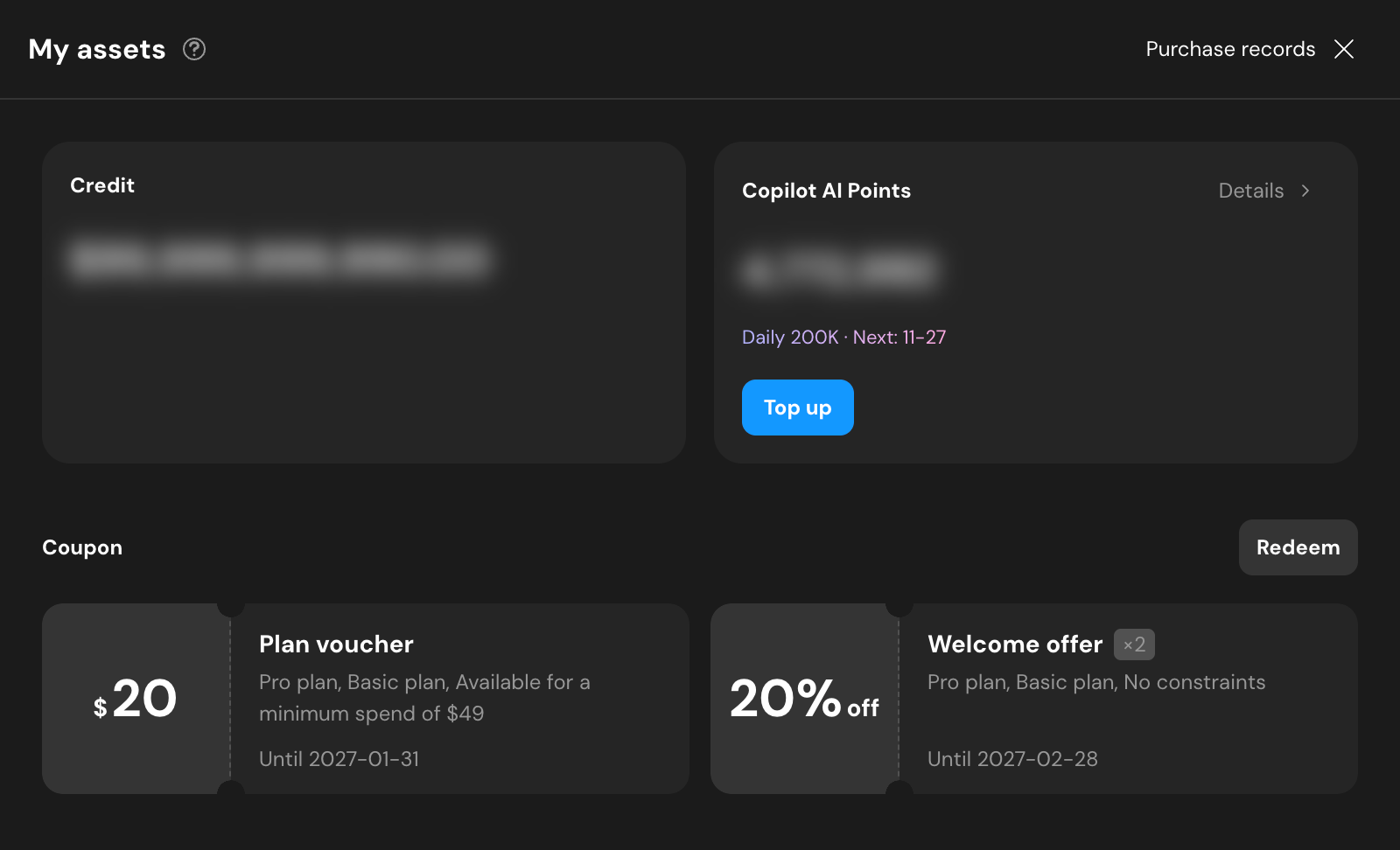
My Assets (formerly My Wallet) brings together your account credits, Copilot AI Points, coupons, and purchase records. When purchasing Momen plans, resources, or other products, you can apply eligible credits or coupons to the order.
Open My Assets
The My assets card at the bottom of the User Center’s left sidebar shows your Copilot AI Points and credit balance, each with Top up. Select Details on the card to open the full view, which shows, in order:
- Credit: your account credit balance, with Top up.
- Copilot AI Points: the current balance and daily allowance, with Details and Top up.
- Coupons: available coupons, with Redeem.
Select Purchase records in the upper-right corner to review previous orders. To see only your coupons, you can also select your avatar at the bottom of the left sidebar and choose Coupons.
Use credits
If your credit balance covers the full order, you can pay with credits at checkout or choose another payment method shown on the page.
Credits cannot be combined with another payment method. If the balance is insufficient, use another method to pay for the full order.
Copilot AI Points
Copilot AI Points pay for building with AI Copilot — planning, generating, and editing your app. Every message you send to AI Copilot runs one or more model calls, and each call is priced from the provider’s published list price and deducted from your balance.
Copilot AI Points belong to your account, not to a single project, so the same balance covers building in every project you work on.
Copilot AI Points are separate from the AI points resource listed on the project management page. That project resource pays for AI features inside your published app — AI Agents, vectorization, and vector search. See Manage Project Resources.
Check your balance
| Where | What it shows |
|---|---|
| The My assets card in the User Center’s left sidebar | Current balance and daily allowance, with Top up; select Details to see the activity |
| AI Copilot header | A live balance that updates as AI Copilot works. It turns amber when the balance is low and red when it is nearly gone. Select it to Top up, Transfer, or view Details |
| Project management page | The Transfer button on the AI points resource card; transferred-but-unspent points are shown inside the transfer dialog |
In My assets → Copilot AI Points, select Details (or select the balance in the AI Copilot header and choose Details). The page has two tabs:
- Available balance — every block that is still valid, with its source (signup bonus, purchase, promotion, support adjustment, education, internal), validity (an expiry date or “Never expires”), amount, and remaining.
- Activity — every change to the balance, with the time, entry type (Copilot run, points added, transferred from project, points expired, adjustment), details, model used, and amount.
What each run costs
Cost depends on how much work a message takes and which model runs it. The model selector in AI Copilot shows each model’s cost multiplier relative to Luna, which is 1 — a model marked 2x spends points twice as fast for the same work.
Points are also spent on work that supports your request, such as summarizing a long conversation so building can continue. The Activity list labels each entry so you can see what a run was spent on.
Sandbox billed by running time
AI Copilot runs commands in a cloud sandbox, and while the editor tab is not in the foreground, the sandbox carries on with the steps that can run unattended (see Using AI Copilot · When you switch to another tab). The sandbox is billed by its actual running time, deducted from Copilot AI Points; nothing is charged while it is paused.
A running sandbox is settled about every 5 minutes, so a long run shows up as several entries in the Activity list. Each sandbox entry’s details show the running time it covers, as Sandbox · ran followed by the duration. Sandbox entries are not tied to a model, so the model shows as sandbox.
When you run out
Building stops and AI Copilot shows Out of Copilot AI Points. Your progress is saved — nothing you have already built is lost, and the conversation stays where it was.
To continue, do one of the following:
- Top up. Purchase Copilot AI Points and send your message again.
- Transfer project AI points. A project owner can transfer that project’s AI points to Copilot. See Manage Project Resources.
Buy Copilot AI Points
- Select Top up next to Copilot AI Points on the My assets card in the User Center’s left sidebar, or select the balance in the AI Copilot header and choose Top up.
- Choose a points pack.
- Set the quantity. You can buy up to 99 of the same pack in one order.
- Select Continue to payment and complete the payment.
Purchased points are added to your balance as soon as payment succeeds, and the balance in My assets and the AI Copilot header updates immediately.
Copilot AI Points are not available for separate purchase in every region yet. If the purchase page says so, contact us.
If the current project has synced its backend, the purchase dialog also offers a “use your own AI tool” link to the developer access panel.
Manage coupons
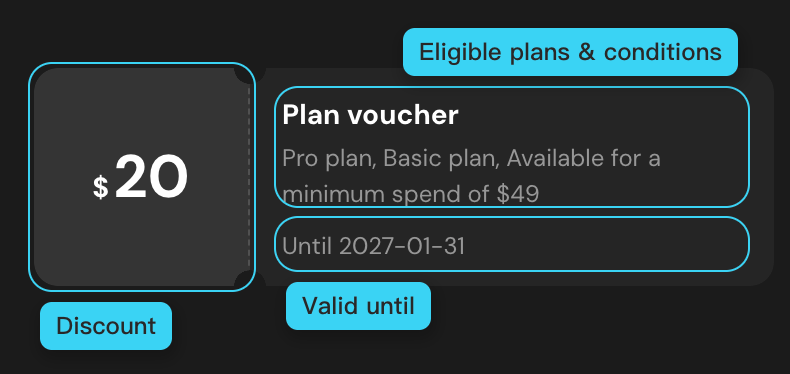
My assets lists available coupons separately from coupons that were used, expired, or became invalid within the last seven days. Each coupon shows:
- Discount type and amount
- Eligible products
- Conditions such as a minimum order amount
- Effective date and expiration date
Redeem a code
Select Redeem in the coupon section, enter the redemption code, and confirm. A successfully redeemed coupon appears in My assets. Momen displays an error if the code is invalid.
Apply a coupon at checkout
At checkout, Momen initially selects the eligible coupon that provides the largest discount. Each order can use one coupon. You can select another eligible coupon or choose not to use one.
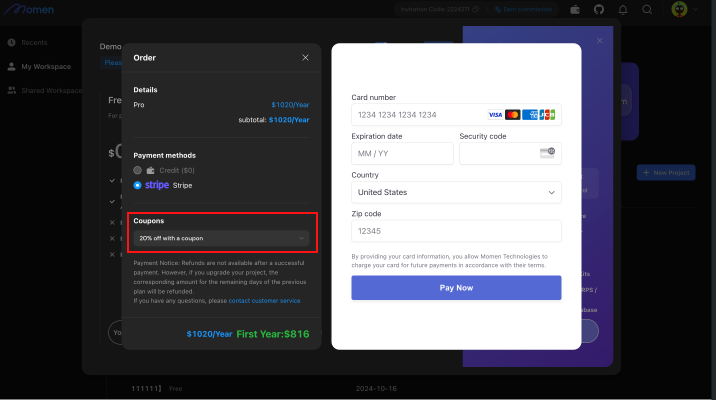
Coupon eligibility is determined at checkout from the eligible products, order amount, project plan, and validity period.
View purchase records
Select Purchase records in My assets to see the project, product type, purchase date, amount, and transaction ID for each order.