Integrate APIs
APIs let your app read data from external systems or invoke their capabilities. Once an API is configured in Momen, its inputs and response schema become bindable data, and the same API can be reused by pages, Actionflows, and AI Agents.
What an API is made of
Before configuring anything, it helps to know which pieces an API has. These concepts run through the whole workflow:
| Concept | What it is |
|---|---|
| Collection | A group of APIs. Every project has at least a “Default” collection, and APIs in the same collection share its variables |
| Collection variable | A shared value defined on the collection, such as a base URL or an API version. Every API in the collection can bind it |
| Input | The parameters this API asks for. When you call it from a page, an Actionflow, or an Agent, you fill in inputs only and never touch the request details |
| Request | The HTTP request that actually goes out: method, URL, path params, query params, headers, and body |
| Response | Response schemas grouped by status code. Each response status owns its own status codes and body type |
| Settings | Currently only pagination |
Inputs and the request are two layers: declare in Input what data this API needs, then bind those inputs to specific query params, headers, or body fields in Request. When you later call the API from a page, an Actionflow, or an Agent, you only fill in those inputs — how the URL is assembled and where each value goes stays inside the API.
Before you start
Have the provider’s API documentation ready and identify:
- Request method and full URL
- Path params, query params, headers, and request body
- Required fields, data types, and example values
- Example success and error responses
- Authentication method
If a request requires an API key, token, or private credential that must stay off the client, call the API from an Actionflow and bind a Secret. Do not bind sensitive credentials on a page or in a frontend action — those values ship with the frontend code.
Collections configuration
Click Collection management in the API list to open the collection dialog.
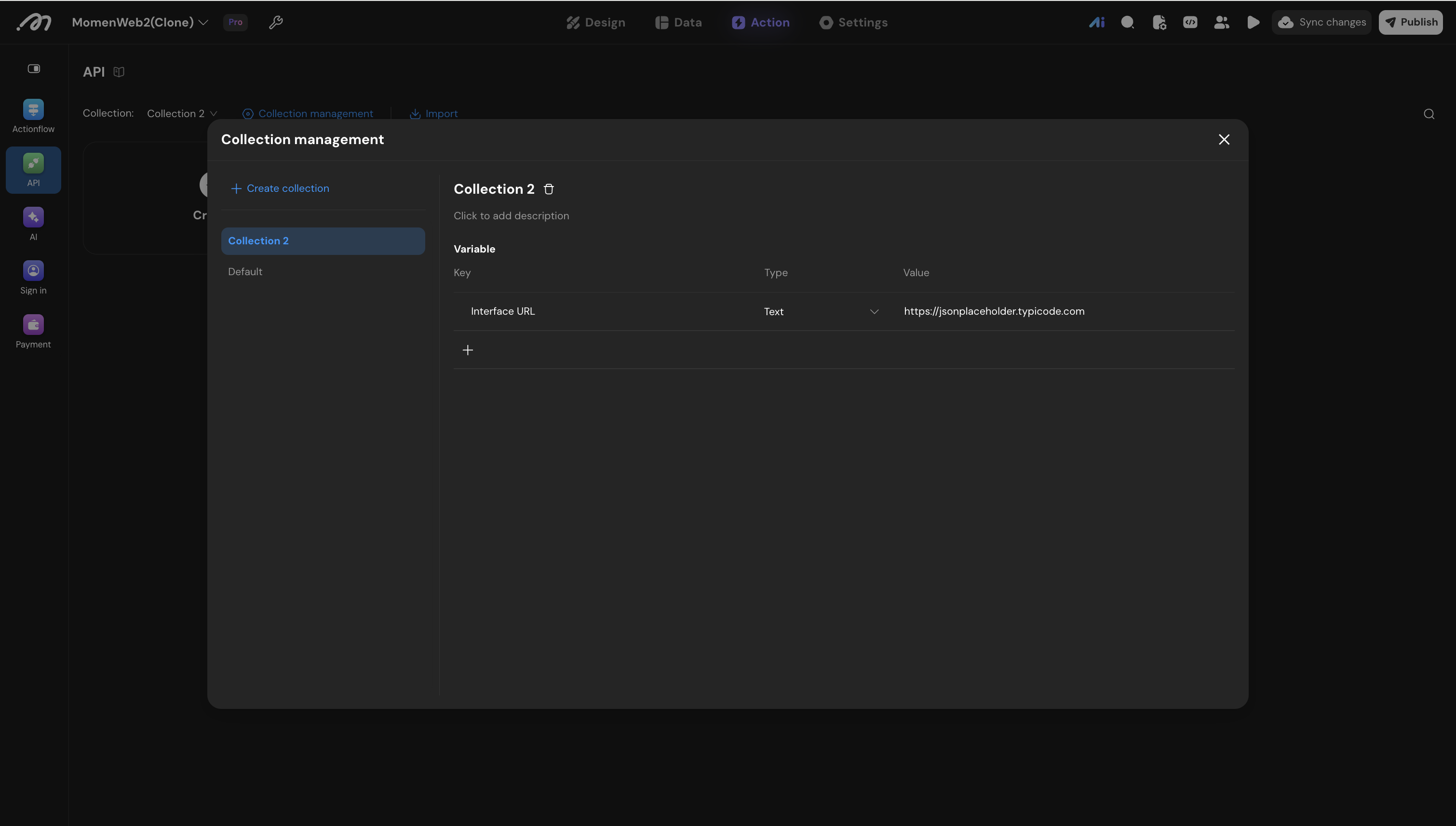
A collection groups APIs and carries a set of shared variables:
- Create collection, rename it, and give it a description. The built-in collection named “Default” cannot be renamed or deleted.
- The Variable table holds the collection variables, each with a name, a type, and a value. Any API in the collection can reference one through Current API → Workspace variables in the data binding picker.
The most common use is to define the provider’s base URL as a collection variable so a whole batch of APIs shares it — switching environments then means editing one value.
Deleting a collection that still contains APIs offers two options:
- Delete collection with APIs: type the collection name to confirm.
- Delete collection only: move its APIs into another collection. The transfer fails, naming the conflicting variables, if the target collection already has variables with the same names.
The ⋯ menu next to the title on the API detail page can Copy ID, Move to collection, or duplicate the API.
Configure an API
Create the API
Open Action → API and click Create.
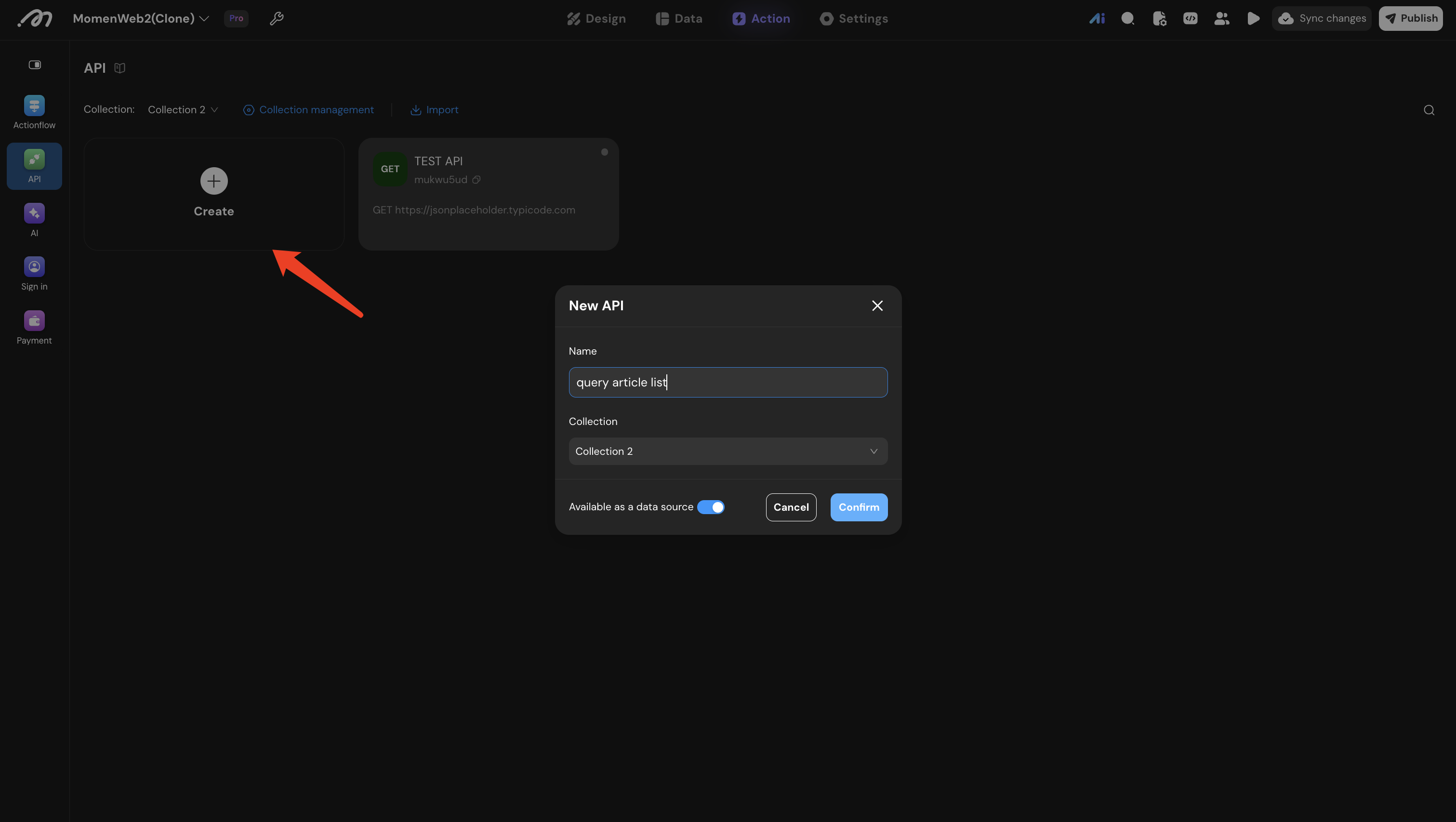
Fill in three things:
- Name: a recognizable name. You will pick the API by this name in data sources, Actionflow nodes, and Agent tools.
- Collection: which collection the API belongs to. You can create a new collection straight from the bottom of the dropdown.
- Available as a data source: turn this on so the API can be selected as the data source of a page or a list. APIs that only submit data and never render a result can leave it off. The switch can be changed at any time from the top right of the API detail page.
The API detail page opens with four tabs — Input | Request, Response, Settings — and a dot next to the title showing whether the current configuration is published.
Define the request
On the Request tab, choose the request method (GET, POST, PUT, PATCH, DELETE) and type the full URL into the address bar.
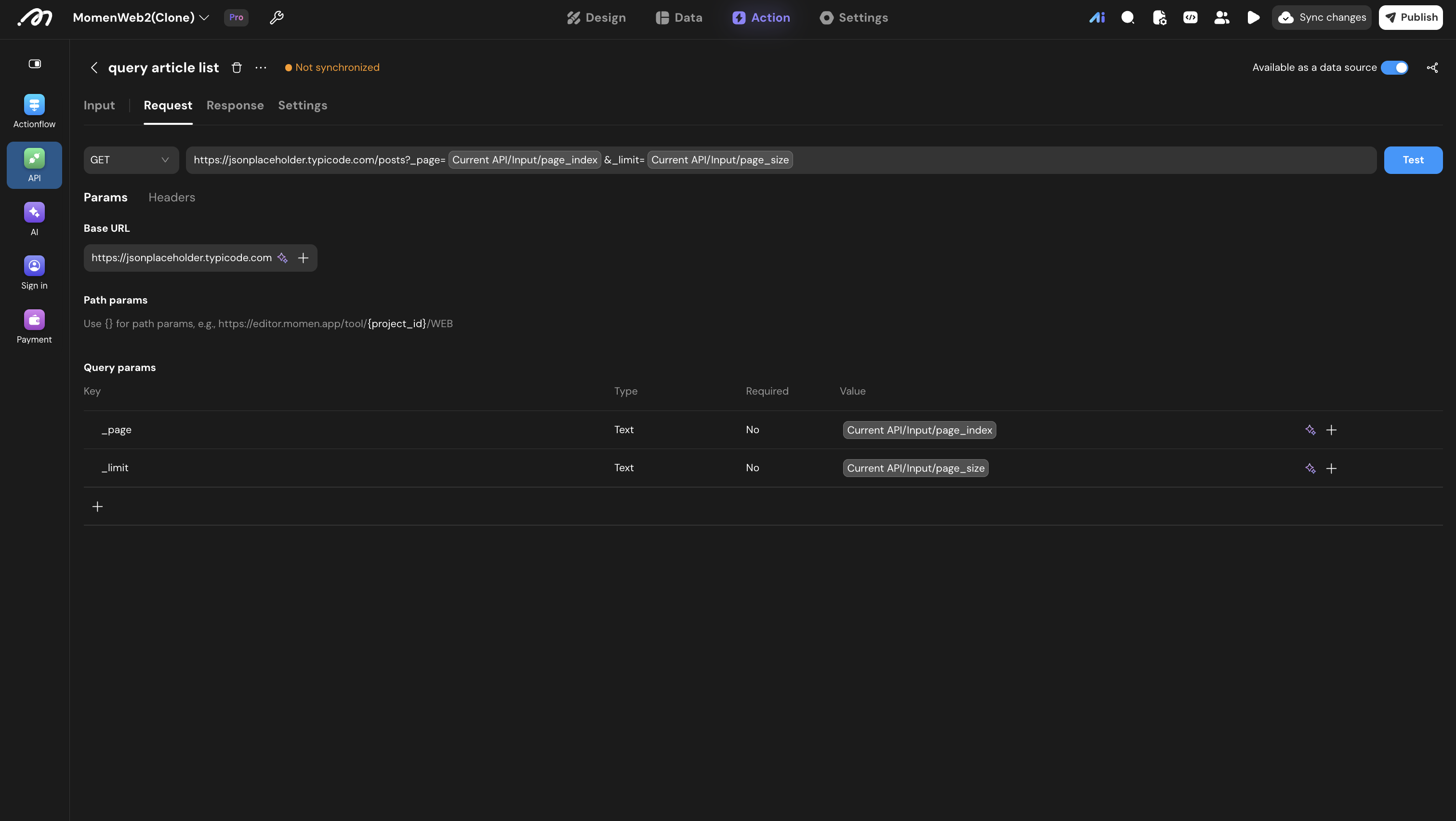
The address bar is a single input. Once you finish typing, Momen splits it into three parts, shown below under Params:
| Part | Comes from | Notes |
|---|---|---|
| Base URL | Scheme and host | Can be bound to a collection variable so every API in the collection shares one address |
| Path params | Path segments written in braces, such as /tool/{project_id}/WEB | Only braced segments become bindable params; fixed segments do not appear in the table |
| Query params | The key-value pairs after ? | One row per param, each with its own type, required flag, and value |
Two more locations sit next to Params:
- Headers: request header fields, configured the same way as query params.
- Body: shown for POST, PUT, and PATCH only.
Pick a content type for the body first, then configure its fields:
| Content type | Use |
|---|---|
| none | No request body is sent |
| form-data | A form whose fields can be text or media such as images and files |
| x-www-form-urlencoded | A url-encoded form whose fields can only be text |
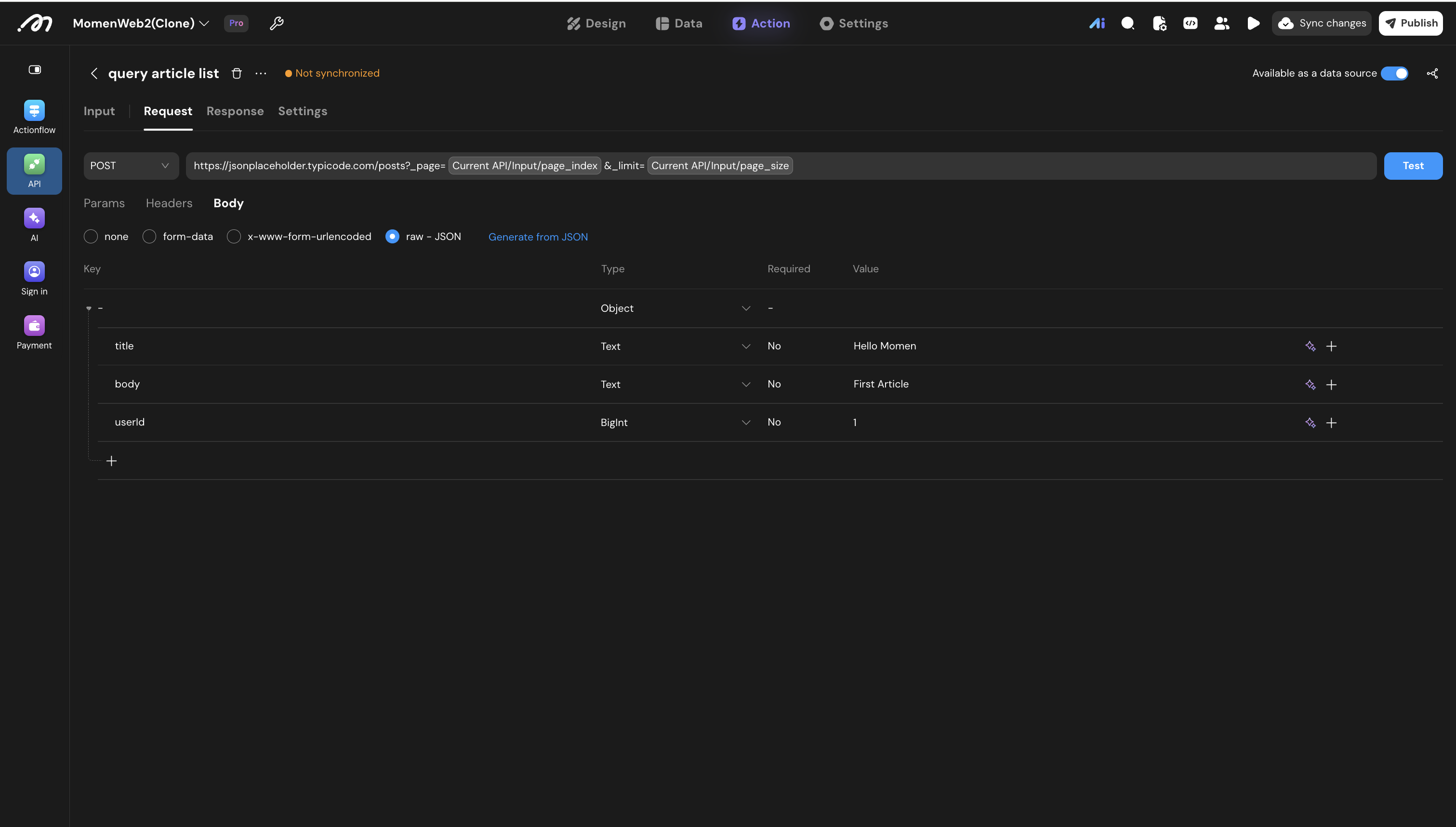
| raw - JSON | A JSON object that can nest objects and lists |
Switching between the form types and raw - JSON clears the body you have already configured, and the editor asks for confirmation first. Switching between the two form types keeps it.
With raw - JSON selected you can add fields one by one, or click Generate from JSON to turn a sample payload into a body schema.
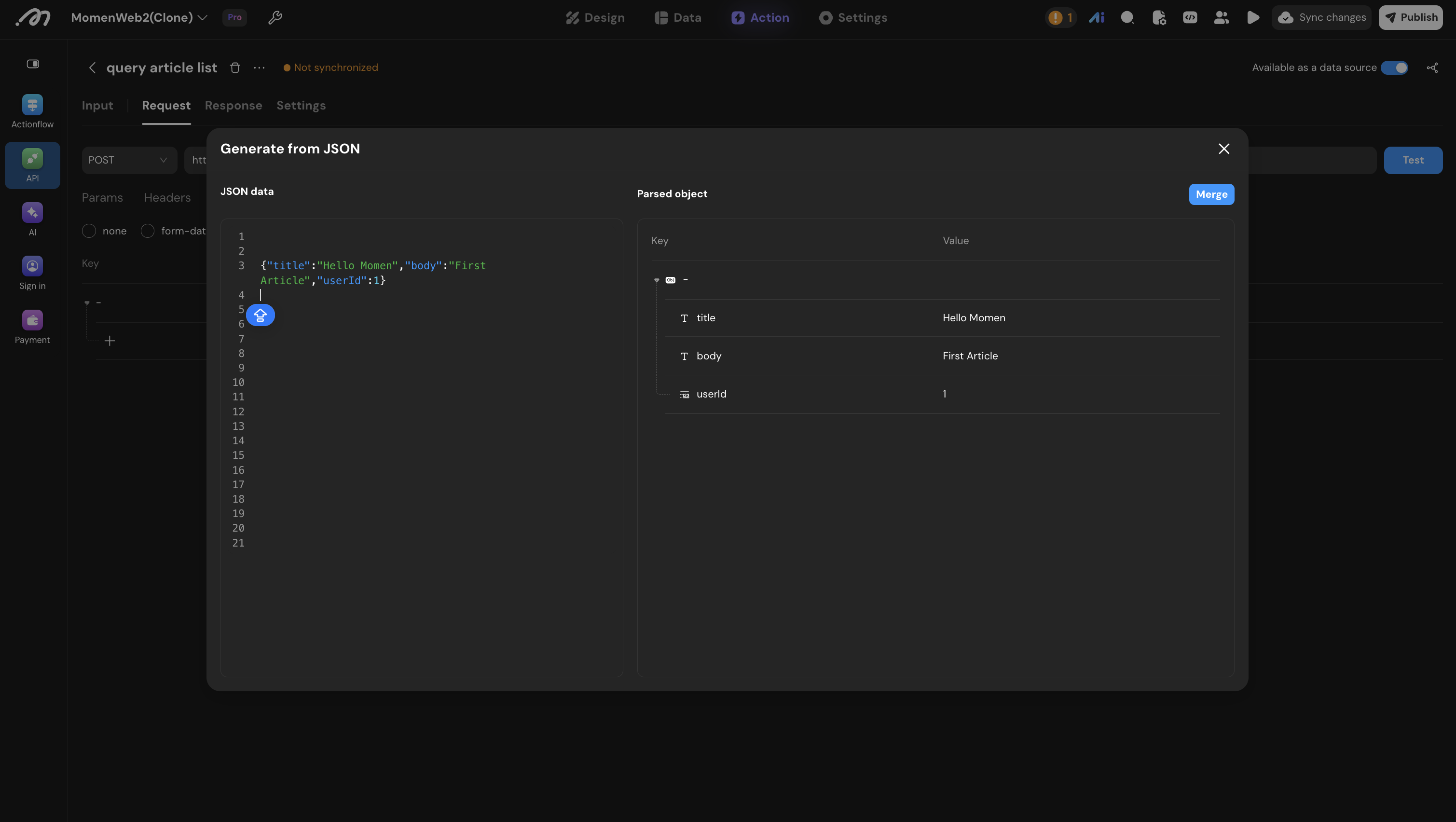
Paste the JSON and click Merge: the merge result is shown first (green for added fields, red for fields about to be removed), and only takes effect once you confirm. Values in the JSON become the default values of the matching fields.
Null values in request parameters. A value bound at edit time can be null at runtime. Each position handles a null differently, and the request that goes out differs accordingly.
| Parameter position and binding state | What is actually sent when the value is null |
|---|---|
| Body: nullable field, unbound | The field is omitted and does not appear in the body |
| Body: required field, unbound | null is sent, and the field is still present |
Body: bound, null at runtime | null is sent |
| Body: explicitly bound to a null value | null is sent |
| Body: empty array | [] is sent — it does not degrade to null and it is not omitted |
| Query param | The whole parameter is dropped and never reaches the URL |
| Path param | The null is appended as-is, so the URL contains a literal /null |
| Header | The header is still sent, with an empty value |
| x-www-form-urlencoded field | key=null is sent, where null is a four-character literal rather than a null value |
In other words, body fields distinguish “unbound” from “bound to a null value”, and only a nullable unbound field is omitted; every other position follows the table above.
An input’s required flag is enforced by the type system at edit time; nothing stops a null at runtime — the requests above go out to the provider as they are, and the provider decides how to handle them. Path params and x-www-form-urlencoded fields deserve extra care: /null and key=null are both valid strings, so the provider may accept them as real values instead of reporting an error.
When a parameter must not be null, guard it at the binding with conditional data.
Declare the inputs
Switch to the Input tab and declare what has to be passed in when this API is called.
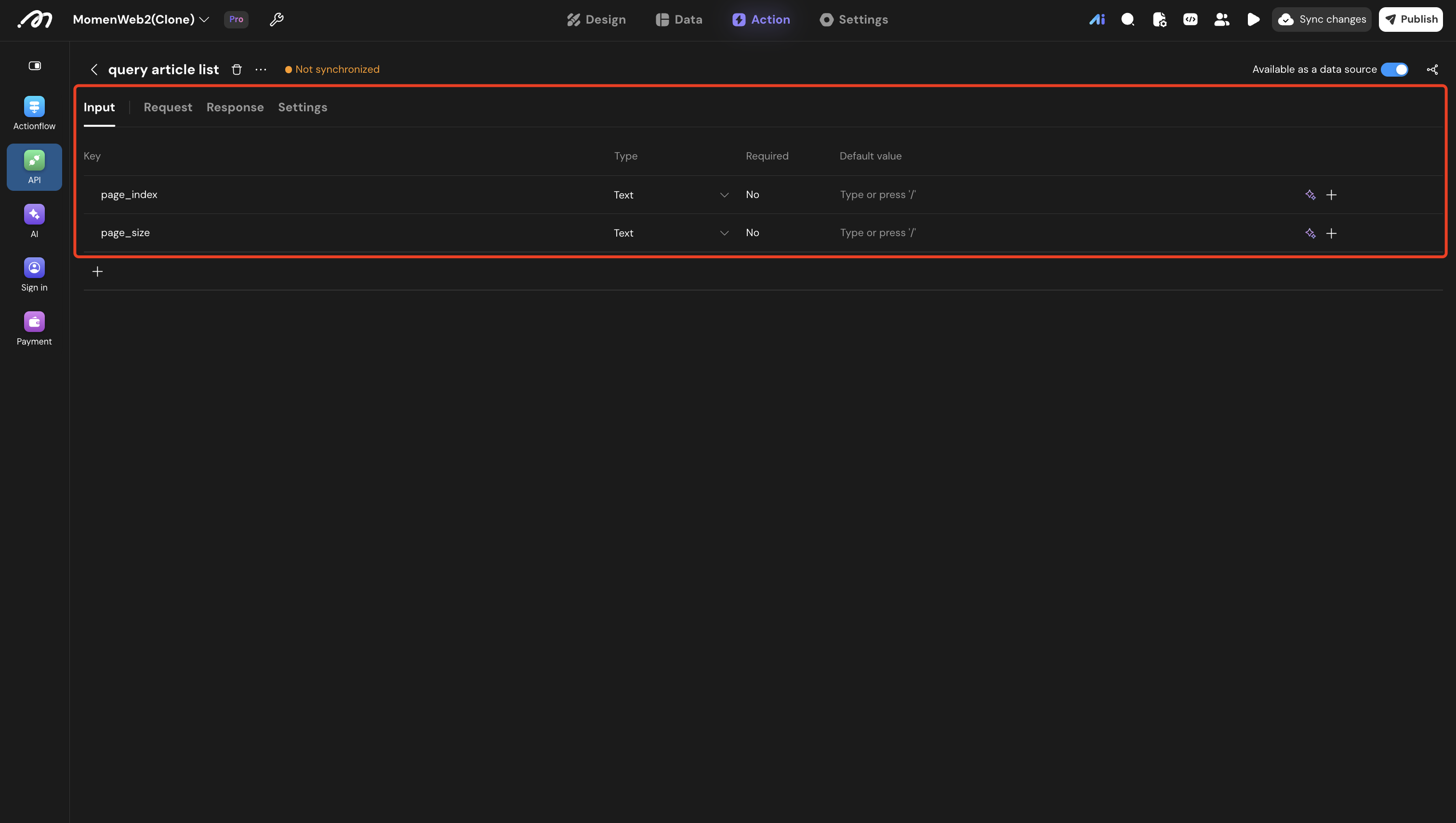
Every input has a name, a type, a required flag, and a default value. Only declare what actually changes between calls; values that never change (an API version, for example) belong in the request itself or in a collection variable.
Once an input’s name or type is referenced by a page, an Actionflow, or an Agent, review every caller after changing it.
Bind inputs to request parameters
Back on the Request tab, click the Value cell of a parameter and type / to open the data binding picker. Choose Current API → Input, then the input you want to bind.
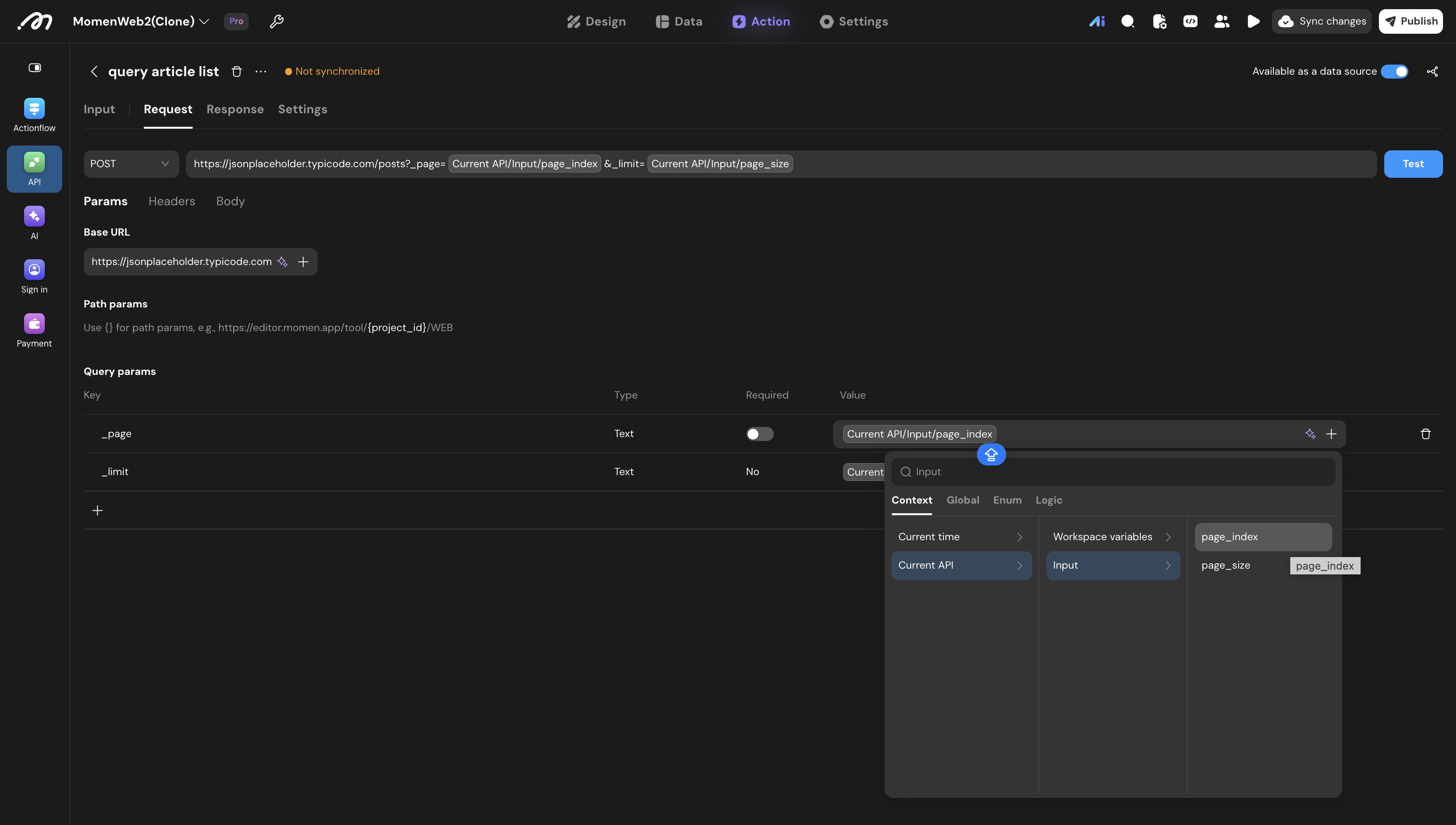
The same picker also offers Current API → Workspace variables (the variables of the current collection) and Current time, along with global data, enums, and formulas. The base URL, path params, query params, headers, and body fields all accept these bindings.
Once bound, that position in the address bar renders as a variable chip instead of a literal.
What happens when a parameter is empty
When a parameter has no binding, or its binding resolves to nothing at runtime, Momen does not skip the request. Each position behaves differently:
| Position | When the value is empty |
|---|---|
| Query param | The param is not sent |
| Header | The header is not sent |
| Path param | The call fails with an error naming the path parameter that has no value |
| Body field (raw - JSON) | An optional field that was never given a value is omitted; everything else is sent as null |
| Form field (form-data / x-www-form-urlencoded) | The field is not sent |
This differs from the legacy third-party API built before the editor rebuild: the legacy API drops a body field whose value is empty, while the current one sends null. WeChat, Alipay, and most Chinese gateways distinguish missing field from field is null, so re-check the endpoint’s documentation after migrating a legacy API. Full rules: Empty Values.
Test
Click Test in the top right to open the test panel.
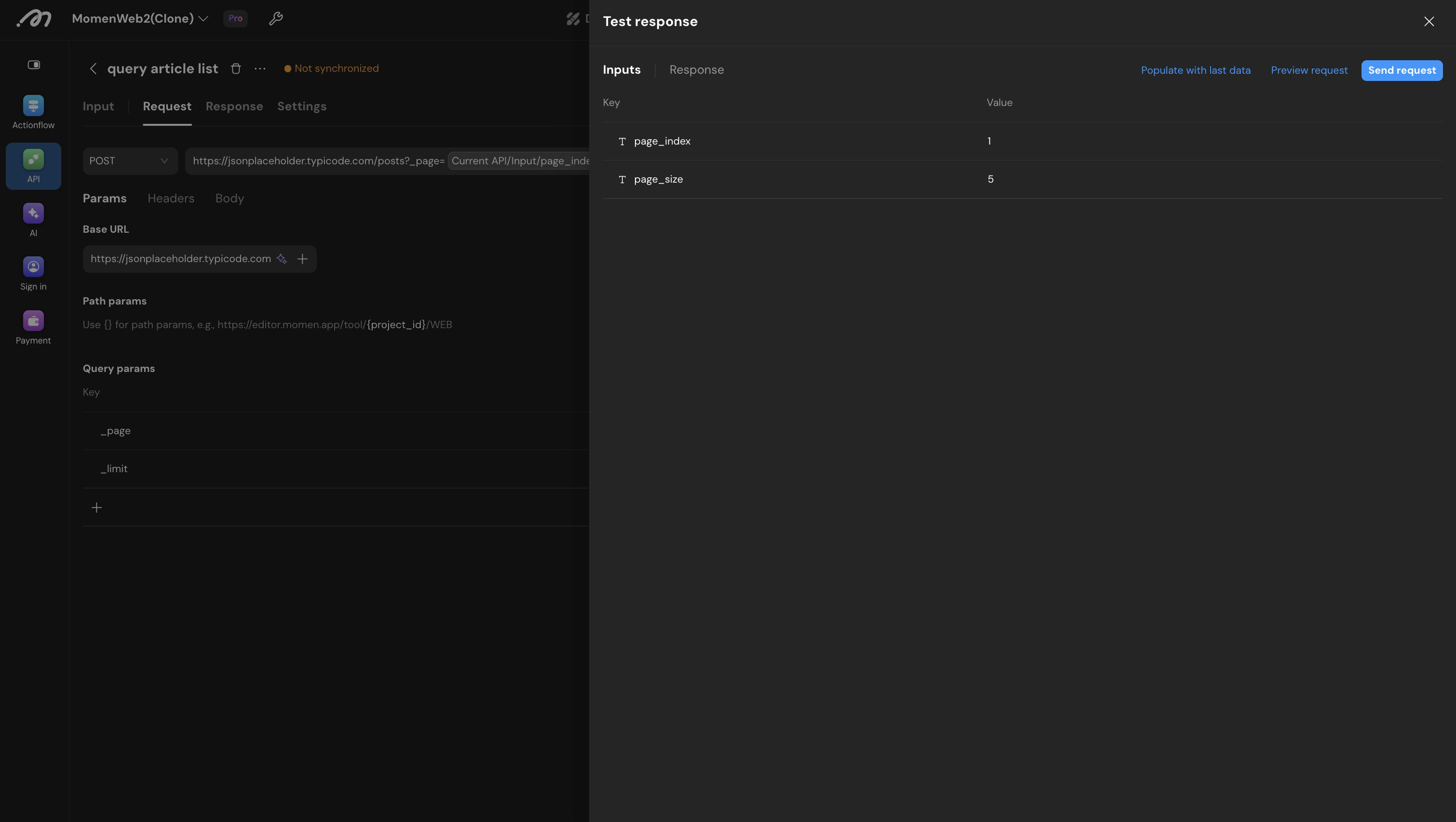
It has an Input page and a Response page:
- On Input, fill in a test value for each input. Populate with last data brings back the values from your previous test (only entries whose name still exists and whose type has not changed).
- Preview request shows the method, the fully assembled URL, the headers, and the body that this request would actually send — use it to check how the parameters are stitched together.
- Click Send request to fire the request for real.
If the API declares no inputs, opening the panel sends the request straight away.
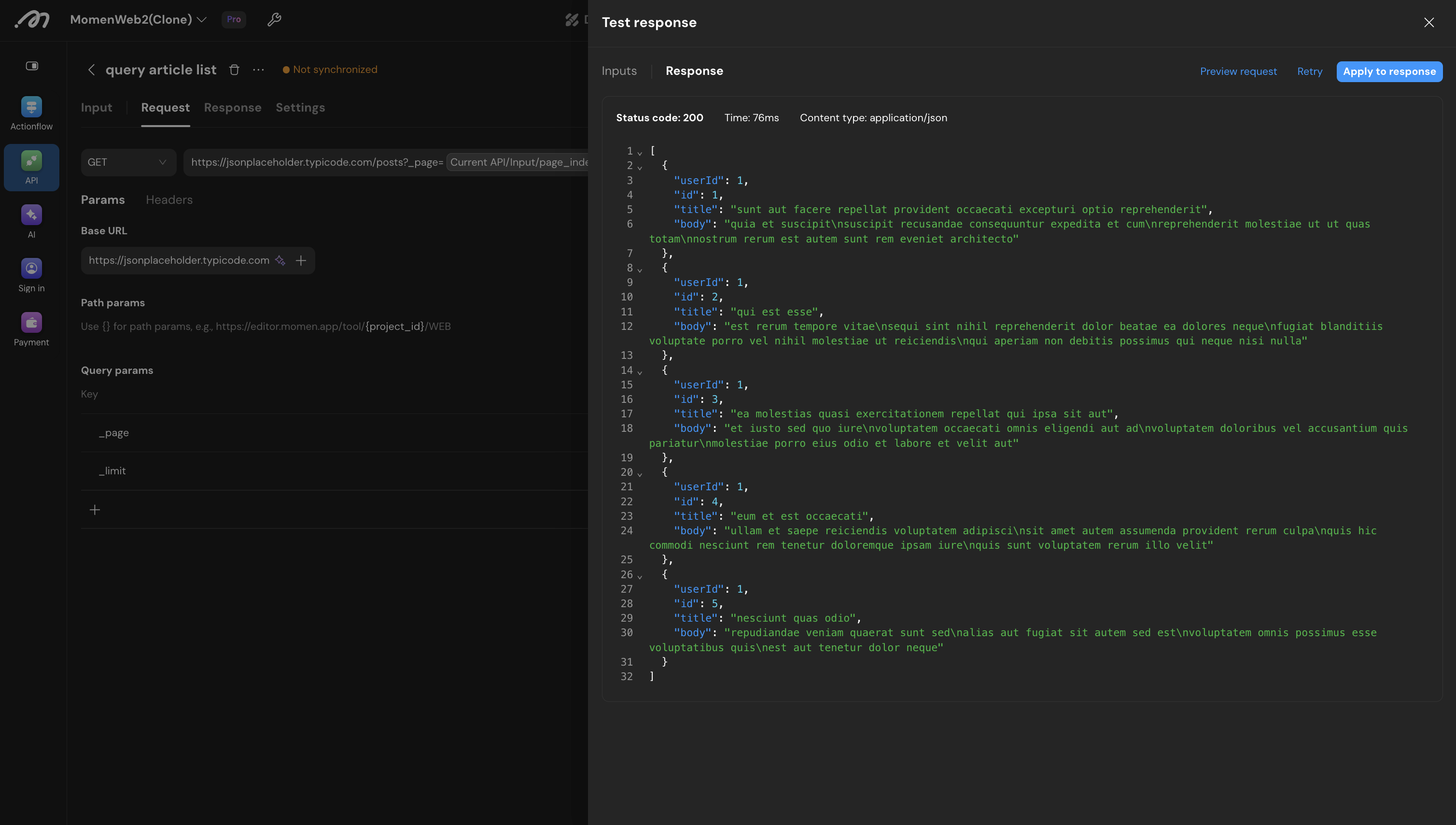
The Response page shows the status code, the elapsed time, the content type, and the response body. The request is issued from the server, so an endpoint that works here also works at runtime.
Test inputs are typed by hand, while runtime inputs come from page bindings or upstream nodes and may be empty. If the endpoint is sensitive to empty values, clear the input and select Preview request again to confirm that the request is still what you expect.
Turn the result into a response schema
With a result in hand, click Apply to response to convert that real response into the API’s response body schema.
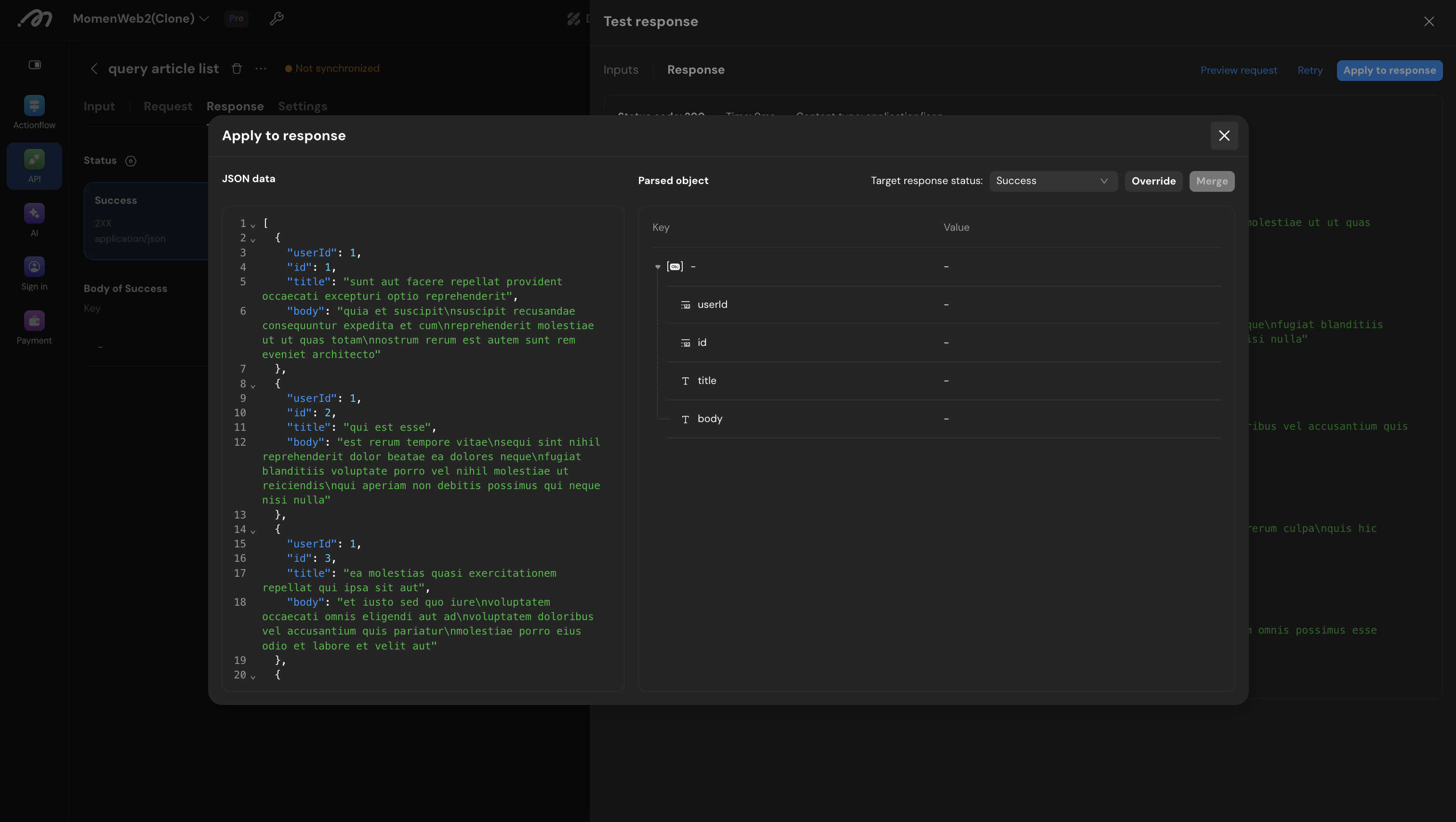
The dialog shows the returned JSON data on the left and the Parsed object on the right. Pick a Target response status, then choose:
- Merge: add the new fields on top of the existing schema, keeping the fields and bindings that are already in use. The added and removed fields are shown for confirmation first.
- Override: replace the target status’s body schema entirely with the parsed structure.
When the target response status currently returns a primitive such as text or a number, there is nothing to merge with and Merge is disabled — use Override.
You can also skip testing and add the fields by hand on the Response tab.
Manage response statuses
One API can have several response statuses. Each is matched by HTTP status code and owns its own body schema.
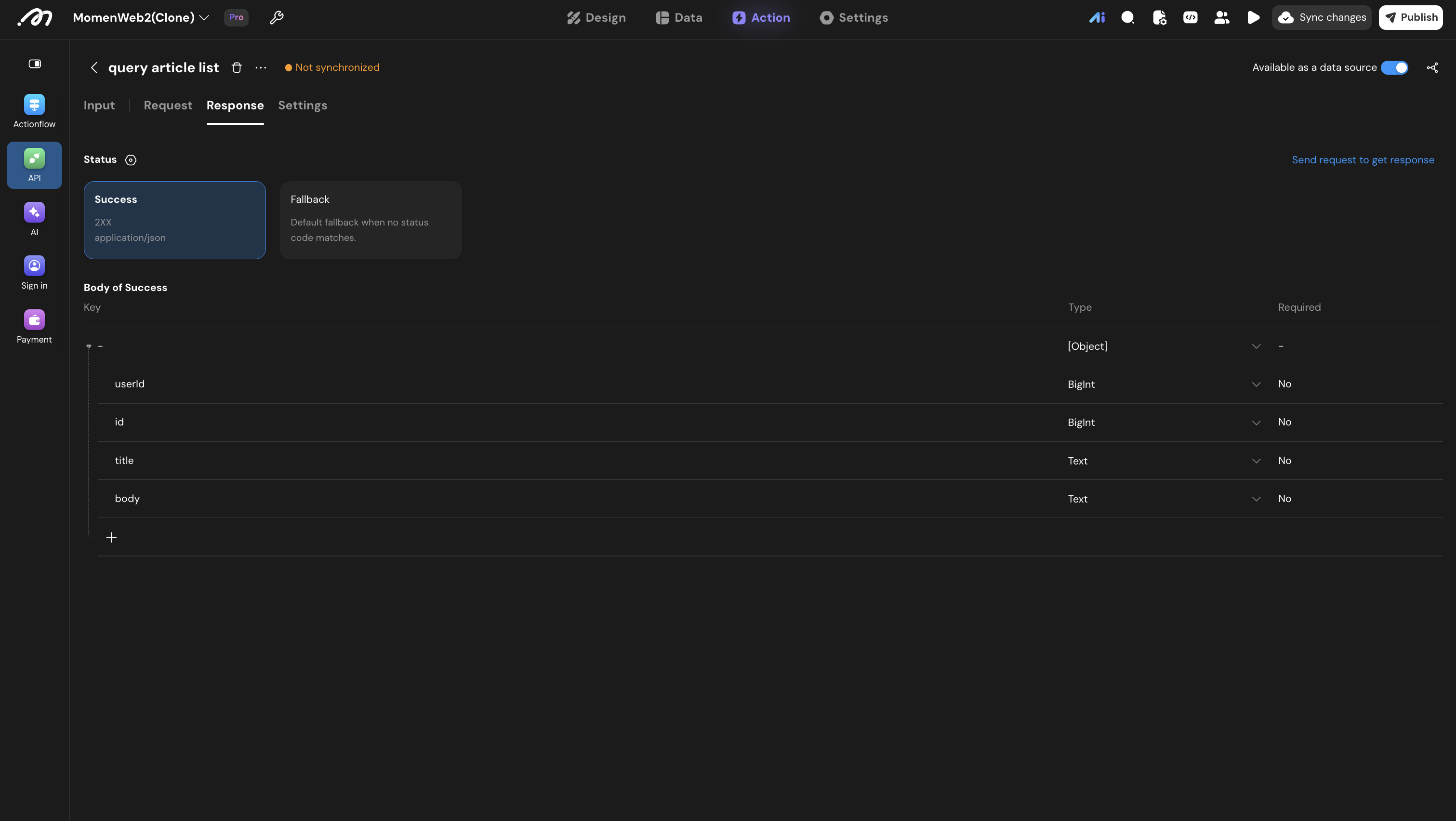
Click the gear next to Status to open the management dialog:
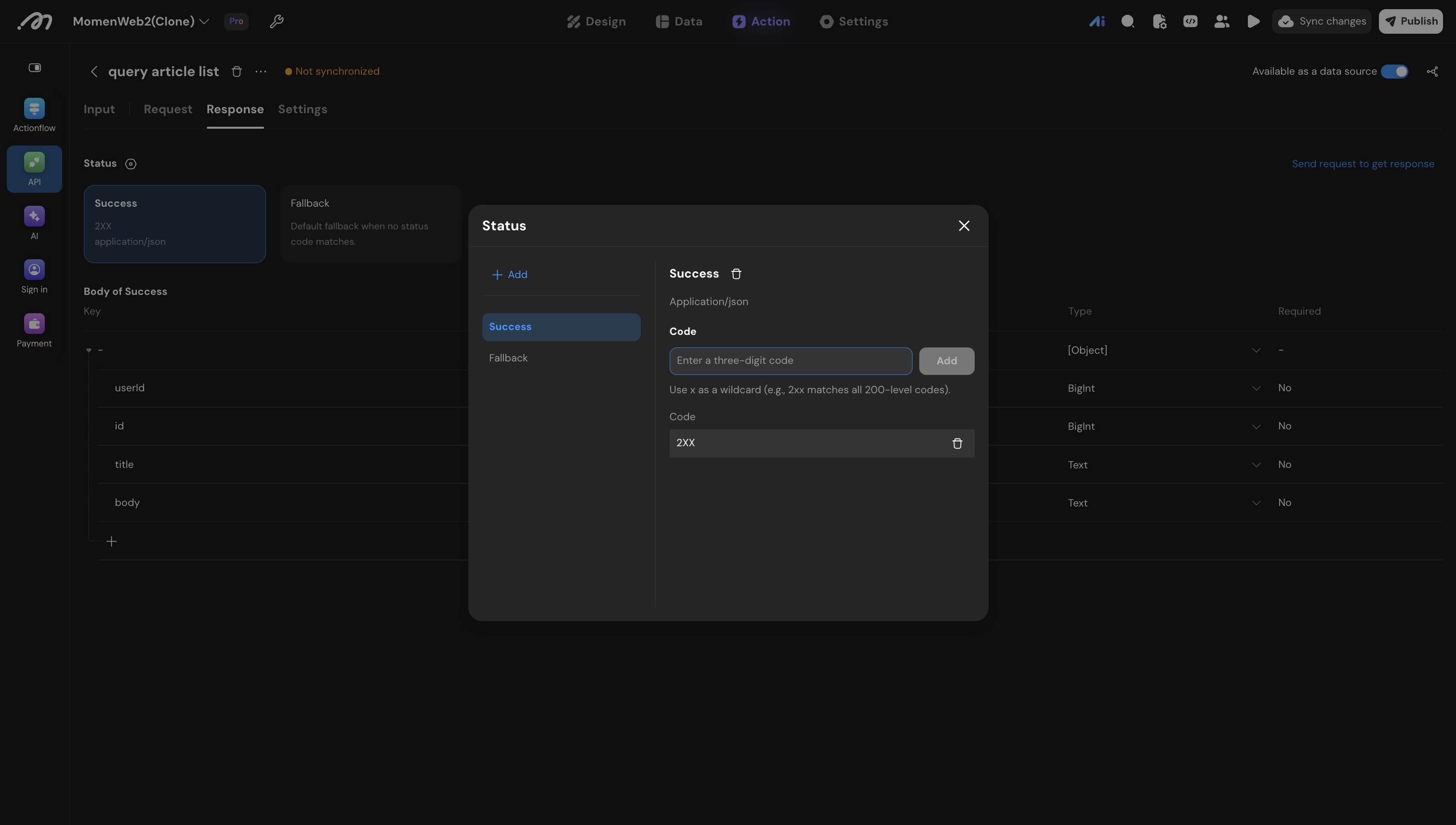
- Add a new status. Its name can only contain letters, digits, and underscores.
- Give the status one or more status codes. A code has three digits, starts with 1–5, and may use
xas a wildcard —2xxmatches every 200-level code. Codes cannot repeat or overlap within one API. - A status with no codes is never matched.
- Fallback is a built-in status. It cannot be deleted and needs no codes: it is returned whenever no other status matches.
Response bodies currently support application/json only.
Reading a result means picking a response status first, so split statuses along your business branches — for example one status for 2xx and another for 4xx — instead of letting everything fall through to Fallback.
Publish
API edits are saved automatically but must be published before they take effect at runtime. Not synchronized next to the title on the detail page means the current configuration differs from what is live.
Both Update preview and Sync changes publish the latest API, Actionflow, AI Agent, and other backend configurations. Update preview also refreshes the frontend preview.
When changing inputs or response fields already used by a page, Actionflow, or AI Agent, review every caller for compatibility.
Handle special fields (optional)
When a field’s actual content does not match a Momen data type, set an encoder or a decoder on it. The request direction is encoding; the response direction is decoding.
| Direction | Option | Use |
|---|---|---|
| Request (encode) | Media to URL | Send Momen media data as a URL |
| Request (encode) | Media to Base64 | Send Momen media data as Base64 content |
| Response (decode) | URL to Media | The response field is the URL of an image or other media file and has to become Momen media data |
| Response (decode) | Base64 to Media | The response field is Base64 media content that has to be parsed into Momen media data |
| Response (decode) | String to JSON | The response field is an escaped JSON string that has to be parsed into an object or a list |
The media options only appear on fields whose type is a media type; String to JSON only appears on object fields on the response side.
For example, an endpoint may return:
{
  "profile": "{\"name\":\"Ada\",\"level\":3}"
}
Type profile as an object and turn on String to JSON, and its name and level fields become available for binding.
Configure pagination (optional)
If the API returns a paginated list, open the Settings tab and turn on Pagination.
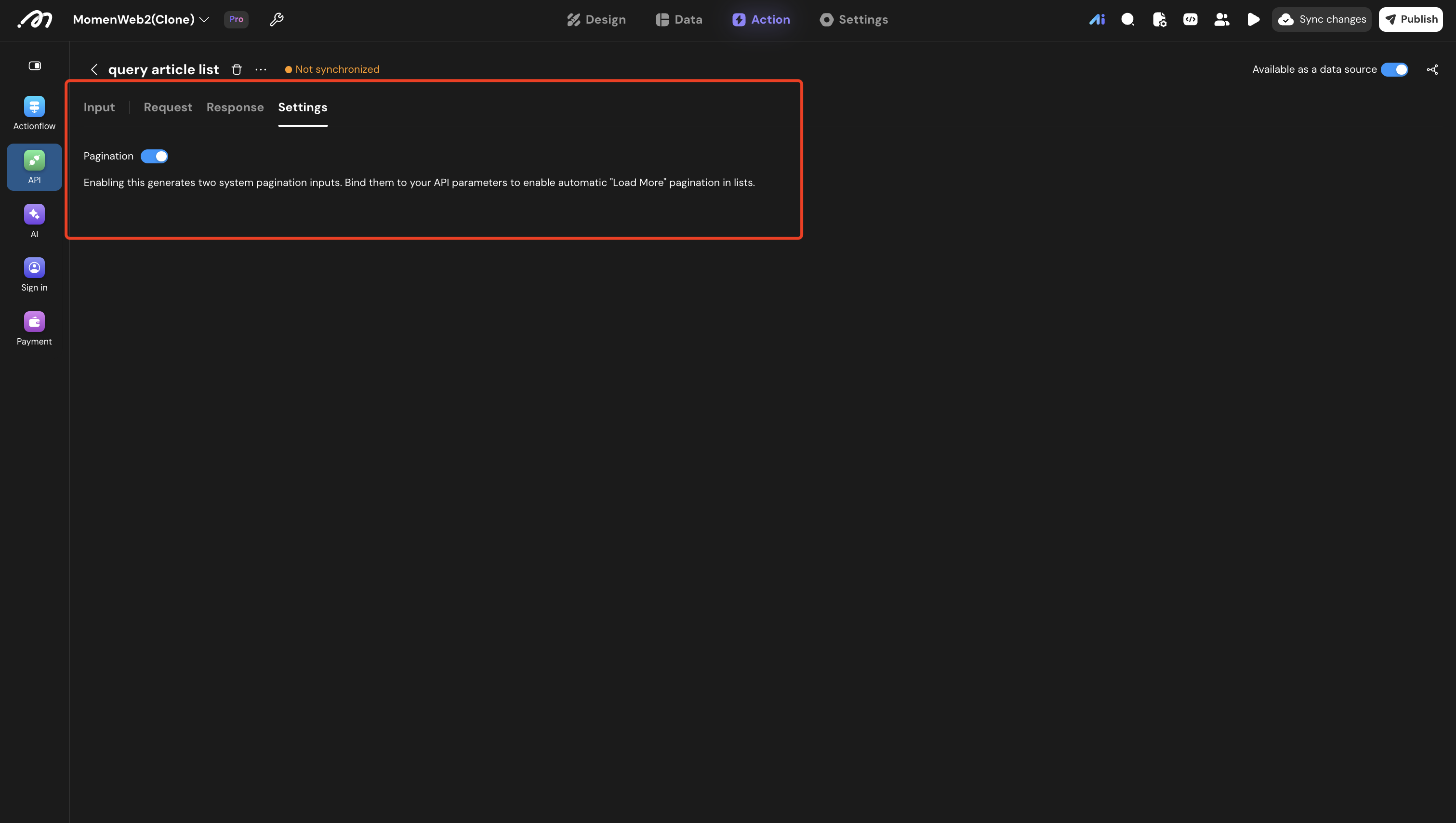
Two system inputs are generated:
| System input | Purpose |
|---|---|
| System Page Index | The starting page. Once bound to a list component, its value is calculated and passed in automatically while paging |
| System Page Size | The number of items per page, passed in automatically while paging |
Bind these two inputs to the endpoint’s own pagination parameters (page and pageSize, for example) and a frontend list can use Load more for automatic paging.
System inputs cannot be renamed, retyped, or deleted; turn the switch off to remove them. If an existing input already uses one of those names, the switch cannot be turned on until you rename it.
Pagination is part of the API configuration, so publish again after turning it on.
Import APIs
When a provider ships an OpenAPI document, or when you already have a ready-made cURL command at hand, open the API list and click Import to have the platform generate the API configuration for you instead of filling in every field by hand.
| Source | When to use it | What one import produces |
|---|---|---|
| OpenAPI | The provider ships an interface document as .json or .yaml | A batch of APIs, of which you pick the ones you need |
| cURL | All you have is a single cURL command, such as the string you get from Copy as cURL in your browser’s developer tools | One API |
Both importers support only a subset of their format, and an unsupported construct meets one of two very different fates: a malformed one fails the import outright, with a message that does not tell you where the problem is, while a construct that is well formed but unsupported raises no error at all — some of these degrade, and the content behind them is silently dropped or downgraded in the result. Both kinds of rule are listed separately below, and you can also jump straight to checking your input with AI.
An import produces the request configuration — and, for OpenAPI, the response schema — but never declares inputs for you. Once it finishes, test every endpoint as described above, confirm the request and response structures match the provider’s documentation, rebind the parameters that need dynamic values to inputs, and then publish.
Import from OpenAPI
Open the API list, click Import, choose OpenAPI, and upload a .json or .yaml file.
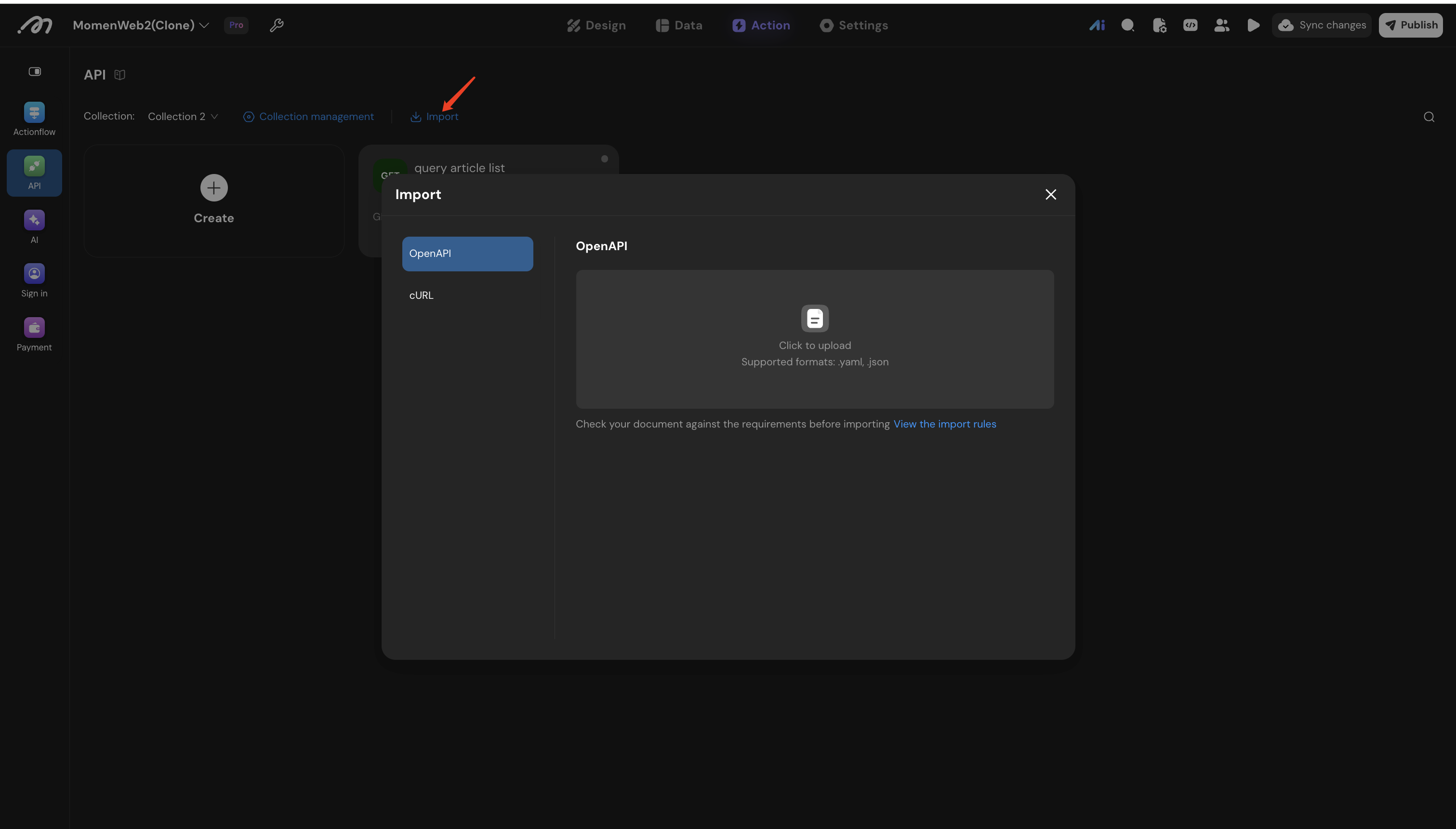
The confirmation step then lets you:
- Pick the Collection to import into (see Collections configuration).
- Review the Workspace variables parsed out of the document’s server URLs and edit their values. If the target collection already has variables with the same names, Import stays disabled until you pick another collection or resolve the clash.
- Select the endpoints to import, confirm each name, and decide per API whether it is Available as a data source. An endpoint with an empty name blocks the import.
Before importing, make sure the file is .json or .yaml (.yml is not supported yet), the document is OpenAPI 3.x (Swagger 2.0 is not supported yet), and it declares an info.title.
What makes an import fail
A single occurrence of any of the following fails the entire document, and none of the other endpoints is created either:
| Construct | Why it fails |
|---|---|
A head, options or trace operation | The importer does not support these three request methods |
A parameter without a schema | Common with parameters described by content:, and with parameters that are a $ref to #/components/parameters/... |
| An array or object parameter | The schema.type of a path, query or header parameter may only be string, integer, number or boolean |
A parameter without a type | A parameter that declares only $ref, allOf, enum or example cannot be recognized |
A missing info or info.title | The importer names the generated API collection after the document title |
| A Swagger 2.0 document | Documents with swagger: "2.0", definitions, in: body or host must be converted to OpenAPI 3 first |
Parameters with in: cookie are ignored and do not affect the import.
What is dropped without an error
The following does not fail the import, but the related content will be missing from the result and has to be added by hand afterwards:
| Construct | Result |
|---|---|
A content type other than application/json, application/x-www-form-urlencoded or multipart/form-data | The response gets no structure. A POST, PUT or PATCH endpoint with no supported content type at all is skipped entirely |
| Several supported content types on one operation | The operation is split into several duplicate APIs |
A $ref to an external file, to #/definitions/ or to #/components/responses | It cannot be resolved and the field or response is lost. Only #/components/schemas/XXX works |
A field without a type, or a type: array without items | The field is dropped |
An allOf, oneOf or anyOf with two or more sub-schemas | It degrades to plain JSON data and the object structure is lost |
| Shared parameters declared at the path level | They are not merged into the endpoints and must be written inside every operation |
additionalProperties | It is not expanded; only explicitly declared properties are recognized |
securitySchemes and security | No authentication parameters are generated, so API keys and tokens have to be added by hand |
A servers variable without a default | The URL keeps the literal braces and has to be fixed after importing |
API names come from summary rather than operationId. When summary is empty, the name is assembled from the method and the path, so fill in summary before importing or rename the API afterwards.
Import from cURL
A cURL command is the way a single HTTP request is written on the command line: it starts with curl, followed by the request address and a series of options that begin with a dash. It most often comes from your browser’s developer tools — right-click a request in the Network panel and choose Copy as cURL to get the whole string.
Open the API list, click Import, choose cURL, paste that command, and click Continue. Each import creates one API configuration.
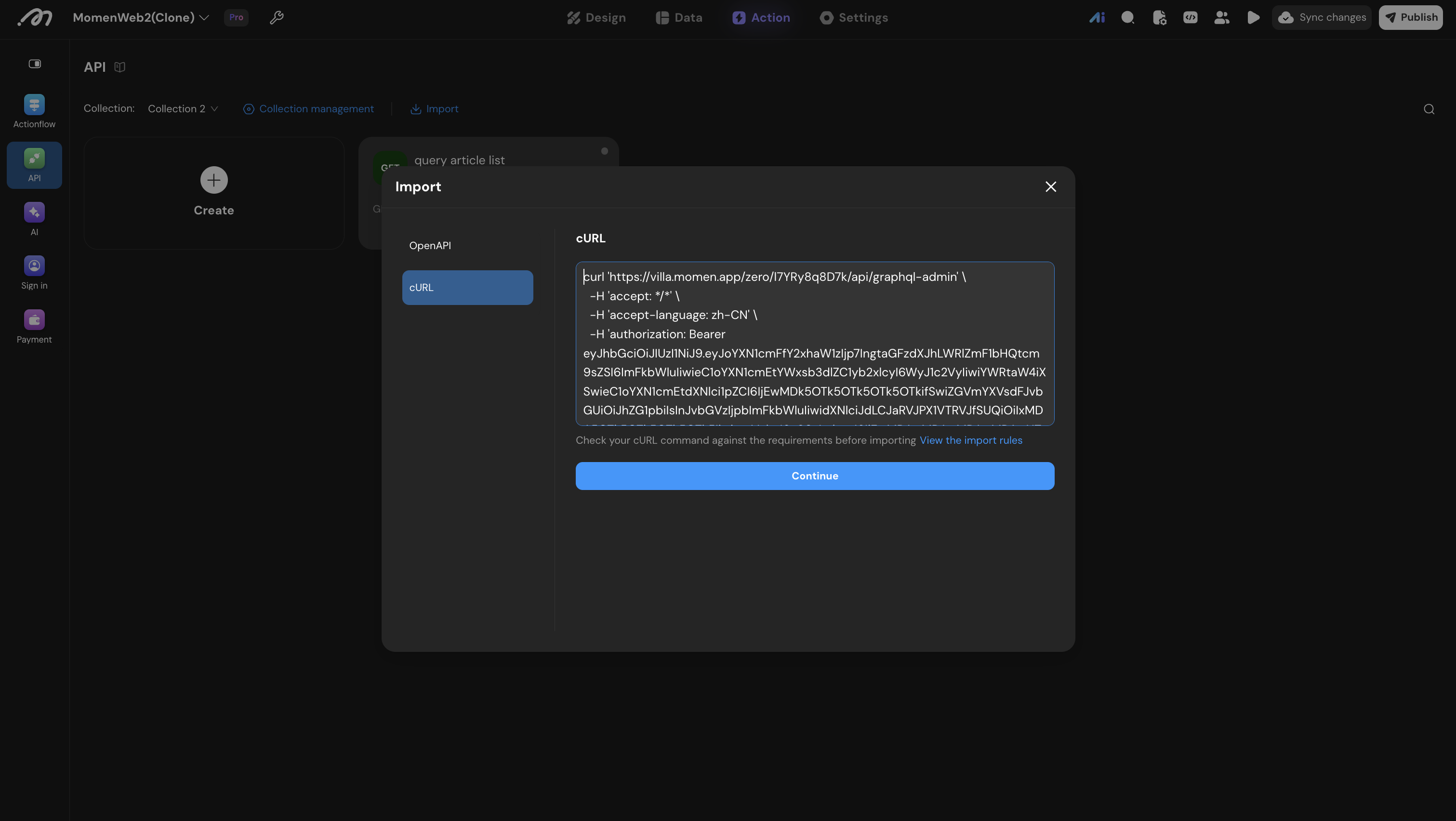
The confirmation step shows the parsed method and address. A cURL command carries no endpoint name, so you have to fill in a Name before Import becomes available; you can also pick the target collection and decide whether the API is Available as a data source (off by default).
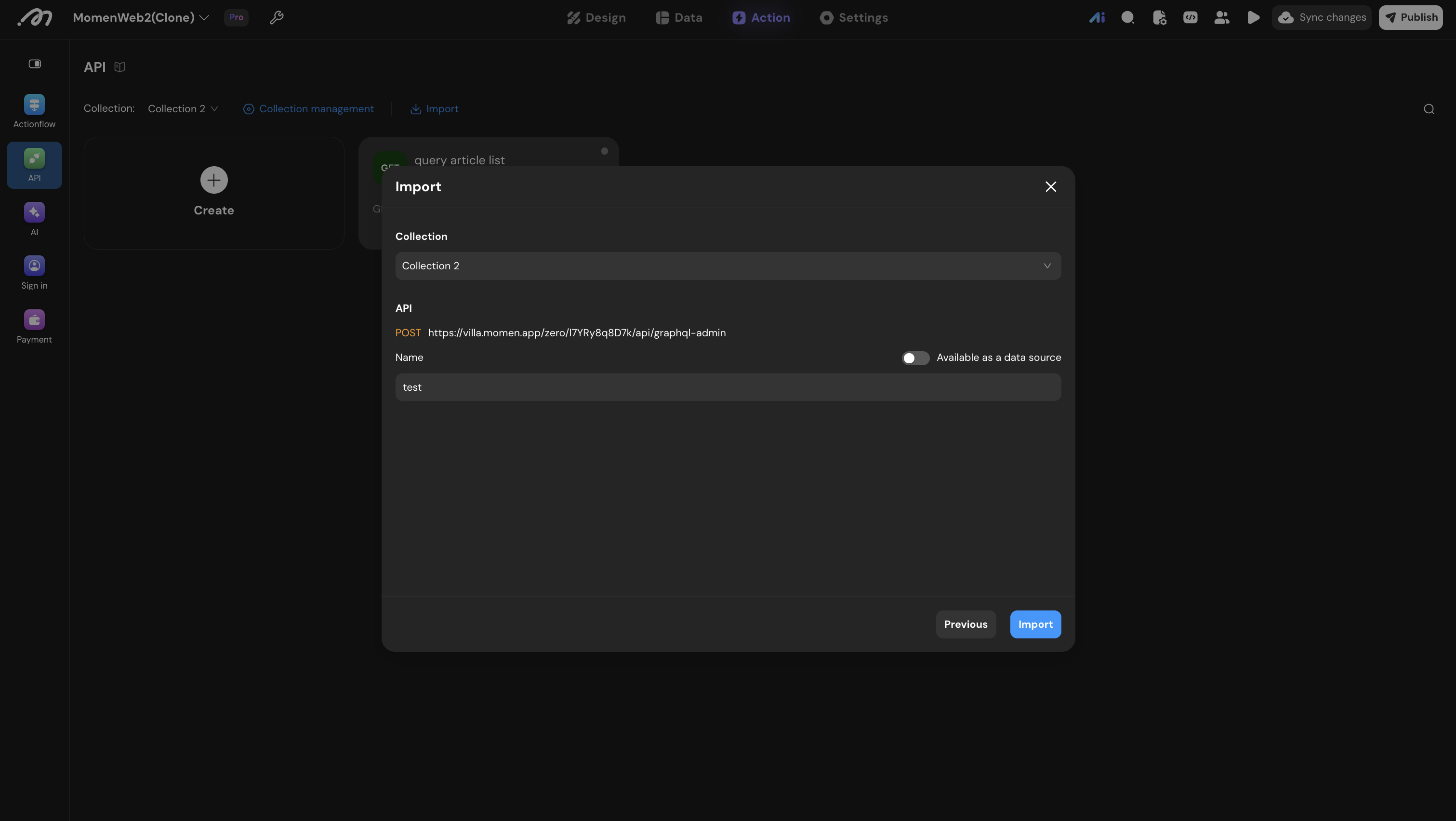
Continue stays disabled only while the command is empty. The editor performs no other local validation; whether the command actually works is decided when the server parses it. When parsing fails, Analyze the error with AI on the error screen takes you to checking your input with AI below.
Options that are read
The importer reads only the options below and ignores everything else:
| Option | Effect |
|---|---|
-X, --request | The request method. When it is absent, a command with a body is treated as POST and everything else as GET |
-H, --header | A request header; may appear several times |
-d, --data, --data-raw, --data-binary, --data-ascii | The request body |
--data-urlencode | A form body; may appear several times, the values are joined with &, and the request is forced to application/x-www-form-urlencoded |
-F, --form | A multipart form field; may appear several times |
--url | The request address, for commands that do not spell the address out directly |
-F and --data-urlencode take whatever follows them as a value of their own, so the request address must not come directly after either of them — it gets swallowed and the import fails with url cannot be null. Put the address before these options, or name it explicitly with --url (curl -F 'a=1' --url https://api.example.com/x). Every other option may go on either side of the address.
Every option outside the table above is silently dropped without affecting the import, for instance -u, --user, -b, --cookie, -L, --location, --compressed, -k, -o, --max-time and --retry. Options whose own value is an address are dropped together with that value and are never mistaken for the request URL, for instance -x http://127.0.0.1:8080, --referer, --resolve, --connect-to and -T.
Basic authentication and cookies therefore never become part of the API configuration; add the corresponding headers by hand after importing when you need them.
cURL constructs that fail the import
| Condition | Why it fails |
|---|---|
| No request address at all | For instance the address was swallowed by a preceding -F, or the command carries nothing but options. The import fails with url cannot be null |
The request method is HEAD or OPTIONS | The importer does not support these two methods |
The value of -X is not a standard method name | Only GET, POST, PUT, PATCH and DELETE are recognized, in any case; a custom verb fails |
A -d body declares another content type | The content-type header may only be application/json, application/x-www-form-urlencoded or multipart/form-data; any other value fails. With a -F body the header is not consulted at all and never fails the import |
| The body is not valid JSON | With no content-type header the body is treated as application/json, so a form-style -d 'grant_type=client_credentials' fails here and needs -H 'content-type: application/x-www-form-urlencoded' added. -d @payload.json fails as well, because the file name itself is taken as the body |
A lone % in a form body | Every key and value of a form body is url-decoded once, so -d 'discount=50%' fails with Incomplete trailing escape (%) pattern. Write it as discount=50%25 |
cURL constructs that lose content without an error
| Condition | Result |
|---|---|
| Several body options at once | The first one present wins, in the order -d, --data-raw, --data-binary, --data-ascii, whatever the written order; with several -d options the first one wins. curl itself joins them with & |
-d together with --data-urlencode | --data-urlencode replaces the -d body entirely |
-d together with -F | Any -F at all makes the -d body disappear |
| The path inside the URL | The path stays fixed in the address and does not become a bindable path parameter, so it has to be changed by hand |
An address that is not http:// or https:// | ftp://a.com/f imports as the address ftp://a.com, and a bare api.example.com imports as the literal null://null. Neither reports an error, but the configuration cannot be called |
| Repeated query parameters | Only the last one survives, and the order of the query parameters may differ from the cURL command |
A -d on GET or DELETE | These two methods carry no body, so the data is dropped |
Repeated -F fields with the same name | Only the last one survives, whereas repeated names inside a URL-encoded body are all kept |
A -F field whose value is JSON | A form field can only be text or a file, so JSON content is kept as a string and never expanded into an object |
A + in a form body | Url-decoding turns + into a space; write %2B to keep the plus sign |
| The response schema | A cURL command carries no response information, so the import only produces the request configuration |
The query parameters, headers and text form fields you get are all optional strings, and the values from the cURL command become their defaults, so adjust the types and the required flags against the provider’s documentation. An upload field such as -F 'file=@/tmp/pic.png' is the exception: it is recognized as an image, a video or a generic file based on the file extension, and it arrives required and unbound, so you have to bind a value after importing.
Headers such as Authorization and Cookie are written into the API configuration together with their values. If any of them holds a real credential, switch it to a Secret after importing and call the API from an Actionflow. A cURL command copied from a browser usually also carries headers that have nothing to do with the endpoint, such as sec-ch-ua and user-agent; remove those as well.
Check your input with AI
Going through the lists above by hand is not practical for a long OpenAPI document or cURL command. Copy the prompt below and send it, together with your OpenAPI file or cURL command, to any AI chat tool. It covers both importers, so it will first work out which one applies and then walk through your input, pointing out what would fail and how to fix it.
Your input will be uploaded to a third-party AI service. Make sure it carries no internal addresses or keys, and replace tokens, cookies and other real credentials with placeholders before you send it.
I am about to import an API definition into a low-code platform. It is either an OpenAPI document
or a cURL command. The platform's importer supports only a subset of each format, and if my input
contains anything it does not support, the import fails without the platform telling me what
actually went wrong.

Please act as this importer. First work out whether I gave you an OpenAPI document or a cURL
command, then walk through my input using only the matching section of rules below, and tell me
whether it can be imported. If it cannot, point out exactly where the problem is and how I should
fix it.

I will attach the OpenAPI file (.json or .yaml), or paste the OpenAPI content or the cURL command
after this message. If I have not provided anything yet, please ask me for it first instead of
guessing.

# Part one: rules that apply to an OpenAPI document

Judge only by this description, not by the official OpenAPI specification.

This importer is not a standard OpenAPI parser; it supports only a subset of the specification.
It walks through paths, then each operation, its parameters, its requestBody and its responses.
There is no error handling anywhere along the way, so a single unsupported construct fails the
whole document and not a single endpoint gets imported.

## Conditions that fail the entire import

If any one of these is present, nothing gets imported. They are listed in the order the importer
executes, so the ones near the top are triggered first:

- The file is not valid JSON or YAML. The platform accepts only the .json and .yaml extensions;
  .yml cannot even be uploaded.
- The document contains a head, options or trace operation, even just one.
- A parameter with "in: query", "in: path" or "in: header" has no schema node. This is common
  with parameters described by "content:", with Swagger 2 style entries such as
  "- name: x, in: query, type: string", and with parameters that are themselves a $ref to
  "#/components/parameters/...".
- Such a parameter has a schema.type other than string, integer, number or boolean.
  Array-typed query parameters (type: array) are by far the most common cause, followed by
  type: object, and by parameters that only declare $ref, allOf, enum or example without a type.
- The document has no info, or info.title is empty. This runs last, so it only surfaces once
  everything before it has passed.
- The document is in fact Swagger 2.0, meaning it contains swagger: "2.0", definitions,
  "in: body", or host/basePath. The importer does not report an unsupported version; it usually
  crashes on a parameter with no schema, or reports success with zero endpoints.

Parameters with "in: cookie" are safely ignored and never cause a failure.

## Limitations that silently drop content without any error

- Request and response bodies only support the application/json,
  application/x-www-form-urlencoded and multipart/form-data content types. For POST, PUT and
  PATCH endpoints, if none of the supported types is present, the endpoint is skipped entirely
  and nothing is reported.
- If one operation declares several supported content types, it is split into several duplicate
  APIs.
- $ref only works in the form "#/components/schemas/XXX". References to external files, to
  "#/definitions/", and to "#/components/responses", "parameters" or "requestBodies" cannot be
  resolved.
- A schema must declare type explicitly or the property is dropped, and type: array must also
  provide items.
- allOf, oneOf and anyOf expand correctly when they hold a single sub-schema, but with two or
  more sub-schemas the whole thing degrades to plain JSON data and the object structure is lost.
- additionalProperties is not expanded, a requestBody on GET or DELETE is ignored, and shared
  parameters declared at the path item level are not merged, so they must be written inside every
  operation.
- securitySchemes and security are not processed at all, and constraints such as enum, nullable,
  pattern and minimum or maximum values are ignored.
- The API name comes from summary rather than operationId; when summary is empty the name is
  assembled as METHOD_path_ContentType.
- A variable inside servers[].url is replaced with the server variable's default. If a variable
  has no default, the url keeps the literal braces and cannot be called after import.
- Only scalar default values are kept. A file field under multipart/form-data is recognised as an
  image or a video only when it declares both type: string and format: binary and its encoding
  contentType names image/* or video/*.

# Part two: rules that apply to a cURL command

Judge only by this description, not by what curl actually does.

The importer never runs the command. It splits it into arguments, takes the request address, the
method, the headers and the body out of it, and builds an API configuration. There is no error
handling here either, so a single unsupported construct means nothing gets imported.

## Only these options are read

- -X and --request set the request method. Without them, a command carrying a body is treated as
  POST and everything else as GET.
- -H and --header are request headers. They may appear several times and each becomes a header
  parameter.
- -d, --data, --data-raw, --data-binary and --data-ascii are the request body.
- --data-urlencode is a form body. It may appear several times, the values are joined with &, and
  the request is forced to be treated as application/x-www-form-urlencoded.
- -F and --form are multipart form fields and may appear several times.
- --url provides the request address for commands that do not spell it out directly.

-F and --data-urlencode take whatever follows them as a value of their own, so the request address
must not come directly after either of them, or it gets swallowed and the import fails with
"url cannot be null". What matters is the option immediately preceding the address, not whether
the address sits at the end of the command: curl -F 'a=1' https://x -F 'b=2' fails just the same.
Putting the address before these options, or naming it with --url, avoids the problem. Every
other option may go on either side of the address.

Every option not listed above is silently dropped without affecting the import, for example
-u, --user, -b, --cookie, -L, --location, --compressed, -k, -o, --max-time and --retry.
Options whose own value is an address are dropped together with that value and are never
mistaken for the request URL, for example -x, --proxy, --referer, --resolve, --connect-to, -T
and --upload-file. Basic authentication and cookies in the command therefore never become part
of the API configuration.

## Conditions that fail the import

- The command has no argument that can serve as the request address at all, and the import fails
  with "url cannot be null". The usual cause is the address being swallowed by a -F or a
  --data-urlencode written in front of it. Note that an address written as ftp://, ws:// or a
  bare api.example.com does NOT fail; it imports as an unusable address and belongs to the third
  group below.
- The request method is HEAD or OPTIONS.
- The value of -X is not one of GET, POST, PUT, PATCH or DELETE, for instance some custom verb.
  Case does not matter; a lowercase post imports fine.
- The command carries a -d body, but its content-type header names something other than
  application/json, application/x-www-form-urlencoded or multipart/form-data. When the command
  contains a -F, that header is not consulted at all and even text/plain does not fail.
- Under application/json the value of -d is not valid JSON. With no content-type header the body
  is treated as application/json, so a form-style -d 'grant_type=client_credentials' fails here
  and needs -H 'content-type: application/x-www-form-urlencoded' added. Reading the body from a
  file with -d @payload.json fails as well, because the file name is taken as the body itself.
- A form body (url-encoded or --data-urlencode) contains a lone percent sign. Every key and value
  is url-decoded once, so -d 'discount=50%' fails with "Incomplete trailing escape (%) pattern"
  and has to be written as discount=50%25.

## Limitations that silently drop content without any error

- When several body options are present, the first one in the order -d, --data-raw,
  --data-binary, --data-ascii wins, whatever the written order; with several -d options the
  first one wins.
- When -d and --data-urlencode are both present, --data-urlencode replaces the -d body entirely.
- Any -F in the command makes the -d body disappear.
- An address written as ftp://, ws:// or without a scheme does not fail, but imports as an
  unusable address: ftp://a.com/f becomes ftp://a.com and api.example.com becomes the literal
  string null://null.
- The path inside the URL stays fixed in the address and never becomes a bindable path parameter.
- Repeated query parameters keep only the last value, and the order of the query parameters may
  change.
- GET and DELETE carry no body, so a -d on either of them is dropped.
- Repeated -F fields with the same name keep only the last one, whereas repeated names inside a
  URL-encoded body are all kept.
- Url-decoding turns a + inside a form body into a space; %2B is needed to keep the plus sign.
- The value of a -F field can only be text or a file. Even a piece of JSON is kept as a string and
  is never expanded into an object.
- Query parameters, headers and text form fields are all generated as optional strings, and the
  values from the command become their defaults.
- A -F field written as name=@path is the exception: it is recognised as an image, a video or a
  generic file based on the file extension, and it arrives required and unbound, so a value has to
  be bound by hand after importing.
- A cURL command carries no response information, so the import produces the request configuration
  only; the response schema has to be obtained by testing the API once after importing.

# What I need from you

Use tables wherever a table works, avoid long paragraphs, skip the pleasantries, and do not add a
closing summary. Keep the whole answer under 25 lines.

1. Verdict. Say whether I gave you an OpenAPI document or a cURL command, then in one sentence
either "the import will fail because ..." or "it will import, but you will lose ...".

2. Must fix. List every place that hits a failing condition from the matching section. Listing only
the first one is not enough, because I would just hit the next failure after fixing it. Use a table
with five columns: location, line, limitation, problem, and how to fix. In the location column use
a path such as paths./users.get.parameters[1] for an OpenAPI document, and a description such as
"the value after -X" for a cURL command; put a dash in the line column when the command is a single
line.

If nothing is hit, say so explicitly. For an OpenAPI document, also work through these possible
causes in order and present them in a table with the suspected cause, your reasoning and how I can
verify it: a wrong file extension, an interrupted upload, a Swagger 2.0 document, or a construct
the description above does not cover.

3. Worth fixing. Pick the silently dropped content from the matching section that genuinely affects
usability, at most five rows, and leave out the trivial ones. Use a table with five columns:
location, limitation, what gets lost, how to fix, and whether it must be fixed.

4. Security note. If my input carries a real credential such as an Authorization header, a Cookie
or an api-key, warn me separately that these values are written into the configuration verbatim and
suggest binding a platform Secret instead. Omit this section when there is none.

# Ground rules

- Judge only by the importer behaviour described above. A document that is fully compliant with
  OpenAPI 3.0, or a curl command that runs fine in a terminal, can still fail completely, for
  instance because the document carries a single head operation or the command has a lone percent
  sign in a form body.
- Do not refer to the limitations by number or code, such as "rule A4" or "the third item". The
  limitation column must state the limitation itself in one sentence I can understand directly.
- Write fluently and clearly, the way a colleague would explain the problem to me, rather than
  listing keywords. Every cell should be a complete, readable sentence; avoid arrows, ellipses
  and abbreviations.
- The "how to fix" column must be something I can act on directly, naming the exact field or option
  and the target value.
- If the command contains a $'...' string, say how long it is and warn me that the construct is
  unreliable in the first place, so it is worth rewriting with plain single quotes whatever its
  length. Do not quote a precise character threshold; there is none.
- If something simply cannot be expressed in this importer, such as an array-typed query parameter,
  say plainly that it has to be added by hand in the platform after importing. Never invent a
  workaround that changes what the API does.
- Answer in English.
Use an API
A configured API can be used in four places. In every one of them you only bind values for the API’s inputs and never deal with the request itself.
Use it as a data source
An API with Available as a data source turned on can back a page, a list, or a similar component. After selecting the API, configure:
- List field: the array field in the response schema that holds the list data. Pick the response status first, then drill down to the field.
- Id field: the field on an array element that identifies a row uniquely.
- The display field: which field a picker-style component shows.
- Required parameters: bind a value to each of the API’s inputs. Inputs that carry a default value are marked.
If the API has pagination enabled, the list can turn on Load more and set a Page size. System Page Index and System Page Size are then supplied by the list automatically and no longer appear among the inputs you bind by hand. Load more cannot be turned on for an API without pagination.
Call it from a frontend action
To call an API from a page or a component:
- Add Call API to a trigger.
- Select the API and bind values to its inputs.
- Read the response under On success through
Context → Action result. - Show an error message or run other error handling under On failure.
Fixed values in headers and parameters ship with the frontend code when an API is called from the client. Route endpoints that need credentials through an Actionflow instead.
Call it from an Actionflow
Add an API node to an Actionflow, select the API, and bind its inputs. Later nodes read the node’s result per response status; the failure branch can log the error, retry, or run compensating logic.
An API node allows up to 60 seconds from issuing the request to receiving the complete response. For the other timeout rules, see Build Actionflows.
Use it as an AI Agent tool
Add the API as a tool on an AI Agent and give the tool a clear name and purpose. The tool configuration has two parts:
- Inputs: describe each input so the model can work out what to pass.
- Outputs: describe what comes back for each response status, so the model knows what a status means and which fields it can read.
The model decides on its own whether to call the tool. For business steps that must run — creating an order, writing data — do not rely on the model choosing a tool: put the fixed steps into an Actionflow and expose that Actionflow as the tool. See Build AI Agents.
Troubleshooting
- The test succeeds but the call fails: check that the API is published, that the input types bound by the caller still match the configuration, and that every required input has a value.
- A response field cannot be bound: make sure the field exists in that response status’s body schema. Run the test again and use Apply to response to merge or override the schema of the matching status.
- The result lands in Fallback: the real status code matched no custom status. Review the status codes and use wildcards such as
2xxor4xxto cover a whole range. - Callers break after a response schema change: check whether a page, an Actionflow, or an AI Agent still references a field that was deleted or retyped.
- A list cannot turn on Load more: confirm that pagination is enabled under Settings and that System Page Index and System Page Size are bound to the endpoint’s own pagination parameters.
- Media or JSON fields fail to parse: confirm the field’s real content matches the encoder or decoder you selected.
- The request times out: confirm the provider returns a complete response within the limit. Long-running work should use the provider’s asynchronous endpoint and be collected later through a follow-up query or a webhook.
- The provider received
null, or the address contains/null: the bound value wasnullat runtime. Required inputs are not enforced at runtime — see the null-value rules under Define the request.