Project Collaboration
This guide covers bringing other developers into a project. Project roles control whether a developer can edit or manage the project; they are not the roles you assign to your app’s end users — for those, see Manage app permissions.
Invite collaborators
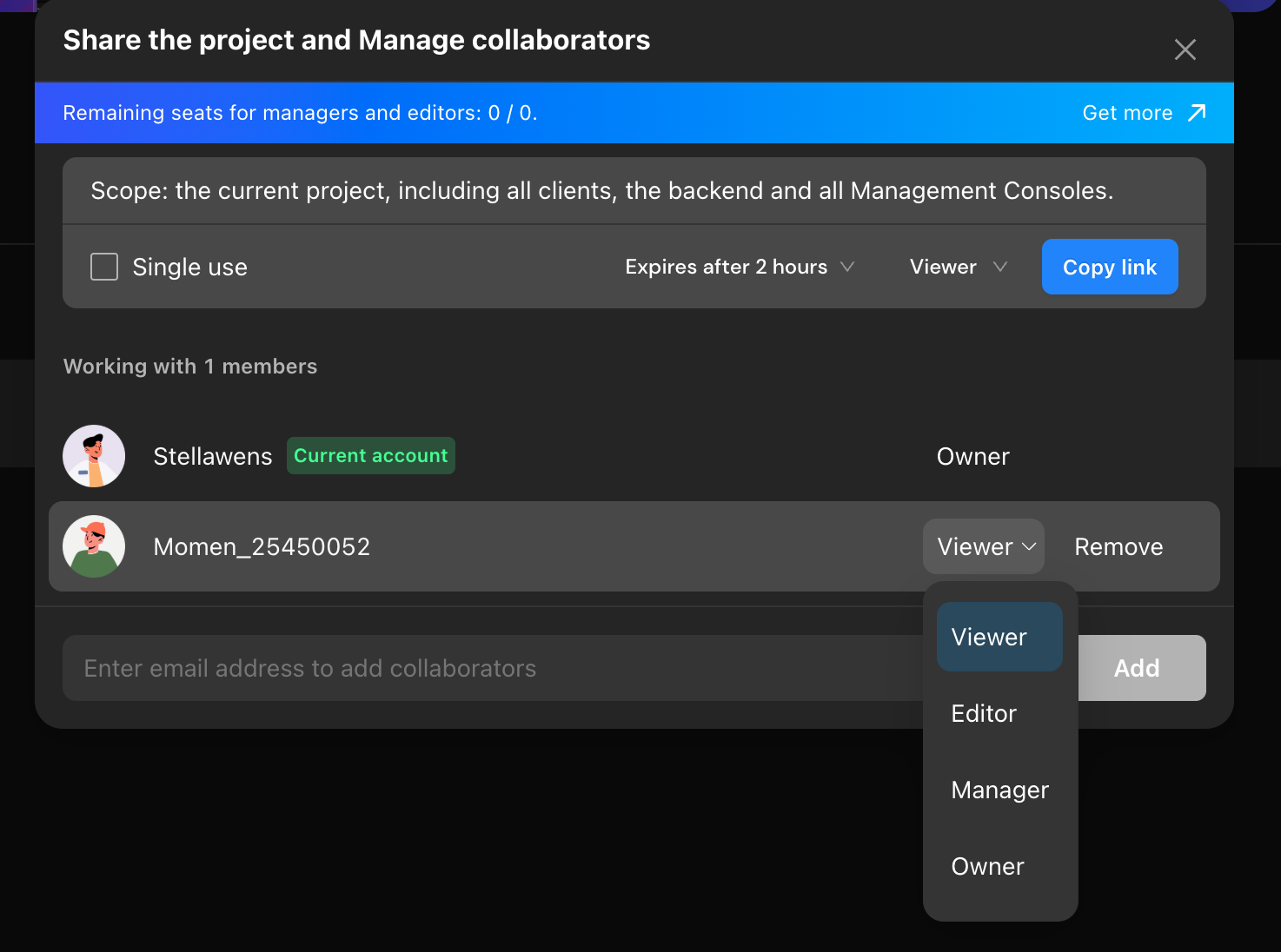
Open collaborator management from either location:
- Select Invite Collaborators in the upper-right corner of the editor.
- In the User Center, select a project and open Manage Project → Manage Collaborators.
Invite collaborators by sharing an invitation link or entering their email addresses. Assign a project role to each collaborator after inviting them.
Assign project roles
| Role | Edit project | Manage collaborators | Other permissions |
|---|---|---|---|
| Owner | Yes | Yes | Transfer, reset, and delete the project |
| Administrator | Yes | Yes | Clone the project |
| Editor | Yes | No | — |
| Viewer | No | No | View the project |
Collaborator limits
| Plan | Maximum editable collaborators |
|---|---|
| Free | 0 |
| Basic | 1 |
| Pro | 10 |
| Enterprise | Custom |
Transfer a project
Transferring a project moves ownership and management rights to another user. The recipient must already be a project collaborator.
Discounted projects, including Education editions, cannot be transferred.
After the transfer, the two users exchange project roles. For example, when a project is transferred to a Viewer, the recipient becomes the Owner and the previous Owner becomes a Viewer.
- Open collaborator management from any of these locations:
- Right-click the project in the User Center and select Share the project and Manage collaborators.
- In the User Center, select Manage → Collaborators Management.
- Open the project and select Invite Collaborators in the upper-right corner.
- Add the recipient as a collaborator.
- Change the recipient’s project role to Owner.
- Enter the confirmation information requested by the transfer dialog and submit.