Project Management
This guide covers creating and maintaining a project. To bring other developers in, see Project Collaboration.
Create a project
Create a project in any of these ways:
- Create a blank project to start without existing project configuration.
- Start from a template to use the template’s pages, data, and action configuration as the initial project content.
- Clone an existing project to create a new project from an existing one.
Projects created from templates include a three-day trial of Basic or Pro features.
Project creation is rate limited per organization on rolling windows: at most 10 in any 24 hours, 20 in any 7 days, and 30 in any 30 days. Blank, template-based, and cloned projects all count toward this quota, and deleting a project does not release quota it has already used. A project stops counting toward the quota once it is on a paid plan.
To clone a project, right-click it in the User Center and select Clone project. Before creating the copy, choose whether to copy project data:
| Option | Result |
|---|---|
| Copy project data | Also copies database records; uses database storage in the new project and takes longer |
| Do not copy project data | Copies project configuration without database records |
Select Create to finish cloning the project.
Reset a project
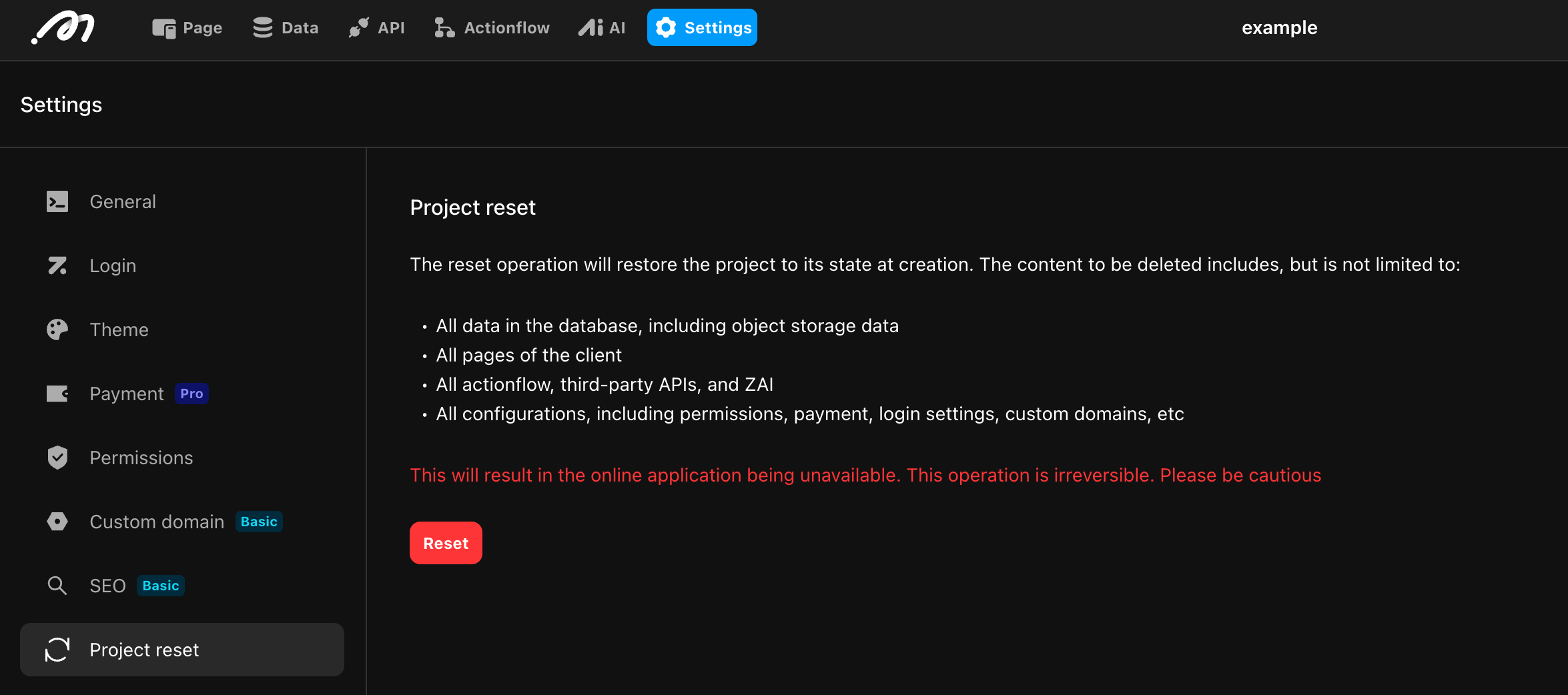
Resetting restores the project to the state in which it was created. A project created from a template returns to the template’s initial state.
A reset cannot be undone. It deletes database records, stored files, frontend pages, data models, permissions, APIs, Actionflows, AI Agents, and other project configuration.
- Open the project and go to Settings → Project Reset.
- Review the deletion scope and enter the requested confirmation text.
- Select Confirm reset.
Project hibernation and automatic deletion
An unpublished Free project automatically hibernates after seven consecutive days without editor access or changes. Hibernation does not delete project content. Reopen the project to reactivate it.
An unpublished Free project is automatically deleted after six consecutive months without editor access or changes. Automatic deletion cannot be undone.
The project Owner can also delete a project manually from the User Center. Manual deletion takes effect immediately, cannot be undone, and cancels the project subscription.