Publish a Web App
Once published, a web app is opened in the browser at its production URL.
Create a preview
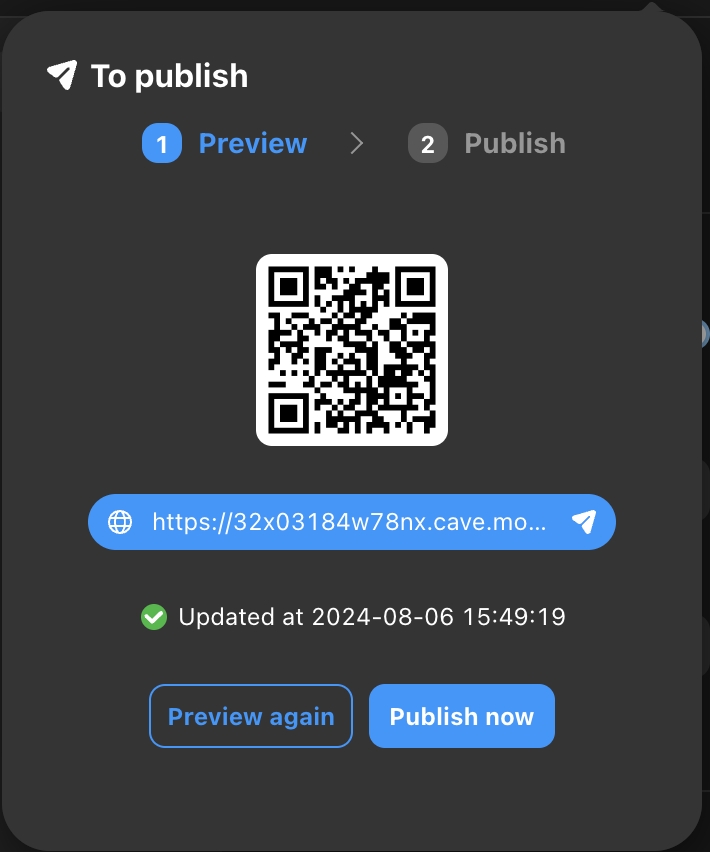
In the web app editor, open the publish panel and click preview. Momen packages the current web app and generates a test link and QR code. Each time you change pages afterwards, click Preview again to build a new test version.
Verify the preview
Use the test link to check pages, responsive layouts, sign-in, permissions, data requests, and interactions. If the backend changed too, check that page bindings match the latest Actionflow outputs.
Publish
After verifying the preview, click Go to publish, then click Publish and confirm. When publishing completes, check the home page, sign-in, and the main user flows again at the production URL.
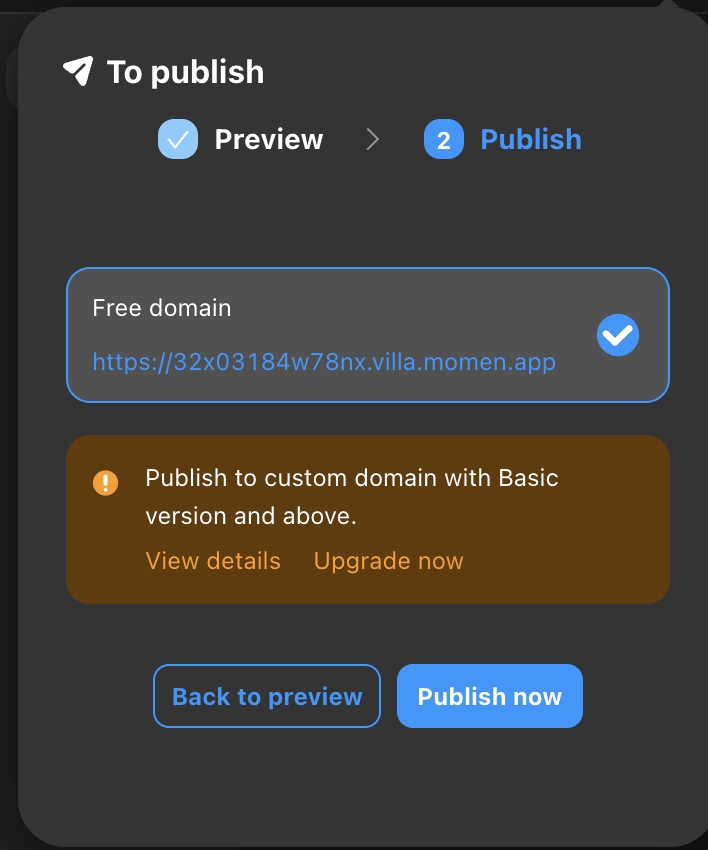
Free projects can create previews but cannot publish to production.
Set up a domain and SEO (optional)
The production URL uses the platform’s domain by default. To use your own domain, see Use a Custom Domain; to set search metadata, see SEO for web apps.
A web frontend built in your own codebase can also be hosted on Momen: after installing the Momen Plugin, the AI deploys a preview first and deploys to production once you have checked it. A production deploy asks you to type the project ID into a confirmation dialog, and Free projects cannot deploy to production. Sync backend changes before deploying. See Headless · Momen BaaS.