Configure Conditional Data
Show different values by context — e.g. “Welcome back” when logged in vs “Please sign in” when not.
Conditional data attaches multiple branches to a property binding. The runtime evaluates branches top to bottom and outputs the first match.
Matching rules
- Top to bottom — evaluate from the first branch downward
- First match wins — when a branch is
true, output its value and stop - Use an Always fallback — we recommend ending with Always (like
else) so the binding has a default value when no condition matches - No match evaluates to
null— when no branch matches, the binding returnsnull
When no branch matches
The property takes an empty value. Nothing throws and the previous value is not kept, so a text bound to conditional data goes blank and an image stops rendering.
A data-source filter never hits this case: its branch list ends with the Default branch, whose condition always holds, so one filter always applies. Keep the Default branch last — moving it up short-circuits every branch below it.
For the full picture, see Empty Values.
Configuration
Example: welcome text by login state.
Enable conditional data
- Select the component (e.g. Text).
- Next to the property (e.g. Content), open Conditional data.
- The branch panel appears in the right sidebar.
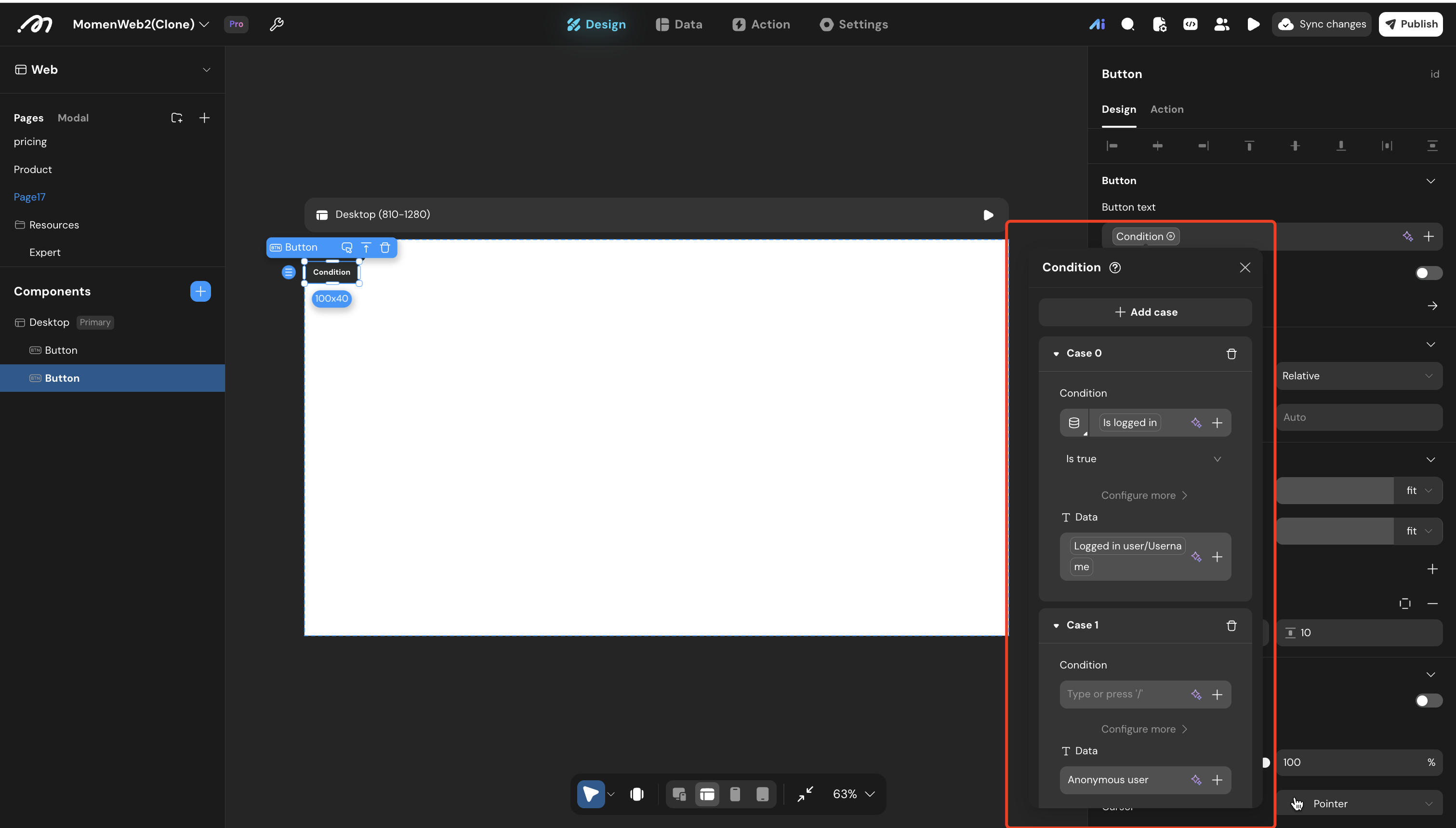
Add branches
- Add branch — e.g.
Logged in - Condition: Is logged in (environment constant) =
true - Value:
"Welcome back!"
Always branch
- Add Always at the bottom
- Value:
"Please sign in to continue."
Preview
Open preview with different login states and confirm the text switches correctly.
Branch order: Put the most specific conditions first. If “default user” is above “gold member”, gold members may match the wrong branch.
Null values: When no branch matches, the null is passed on as-is — an API input, a request body field, or an Actionflow input bound to that value receives null.
Related rules: null values in data-source filters are covered in Query and Bind Data; null values in API request parameters in Integrate APIs; null values in Actionflow inputs in Build Actionflows.