Build AI Agents
An AI Agent is a reusable AI capability in Momen. It accepts data from a page, an Actionflow, or the Runtime API; combines that data with prompts, contexts, and tools; and returns plain text or structured data, plus images from models that generate them.
For a one-off task, start a conversation and use the result. For an ongoing conversation, keep the conversation ID and use it to continue the conversation, stop a response, or delete the conversation.
Use cases
- Generate, rewrite, summarize, or classify content from user input.
- Answer questions using project data, such as in a knowledge assistant or customer-support experience.
- Let a model call APIs, Actionflows, or other Agents when needed.
- Return a fixed data structure for conditions, database operations, or UI binding.
- Generate or process images, video, and other media.
Build an Agent
Create an Agent
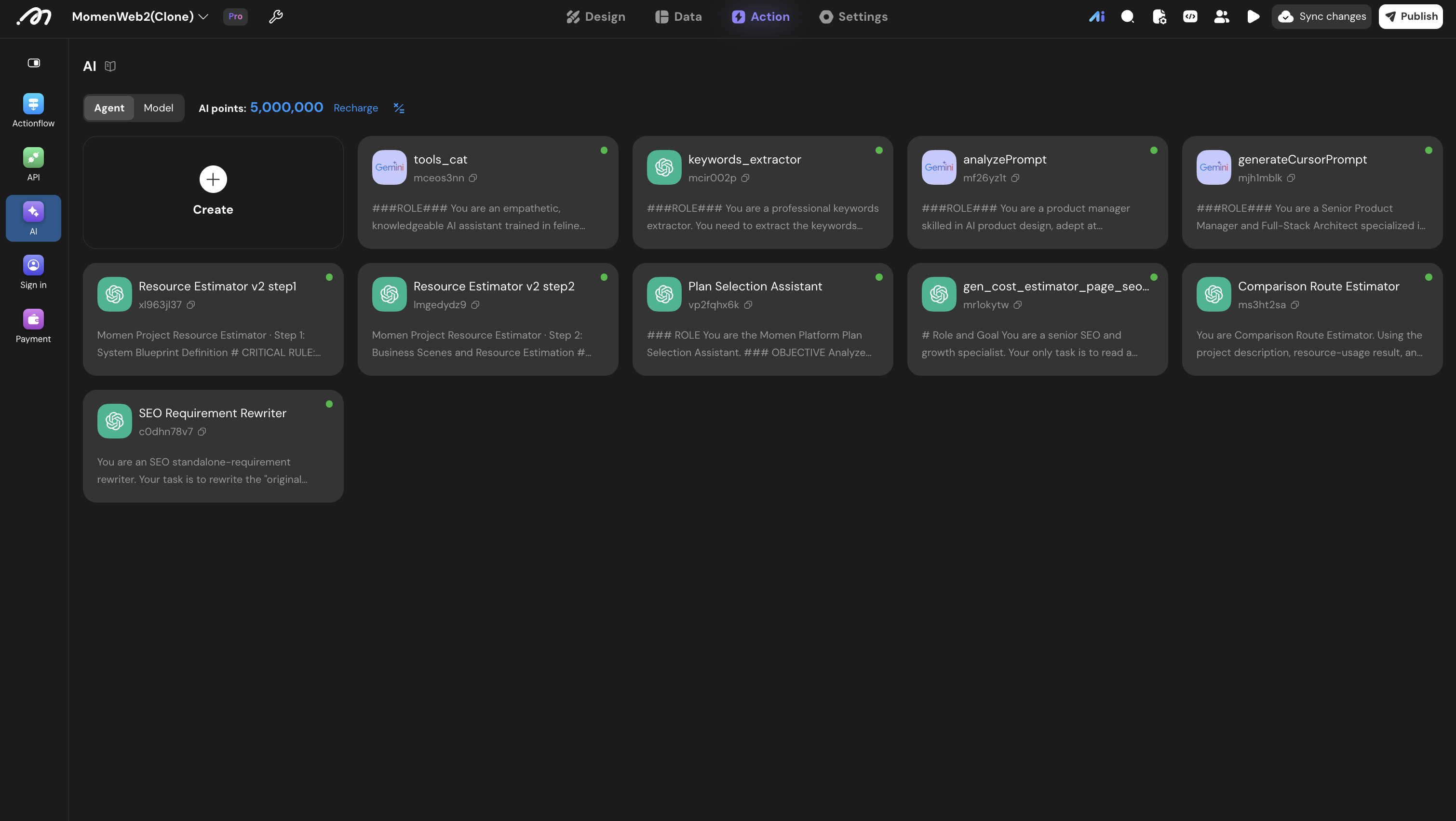
Open Action → AI → Agent, click Create, and give the Agent a descriptive name.
When you create the first Agent, Momen automatically creates the conversation, message, message_content, and tool_usage_record tables for runtime data. See Runtime data.
Choose a model and tune its settings
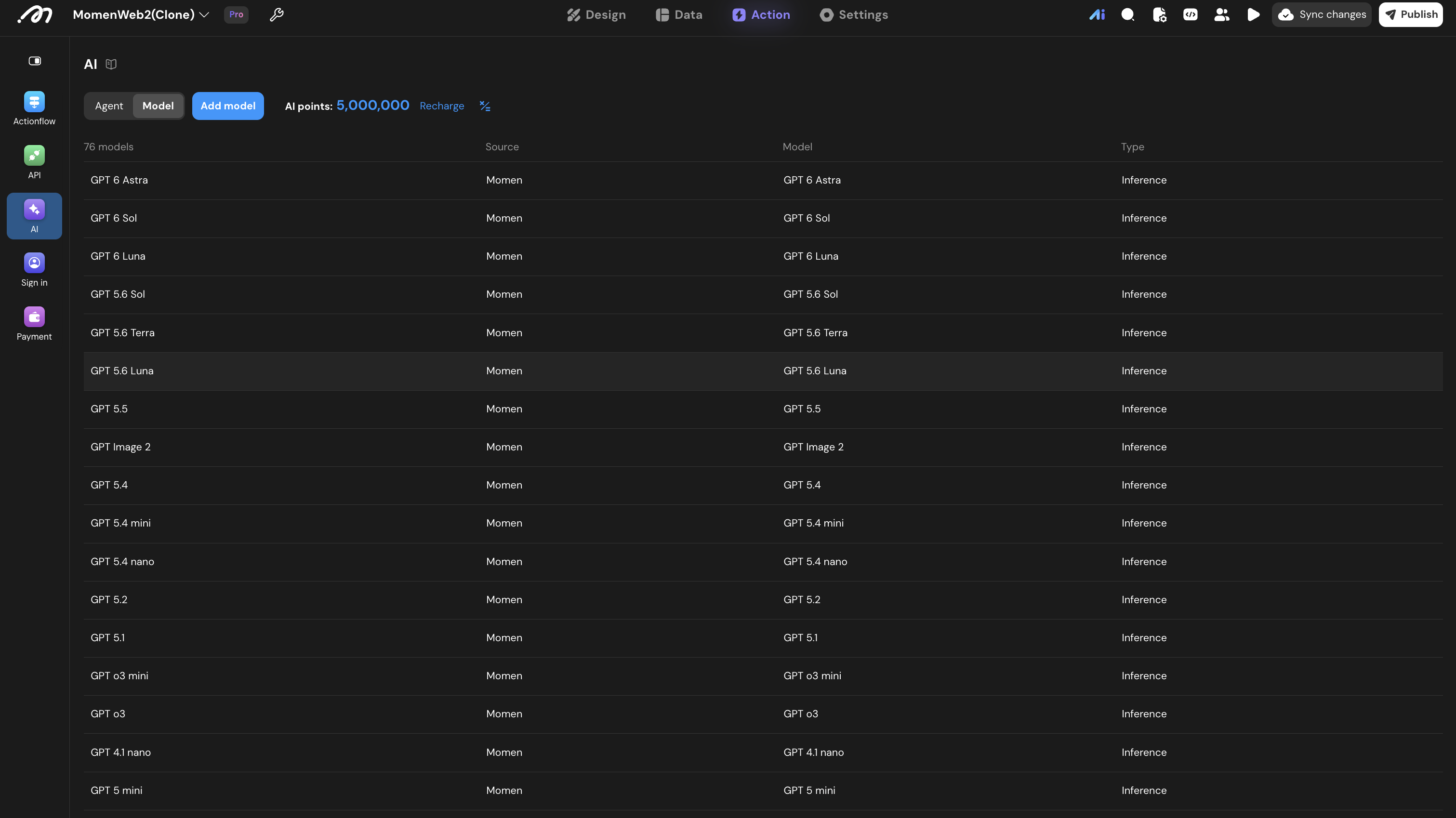
Choose a model that supports the capabilities your task needs. Support for multimodal input, streaming, structured output, reasoning content, and tools varies by model. The editor shows the settings available for the selected model.
Common settings include:
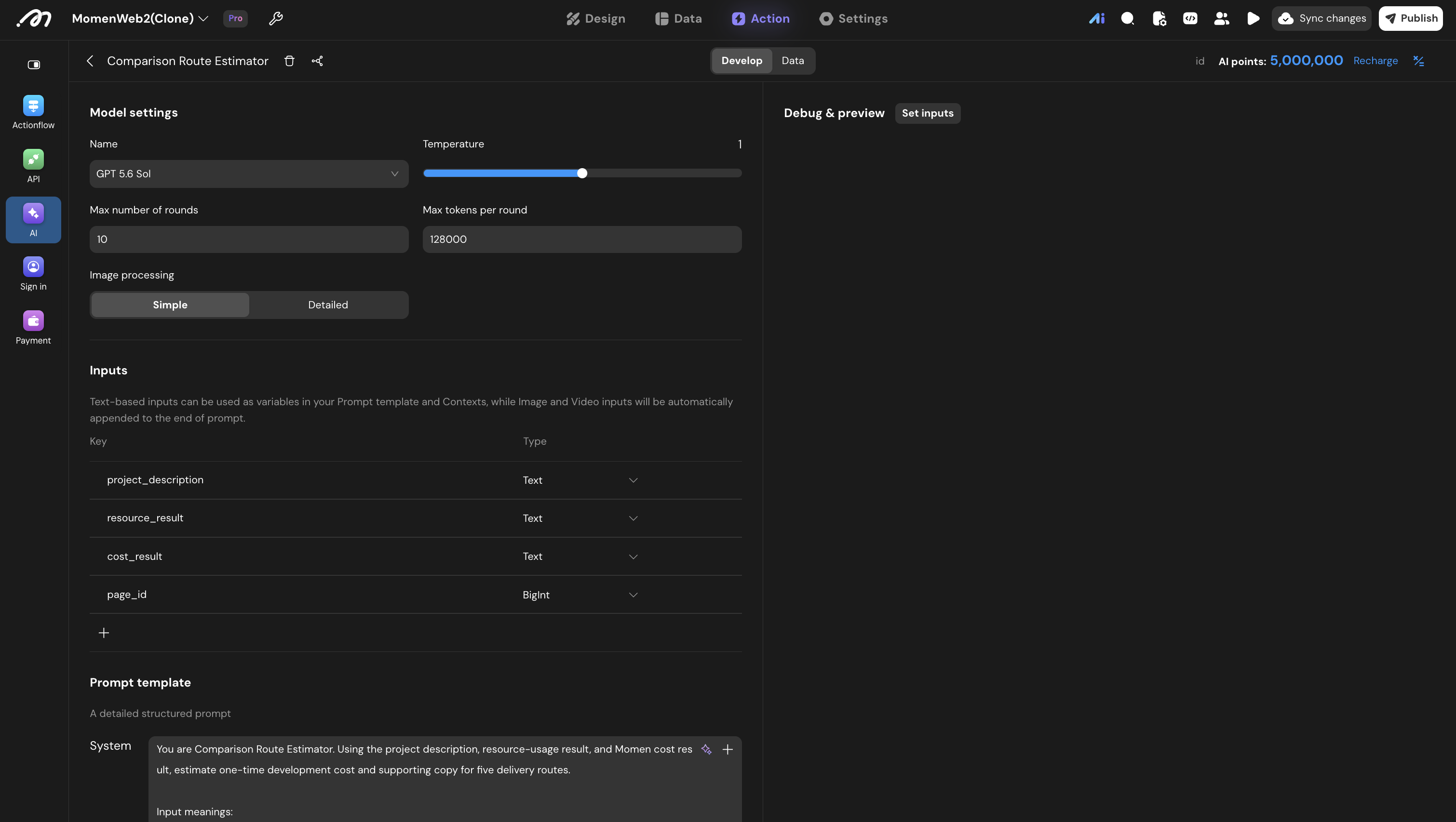
- Temperature: Higher values generally produce more varied output. Use a lower value when results need to be stable and repeatable.
- Max number of rounds: Limits the number of rounds in one conversation.
- Max tokens per round: Limits a single response. Reaching the limit may produce an incomplete result or fail the round.
- Image processing: Choose Simple or Detailed when the model accepts images. Detailed processing usually consumes more tokens.
Conversation history is included in later turns. More rounds and longer messages generally increase context size and AI points usage.
Define inputs
Inputs define the dynamic values supplied each time the Agent runs, such as a user question, article content, record ID, or image. Input types include text, number, date, time, datetime, boolean, image, image array, video, and file.
- Text, numbers, and similar inputs can be referenced in prompts and contexts.
- Image and video inputs are appended to the prompt automatically and cannot be inserted as variables in the prompt text.
- If an input name or type is already used by a page, Actionflow, or Runtime API client, update every caller before changing it.
Use inputs only for values that change between calls. Put fixed roles, rules, and output requirements in the System prompt.
Write prompts
In the Prompt template card:
- System: Define the Agent’s role, objective, business rules, constraints, and output requirements.
- User: Define the first user message sent when a conversation starts. Some models require this field.
State the task, available information, prohibited operations, and expected result clearly. Bind configured inputs from the data-binding panel instead of typing variable paths manually.
Add contexts
Contexts retrieve data related to the current request and send it to the model with the prompts. A context can use the Momen database or an API as its data source.
Confirm the following when configuring a context:
- Which value is used for retrieval.
- Which data source and fields are searched.
- How many results are returned.
- Whether permissions and filters limit what the current user can access.
Since August 2025, new file-upload contexts are no longer supported. Existing file contexts continue to work. To use file content, preprocess it into the Momen database or retrieve it through an API backed by a third-party RAG service.
For vector storage and semantic search, see Vector data.
Add tools
An Agent can use the following as tools:
- Actionflows
- APIs
- Other Agents
The model decides whether to call a tool and what arguments to pass based on the conversation and the tool description. Give each tool a clear name and description that explains its purpose, when to use it, its inputs, and its result. Avoid tools with overlapping responsibilities.
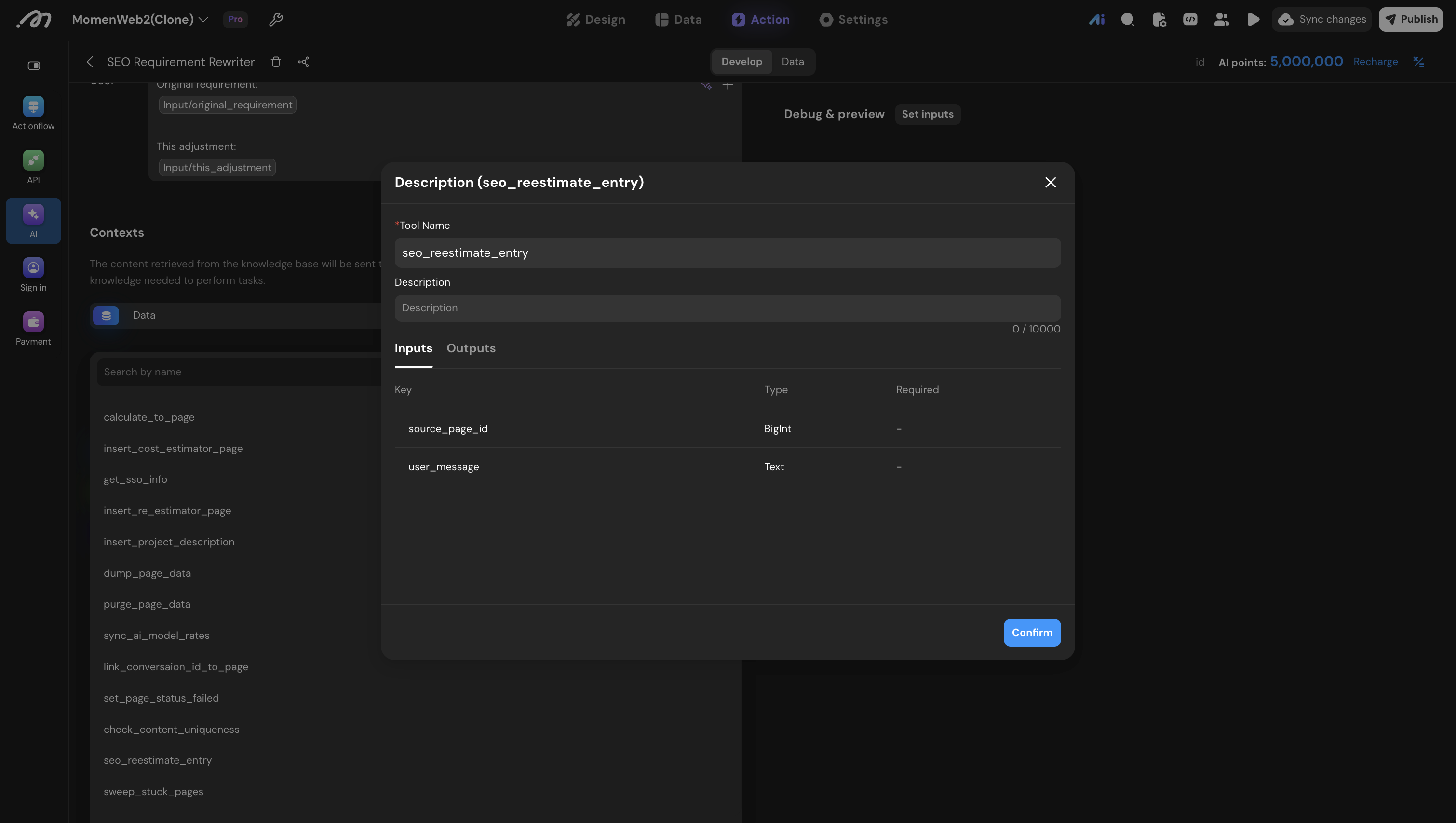
Tools can modify data, call external services, or produce other side effects. For operations such as creating an order or sending a notification, enforce permissions, validate inputs, and implement idempotency in the underlying Actionflow or API. Do not rely on the prompt as a security boundary.
Choose an output format
Choose an output type based on how the result will be used:
- Plain text: Best for natural-language content displayed directly to users. Streaming can be enabled.
- Structured: Returns the configured fields for data binding, conditions, or database operations. Use stable field names and add a precise description for each field.
Not every model supports structured output; when the selected model does not, the Structured option is unavailable. After changing models, review the output format and test the Agent again.
While content is streaming, it can be displayed on a page but cannot be used as data by later operations. After the Agent finishes, the complete result is available to subsequent steps.
Test the Agent
Debugging requires the backend to be deployed first. In Debug & preview, click Set inputs to provide test values, then click Start conversation to run the Agent. You can keep sending messages from the chat box afterward. Verify that:
- Inputs are referenced correctly in the prompts.
- Contexts retrieve the expected data.
- The model calls the right tools with valid arguments, and the tool responses are correct.
- The result matches the selected plain-text or structured-output format.
- When the Agent references the current user, Run as user appears in the debug panel; select the user to run as.
Test normal input, empty or boundary input, and failures such as an unavailable tool. For structured output, also check for missing fields and inconsistent types.
Publish the Agent
Agent changes are saved automatically but must be published before they take effect at runtime. Both Preview again and Sync changes publish the latest Agent, Actionflow, API, and other backend changes. Preview again also refreshes the frontend preview.
Publishing an Agent affects live apps immediately. When changing inputs, outputs, models, prompts, or tools, check that published pages, Actionflows, and Runtime API clients remain compatible.
Use an Agent
You can use an Agent from a page, an Actionflow, or the Runtime API. The entry point differs, but conversation and result handling work the same way.
| Operation | Purpose | Key settings |
|---|---|---|
| Start conversation | Create a conversation and run the Agent | Agent and Agent inputs |
| Continue conversation | Send another message in an existing conversation | Agent, conversation ID, and text or media content |
| Stop response | Stop the response currently being generated | Agent and conversation ID |
| Delete conversation | Delete a conversation and its related messages | Agent and conversation ID |
- Page or component: Add the corresponding action from AI under a trigger. These actions support On success and On failure branches, and every action except Stop response has a Loading animation switch that controls the default loading state.
- Actionflow: Add the corresponding node from Run AI and combine it with database, API, condition, or For each nodes. An Actionflow that contains an AI Agent node must use asynchronous execution. See Build Actionflows.
- Runtime API: Start conversations, listen for results, and manage messages in code. See Runtime API Reference — AI Agents.
One-off tasks
For tasks such as summarization, classification, or single-response generation:
- Add a Start conversation action or node.
- Select the Agent and bind caller data to its inputs.
- After the Agent completes, use its result in subsequent actions or nodes.
- Add an appropriate error message, retry, or other failure handling for the calling environment.
Plain-text output returns text. Structured output exposes the configured fields for later data binding. For image-generation models, use the image data returned by the operation to display or store the result.
Multi-turn conversations
Keep using the same conversation ID throughout a multi-turn conversation:
- Use Start conversation and store the returned conversation ID.
- For later messages, use Continue conversation with the stored ID.
- Use Stop response when the current generation needs to be interrupted.
- Use Delete conversation when the conversation no longer needs to be retained.
Do not start a new conversation for each follow-up message. Doing so creates a different conversation without the previous context.
Display streaming output on a page
When the Agent uses plain-text output with Streaming output turned on, Start conversation and Continue conversation on a page or component show Assign streamed result to variable. Select a text page variable, then bind that variable to a text component. When the model supports reasoning, Assign streamed thought process to variable displays the reasoning as it is generated. The variable updates while the response is generated. Use the final result from On success when the complete content needs to be stored or processed further.
Streaming is not available in Actionflow AI nodes or for Agents with structured output.
How AI-generated images are stored
Images returned by an Agent or AI node are saved to the project’s object storage and handed back as an image ID. Before they are stored, the platform decides whether to burn in a watermark based on whether the project has ever bought a paid plan or an AI points resource pack — see Upgrade the plan.
Applying the watermark re-encodes the image, so the stored format can differ from the one the model returned:
| Returned by the model | Stored as |
|---|---|
image/png | image/png |
image/jpeg, image/jpg | image/jpeg |
image/webp | image/png |
Transparency is flattened to white when an image is stored as image/jpeg. Read the returned mime_type to find the real format rather than assuming it matches what you asked for.
When no watermark applies, the image is stored byte-for-byte as returned. If watermarking fails, the original is stored instead, and the image is still returned normally.
Models and billing
Models
Momen provides system models and supports Bring Your Own Model (BYOM) on paid projects. When adding a model, choose its type, source, and model, and enter the API key issued by the provider; a self-hosted model instead needs a server URL, an authentication header, and the corresponding model name. Verify the details, save them, and publish before use.
Model capabilities vary. Use the capability indicators and settings shown in the editor instead of assuming that a model supports images, video, structured output, or tools based on its name alone.
Billing rules
Model calls and vector features consume AI points. When the balance is insufficient, Agent calls, vectorization, or vector search fail without returning a result. Check balances and usage in project details. For plan quotas and resource packs, see Manage Project Resources.
Billing is measured in AI points. Each model’s rates are listed in its billing note in the editor, in the form “1 token = N points”; models billed per image show “1 image = N points” instead. Bring Your Own Model (BYOM) is settled through your own provider account and consumes no AI points, but it cannot be called once the project has run out of AI points.
Models differ in which items apply; a model’s billing note lists only the ones it actually uses:
| Billing item | What it covers |
|---|---|
| Input | Everything sent to the model: the system prompt, retrieved context, conversation history, and this turn’s user message |
| Output | What the model generates. Reasoning content, tool-call arguments, and structured-output JSON all count as output |
| Input · Cache read | The portion served from the prompt cache, priced well below input — see Prompt caching |
| Input · Cache write (5 min TTL) / (1 hr TTL) | Content written to the cache, priced above input. The time is how long the cache lives after the write, extended whenever it is hit again; the 1-hour tier keeps content longer and costs more |
| Input · Long context, Extra-long context | Some models tier their rates by the input length of a single request, charging more as it grows; some also tier their output rates the same way (Output · Long context, Extra-long context). The thresholds vary by model — Qwen3 max breaks at 32K and 128K tokens, Qwen3.5 plus at 128K and 256K |
| Input · Long context cache read, Long context cache write, Extra-long context cache read | The cache rates that apply within the long-context tier |
| Input · Image, Audio, Video | Multimodal input, converted to tokens by the model and then charged at its own rate. How many tokens an image costs also depends on the Agent’s image processing mode — the finer mode costs more |
| Input · Image cache read, Audio cache read | The rate for multimodal input served from cache |
| Output · Image, Audio, Video | Multimodal output, each at its own rate. Image models are usually billed per image, so one generation costs one image |
| Output · With media input | The output rate a few omni models (Qwen3 Omni Flash, for one) apply when the input includes images, audio, or video |
| Output · Image 1K, 2K | The per-image rate when one image model tiers its output by resolution (Qwen Image 3.0 Pro, for one). Other image models ship each resolution as its own entry in the model list |
| Input · Off-peak, Off-peak cache read, Output · Off-peak | A few models price by time of day; a lower rate applies outside peak hours, selected automatically from the time of the call. DeepSeek V4.1 Flash, for one, peaks from 8:00–22:00 Beijing time and halves its rates the rest of the day |
Prompt caching
Prompt caching is an optimization offered by model providers: content that repeats across requests is served from cache instead of being processed again, which can cut cost substantially and reduce latency.
Every Agent call includes a large amount of unchanging content: the system prompt, retrieved context, and the conversation history up to this turn. When a request opens with the same content as the previous one, that portion is billed at the cached rate, typically well below the input rate; the remainder is billed at the input rate and written to the cache for subsequent calls.
Caching rules and configuration options differ by provider. Momen does not currently offer any caching settings and relies entirely on each provider’s default behavior, so whether a call hits the cache depends on the model it uses:
| Model | Caching rules | Is writing to the cache billed | What that means in Momen |
|---|---|---|---|
| GPT-5.5 and earlier | Automatic; nothing needs to be declared in the request | No | Identical opening content hits the cache automatically |
| GPT-5.6 models and GPT-6 | Automatic | Yes — newly written content is billed at roughly 1.25× the input rate | |
| Gemini models | Implicit caching, on by default | No | Identical opening content hits the cache automatically |
| Qwen, DeepSeek, GLM, and similar | Depends on the model; some offer caching | A few models bill for it | Models that offer caching hit it automatically |
| Claude models | The request must mark each section to cache before the provider writes anything to the cache | Yes — newly cached content is billed at roughly 1.25× the input rate (5-minute lifetime) or 2× (1-hour lifetime) | Momen’s requests carry no such markers, so nothing is written to or read from the cache. |
Runtime data
Creating an Agent automatically creates these system tables:
| Table | What it records |
|---|---|
conversation | Initiating user, Agent settings, model, status, and error information |
message | system, user, and assistant messages in a conversation, plus token and AI points usage |
message_content | Text, image, video, PDF, audio, JSON, reasoning content, or error information in a message |
tool_usage_record | Tool name and type, request, response, and related message |
Use these tables to query conversation status, display history, and troubleshoot runs. Rows cannot be added to these system tables manually; Momen writes the corresponding records when Agent operations run.
Common issues
- The Agent works in Debug but fails when called: Check that the Agent is published, bound input types still match its inputs, the selected model is available, and the project has enough AI points. If the Agent uses tools, verify that each Actionflow, API, or Agent is published and receives valid arguments.
- Structured output is missing fields or changes shape: Give every output field a clear name and description, list required fields in the system prompt, remove conflicting format instructions, and confirm that the selected model supports structured output.
- The selected model has been retired: When a retired system model has a designated replacement, the Agent switches to it automatically; test the Agent again to confirm the results. When there is no replacement, an Agent using the retired model cannot be tested or published, and live calls fail. Switch to an available model, review capability differences, test the Agent, and publish it again.
- The concurrency limit is exceeded: Free and trial projects can run one AI Agent request at a time. While one is still running, any new Start conversation or Continue conversation fails immediately with a concurrency-limit error (code 429).
- A tool is not called or the wrong tool is selected: Clarify tool names and descriptions, make sure required arguments are available from the conversation, and remove overlapping responsibilities. The model decides whether to call a tool; put mandatory business steps in an Actionflow instead of relying on model choice.