Use the Design Theme
A theme is where the colors, fonts, radii, spacing and shadows your project keeps reusing live, each as a theme variable. Instead of typing a value into a component in the Design Panel, you reference a variable. When you want a change, you change the variable once on the Theme page and every place that uses it follows.
This guide walks you through building a theme from scratch: generate a full set of palettes from your brand color, add your own color, font and size variables, then put them to use on components.
Themes are configured per client: a web app and a mobile app each have their own set of variables. See Build Multi-Client Apps for switching between clients.
Get to know the Theme page
Open Settings → Theme in the top navigation. The page has two tabs:
| Tab | Category | Contents |
|---|---|---|
| Variable | Color | Palettes, color variables |
| Variable | Typography | Font family, font size, font weight |
| Variable | Design token | Radius, spacing, shadow |
| System style | — | Scrollbar (web apps only) |
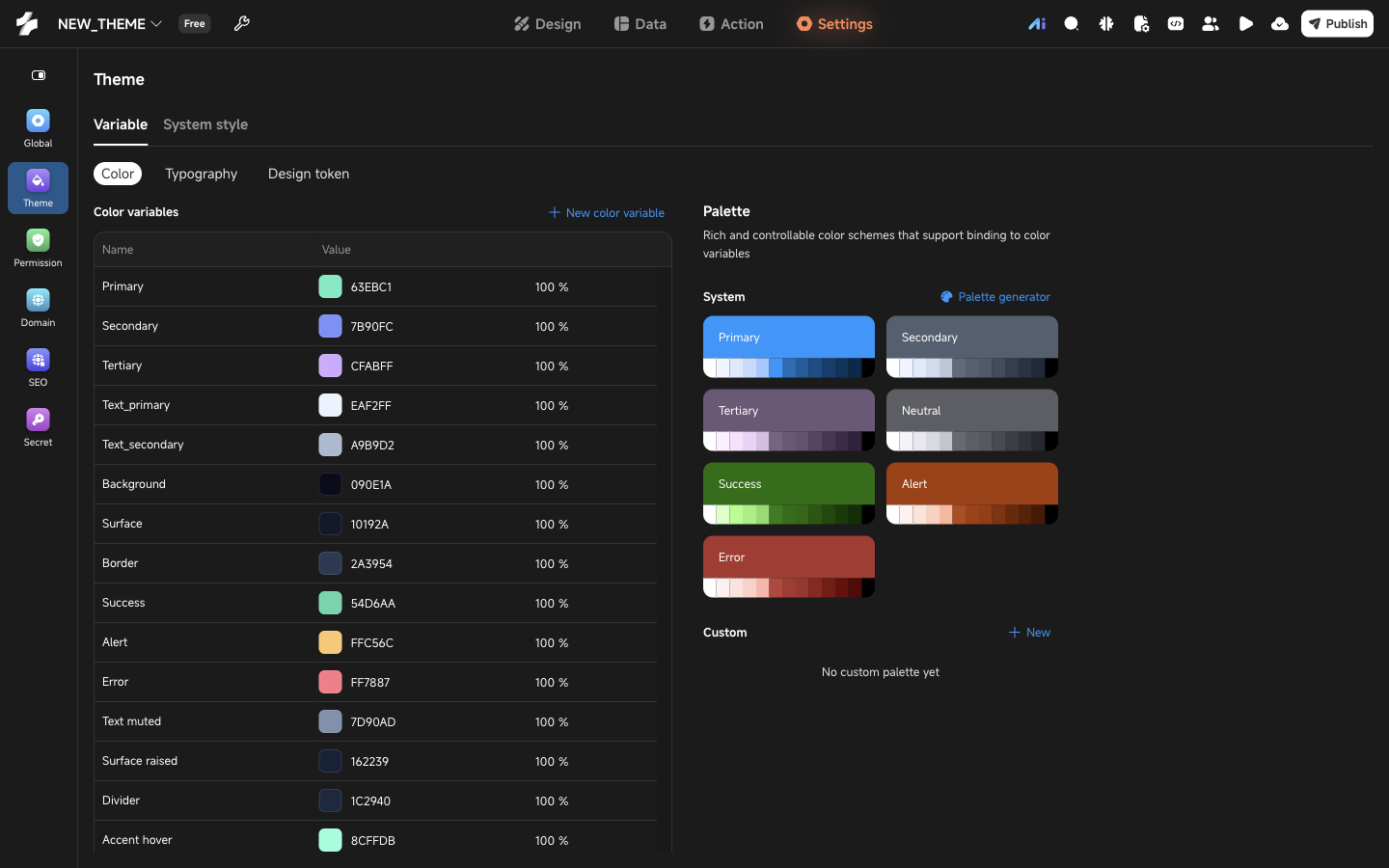
Each variable is one row; rename it or change its value right in the table. Every new project and client comes with a set of system preset variables you can use straight away. You can change a preset’s value and name, but not delete it. The preset values are listed under System presets.
Configure the theme
Existing projects need no work. The colors you set up under the old Theme color page show up in the color variable table after the upgrade, with the same names and the same references on components, so nothing looks different. The old Scrollbar switch now lives on the System style tab. To start using palettes, rebind those old colors to a palette level.
Generate palettes from your brand color
A palette is 12 shades worked out from one basic color, from level 1 (lightest) to level 12 (darkest). Color variables and component colors can bind to any of them, so changing the basic color updates the whole palette and everything bound to it. Seven system palettes are preset: Primary, Secondary, Tertiary, Neutral, Success, Alert and Error.
When you start a new project, put your brand color in first:
- On the Variable → Color tab, click Palette generator at the top right of the palette area.
- Enter your main color under Brand color.
- Pick a Style: Classic, Vibrant, Expressive, Neutral or Monochrome. Each style recalculates the basic colors of all seven system palettes.
- If one palette is not to your liking, change its basic color right below.
- Check the Preview at the bottom. Once the buttons, text and status colors look right, click Confirm.
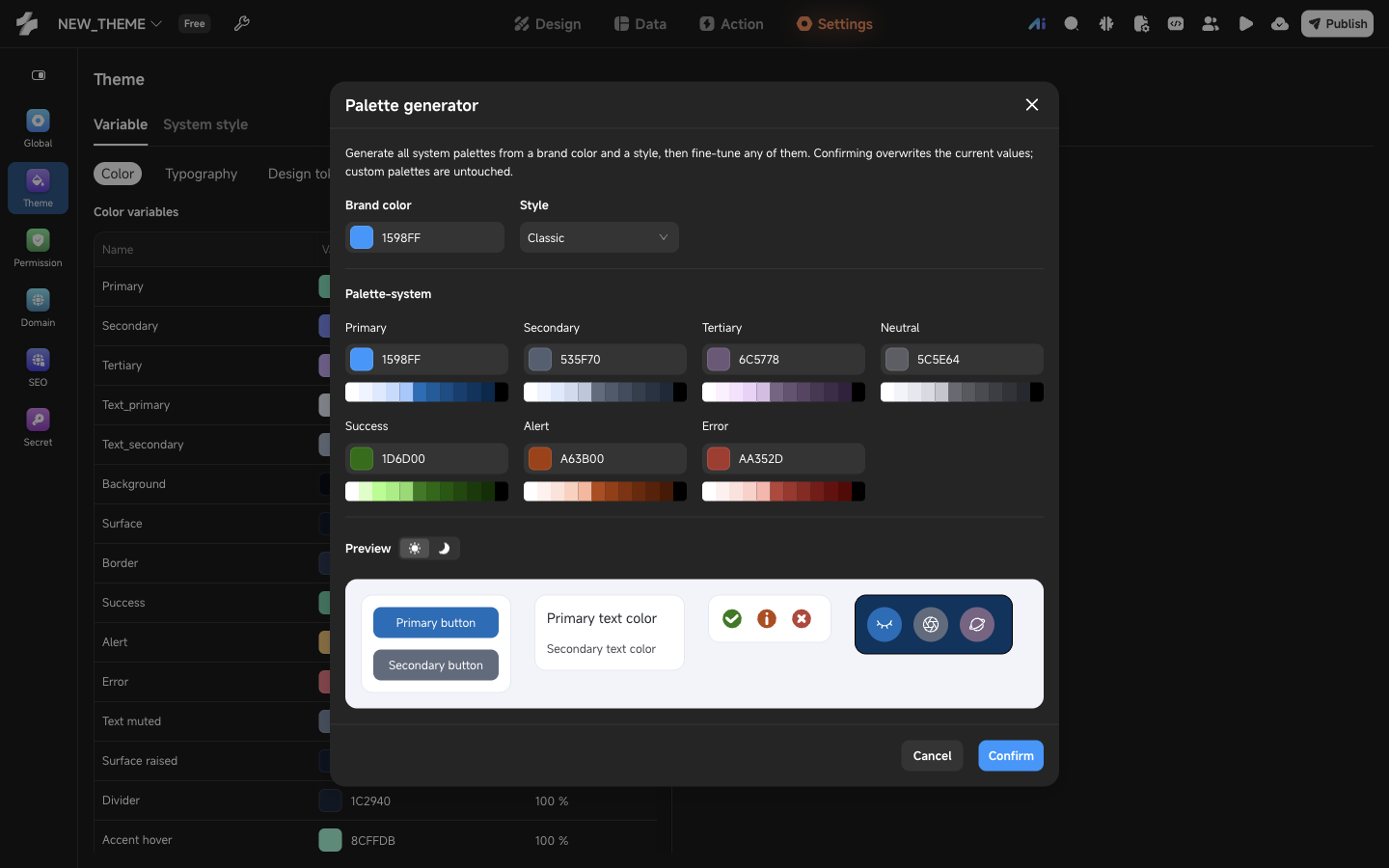
Confirming replaces the current basic colors of the seven system palettes; palettes you created yourself are untouched. It is fine to change the brand color halfway through a project: every color bound to a system palette updates with it.
To tweak a single palette later, click the edit icon on its card and pick a new basic color. Click the name on the card to rename it.
Add your own colors
Create a palette
If there is a second color you use a lot besides the brand color, give it a palette too rather than typing fixed values everywhere:
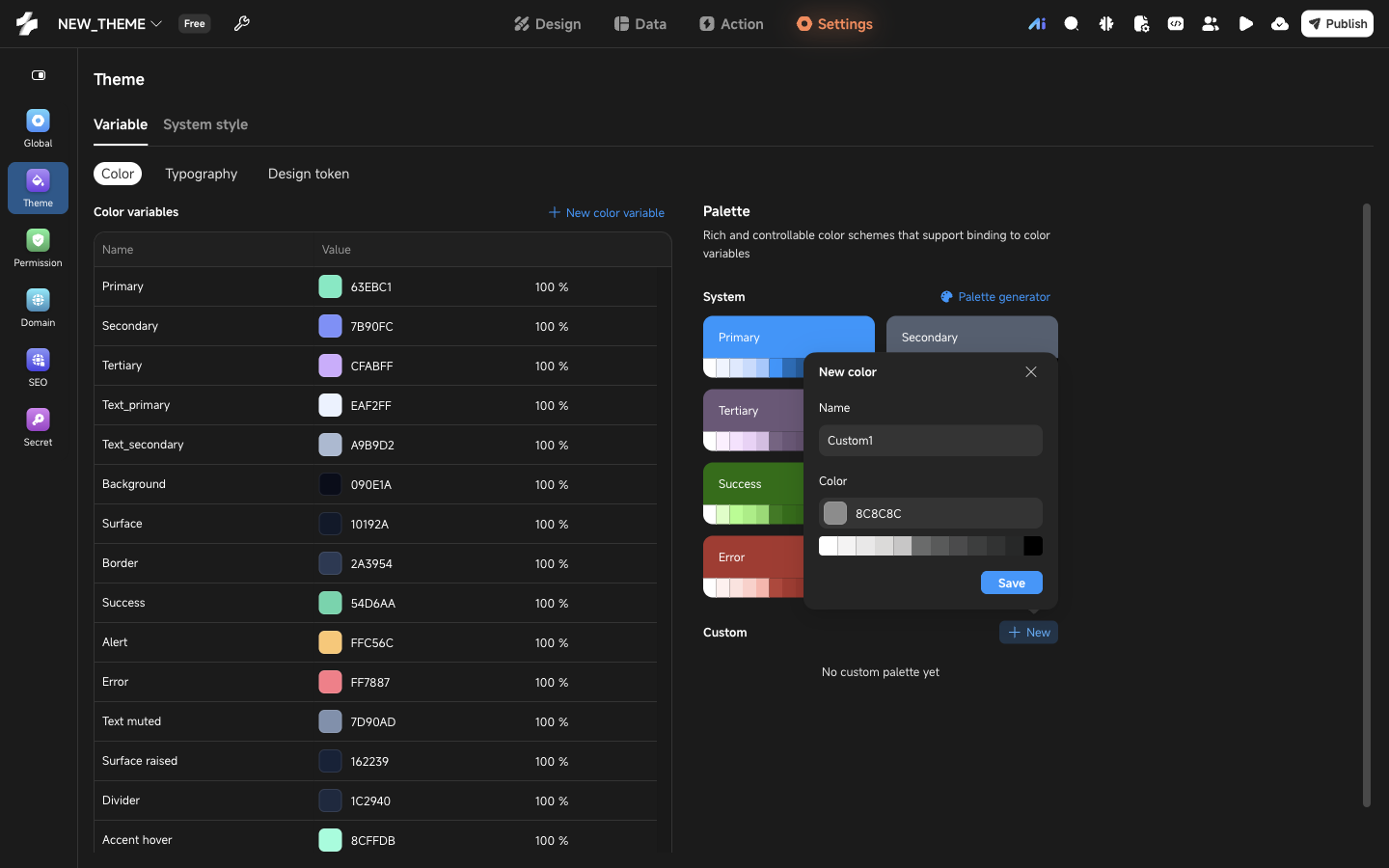
- Click New in the Custom group of the palette area.
- Enter a name and pick a basic color; the popover shows the resulting 12 levels as you go.
- Click Save.
Create a color variable
Color variables are what components actually reference. A variable’s value is either a fixed color or a binding to one level of a palette. Eleven are preset (Primary, Text_primary, Background, Border and so on), all bound to the system palettes.
Create one whenever a particular job needs its own color:
- Click New color variable at the top right of the color variable table. The variable is appended to the table with a gray default value.
- Click the name and give it one that says what it is for, such as “Card background”.
- Click the swatch to set the value: pick a fixed color on the Custom tab, or a palette level on the Palette variable tab.
Colors with a fixed job, such as the primary, text and background colors, are best defined as color variables first, with components referencing the variables. Changing the brand color or the color scheme later then means changing a few variables instead of hunting through components.
Set up typography and design tokens
Typography
On the Variable → Typography tab:
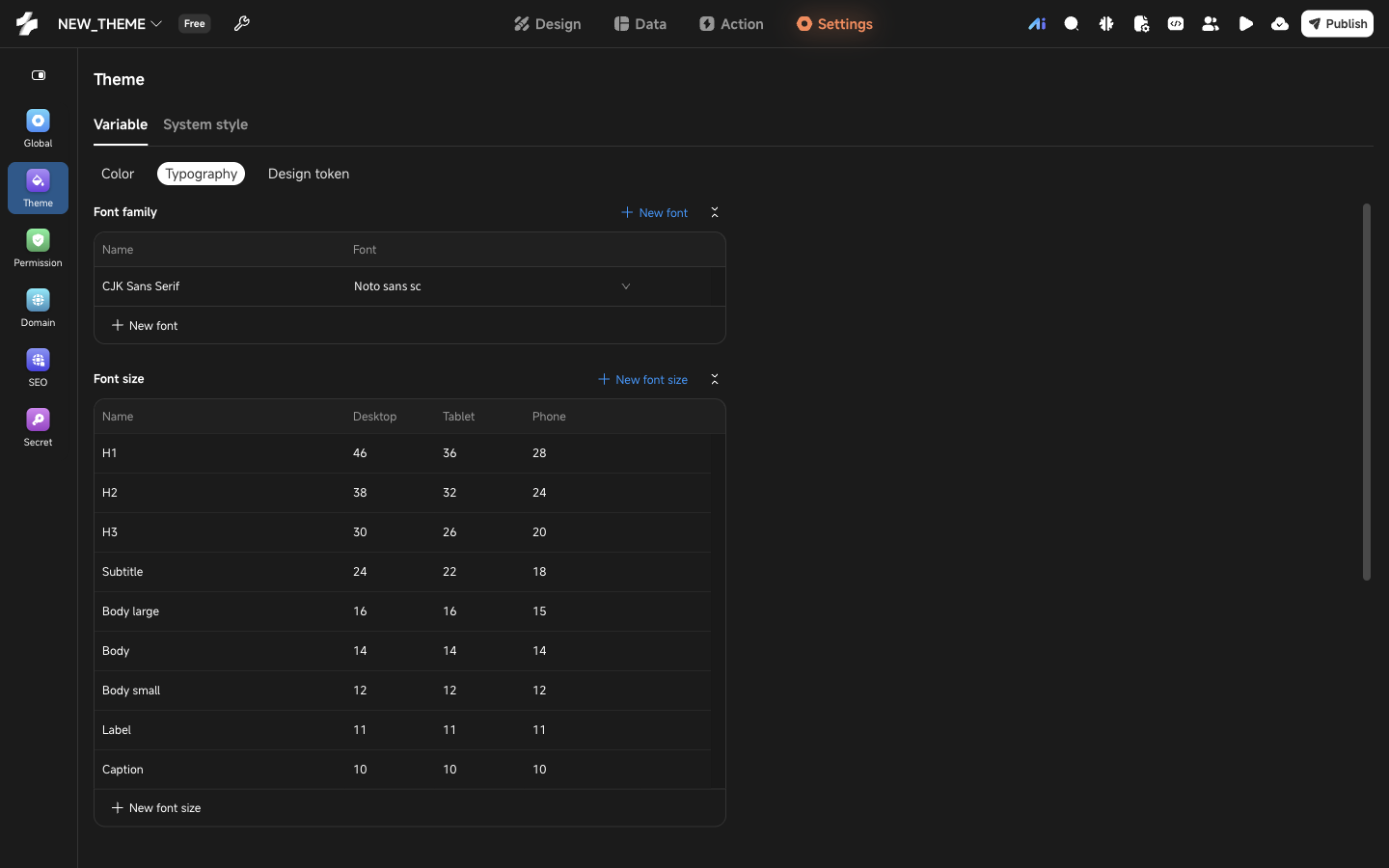
- Font family: no system presets. Click New font and pick a font from the list. Some fonts only work on some clients; if the one you picked cannot load on the current client, the error list says “Theme font family will not load” and you simply pick another.
- Font size: in px. Web apps keep one value per breakpoint (Desktop, Tablet, Phone) and a component takes the value of the breakpoint it is on, with no breakpoint override needed. Mobile apps have a single value.
- Font weight: 1 – 1000; common values are multiples of 100.
Radius, spacing and shadow
On the Variable → Design token tab:
- Radius and Spacing: in px; web apps can also set a value per breakpoint. Spacing is used for margins, paddings and layout gaps.
- Shadow: click a shadow value to open the editor and set X, Y, blur, spread and color. The top of the popover previews the result live. The color is a fixed color or a color variable.
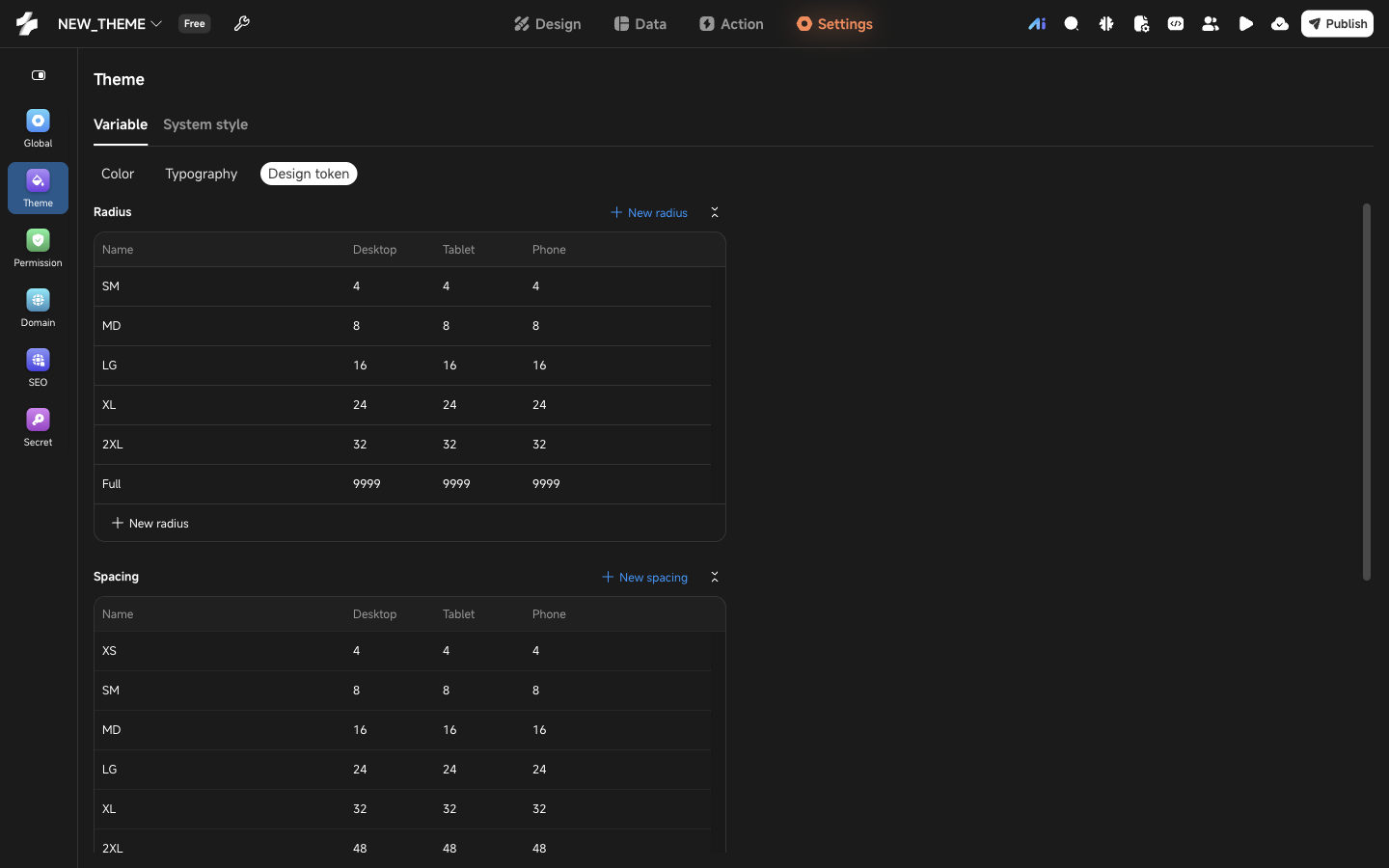
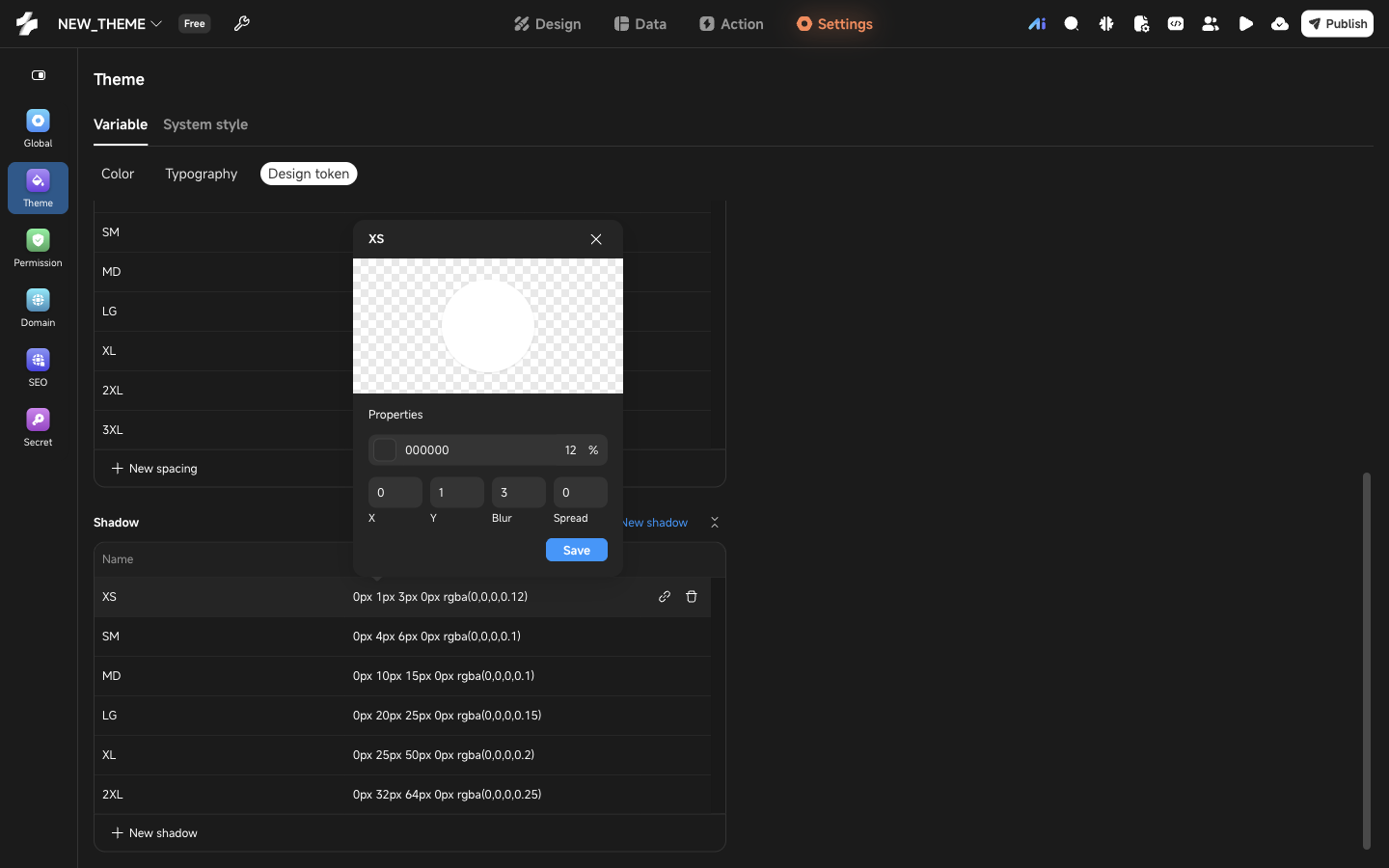
Each category has a New button at the top right for adding more.
Set up the scrollbar (web apps only)
Switch to the System style tab:
- Use the Visible switch to decide whether the app shows a scrollbar at all. With it off the page still scrolls; you just do not see the bar.
- Set the thumb width and radius under Geometry.
- Set the track color, thumb color and thumb hover color under Colors, as fixed colors or color variables.
- Check the result in the Style preview on the right.
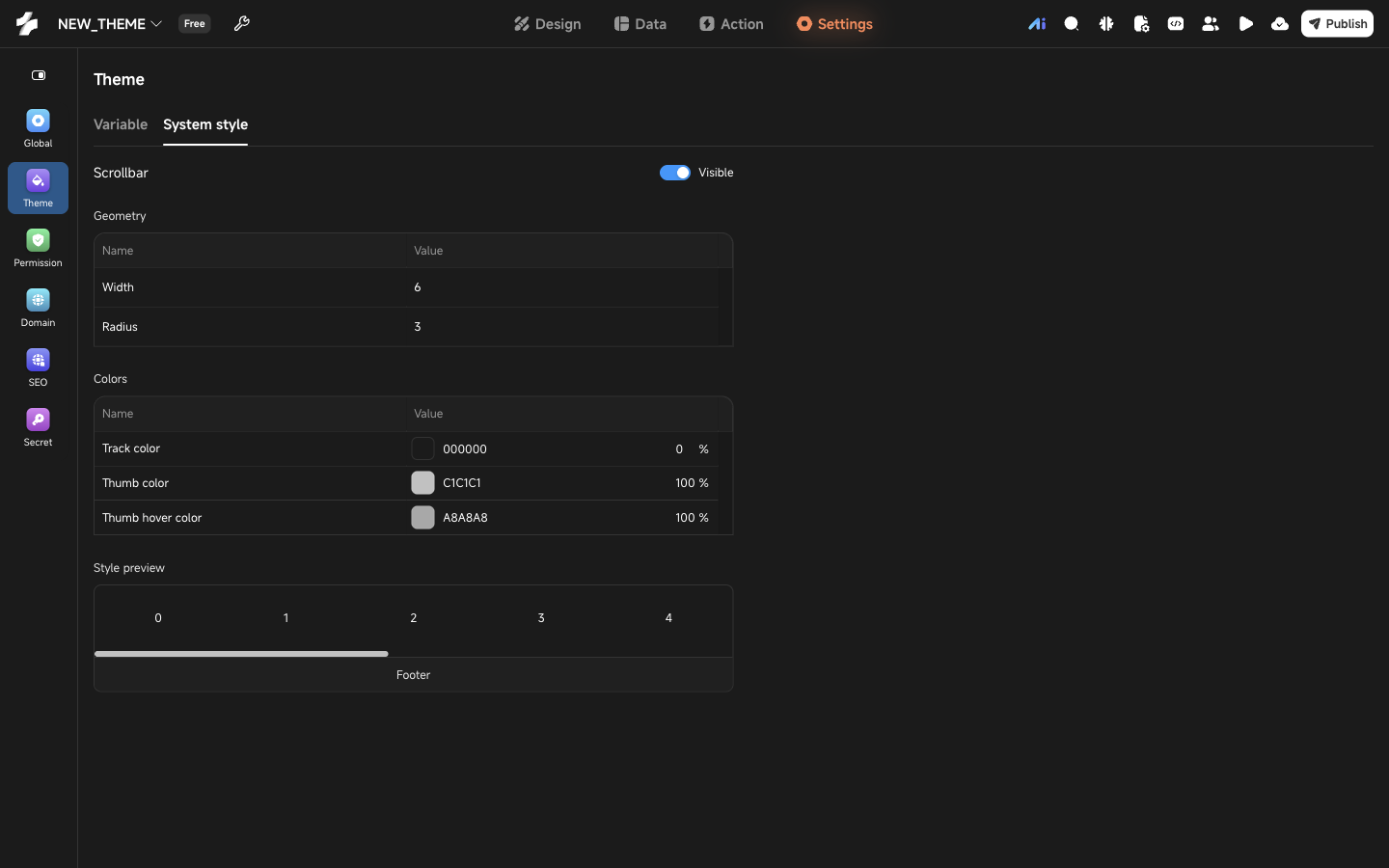
Mobile apps do not support a custom scrollbar, and their Theme page says so.
System presets
Palettes (basic colors): Primary starts as a default main color that you should swap for your brand color with the generator; Secondary #535F70, Tertiary #6C5778, Neutral #5C5E64, Success #1D6D00, Alert #A63B00, Error #AA352D. How light or dark each of the 12 levels is never changes; the basic color only decides the hue and how vivid it is. Level 6 is dark enough for white text to read well, which makes it a good button fill.
Color variables:
| Variable | Default binding |
|---|---|
| Primary / Secondary / Tertiary | Basic color of the matching palette |
| Text_primary | Neutral level 11 |
| Text_secondary | Neutral level 8 |
| Background | Neutral level 1 |
| Surface | Neutral level 2 |
| Border | Neutral level 4 |
| Success / Alert / Error | Basic color of the matching palette |
Font sizes (web app, Desktop / Tablet / Phone; mobile apps use the Phone column):
| Variable | Desktop | Tablet | Phone |
|---|---|---|---|
| H1 | 46 | 36 | 28 |
| H2 | 38 | 32 | 24 |
| H3 | 30 | 26 | 20 |
| Subtitle | 24 | 22 | 18 |
| Body large | 16 | 16 | 15 |
| Body | 14 | 14 | 14 |
| Body small | 12 | 12 | 12 |
| Label | 11 | 11 | 11 |
| Caption | 10 | 10 | 10 |
Font weights: Thin 100, Extra light 200, Light 300, Regular 400, Medium 500, Semi bold 600, Bold 700, Ultra bold 800, Heavy 900.
Radius: SM 4, MD 8, LG 16, XL 24, 2XL 32, Full 9999.
Spacing: XS 4, SM 8, MD 16, LG 24, XL 32, 2XL 48, 3XL 64.
Shadows (X and spread are 0):
| Variable | Y | Blur | Color |
|---|---|---|---|
| XS | 1 | 3 | rgba(0,0,0,0.12) |
| SM | 4 | 6 | rgba(0,0,0,0.10) |
| MD | 10 | 15 | rgba(0,0,0,0.10) |
| LG | 20 | 25 | rgba(0,0,0,0.15) |
| XL | 25 | 50 | rgba(0,0,0,0.20) |
| 2XL | 32 | 64 | rgba(0,0,0,0.25) |
Scrollbar (web app): visible, width 6, radius 3, transparent track, thumb #C1C1C1, hover #A8A8A8.
Apply the theme
Reference variables in the Design panel
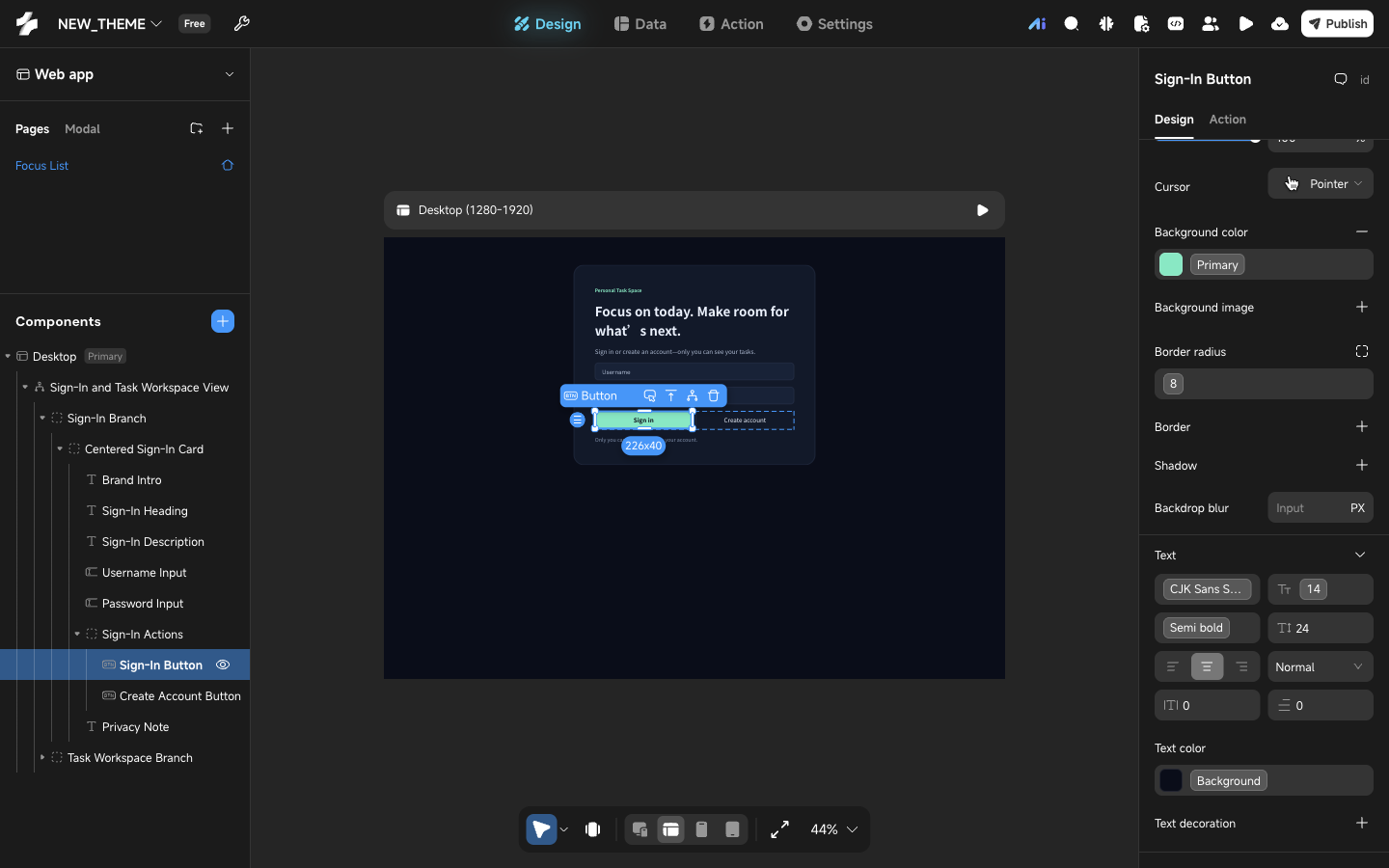
Go back to Design, select a component and bind its styles to theme variables in the Design Panel on the right:
| Field | Bindable variables | Entry |
|---|---|---|
| Every color: background, text color, border color, … | Color variables, any palette level | The Color variable and Palette variable tabs of the color picker |
| Radius (uniform or per corner) | Radius | Variable button next to the input |
| Margin, padding, layout gap | Spacing | Variable button next to the input |
| Shadow | Shadow | Variable button on the shadow row |
| Font, font size, font weight | Font family, font size, font weight | Variable buttons in the Text section |
Take a button as an example:
- Click the Background color swatch to open the color picker, switch to the Color variable tab and pick Primary. You can also switch to the Palette variable tab and pick a level directly.
- In the Text section, click the variable buttons of the font, font size and font weight fields and pick a font family, font size and font weight variable.
- Click the variable buttons next to the Border radius and Padding inputs and pick a radius and a spacing variable.
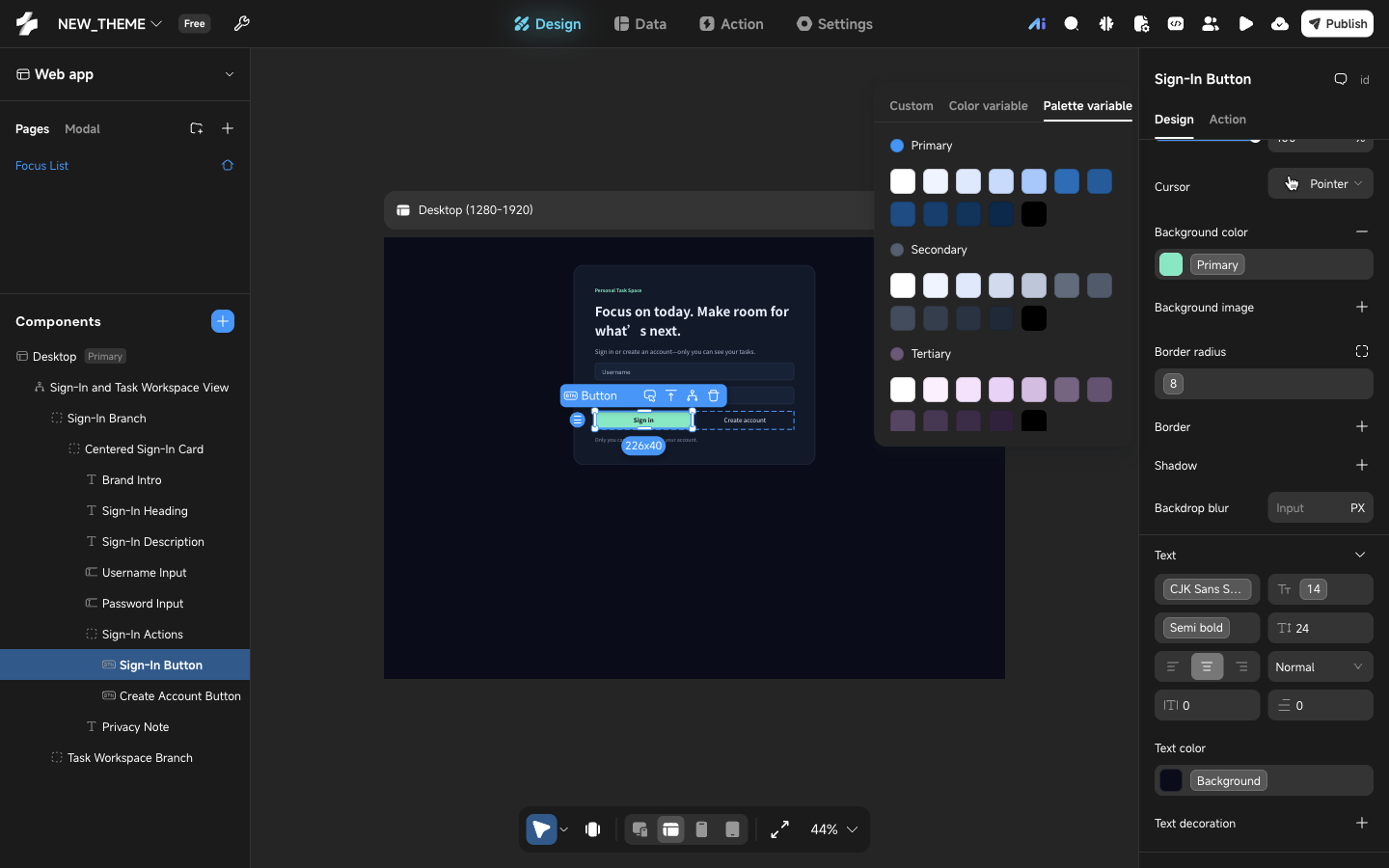
A bound field shows the variable name instead of a value. Hover over it and an unbind button appears; unbind, and you can type a value again.
Trace references and delete variables
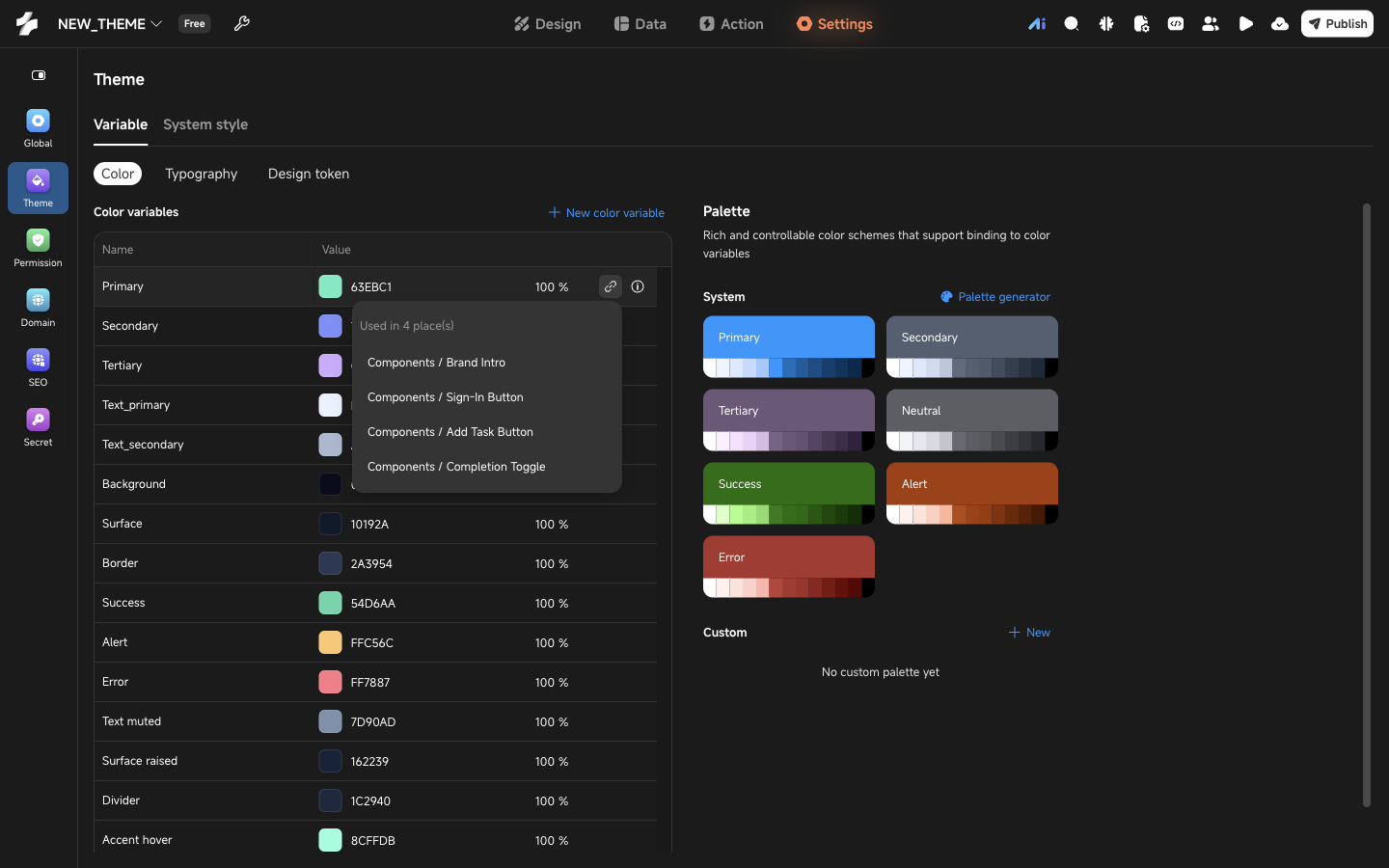
Every variable and palette shows how many places use it. Expand it to see each location; a location that uses it several times shows the count. Click one to jump straight to that component.
When you delete a variable or palette you created:
- Not used anywhere: confirm and it is gone.
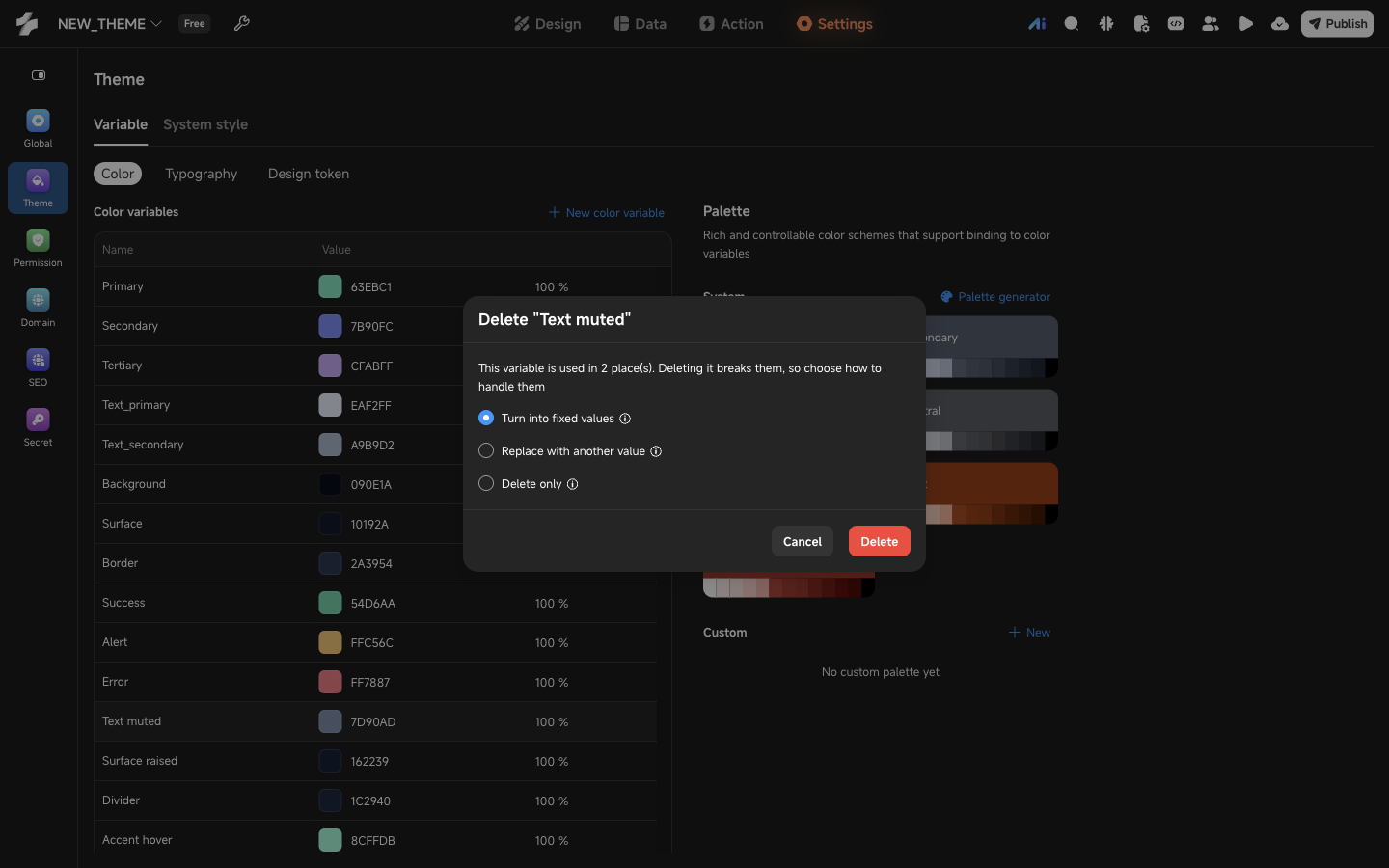
- Still in use: a dialog asks how to handle those places.
| Option | Result |
|---|---|
| Turn into fixed values | Each place keeps the value it shows right now as a fixed value and stops following the theme. |
| Replace with another value | Each place switches to the variable you pick. |
| Delete only | Each place loses its value. The error list shows “Unknown theme variable. Please reselect or remove it” until you fix every one, and the app cannot be published before that. |
System preset variables can be edited but not deleted.