Build a Multi-Client App
A multi-client project contains multiple independent clients that share one backend. Each client can serve a different audience or workflow while using the same project data.
For example, an e-commerce project can provide a mobile app and a web storefront for customers, plus a web operations console for staff. The clients have different pages and entry points but share products, orders, and users.
Multi-client model
| Configuration | Shared | Description |
|---|---|---|
| Database and data model | Yes | All clients use the same project backend |
| Permissions and user roles | Yes | Configure them in the backend; each client enforces them for the current user |
| Actionflows, external APIs, and AI Agents | Yes | All clients can call them once the backend is synced |
| Pages, components, and frontend actions | No | Design and maintain them separately for each client |
| Published version | No | Publish each client independently |
A project can have multiple web apps and multiple mobile apps. Mobile apps support iOS only for now.
When to use multiple clients
Use multiple clients when applications share business data but require substantially different frontend experiences, such as:
- A customer-facing app and an operations console
- An external service and an internal employee tool
- A website and an app for the same business
- Separate entry points for different brands or business units
- Role-specific workspaces with different navigation and workflows
If roles only need small variations on the same pages, permissions and conditional visibility may be sufficient without another client.
Add a client
- Open the client switcher in the editor’s top bar and click Add clients.
- Choose the client type (Web app or Mobile app) and complete the purchase in the dialog. If the current plan does not support multiple clients, follow the prompt to upgrade; see Upgrade a Project for plan and purchase information.
- Once it is added, the client switcher lists every client and the backend; click one to switch to it.
- Open the new client and create its pages, components, and frontend interactions.
Build a multi-client project
Build a client
Use a client editor for configuration that belongs only to that client:
- Pages and page parameters
- Components and layouts
- Data bindings
- Frontend actions
Before making frontend changes, check the top bar to make sure you are working in the intended client.
Build the backend
Configuration shared by all clients can be edited after switching to the backend or directly inside a client:
- Data models and database operations
- Users and permissions
- Actionflows
- External APIs
- AI Agents
Choose the backend version a client uses
Each client chooses which backend version it uses while you edit it. Click Backend in the client’s top bar and switch in the panel:
| Backend version | Description |
|---|---|
| Dev | The backend being edited, the same one you see when you switch to the backend. You can edit backend config right inside the client, and previewing the client syncs the backend first. Requires project-level edit access |
| Live | The synced backend. Backend config is read-only |
Only collaborators with project-level edit access can switch to the dev backend, and it is their default. Collaborators without it can only use the live backend, and the dev option is disabled; to edit the backend, request project-level edit access.
AI Copilot opened in a client on the dev backend can also change and sync the backend. See The limits of a session.
Publish a multi-client project
Preview and publish each client from its own editor. All clients share the backend, so a sync affects every live client at once:
- You can sync the backend from the backend or from any client on the dev backend. Previewing a client on the dev backend syncs the backend first, then packages the client.
- Every sync runs a compatibility check first, which finds the clients this backend change would break, so you no longer have to review each one by hand.
See Publish an App for the complete workflow.
Manage clients
Renew clients
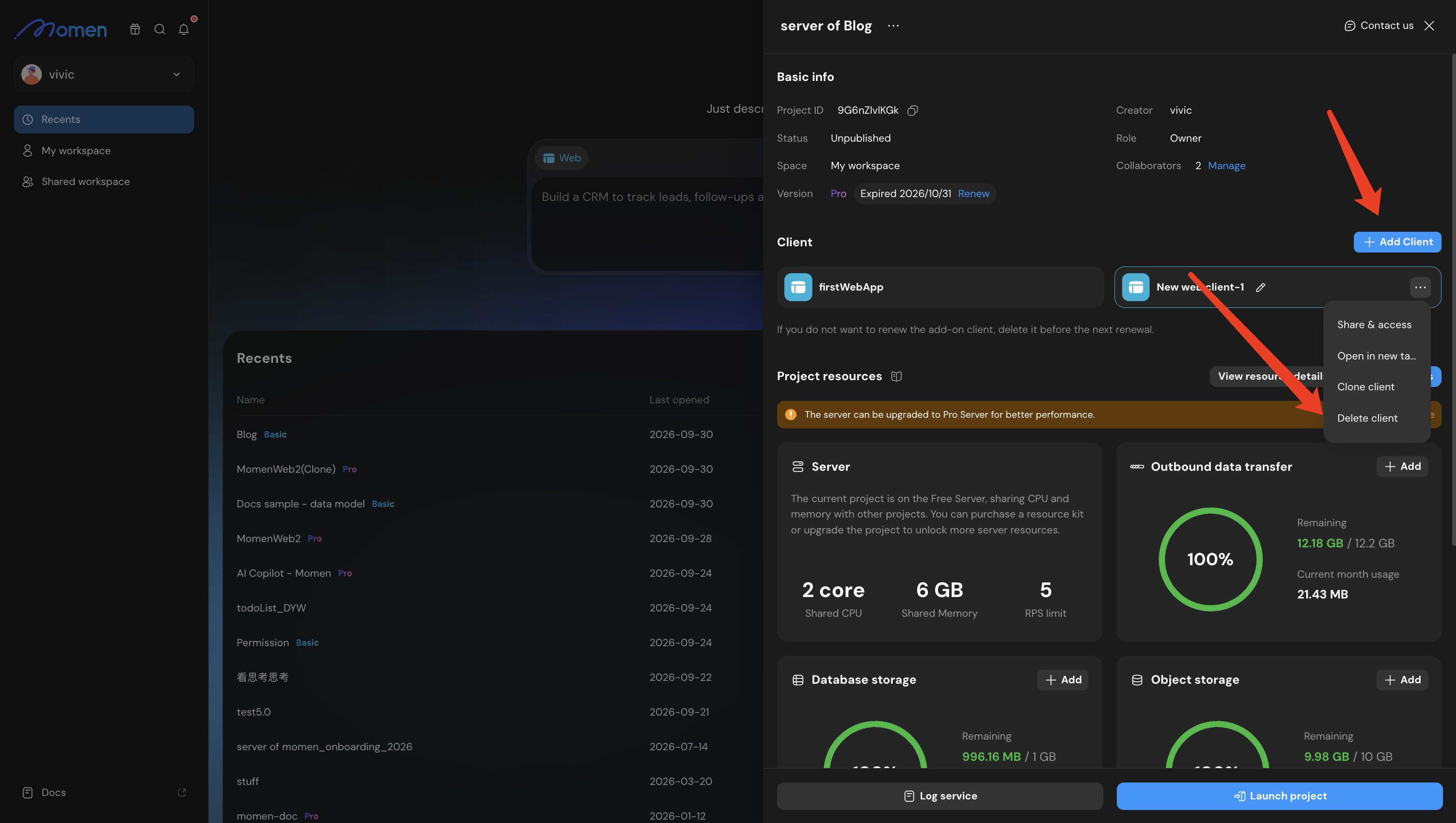
Project renewal includes the clients that remain active. Before confirming an order, review the client list and price.
A newly purchased client renews with the project plan by default. Turn that off from the client’s own menu, which only the project owner can do. Once it is off, a renewal charged to your balance no longer covers that client, while a manual renewal still covers every client you currently have — so to stop paying for one, switch it off rather than deleting it before the renewal falls due.
Downgrade and reactivate
If the project is downgraded to a plan that does not support multiple clients, additional clients can no longer be edited or published. The default client remains available. After upgrading again, use the project interface to select any historical clients that can be reactivated.
Delete a client
Before deleting a client, confirm that its pages, components, frontend configuration, and live entry points are no longer required. Deleting a client does not automatically delete shared backend data.