Airwallex Payment
Momen integrates Airwallex Drop-in for multi-currency one-off payments, recurring payments, and refunds. Before continuing, read the Payment Overview, prepare an order table, and understand how generated Webhook Actionflows confirm final results.
Set up Airwallex
Prepare an Airwallex account
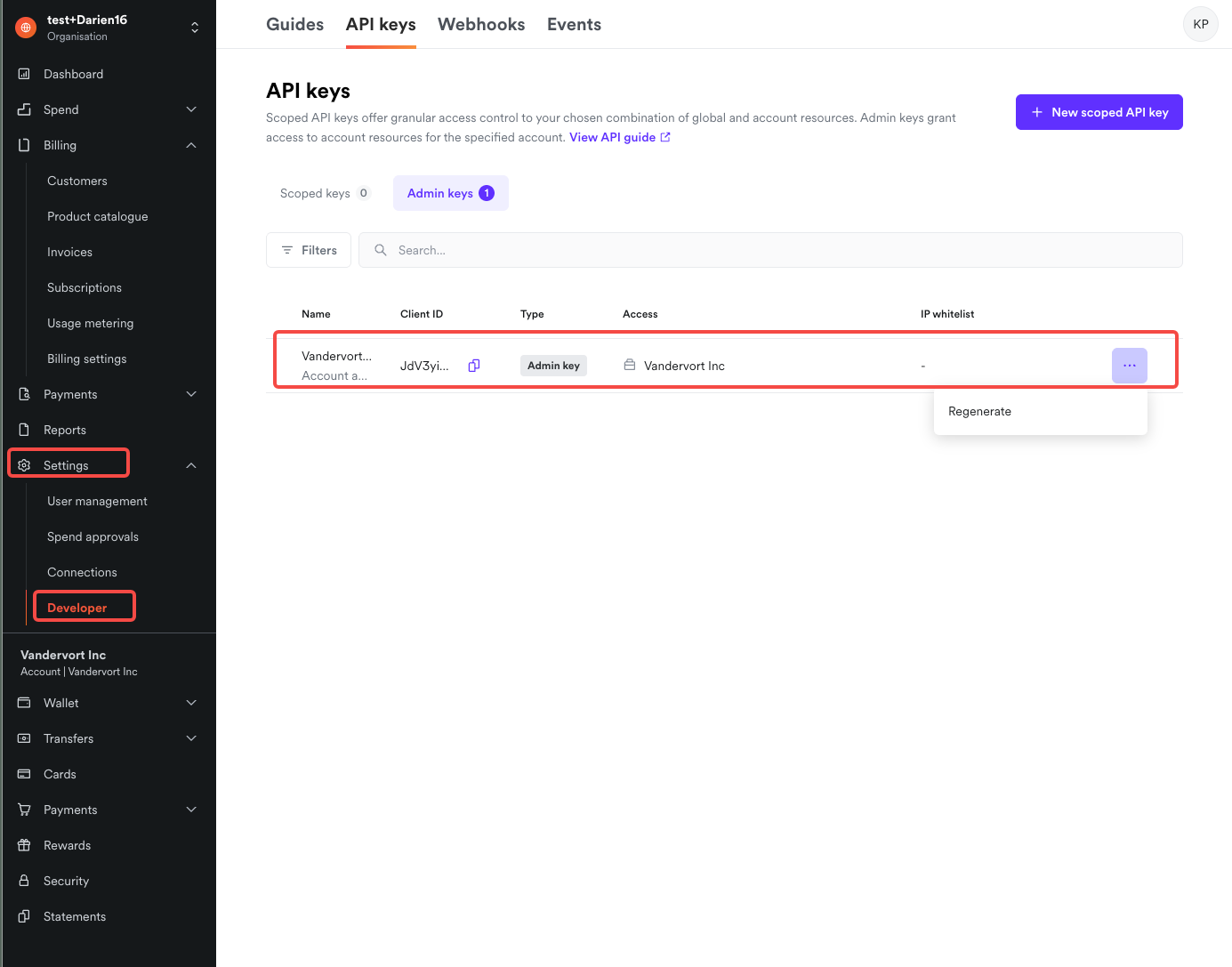
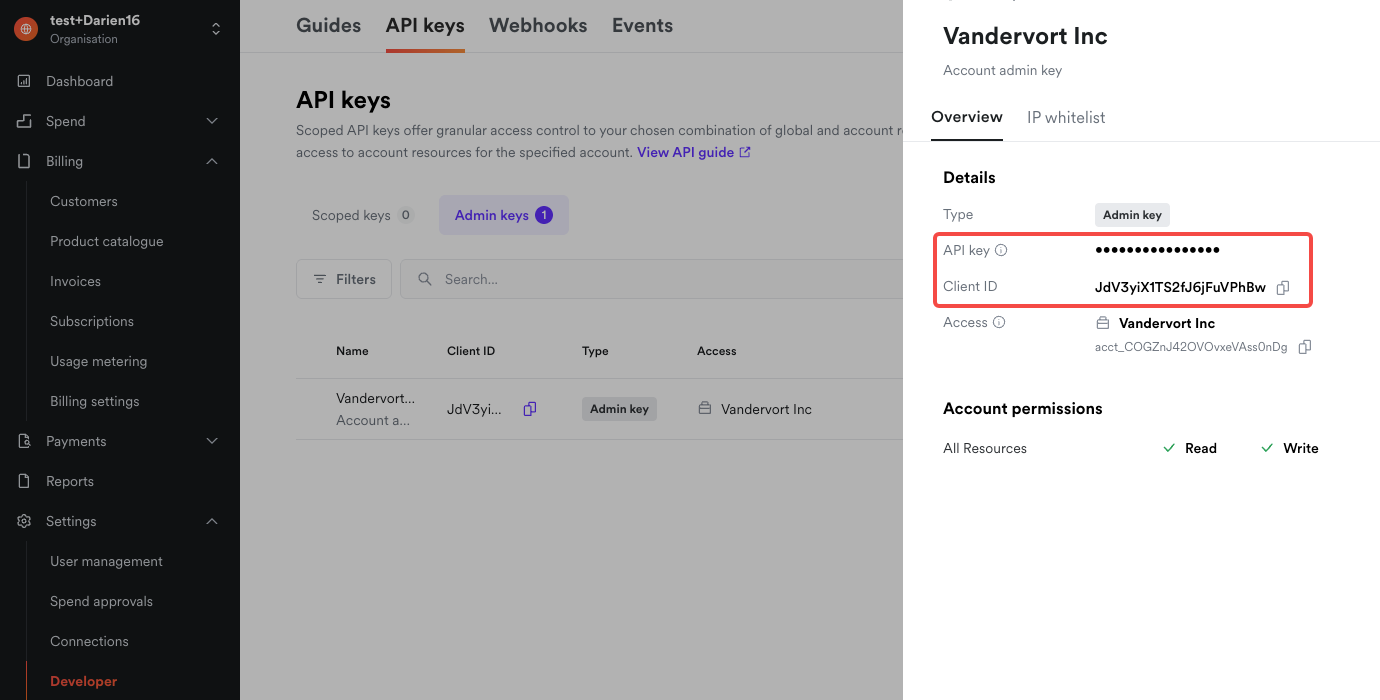
Sign in to the Airwallex demo environment or production environment . Under Settings → Developers → API Keys, create an API key and save the Client ID. The API key is shown only when it is created; regenerate it if it is lost.
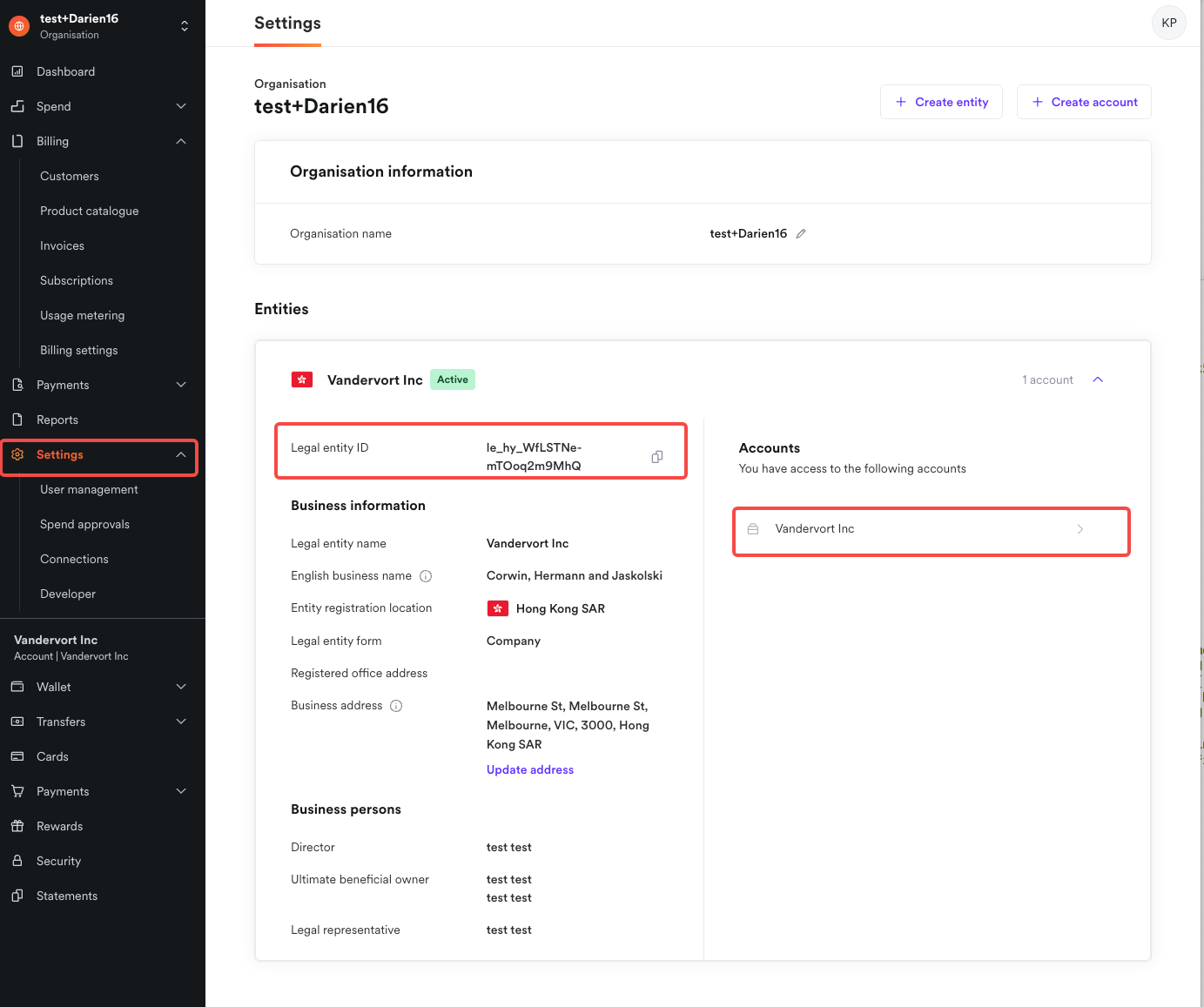
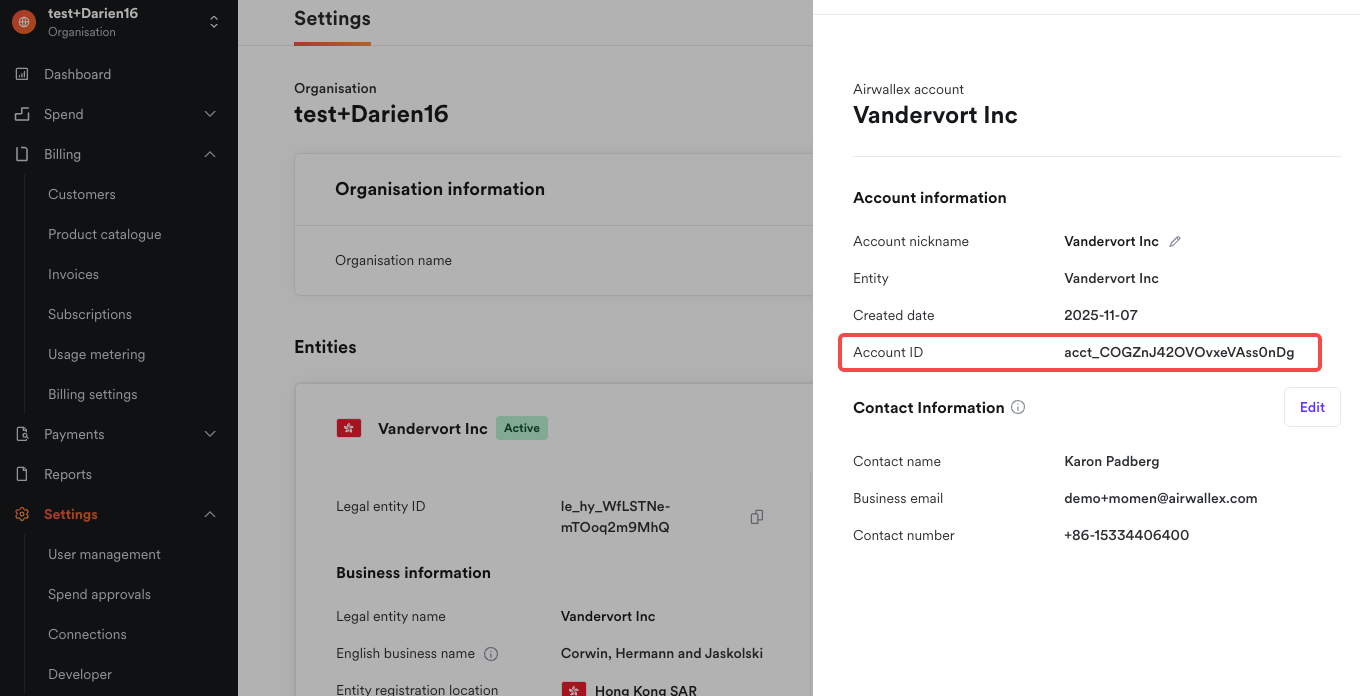
If the account uses a legal entity or linked payment account, obtain the Legal entity ID and Linked payment account ID under Settings → Entities.
Activate Airwallex
Open Action → Payment → Airwallex (Web) and select Activate. If this is the project’s first gateway, select the order table.
After activation, open the generated Airwallex Payment Processing Actionflow from Related Actionflows. Select its Webhook Trigger and copy the Webhook URL.
Create the Airwallex webhook
Under Settings → Webhooks in Airwallex, create a Webhook with:
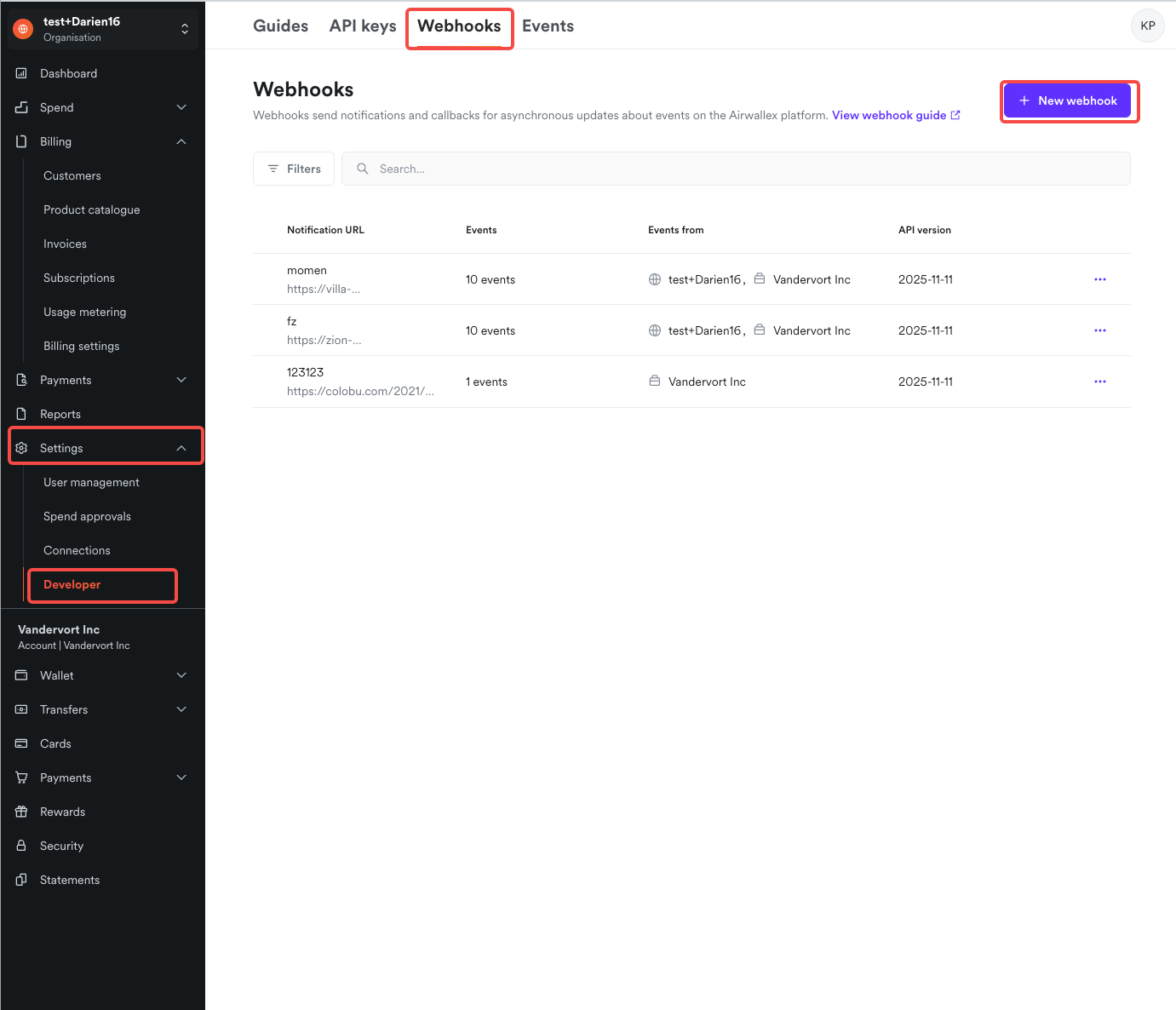
- API version: Enter the fixed value
2025-11-11. - Account: Select the account represented by the Linked payment account ID, or the current collection account when no linked account is used.
- Notification URL: Paste the Webhook URL from the Airwallex Payment Processing Actionflow.
- Events: Select the following events.
payment_intent.succeeded
payment_intent.cancelled
invoice.finalized
subscription.in_trial
subscription.active
subscription.unpaid
subscription.cancelled
subscription.modified
refund.accepted
refund.failed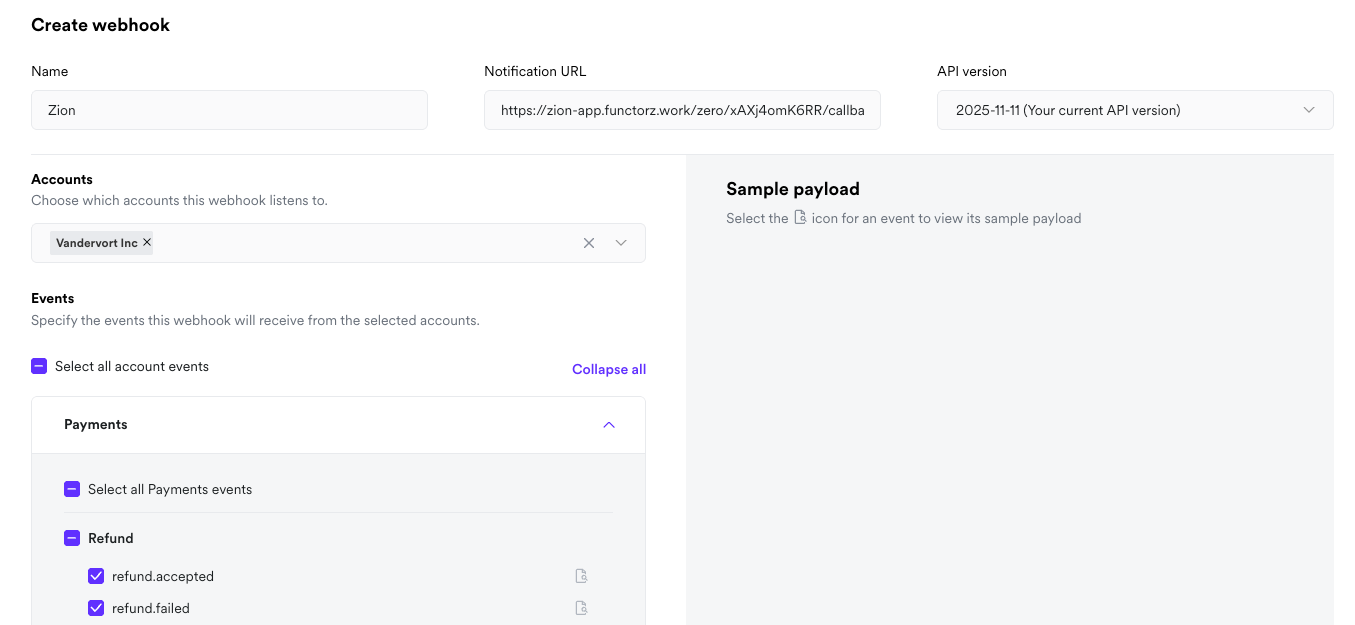
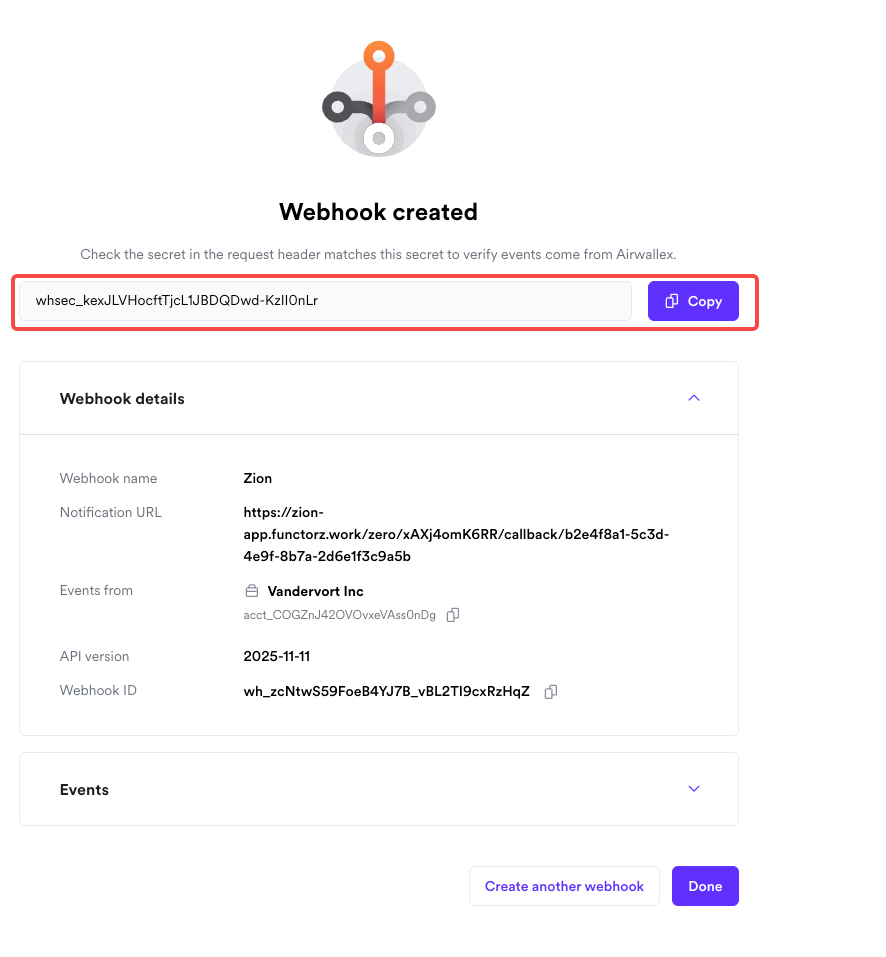
Copy the Webhook secret after creating the Webhook.
Enter the payment settings
| Setting | Required | Description |
|---|---|---|
| Environment | Yes | DEMO for testing or PROD for production |
| Client ID | Yes | Airwallex Client ID |
| API key | Yes | Airwallex API key |
| Webhook secret | Yes | Secret from the Airwallex Webhook |
| Legal entity ID | No | Required only when a legal entity is used |
| Linked payment account ID | No | Required only when a linked payment account is used |
Save and publish the payment configuration, system tables, Actionflows, and frontend changes. Do not mix demo credentials with the production environment.
Webhook processing
Payment, refund, and subscription events share the generated Airwallex Payment Processing Actionflow. It parses the event, updates the relevant system table, and routes the event to payment, refund, subscription-status, or renewal processing.
Airwallex may deliver the same Webhook more than once. Run the corresponding business logic only when alreadyProcessed is false.
This value protects the system payment record only. Use order-state conditions, unique constraints, or another idempotency mechanism for fulfillment, entitlement delivery, and inventory changes.
One-off payments
Create an order and add the action
Create an order in the bound order table, then add Airwallex → One-off payment from the Payment category under a page or component Trigger.
| Parameter | Type | Required | Description |
|---|---|---|---|
| Order id | Integer | Yes | ID of the order record in the bound table |
| Currency | Text | Yes | Currency code supported by Airwallex, such as USD or HKD |
| Amount | Decimal | Yes | Amount in the major currency unit; enter 10 for USD 10 |
Disable or debounce the payment button until the action returns or checkout closes to avoid opening multiple checkouts.
The action’s On success branch means the frontend call returned successfully and cannot contain data mutations. Confirm the final payment result through the Webhook.
Handle the payment webhook
The Sync Payment Status node exposes:
| Result | Type | Description |
|---|---|---|
orderId | Integer | Related order ID |
paymentId | Integer | Payment record ID |
recurringPaymentId | Integer | Subscription ID for a recurring charge; may be empty for a one-off payment |
paymentStatus | Text | SUCCESSFUL or CANCELLED |
alreadyProcessed | Boolean | Whether the same state was already processed |
Run successful fulfillment only when paymentId is present, paymentStatus is SUCCESSFUL, and alreadyProcessed is false. Compare the payment amount and currency with the trusted order first.
Refunds
Restrict permissions and add the action
Refund actions should not be available to regular users. Under Settings → Permissions → Payment, enable Airwallex refunds only for a trusted administrator role.
Add Airwallex → Refund from the Payment category:
| Parameter | Type | Required | Description |
|---|---|---|---|
| Payment id | Integer | Yes | ID of the payment record, not the order ID |
| Refund amount | Decimal | Yes | Amount in the original payment’s major currency unit; cumulative refunds cannot exceed the payment amount |
Check successful refund records and the cumulative refunded amount before starting another refund.
Handle the refund webhook
The Sync Refund Status node exposes:
| Result | Type | Description |
|---|---|---|
orderId | Integer | Related order ID |
refundId | Integer | Refund record ID |
paymentId | Integer | Original payment record ID |
recurringPaymentId | Integer | Subscription ID for a recurring-charge refund |
status | Text | REFUNDED or FAILED |
alreadyProcessed | Boolean | Whether the same refund state was already processed |
Handle the result only when refundId is present and alreadyProcessed is false.
Recurring payments
Create a product and recurring Price under Billing → Products in Airwallex, then copy its Price ID.
Start a subscription
Add Airwallex → Recurring payment → Initiate.
| Parameter | Type | Required | Description |
|---|---|---|---|
| Order id | Integer | Yes | ID of the first subscription order |
| Price ID | Text | Yes | Airwallex recurring Price ID |
The frontend branches represent the subscription authorization interaction. Treat the status synchronized by the Webhook as the actual activation result.
Cancel a subscription
Add Airwallex → Recurring payment → Cancel and bind the Recurring payment id from recurring_payment.
Handle subscription status
Airwallex Payment Processing receives subscription.in_trial, subscription.active, subscription.unpaid, subscription.cancelled, and subscription.modified, then updates recurring_payment.
The synchronization result includes recurringPaymentId and status. Stored states include INCOMPLETE, TRIALING, ACTIVE, UNPAID, and CANCELED. subscription.modified is a Webhook event, not a stored status named MODIFIED.
Enable, pause, or revoke subscription benefits in the ACTIVE, CANCELED, or other state branches required by your product.
Create renewal orders
An invoice.finalized event starts renewal processing. Momen obtains or creates the current payment record from the Invoice ID and opens the Airwallex Subscription Renewal Processing Actionflow.
In the reserved order-creation section:
- Create the period’s business order from the first subscription order and fill in its amount, account, and other fields.
- Pass the new order ID to the following system step so the current payment record is associated with it.
- Fulfill the period only after the corresponding payment status is confirmed.
The template checks whether the current payment already has an order ID to avoid creating the renewal order twice. Any additional business nodes still require their own idempotency controls.
Troubleshooting
- Webhook verification fails: Check the Notification URL, Webhook secret, API version, and selected account against the Momen configuration.
- Payment status does not update: Confirm that all required events are selected and the Airwallex Payment Processing Actionflow is published.
- A cancelled payment enters the other branch: The one-off cancellation status is
CANCELLED, notFAILED. - Authorization completes but benefits remain inactive: Use the
ACTIVEstate inrecurring_payment, not the frontend success branch. - A renewal has a payment record but no order: Configure the order-creation node in Airwallex Subscription Renewal Processing.