Project & Team Collaboration
As your business grows, you need to collaborate with product, design, and engineering teammates. Momen provides project lifecycle management and team collaboration with fine-grained role permissions.
Project Management
Project management includes: creating, cloning, transferring, resetting, hibernating, and deleting projects.
Create Project
Create a blank project, or create a project based on a template.
Projects created using templates all support a 3-day free trial for the Basic and Pro plan.
Clone Project
Cloning a project means duplicating an existing project (with the option to include the database) into a new project.
Clone Project Data
If you choose to clone project data, the database will also be cloned. However, this will consume Database Storage in the new project and cloning will take a longer time.
If you choose not to clone project data, the database will not be cloned.
Steps
Right-click Project
Right-click the project you want to clone in the User Center and select Clone project.
Clone Project Data
Choose whether to check the Project data option.
Confirm Creation
Click the Create button.
Transfer Project
Transferring a project means completely transferring the ownership and management rights of a project from the current owner (transferor) to another user (transferee).
Discounted projects (Education editions) do not support transfer.
- After the transfer, the roles of the transferor and transferee will be swapped. For example, if transferring a project to a Viewer, the transferor becomes the Viewer and the transferee becomes the Owner.
- The project recipient must be a collaborator on the project. Therefore, the prerequisite for transferring a project is to add the project recipient as a project collaborator. See Team Collaboration for role details.
Steps
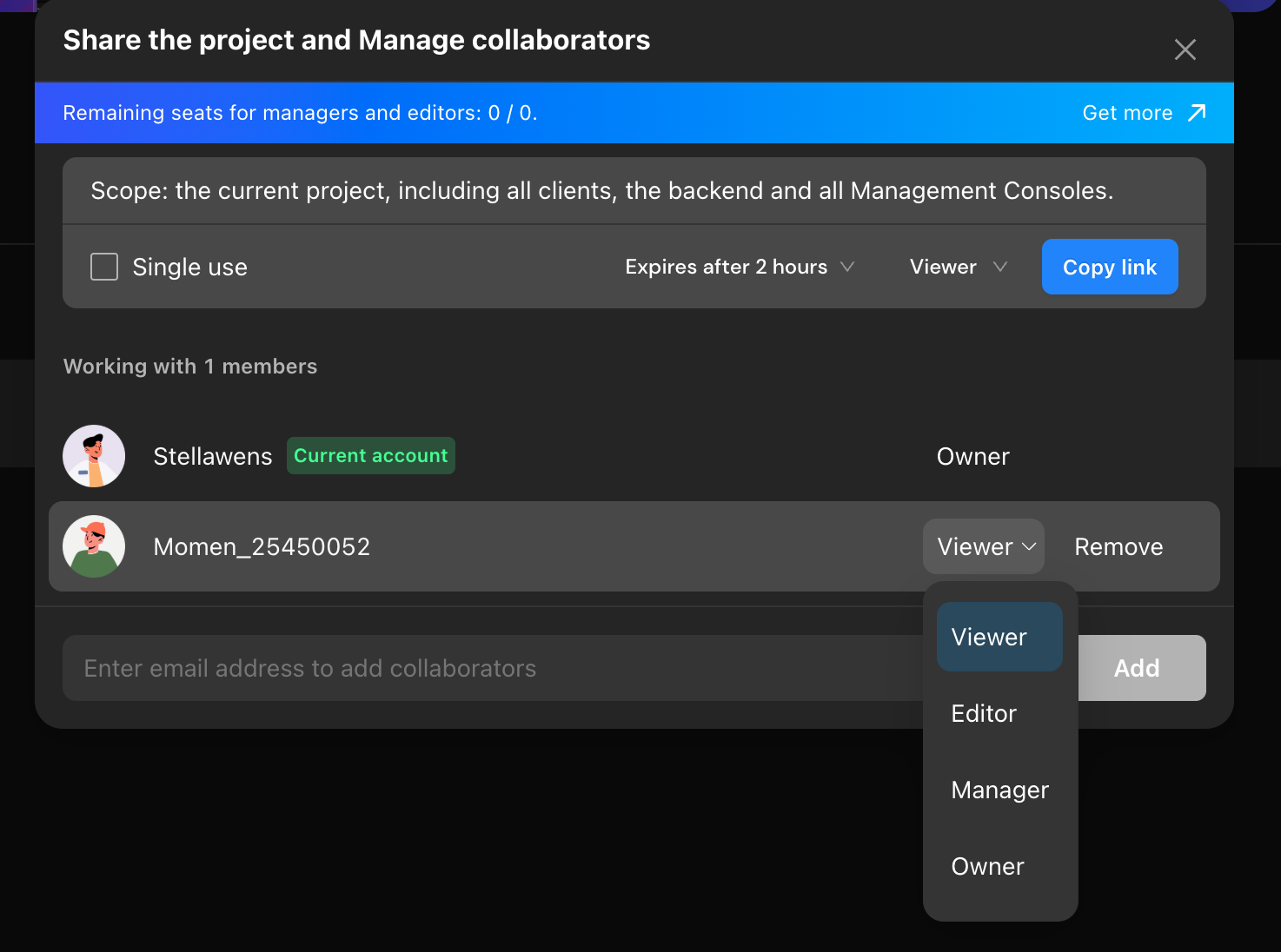
Access Collaborator Management
There are 3 ways to access collaborator management:
- Right-click the project you want to transfer in User Center and select Share the project and Manage collaborators.
- In User Center, click Manage, then click Collaborators Management.
- Enter the project, click Invite Collaborators in the upper right corner.
Add Collaborator
Add the project recipient as a project collaborator.
Change Owner
Change the project recipient’s role to Owner.
Execute Transfer
Follow the instructions in the Transfer Project pop-up window, input the full project and user name to confirm, and click OK.
Reset Project
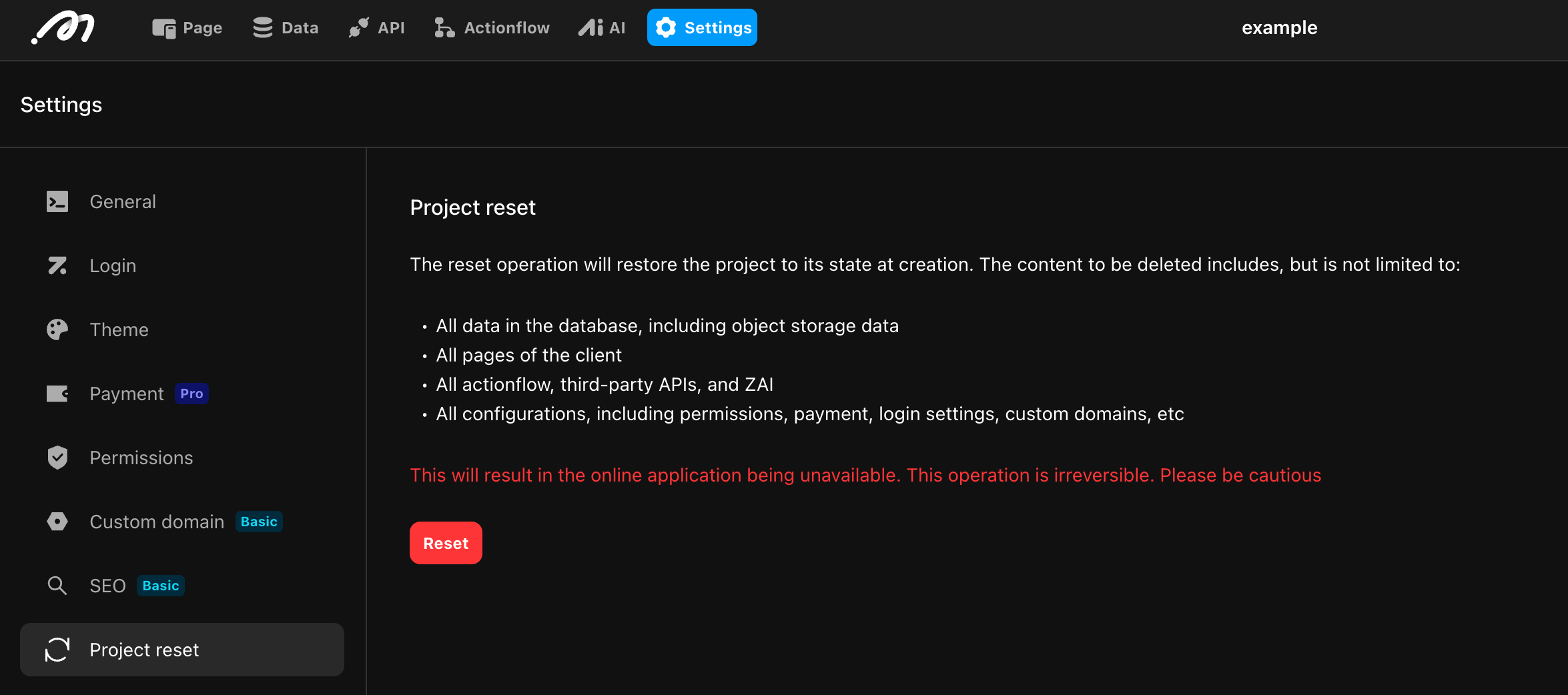
Resetting a project means restoring all content of the project to its state when it was newly created. Projects created from a template will revert to their initial template state after being reset.
Resetting will permanently delete the following items:
- All database records and stored media files.
- All configurations (permissions, payments, auth, domains).
- All backend logic (Actionflows, APIs, AI Agents).
- All frontend pages and UI designs.
Steps
Enter Reset Page
Enter the project → Click Settings in the top navigation bar → Select Project Reset.
Confirm Risk
- The system automatically pops up a warning dialog → Carefully read the data deletion list.
- Enter the required content.
Execute Reset
Click the Confirm reset button.
Hibernate Project
For unpublished projects with Free plan, if there is no activity for 7 consecutive days, the project will be automatically hibernated. To reactivate the project, access it again.
Delete Project
Projects can be deleted in two scenarios:
- For unpublished projects with Free plan, if there is no activity for 6 consecutive months, the project will be automatically deleted. Once deleted, the project cannot be recovered.
- User manually deletes the project.
Once a project is deleted, the subscription will be immediately canceled, and no further fees will be charged. All associated benefits will be lost, and the project will no longer be accessible.
Steps
Right-click Project
In User Center, right-click the project you want to delete, and select Delete.
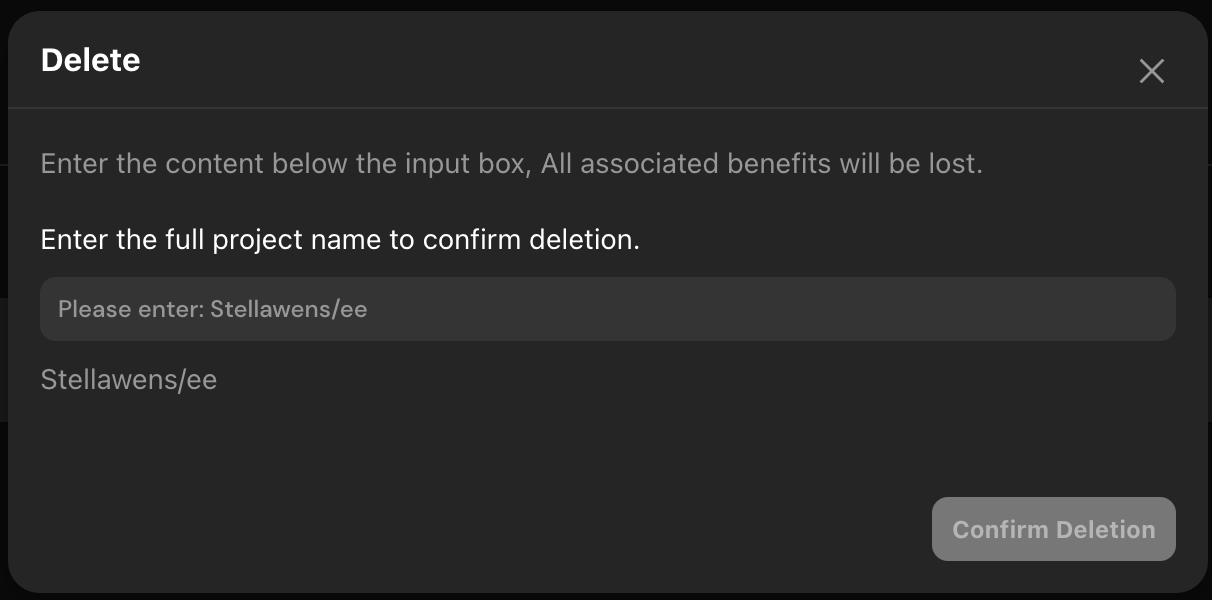
Confirm Risk
Carefully read the risk warning, enter the required content.
Execute Delete
Click the Confirm Deletion button.
Team Collaboration
Momen provides robust collaboration features, allowing multiple users to work on a single project simultaneously. This functionality enhances team efficiency, accelerates project delivery, and enables real-time feedback.
Accessing Collaboration Features
- In the top-right corner of the Momen editor, click Invite Collaborators.
- Or, go to the User Center, select a project, click Manage Project, and click Manage Collaborators.
Inviting and Managing Collaborators
After clicking Invite Collaborators, you will enter the collaborator management interface. You can invite collaborators by sharing a link or entering their email addresses. Assign different roles and permissions to each collaborator. Momen offers the following roles:
- Owner: The project creator with full control, including editing, managing collaborators, and advanced operations. This is the highest permission level.
- Administrator: Can edit project content, manage participants (invite/remove), and clone the project. Suitable for members assisting the owner in management.
- Editor: Can modify project content. This is the main role for content creators and editors.
- Viewer: Can only view project content, with no editing rights. Suitable for stakeholders who need to stay informed but not edit.
Collaborator Limits for Different Project Plans
Different project versions have limits on the maximum number of collaborators.
| Project Version | Maximum Editable Users |
|---|---|
| Free | 0 |
| Basic | 1 |
| Pro | 10 |
| Enterprise Account | Customizable |
By assigning roles carefully, you can keep projects secure while enabling efficient teamwork.