Stripe Payment
Activate Payment
Before configuring specific payment gateways, you need to understand Momen’s underlying payment mechanism. Please refer to the Payment Overview for details, and follow the instructions to create an order table and activate payment.
Configure Merchant Information
Set Up a Stripe Account
- Sign up for or log in to your Stripe account .
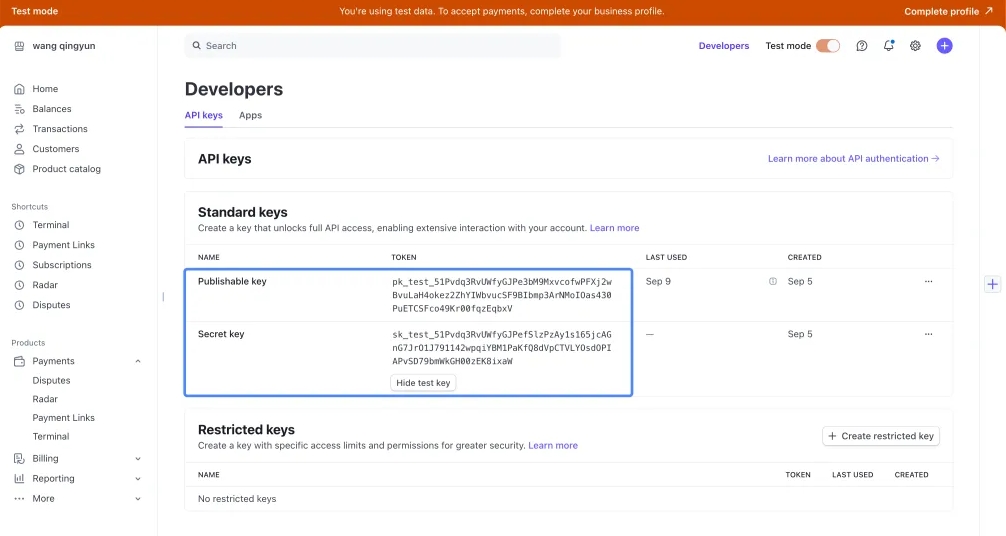
- Retrieve your Publishable Key and Secret Key from the Stripe Dashboard.
Activate Stripe Payment
- Go to Settings → Payment and activate the payment module.
Upon activation, the system will automatically:
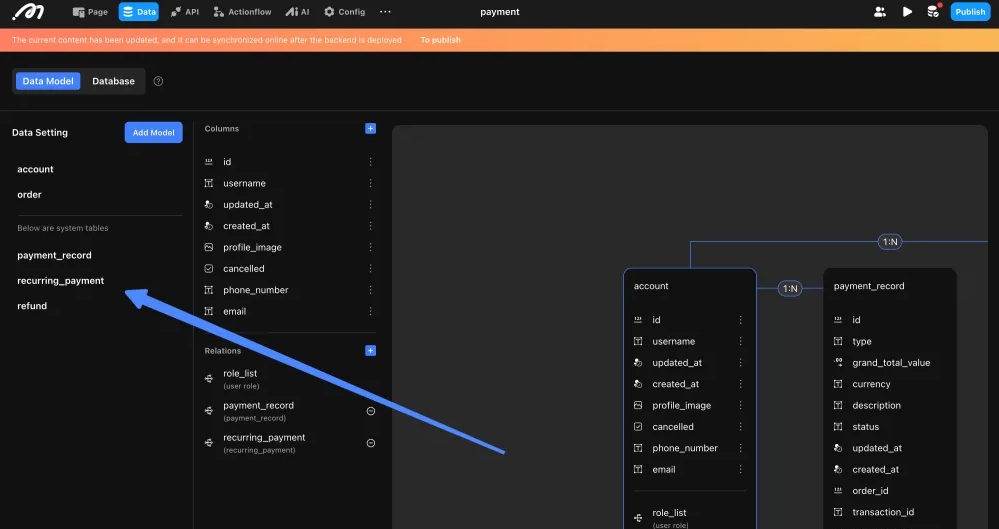
- Create three backend tables:
payment_record: Stores one-time payment records.recurring_payment: Manages subscription billing.refund: Tracks refund transactions.
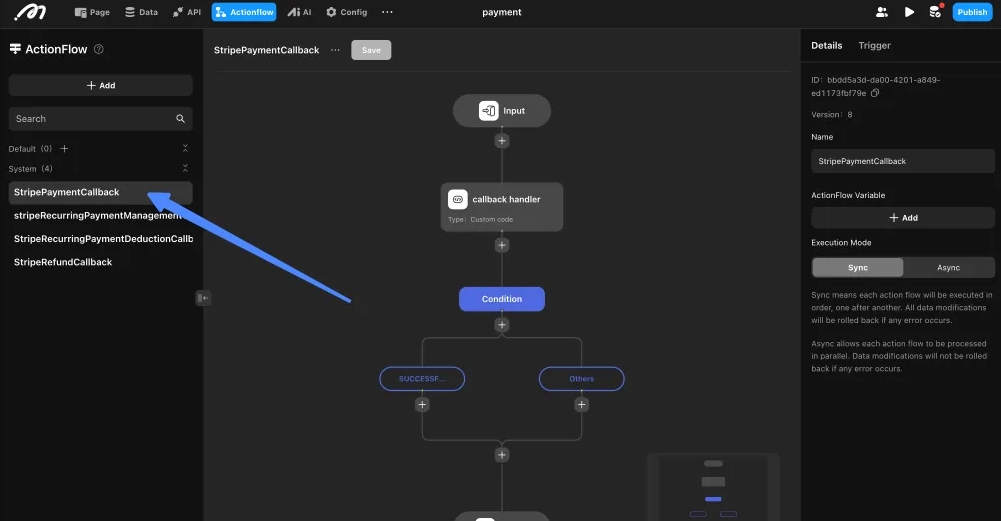
- Generate four system Actionflows:
StripePayment: After a successful one-time paymentStripeRefund: After a successful refundStripeRecurringPaymentManagement: When starting or canceling a subscriptionStripeRecurringPaymentDeduction: When Stripe automatically charges for subscription renewal
| Configuration | Configuration |
|---|---|
 |  |
These system-generated Actionflows securely handle backend payment event processing.
Configure Stripe Credentials
Navigate to Settings → Payment → Stripe.
- Enter the keys from your Stripe account:
| Field | Location in Stripe Dashboard |
|---|---|
| Publishable Key | API Keys section |
| Secret Key | API Keys section |
- Enter your brand name, brand logo, and brand slogan.
Configure Stripe Webhooks
Follow these guidelines to ensure your Stripe Webhook integration is set up correctly and reliably.
1. The Auto-Generated ‘Payment Success’ Webhook
When you first set up Stripe payments, our platform automatically creates a webhook endpoint in your Stripe account. This webhook is designed exclusively to handle successful payments.
Stripe allows a maximum of 16 webhooks. Since the Momen payment feature needs to create four webhooks, please ensure you have 12 or fewer before activation.
- Key Rule: Do not modify this auto-generated webhook. Specifically, do not add other events to it from your Stripe dashboard.
- Reason: This webhook is linked to a single actionflow that executes “after a payment succeeds”. If you add other events like
charge.failed, it will incorrectly trigger your “payment success” logic for failed payments, leading to critical errors.
2. Listening for Other Payment Events
To handle events other than payment success (e.g., charge.failed, charge.refunded), you must create a new, dedicated webhook for each scenario.
Here is the correct procedure:
-
Create new actionflow and webhook trigger in Momen
- Create an actionflow and set up the webhook trigger.
- Design the logic for the specific event (e.g., for a
charge.failedevent, add an action to send a notification email). - Once created, copy the webhook URL generated for this actionflow.
-
Create a New Webhook Endpoint in Stripe
- Log in to your Stripe Dashboard and go to Developers > Webhooks.
- Click “Add endpoint” to create a new one.
- Paste the webhook URL from our platform into the “Endpoint URL” field.
- Under “Events to send,” select only the specific event this workflow is designed to handle (e.g.,
charge.failed). - Save and activate the endpoint.
By creating a separate Webhook trigger(Momen) + Webhook Endpoint(Stripe) pair for each event, you ensure your payment logic remains clear, organized, and error-free.
Configure One-Time Payment
Add Payment Action
Use the Stripe Payment Action to charge users for a single transaction.
| Parameter | Type | Description |
|---|---|---|
orderId | Integer | The ID from the order table |
currency | String | Currency code (e.g., USD) |
amount | Decimal | Charge amount (in the smallest currency unit, e.g., cents for USD) |
Note: To charge $10.00 USD, enter
1000as Stripe expects the amount in cents.
Configure Post-Payment Business Logic
Stripe automatically triggers backend Actionflows for different payment events.
These Actionflows allow you to parse event data, validate results, and implement custom business logic securely.
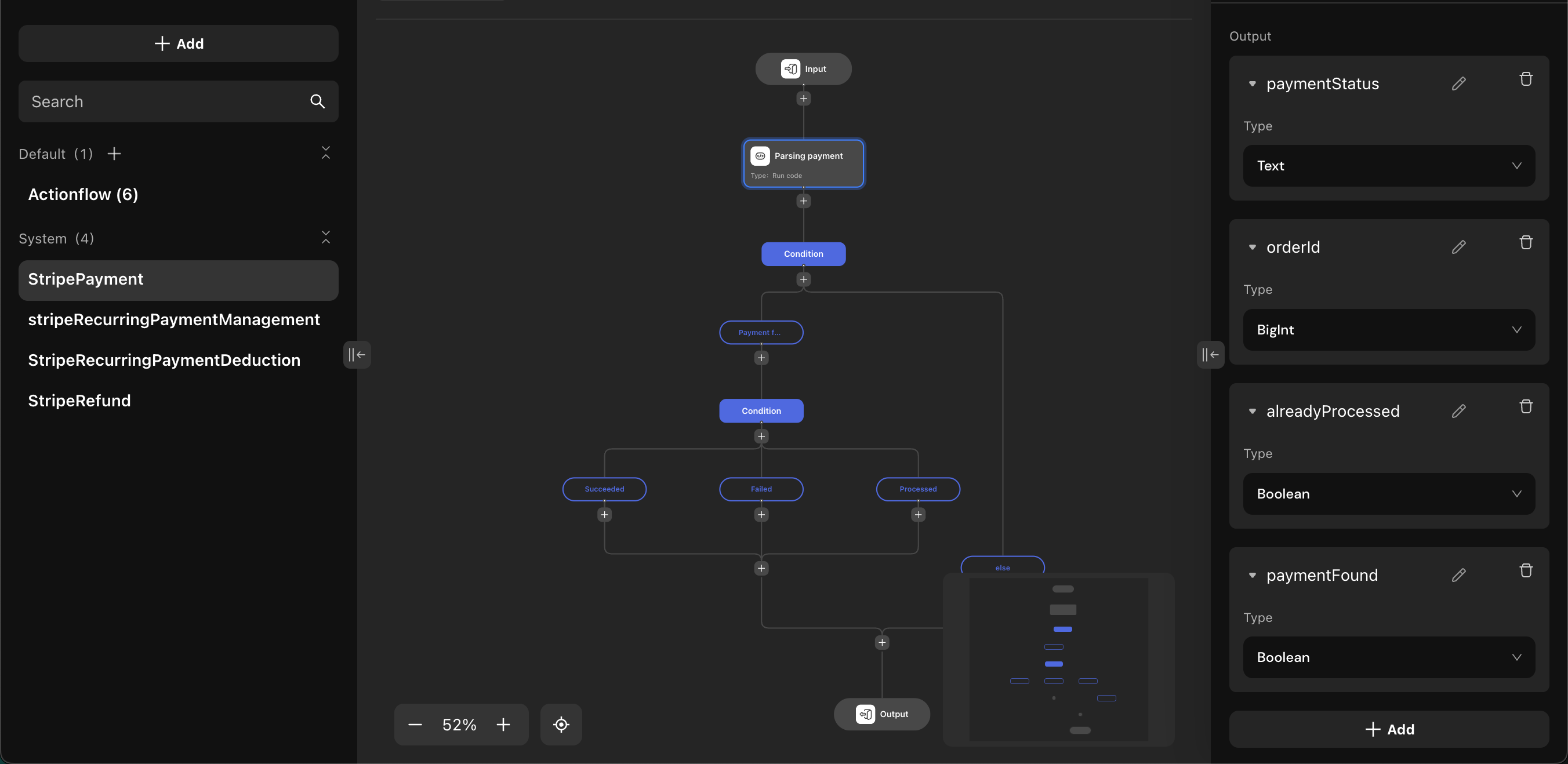
- Trigger: After a successful one-time payment
- System actions:
- Parse payment data (e.g.,
orderId,paymentStatus) - Detect duplicate webhooks using
alreadyProcessed(false = first trigger, true = processed)
- Parse payment data (e.g.,
- Field notes:
orderId: TheorderIdprovided when invoking the payment action; use it to locate and update the corresponding order recordpaymentStatus:SUCCESSFULfor a successful payment,FAILEDfor a failed onealreadyProcessed: Only treat a payment as failed/succeeded when the corresponding status is returned andalreadyProcessedisfalse
- Custom logic examples:
- Update order status to
paid - Grant access to purchased services
- Send confirmation emails or notifications
- Update order status to
Retrieve Payment Result
Payment operations are asynchronous.
To display real-time results:
- Subscribe to the
Paymenttable using a list component. - Listen for real-time updates to refresh the frontend dynamically.
Configure Refund
Add Refund Action
Use the Stripe Refund Action to process a refund.
| Parameter | Type | Description |
|---|---|---|
paymentId | Integer | The ID from the payment table |
refundAmount | Decimal | Amount to refund (must not exceed the original payment amount) |
Configure Post-Payment Business Logic
- Trigger: After a successful refund
- System actions:
- Parse refund data
- Detect duplicate webhooks using
alreadyProcessed(false = first trigger, true = processed)
- Field notes:
orderId: TheorderIdprovided when invoking the payment action; use it to locate and update the corresponding order recordalreadyProcessed: Only process refund logic whenalreadyProcessedisfalse
- Custom logic examples:
- Update order status to
refunded - Adjust user benefits or subscriptions
- Notify the user about the refund
- Update order status to
Retrieve Payment Result
Payment operations are asynchronous.
To display real-time results:
The refund table only has basic query permissions enabled by default. If you need to aggregate data (such as count, sums, etc.), please enable it in the data table’s permission configuration.
- Subscribe to the
Refundtable using a list component. - Listen for real-time updates to refresh the frontend dynamically.
Configure Recurring Payment
Add Recurring Payment Action
Before starting recurring payments:
- Create a Recurring Price object in Stripe and obtain its Price ID.
| Parameter | Type | Description |
|---|---|---|
orderId | Integer | The ID from the order table |
priceId | String | The Stripe-generated Price ID |
Recurring actions support:
- Starting a subscription
- Canceling an existing subscription
Configure Post-Payment Business Logic
Stripe Recurring Payment Management Actionflow
- Trigger: When starting or canceling a subscription
- System actions:
- Update the Recurring Payment Table
- Field notes:
status: The current status of the recurring payment. Possible values includeINCOMPLETE,INCOMPLETE_EXPIRED,ACTIVE,PAST_DUE,CANCELED,TRIALING, andUNPAID. Use these to control your logic as needed. See Stripe documentation for details.
- Custom logic examples:
- Activate or deactivate subscription-based features
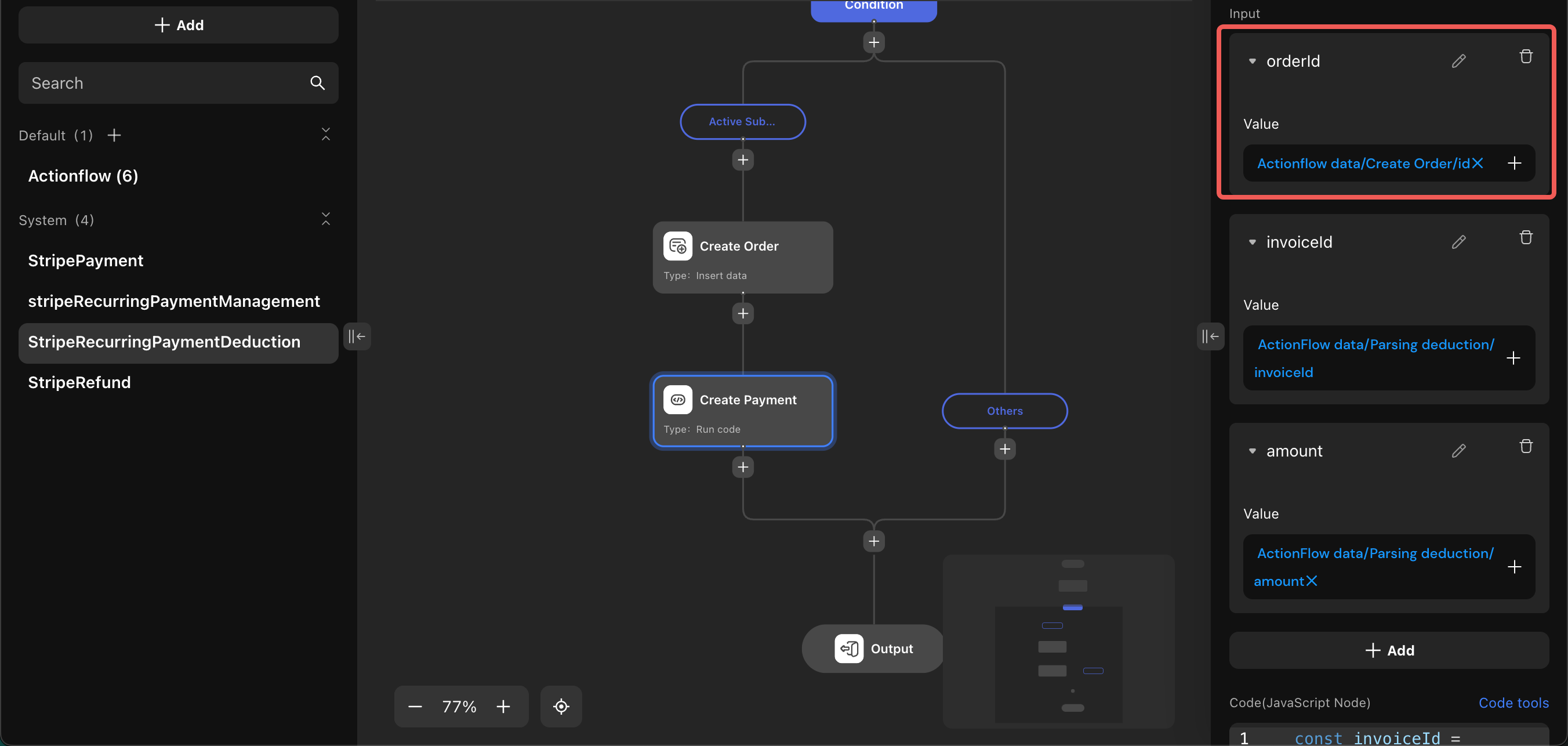
Stripe Recurring Payment Deduction Actionflow
- Trigger: When Stripe automatically charges for subscription renewal
- System actions:
- Insert a new order record
- Custom logic examples:
- For active subscriptions, add a node to create a new order and pass the generated order ID to the
orderIdinput of the payment creation node.
- For active subscriptions, add a node to create a new order and pass the generated order ID to the
Retrieve Payment Result
Payment operations are asynchronous.
To display real-time results:
- Subscribe to the
PaymentorRecurring Paymenttables using a list component. - Listen for real-time updates to refresh the frontend dynamically.
Configure Permissions
Refund actions are closed to all users by default. To prevent financial losses, it is recommended not to grant refund permissions to regular users. Instead, create an admin-like role and grant refund permissions to that role.
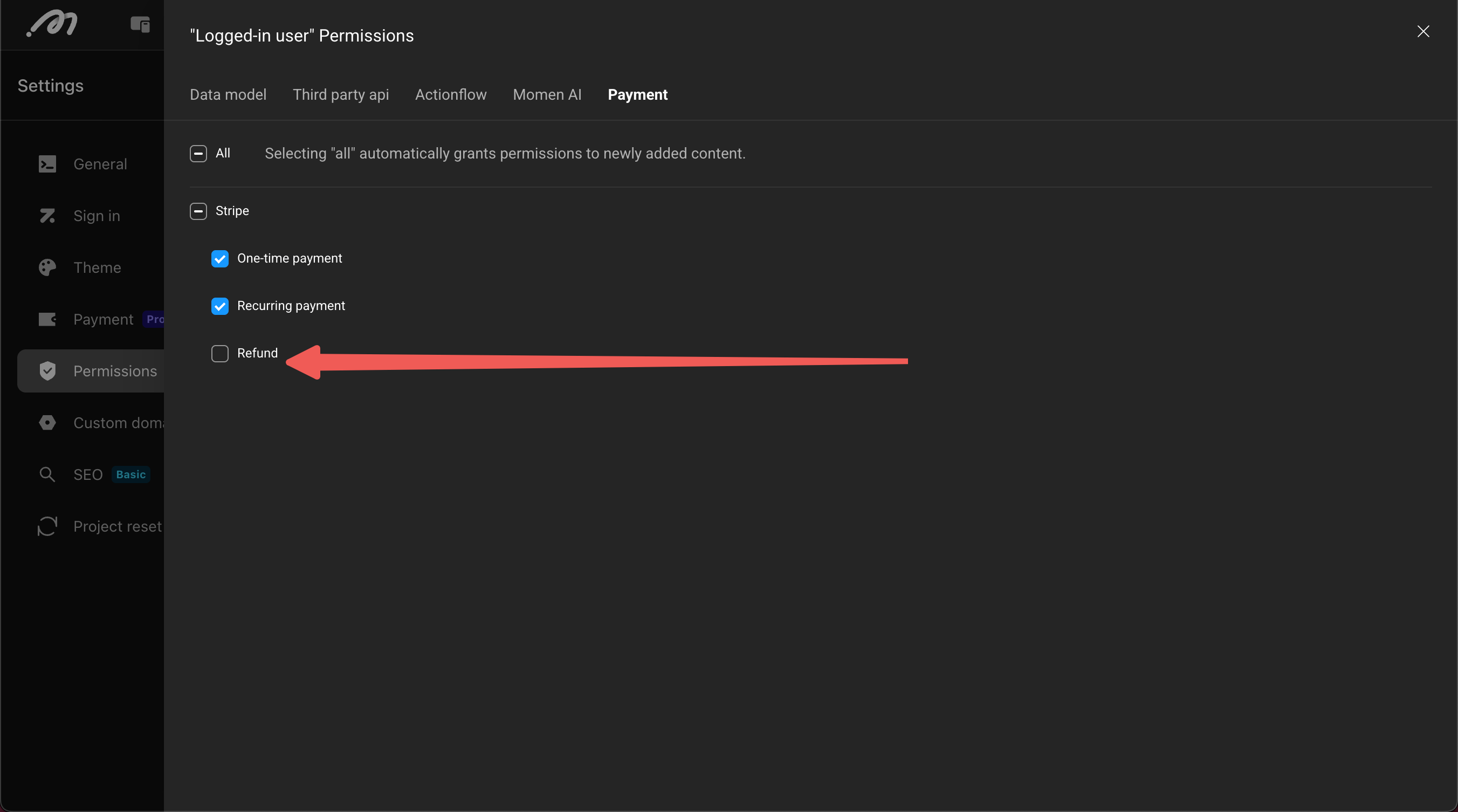
Important: Restrict refund permissions to admin users to minimize financial risk.