Order Expiry Scheduler
Project Access Link
https://editor.momen.app/tool/dK5wjNzNOkz/WEB?code=urAsbw5kqNaNt&ref=0562398
Introduction
- Goal: Automatically change the status of an order from “Pending” to “Cancelled” if it remains unpaid for a specific duration.
- Applicable Scenario: Order timeouts, membership expiration, meeting room release, or event registration deadlines.
- Core Logic: Use a Scheduled Trigger to run a background Actionflow every minute, querying expired records and batch-updating their status.
Steps
Data Storage
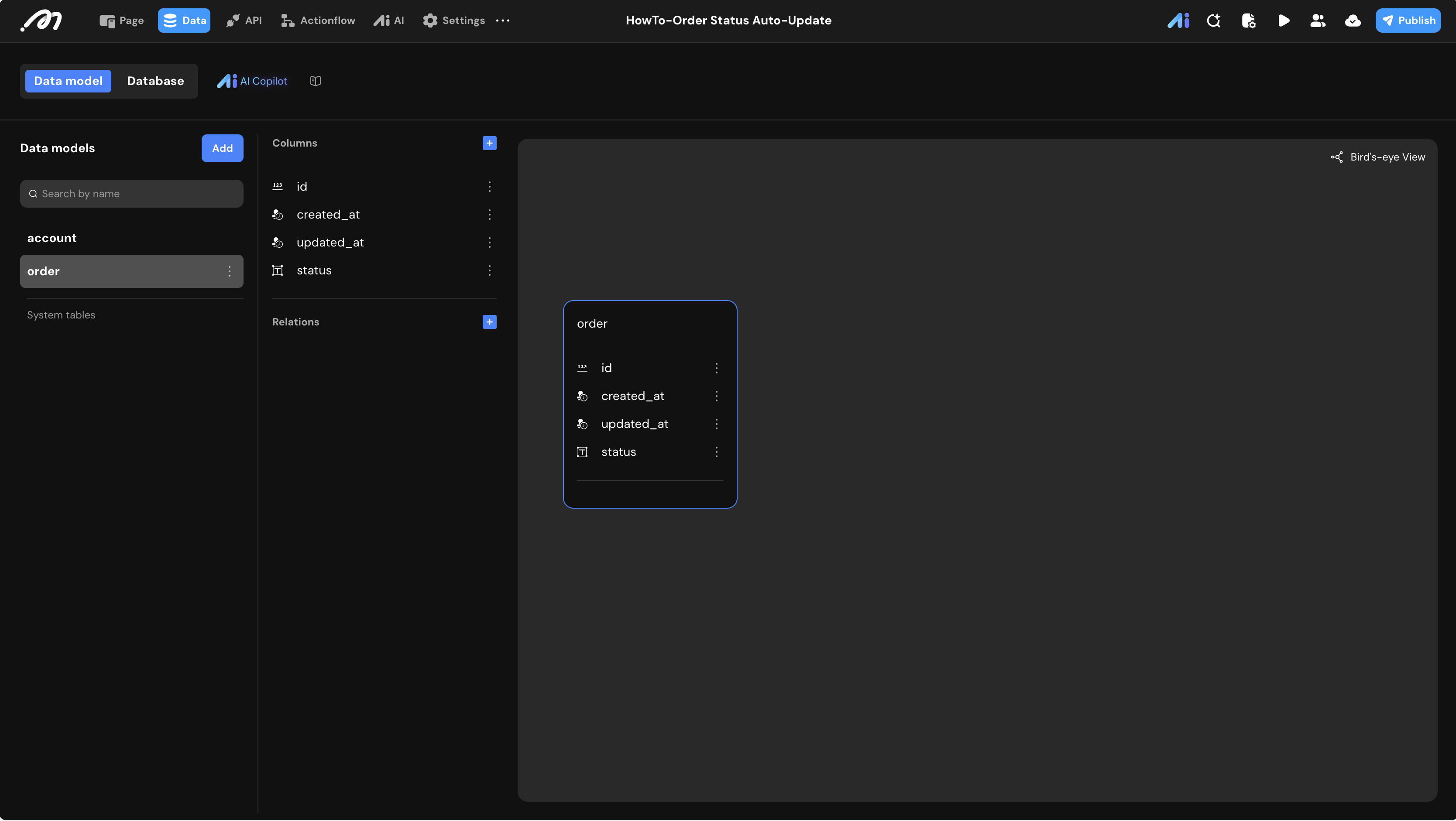
- Data Model: Create a table named
order.
| Field Name | Type | Note |
|---|---|---|
id | BigInt | Unique identifier (System default). |
created_at | Timestamp | Record creation time (Used as the “Order Time”). |
status | Text | Values: Pending, Paid, Cancelled. |
Logic Configuration (Actionflow)
Navigate to the Actionflow tab to build the automation logic.
Scheduled Trigger Configuration
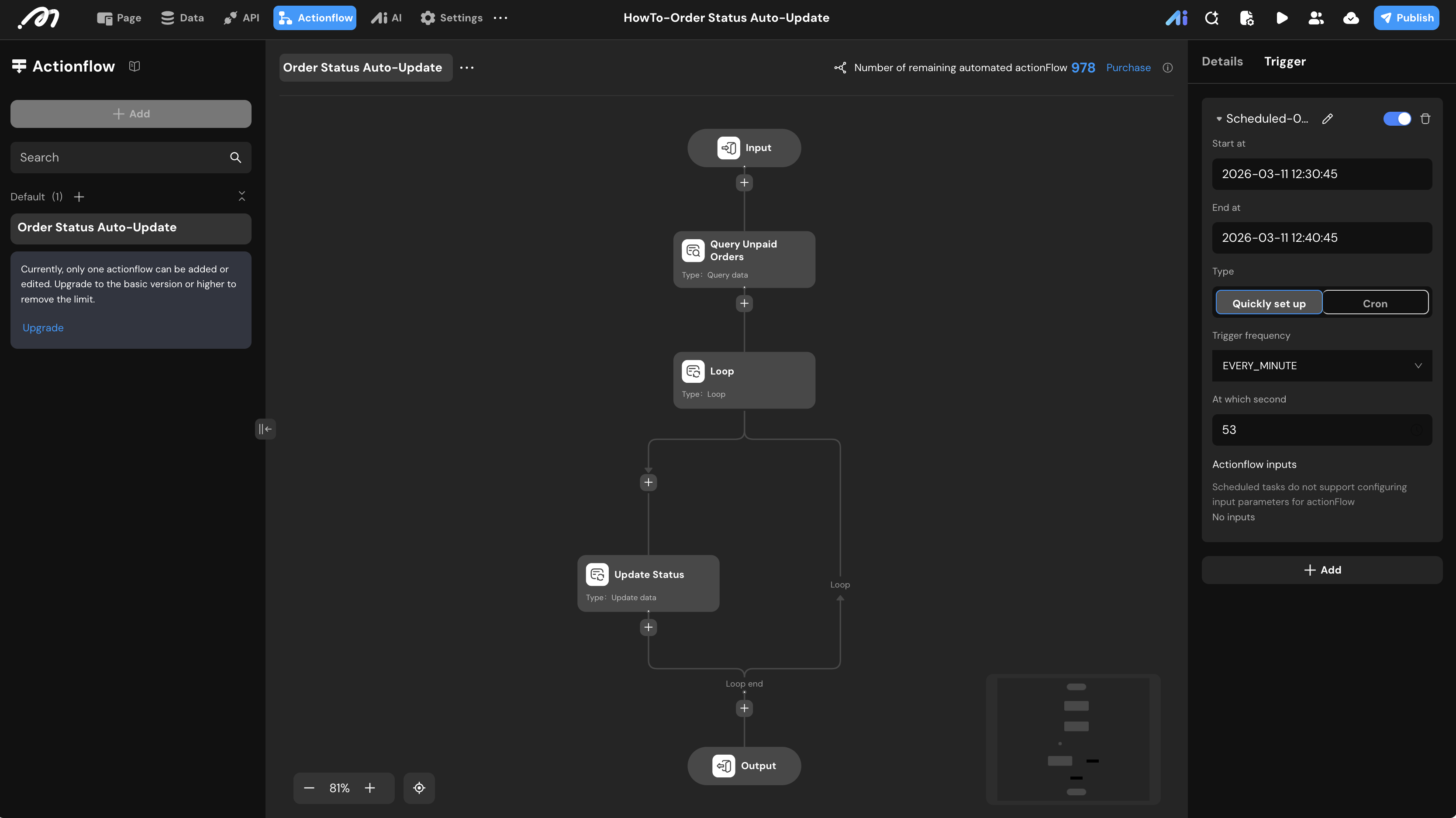
- Create a new Actionflow named
Order Status Auto-Update. - In the Trigger panel, add a Schedule trigger.
- Start at / End at: Define the effective time range for this automation.
- Trigger frequency: Set to
EVERY_MINUTE(for testing purposes) or your desired business interval. - At which second: Specify an exact second.
Quota Usage Note:
Every time the scheduled Actionflow runs, it consumes 1 run from your balance. You can track this by checking the “Number of remaining automated actionFlow” indicator in the top right corner of the editor. Please monitor your balance closely when configuring high-frequency triggers like EVERY_MINUTE.
Querying Expired Orders
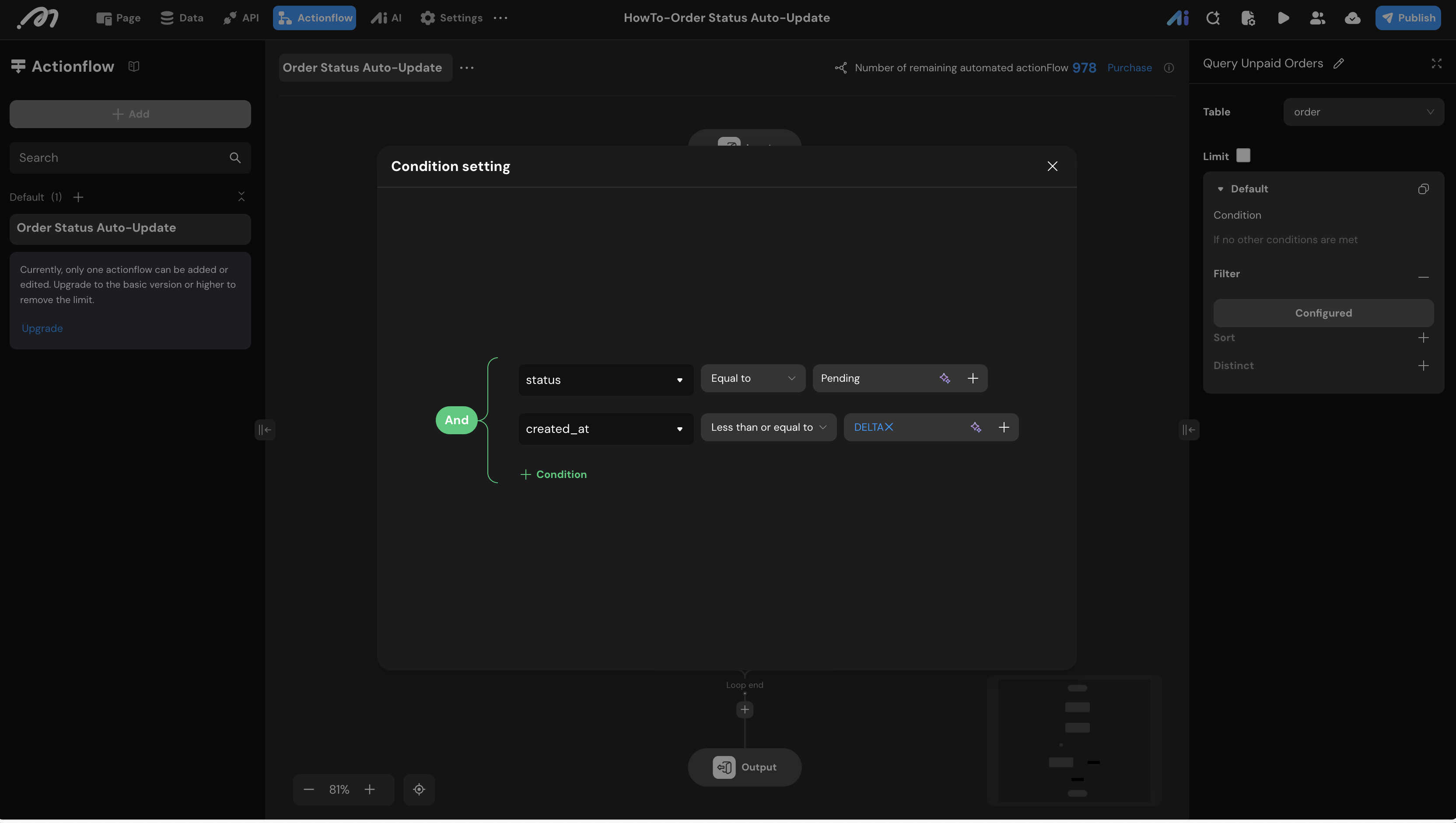
Add a Query Data node to identify orders that need to be cancelled.
- Table: Select
order. - Filter Logic: Configure the conditions using the “And” operator:
statusEqual toPending.created_atLess than or equal toDELTAformula.
- Formula Setting: Use the
DELTAfunction to calculate the expiration threshold:- Original time:
Current datetime. - Operation:
Decrease. - Minute:
1(This defines the 1-minute timeout).
- Original time:
Batch Updating Status
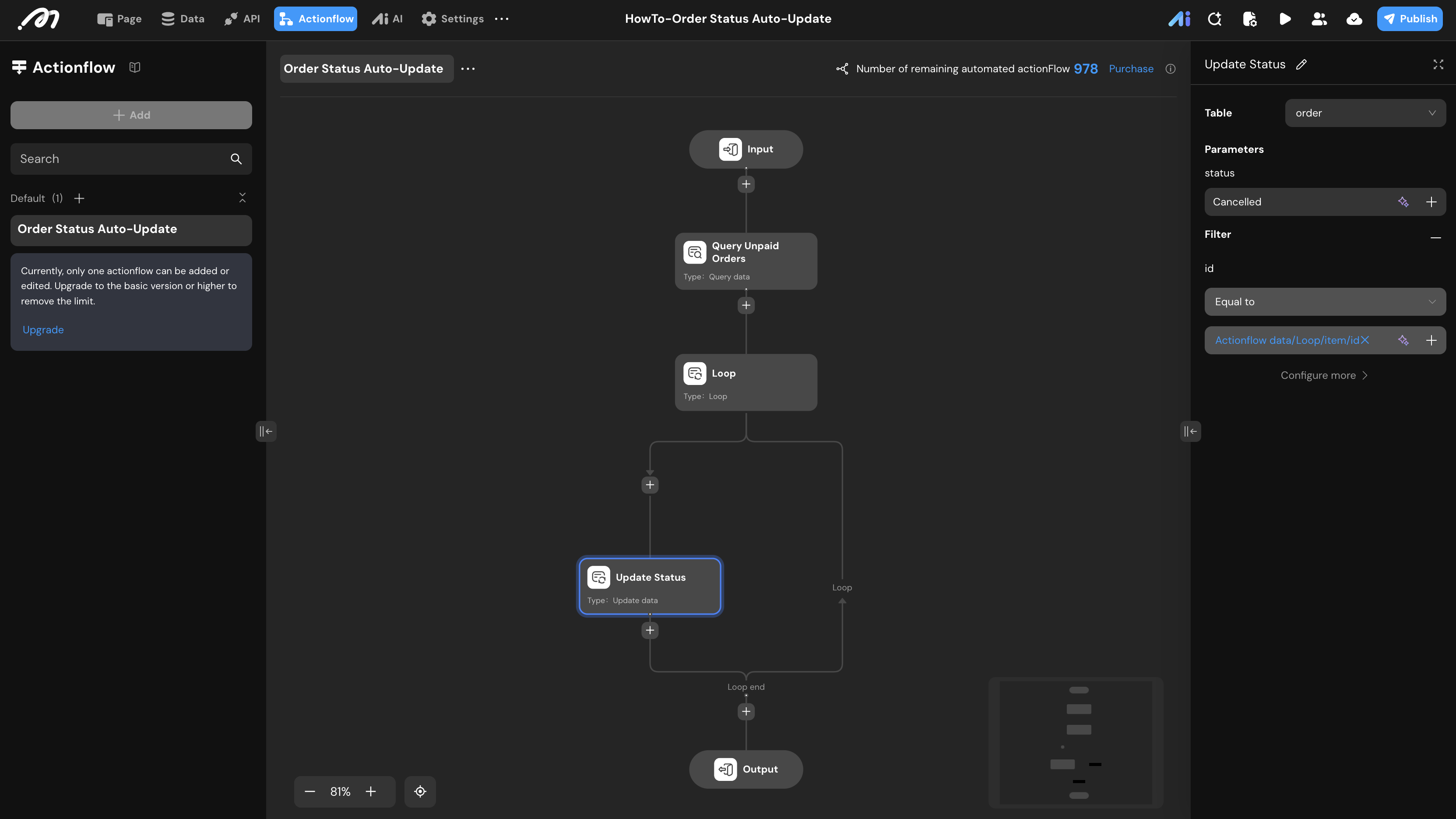
Use a loop to process the results from the query.
- Add Loop: Connect a Loop node to the Query node. Set the data source to the output of
Query Unpaid Orders. - Update Data: Inside the loop, add an Update Data node.
- Table:
order. - Filter:
idEqual toActionflow data->Loop->item->id. - Parameters: Set
statusto a constant value:Cancelled.
- Table:
Verification
To test the logic, go to the Data -> Database view and follow these steps to observe the time-sensitive behavior:
- Insert Test Data: Manually add two records.
- Record A:
status=Paid. - Record B:
status=Pending. Note the exactcreated_attime (e.g., 12:33:10).
- Record A:
- First Execution Cycle:
- Wait for the first scheduled trigger (e.g., at 12:33:53).
- Since the time elapsed since creation (43 seconds) is less than the 1-minute threshold defined in the
DELTAformula, the status will remain unchanged asPending.
- Second Execution Cycle:
- Wait for the next scheduled trigger (e.g., at 12:34:53).
- Now that the elapsed time (1 minute and 43 seconds) exceeds the 1-minute threshold, the Actionflow will successfully query the record.
- Final Result: Refresh the database view. Record B’s status should now be updated to
Cancelled, while Record A remainsPaid.
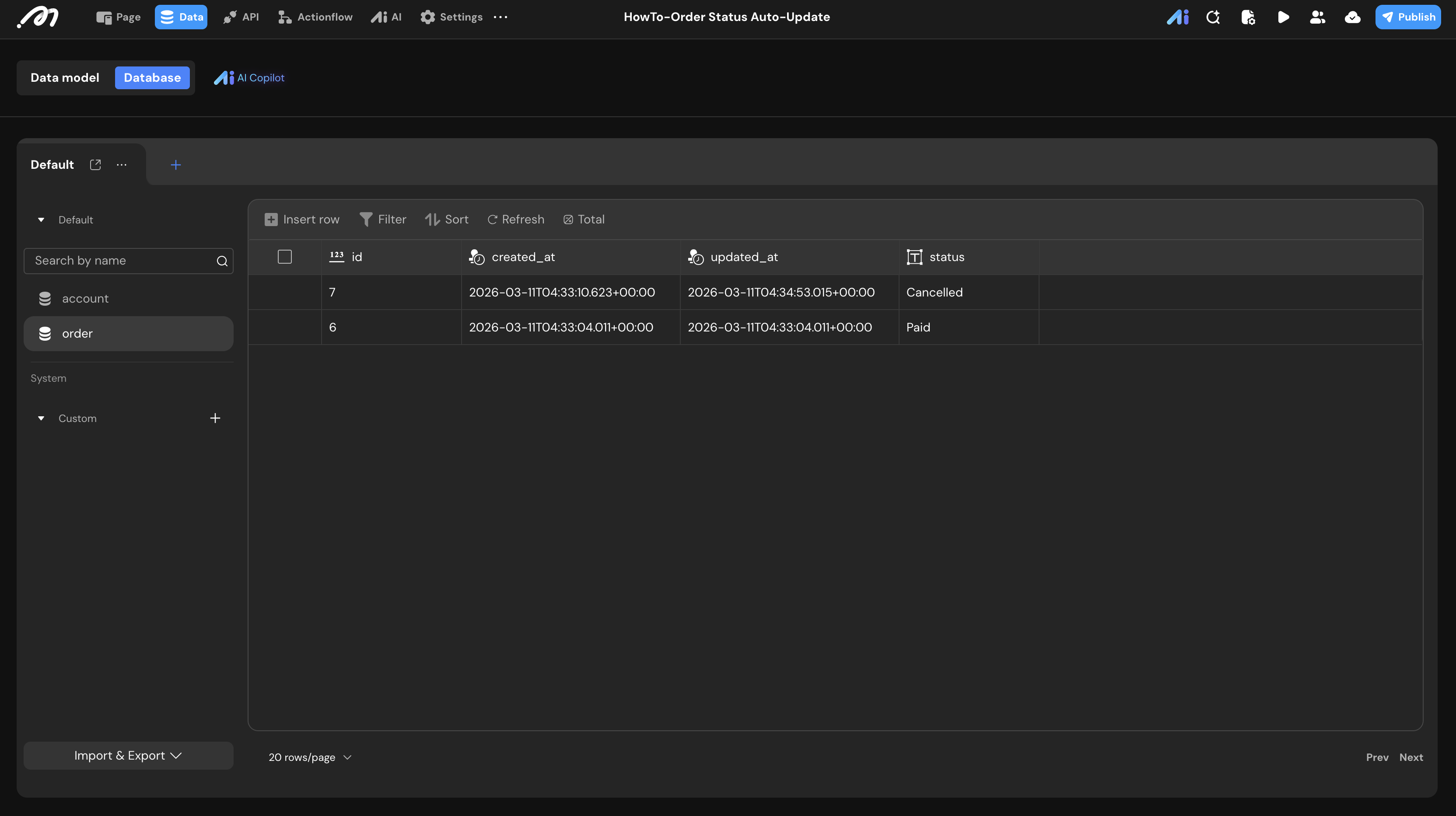
Because the trigger runs at a fixed interval (e.g., the 53rd second of every minute), a record might wait anywhere from 1 minute to 1 minute and 59 seconds before being processed, depending on exactly when it was created relative to the trigger cycle.