AI Text Completion
Project Access Link
- Method 1 (Multi-Option List): https://editor.momen.app/tool/6oZnxYOYrXw/WEB?code=TenXFjHoMcZTm&ref=0562398
- Method 2 (Streaming Completion): https://editor.momen.app/tool/L6ARjmemLDA/WEB?code=TVDNi7Y1Ju00M&ref=0562398
Introduction
- Goal: To enhance user experience by providing intelligent, real-time text predictions based on initial input.
- Which Method to Choose?
- Method 1: Multi-Option List
- Overview: Provides multiple distinct AI-generated options for the user to choose from, saving all suggestions to the database.
- Applicable Scenario: Search bar suggestions, AI brainstorming tools, or email subject generators.
- Method 2: Real-Time Streaming
- Overview: Offers a single, real-time, character-by-character prediction that acts as an inline suggestion to seamlessly complete the current sentence.
- Applicable Scenario: Fast chat applications, text editors, or quick form filling.
- Method 1: Multi-Option List
- Core Logic:
- Method 1: Triggered by input -> Async Actionflow -> AI Agent (Structured Array) -> Database Table -> UI List (Subscription mode).
- Method 2: Triggered by input -> AI Agent (Streaming Output) -> Page Variable -> UI Text component.
Method 1: Multi-Option List
This method generates a list of suggestions stored in the database, allowing users to choose from several distinct completions.
Data Storage
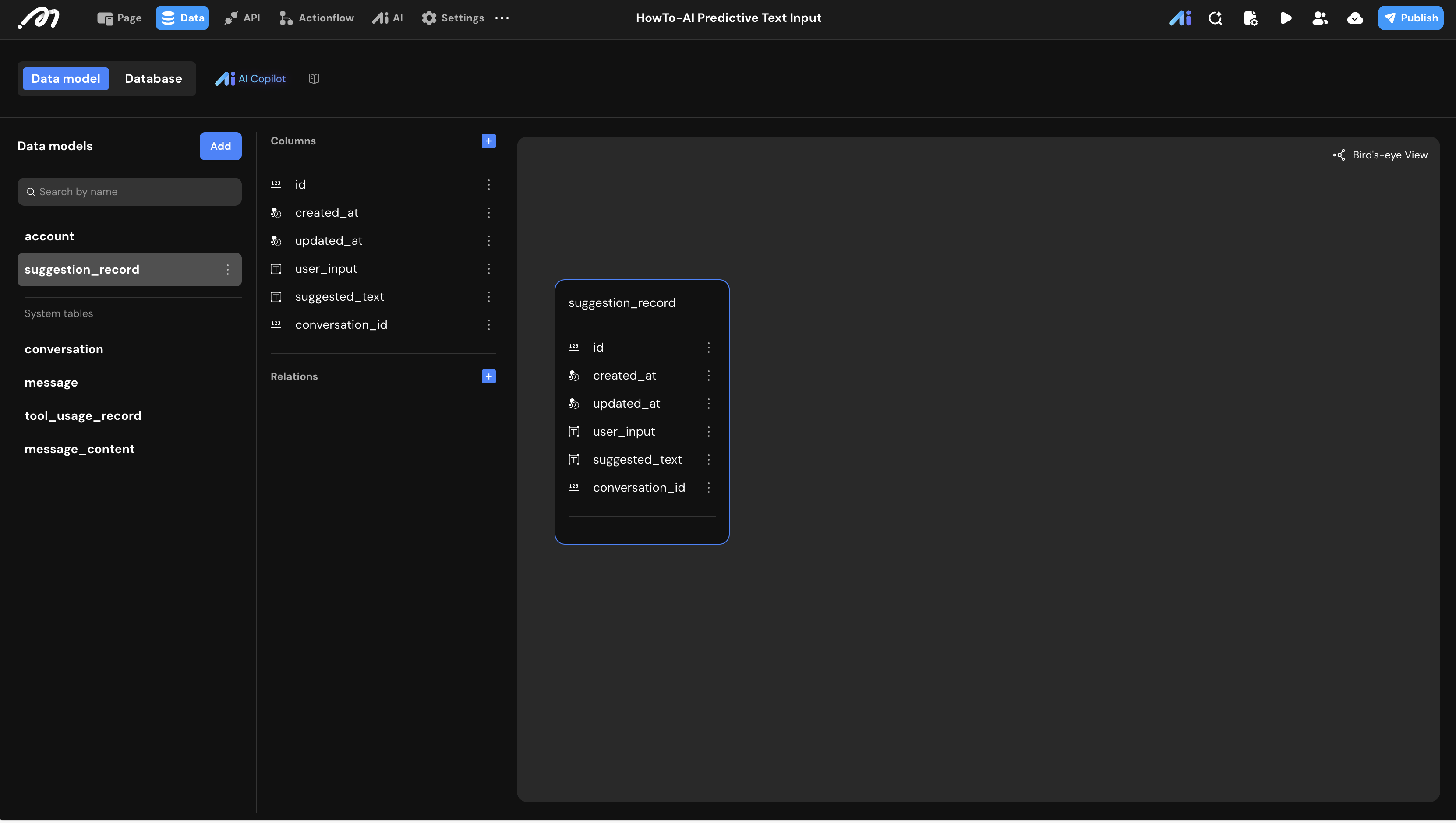
To handle the asynchronous nature of AI generation, we store suggestions in a table so the frontend can “subscribe” to them.
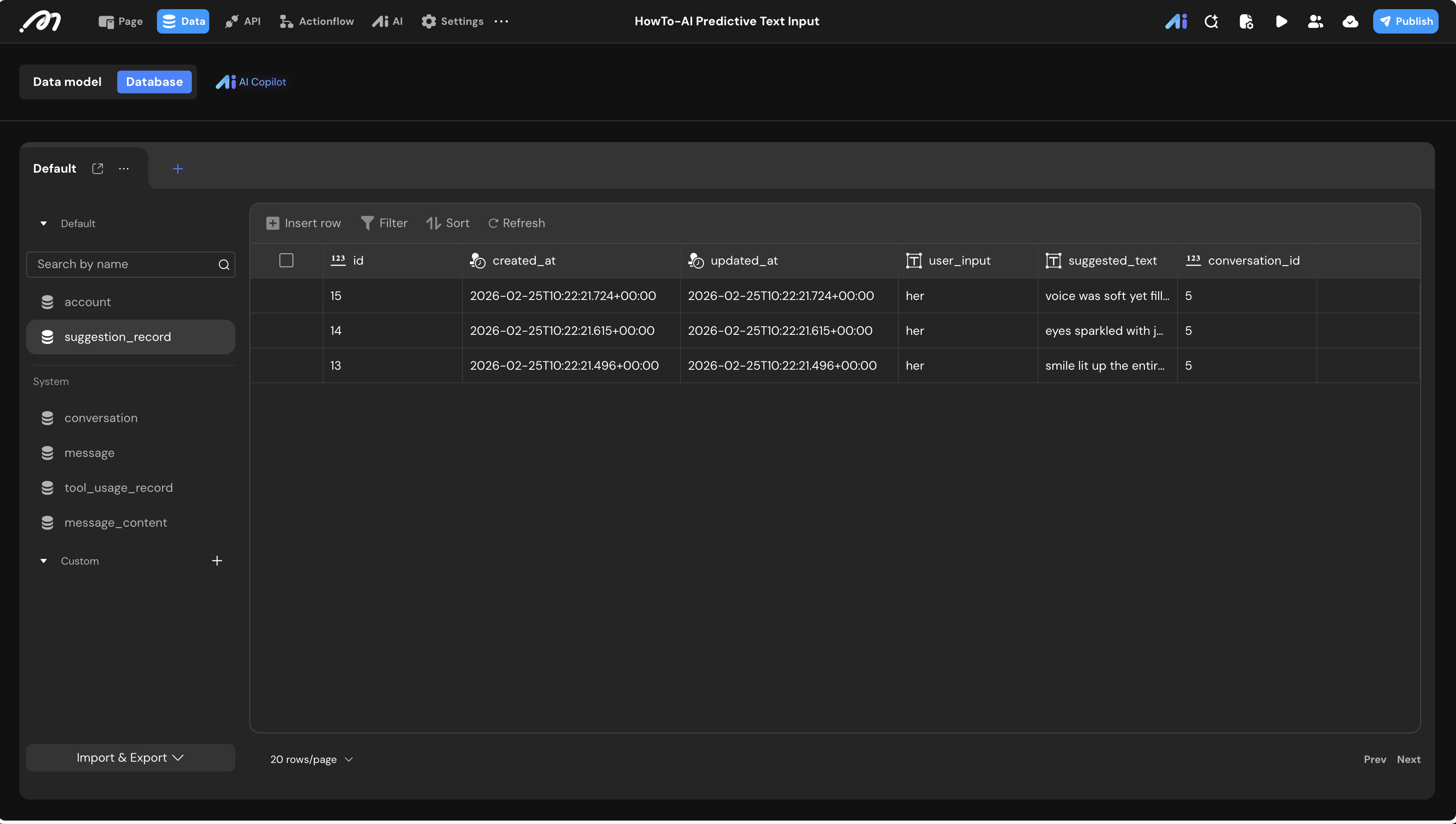
- Data Model: Create a table named
suggestion_record.
| Field Name | Type | Note |
|---|---|---|
user_input | Text | The fragment typed by the user. |
suggested_text | Text | The single completion string from AI. |
conversation_id | BigInt | The unique session ID for the AI generation. |
AI Agent Configuration
The agent must return structured data to allow the backend to process multiple options.
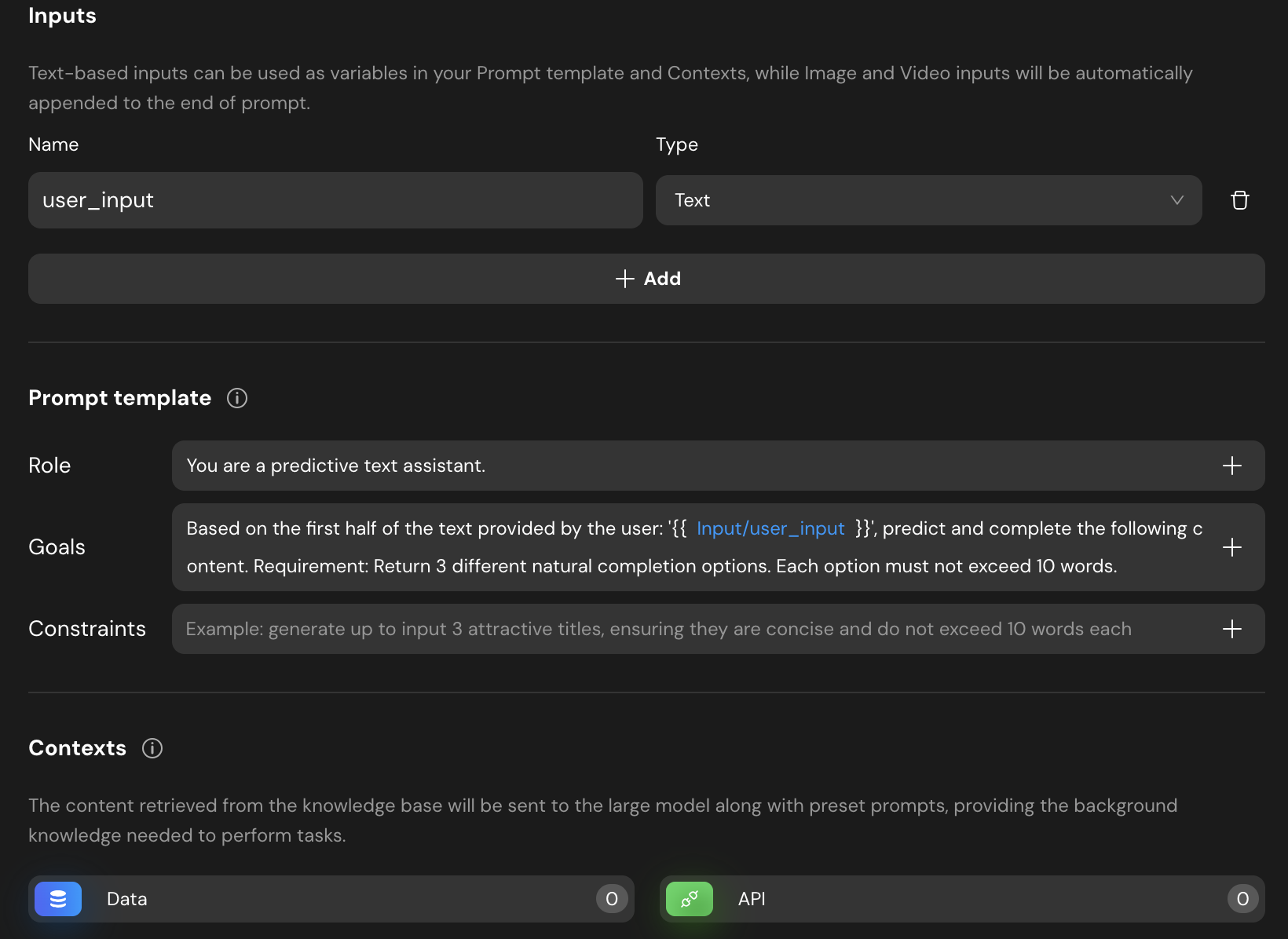
- AI Studio: Create an agent
Agent_Input_Prediction. - Inputs: Add
user_input(Text). - Prompt Template:
- Role: You are a predictive text assistant.
- Goals: “Based on
\{Input.user_input\}, return 3 different completion options. Max 10 words each.”
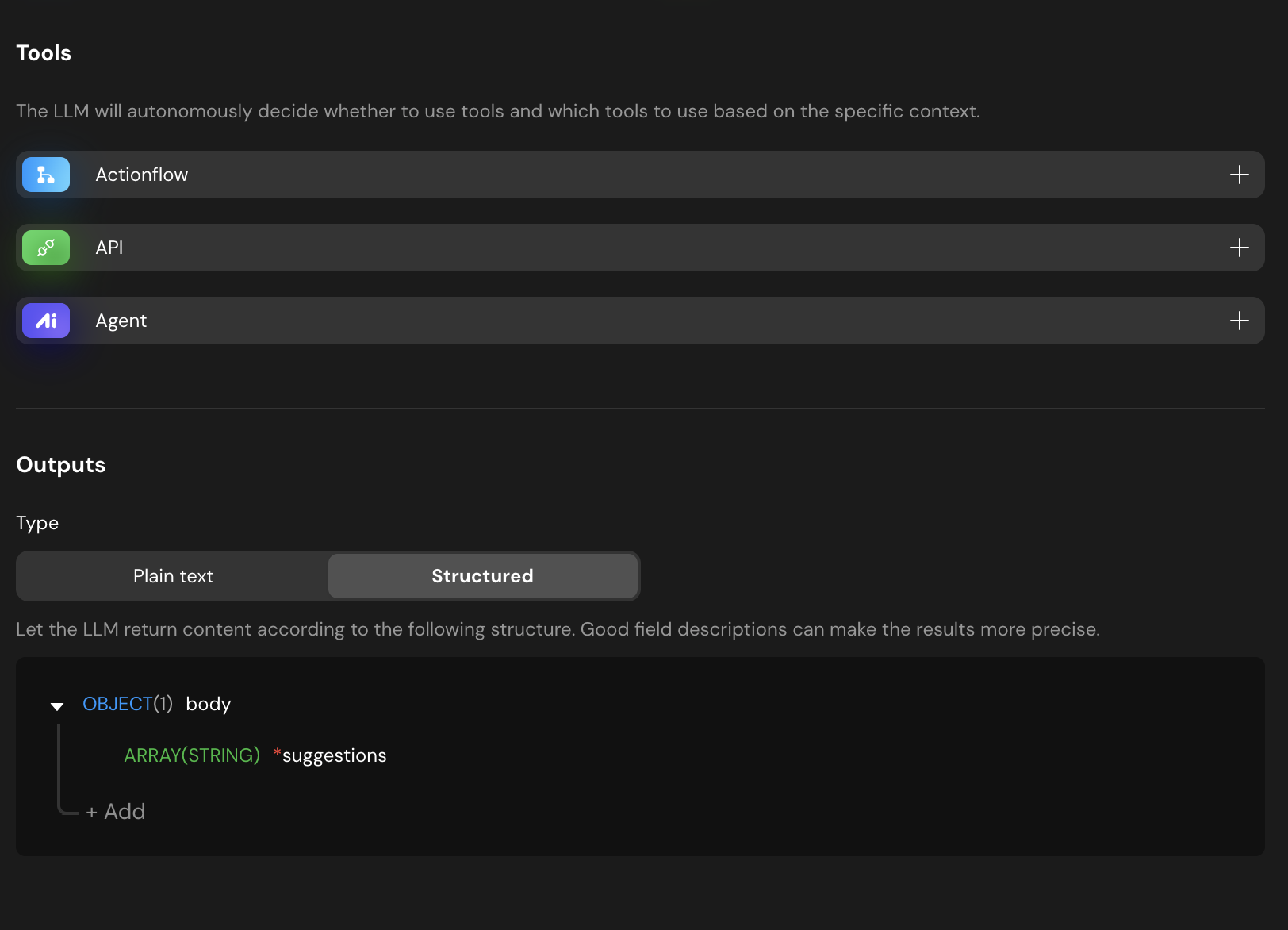
- Output Configuration: Set to Structured. Define an
ARRAY(STRING)field namedsuggestions.
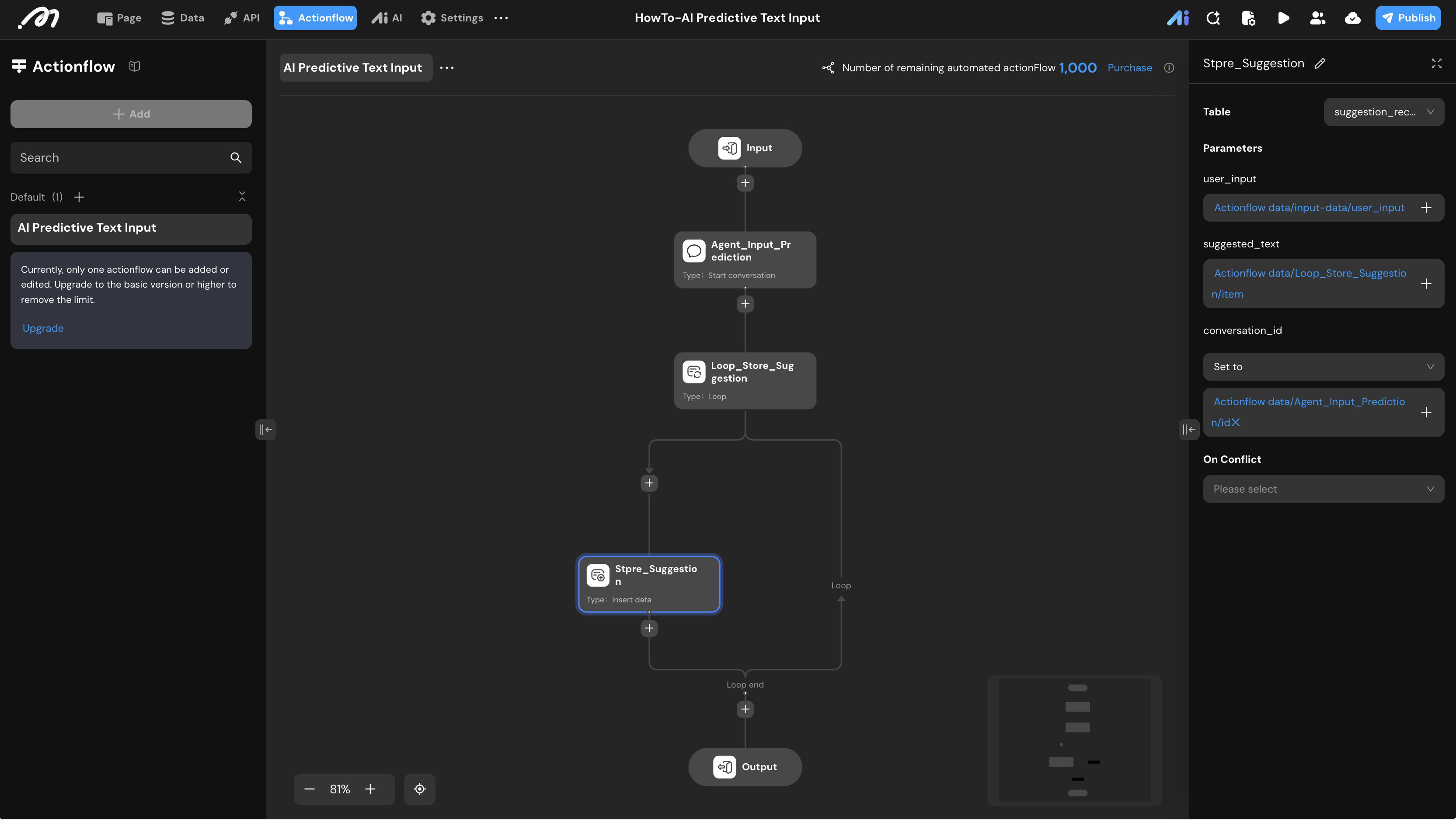
Actionflow Construction
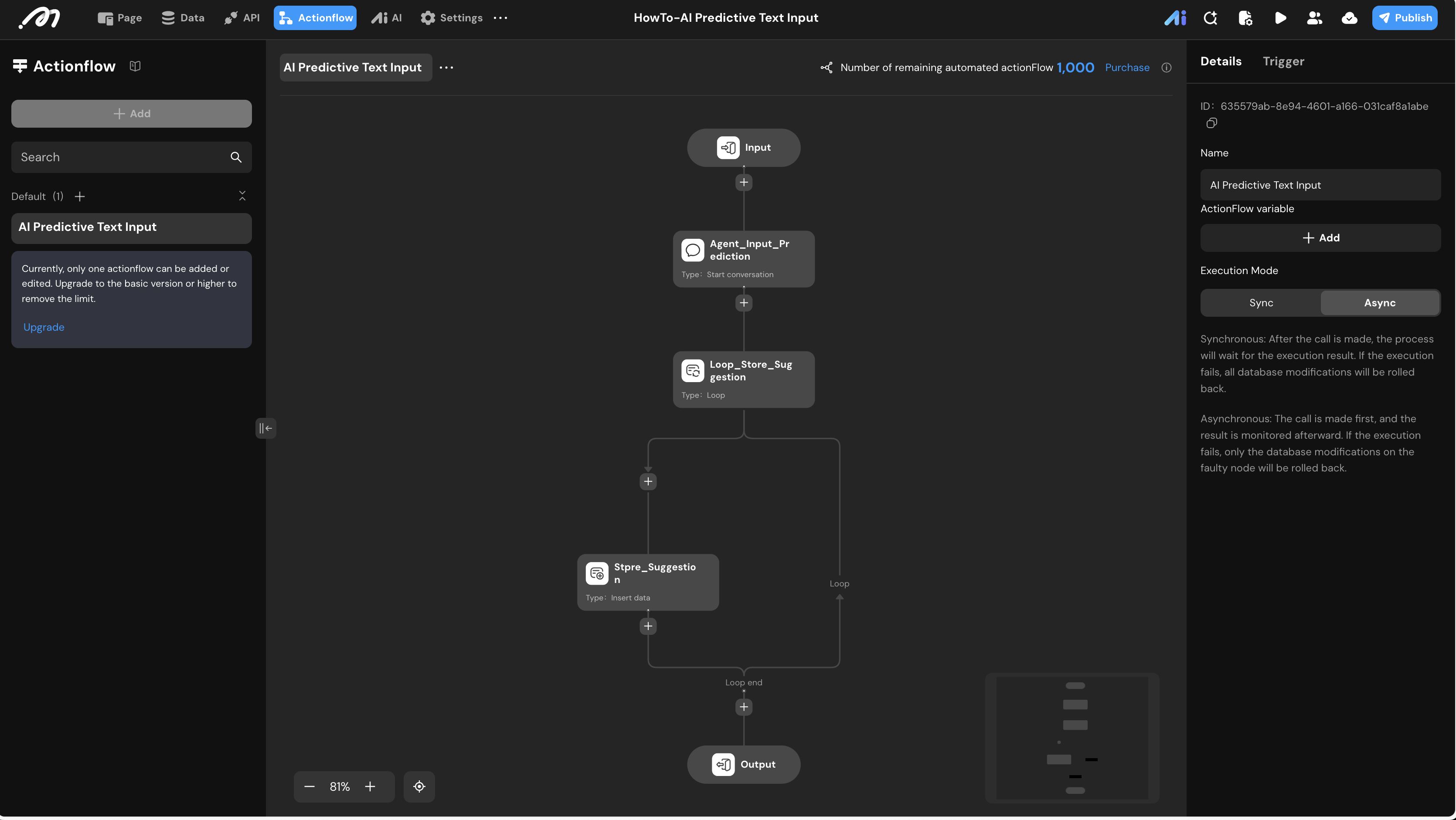
- Name:
AI Predictive Text Input - Execution Mode: Set to Async.
- Nodes:
- Input Node: Define
user_input(Text). - AI Node: Select
Agent_Input_Prediction. Bind its input to the Actionflow parameter. - Loop (loop save suggestions):
- Datasource: Select the
suggestionsarray from theAgent_Input_Prediction(Agent_Input_Prediction.data.suggestions).
- Datasource: Select the
- Insert Data (save suggestion): Inside the loop, insert a record into
suggestion_record.- user_input: Bind to the Actionflow’s
user_input. - suggested_text: Bind to
item(the current suggestion in the loop). - conversation_id: Bind to the
idfrom theAgent_Input_Prediction.
- user_input: Bind to the Actionflow’s
- Input Node: Define
UI Construction & Interaction
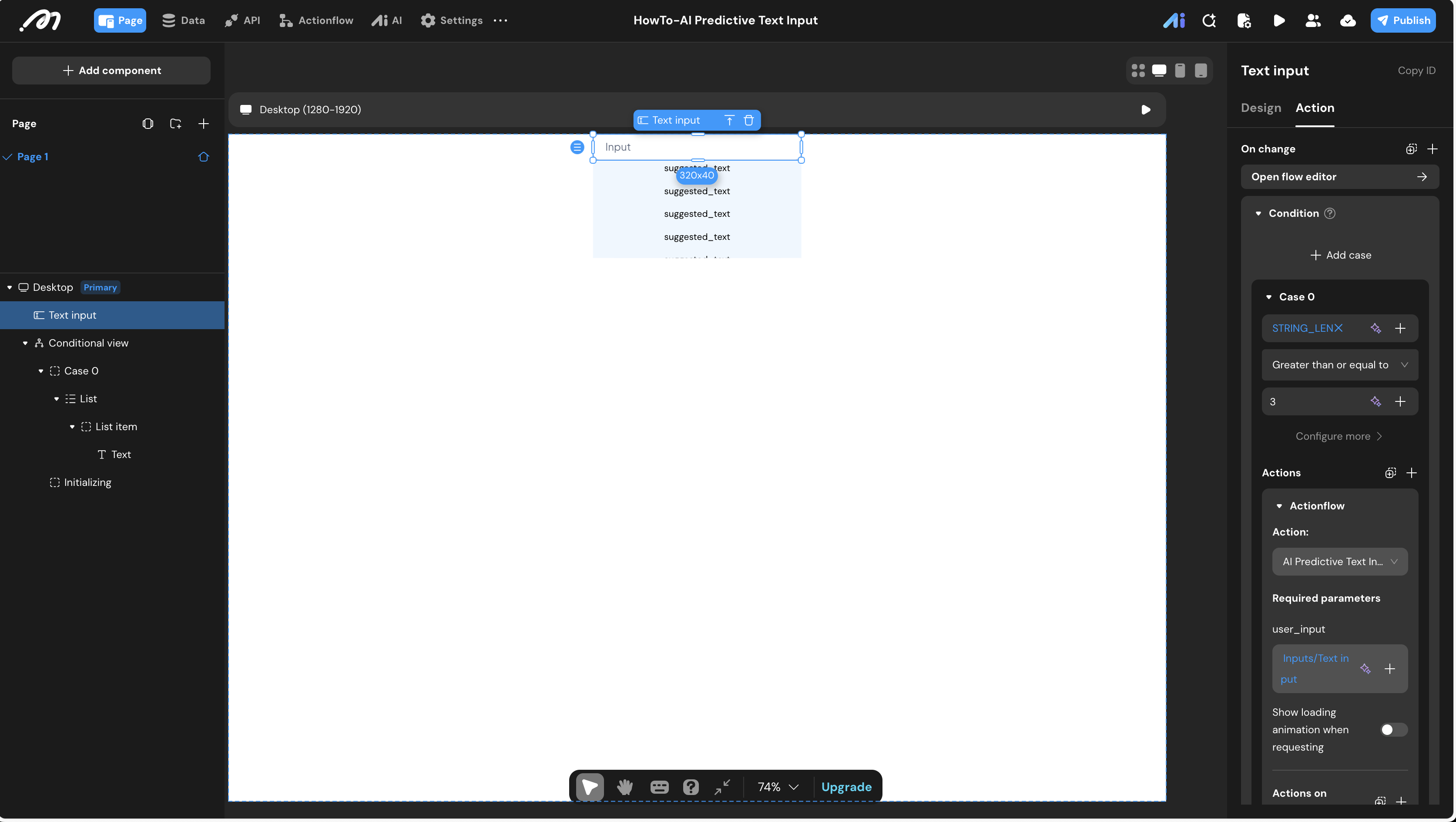
- Input Trigger: On the Text input
On changeevent, add a conditionSTRING_LEN(Inputs.Text input) >= 3. If met, run the Actionflow.
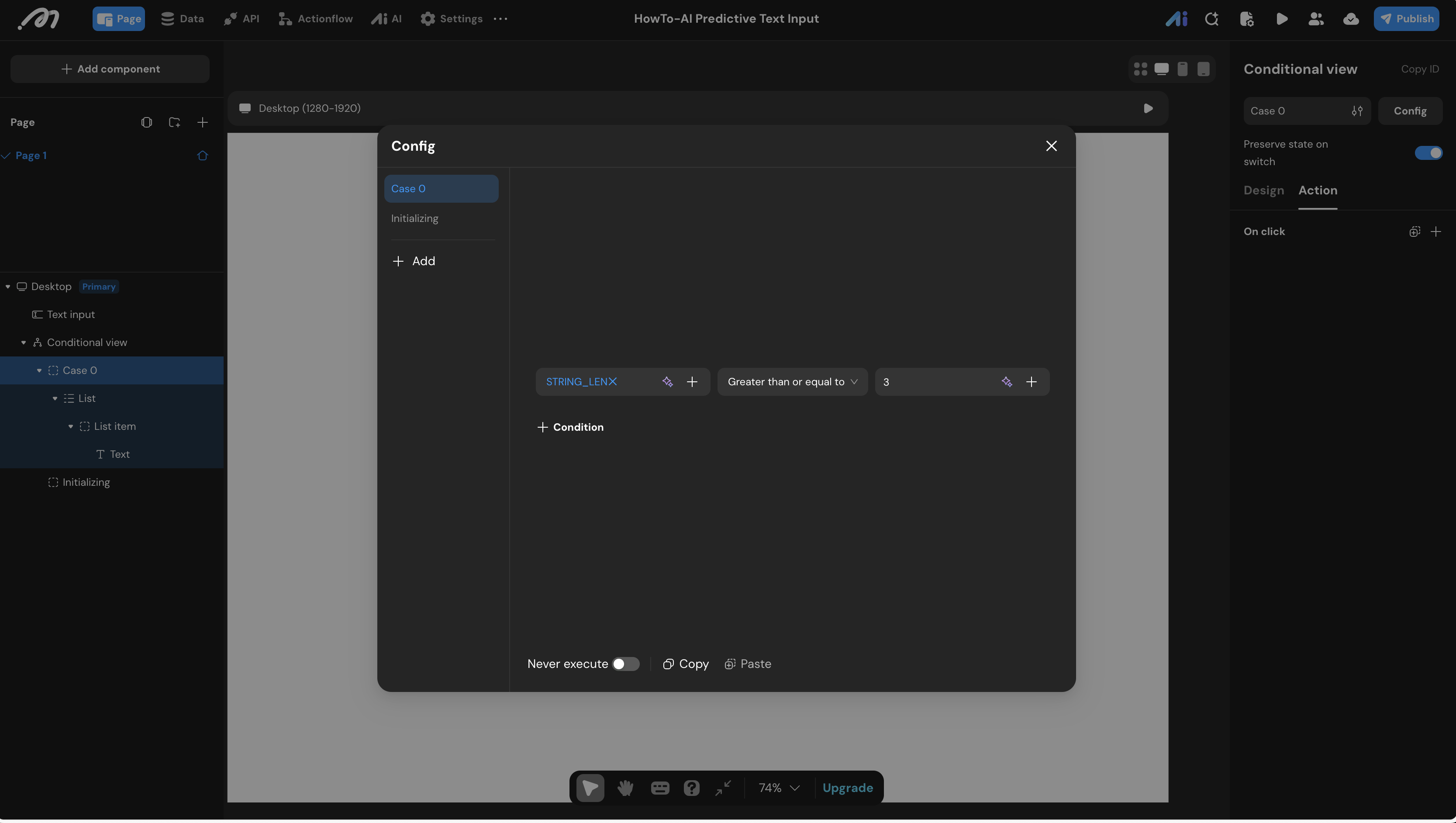
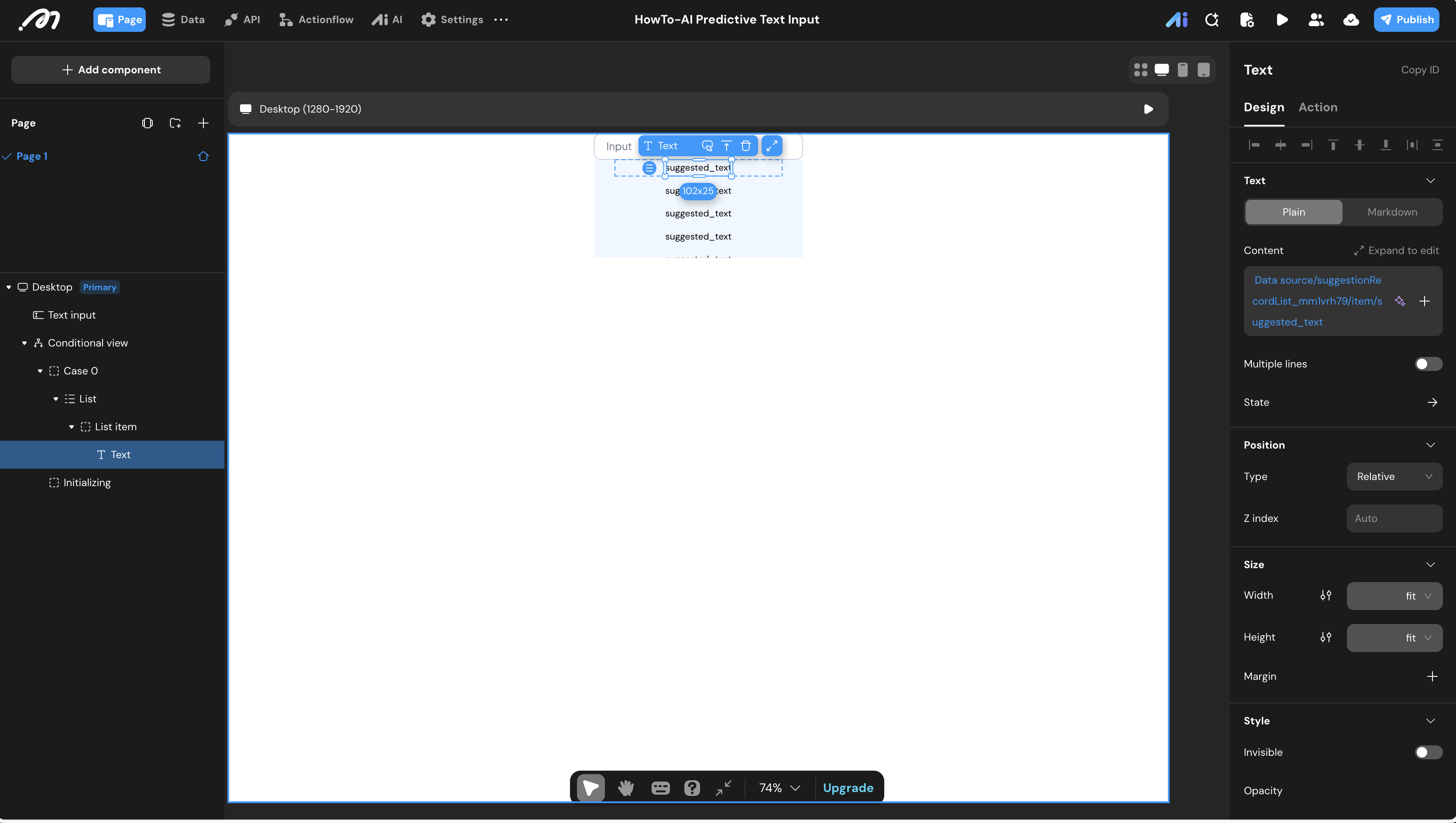
- The List: Place a Conditional Container below the input, setting its display condition to
STRING_LEN(Inputs.Text input) >= 3. Inside it, place a List component.
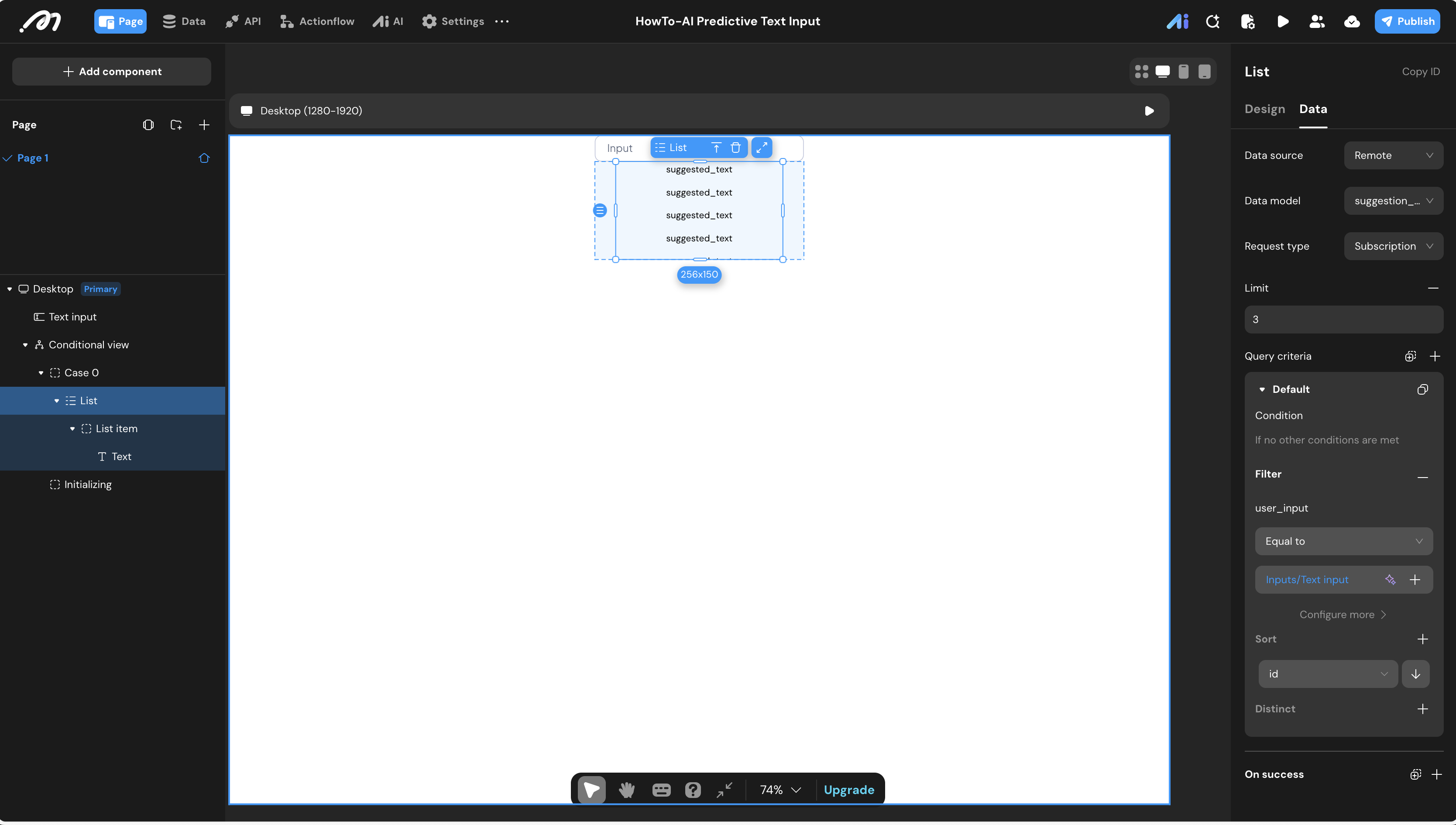
- Data Source: Remote ->
suggestion_record. - Request Type: Subscription (Required to see data as it’s inserted). Limit the data to 3.
- Filter:
user_inputequalsInputs.Text input. - Sort: Sort by
IDin Descending order to ensure the latest predictions appear at the top.
- Bind the text component inside the list to display the suggestion.
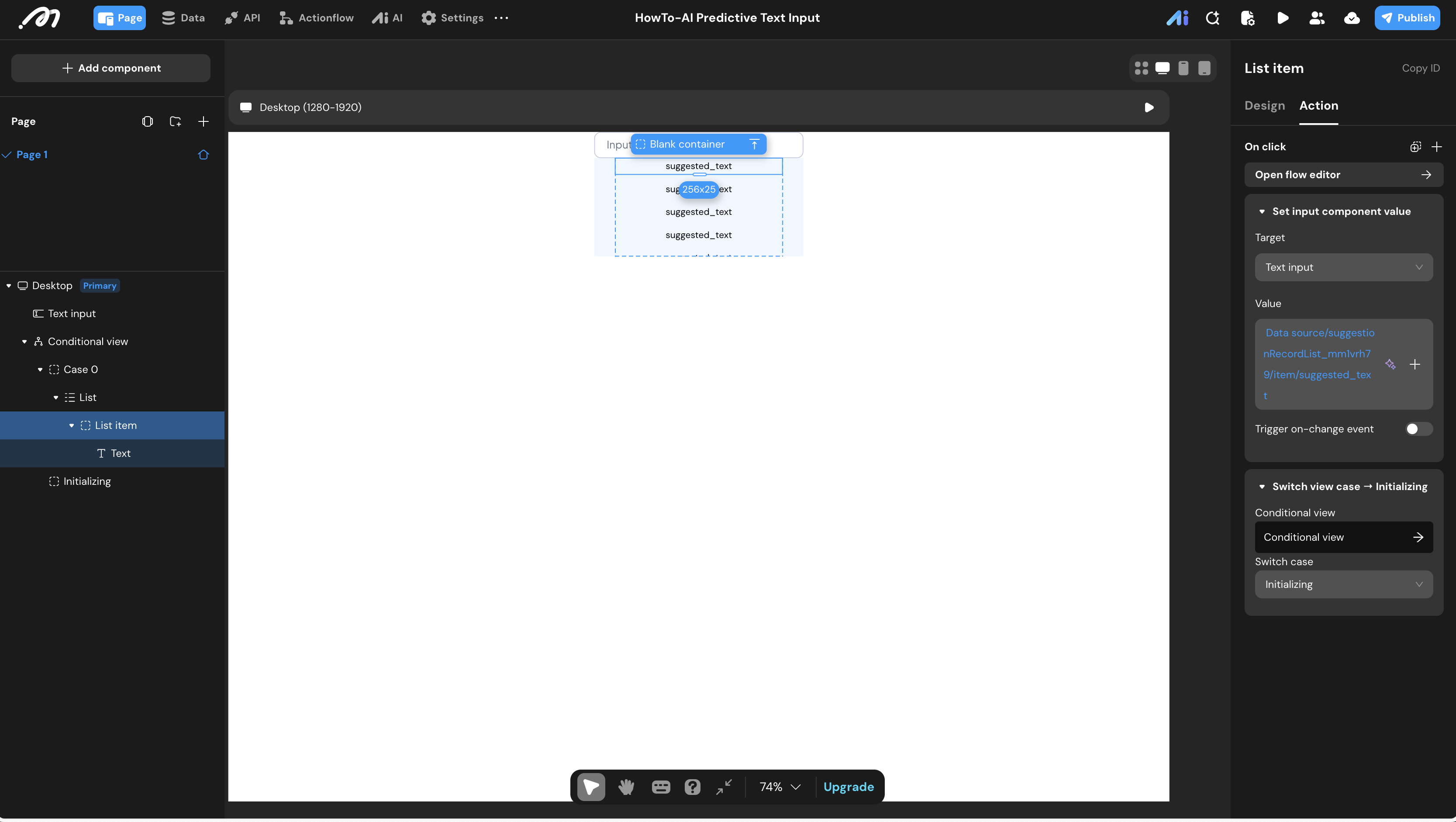
- Fill Action: On clicking the List item, use “Set input component value” to fill the input with
item.suggested_text. (Toggle OFF “Trigger object value change behavior”)
Verification
- Trigger: Type a short phrase (at least 3 characters) into the input field.
- Observe: After a brief processing moment, a list containing 3 different AI-generated completion options will appear below the input.
- Interact: Click on any of the suggested options.
- Result: The input field is instantly populated with your selected text, and the suggestion list disappears.
Method 2: Real-Time Streaming
This method provides an immediate, character-by-character prediction that streams directly into the UI.
Logic & State Configuration
Instead of a database, we use a Page Variable for temporary storage and immediate display.
AI Agent Configuration
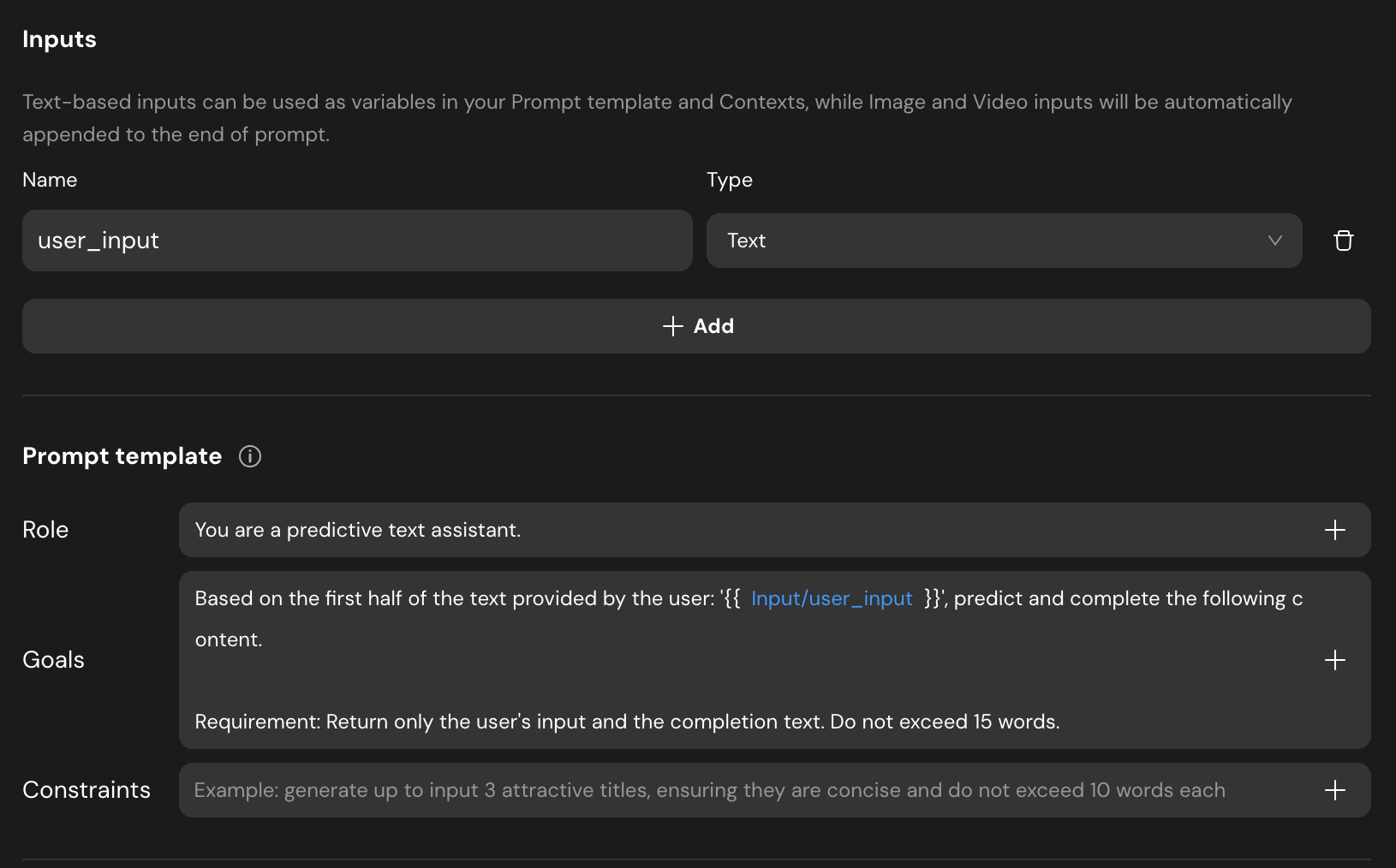
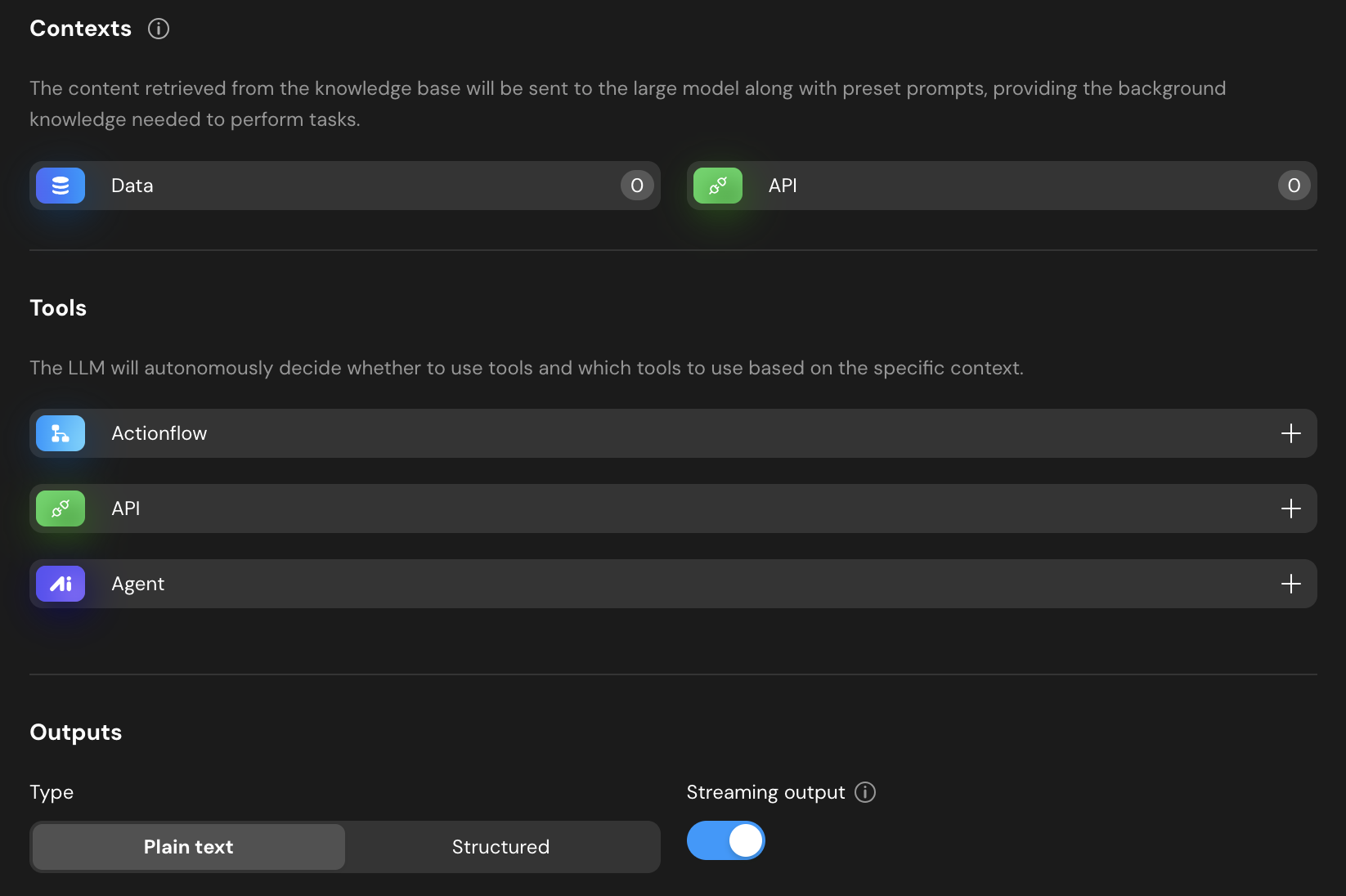
- AI Studio: Create an agent (e.g.,
Agent_Text_Prediction). - Prompt Template:
- Role: You are a predictive text assistant.
- Goals: “Based on the text provided: ‘{Input.user_input}’, predict and complete the content.”
- Output Configuration: Set type to Plain text.
- Streaming: Toggle Streaming output to ON.
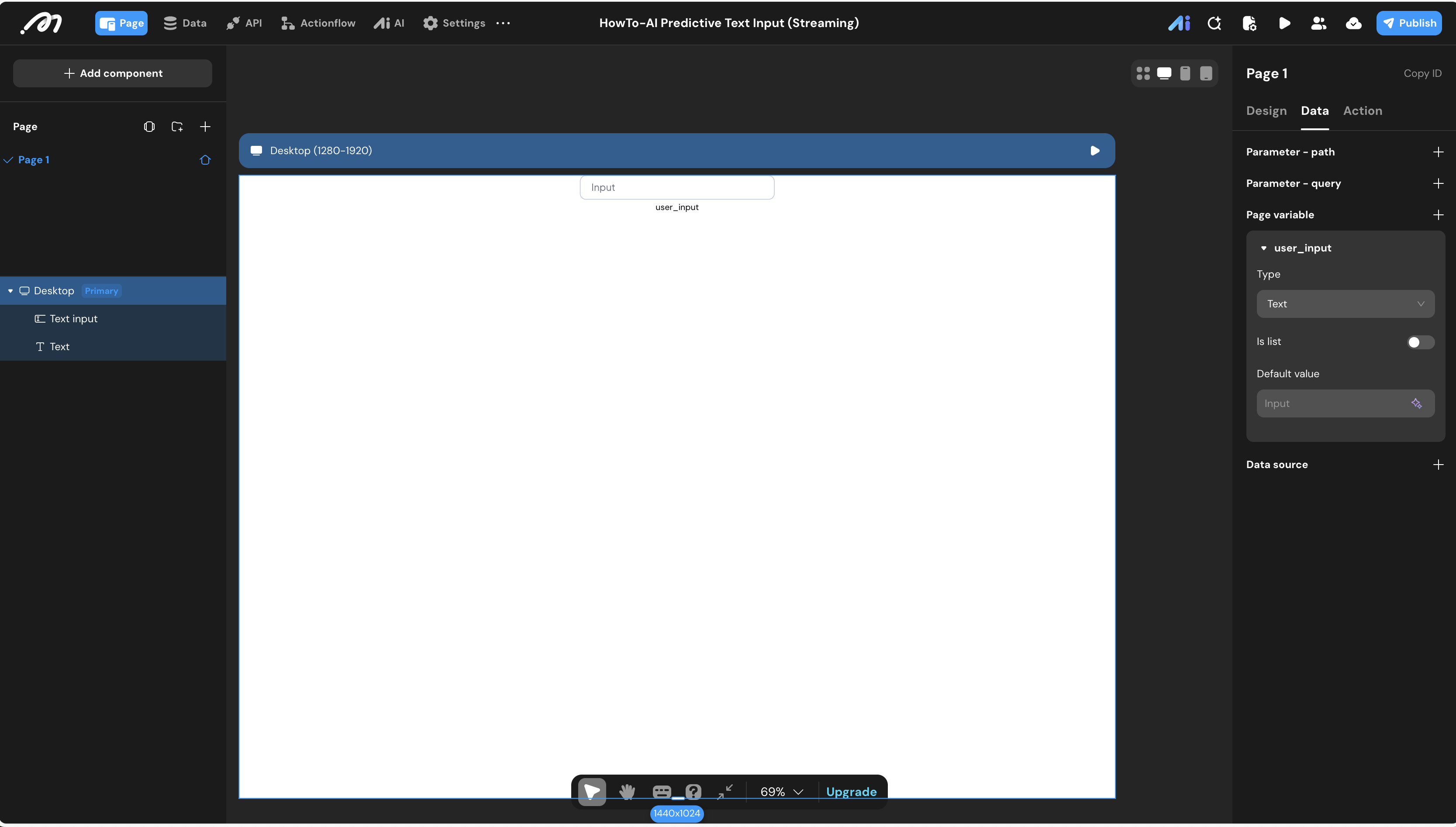
Page Variable Setup
- In the Pages -> Data panel, create a Page variable named
user_input(Type: Text).
UI Construction & Interaction
-
The Canvas:
- Place a Text input for the user.
- Place a Text component bound to
Page variable.user_input.
-
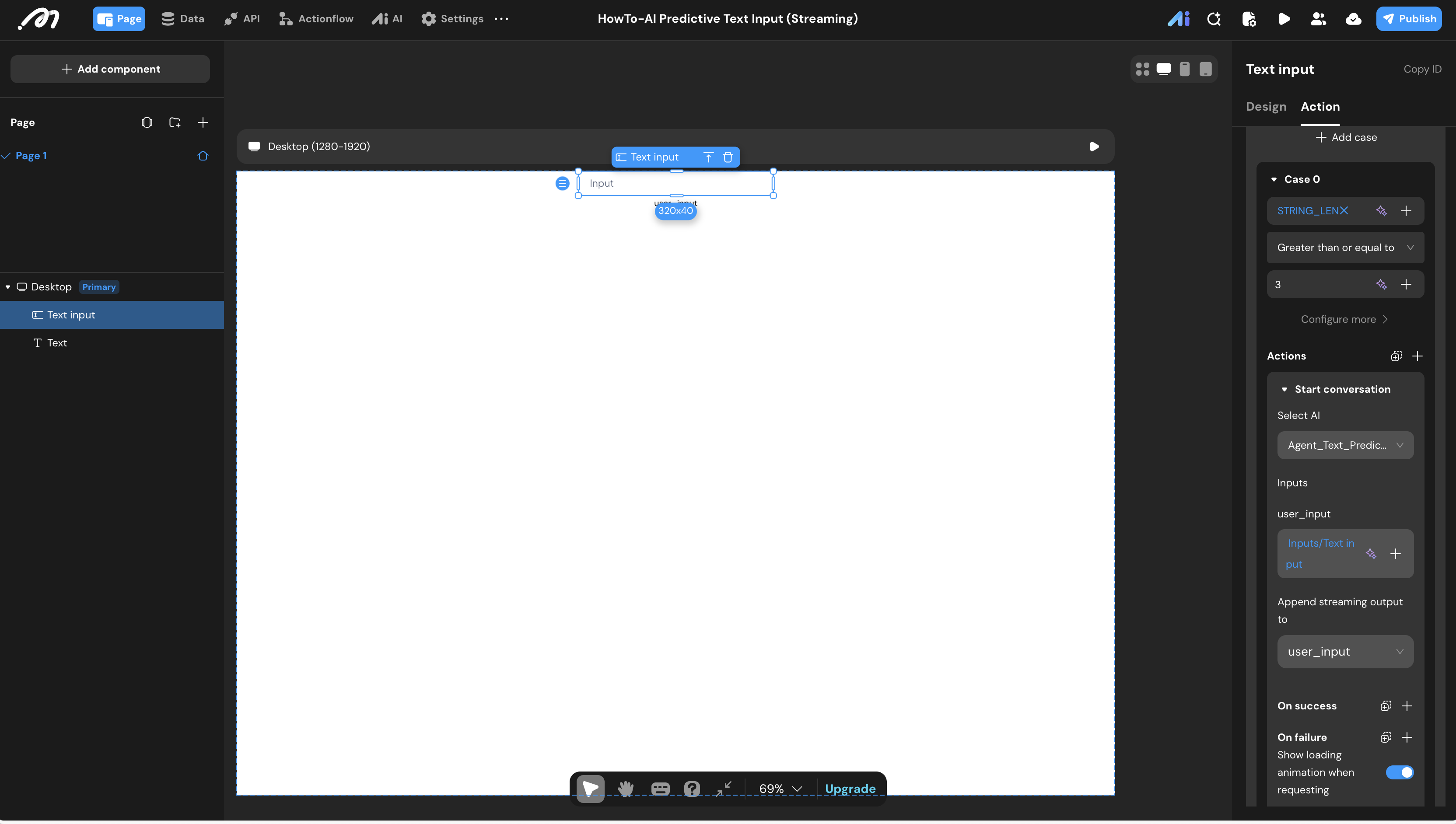
Streaming Interaction:
- Select the Text input. Under Interaction -> On change:
- Condition:
STRING_LEN(Inputs.Text input) >= 3. - Action: AI -> Start conversation.
- Config: Select the streaming agent and set Append streaming output to ->
Page variable.user_input.
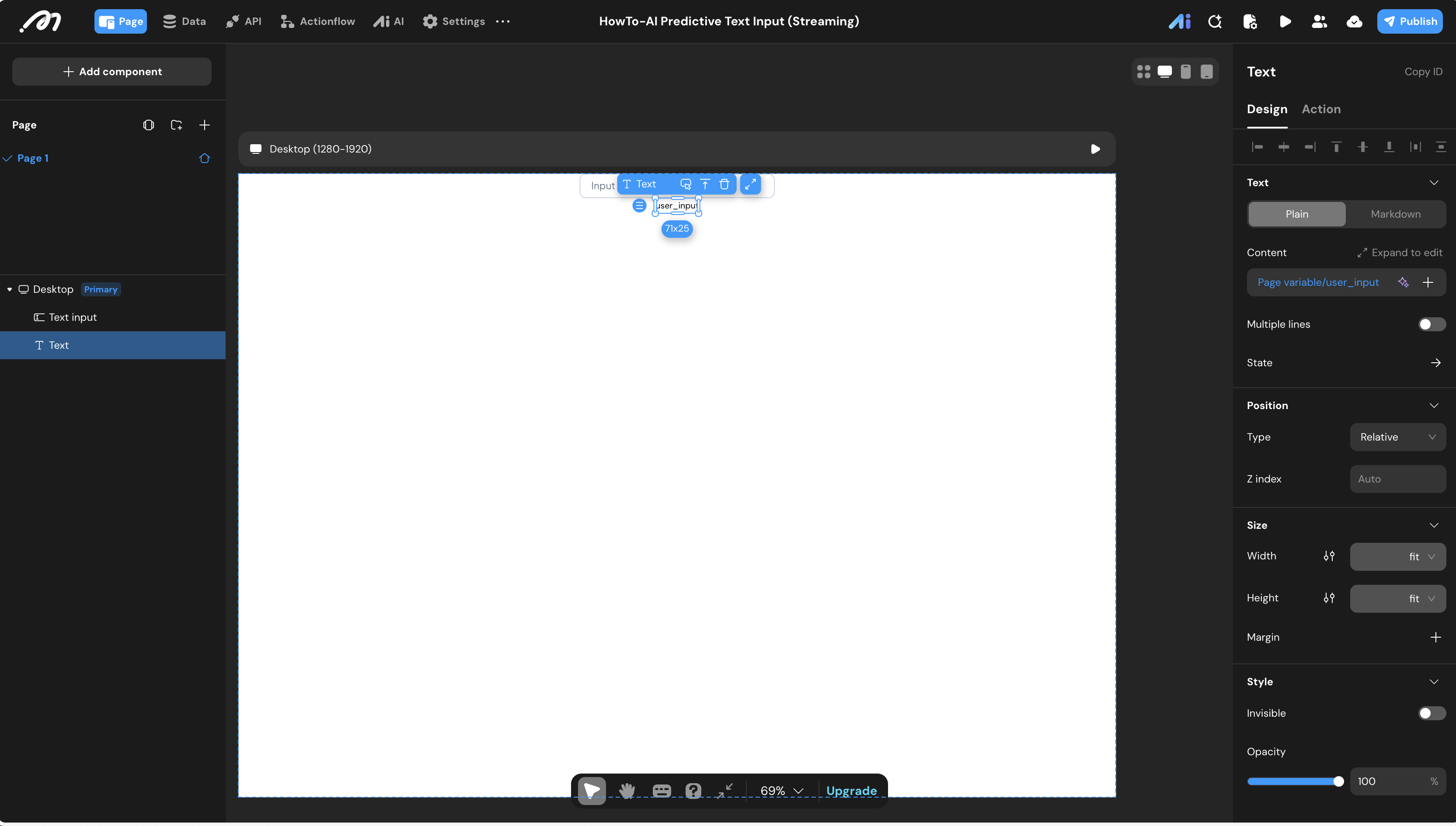
- Accept Suggestion:
- Select the Text component (the suggestion). Under On click:
- Action 1: “Set input component value” -> Target:
Text input-> Value:Page variable.user_input. (Toggle OFF “Trigger object value change behavior”) - Action 2: “Set page variable” -> Reset
user_inputtoEmpty Text.
Verification
- Trigger: Type a short phrase (at least 3 characters) into the input field.
- Observe: Below the input box, the predicted text will dynamically generate, appearing character-by-character in real-time.
- Interact: Click on the generated prediction text.
- Result: The content automatically fills into the main input box, and the temporary prediction below is immediately cleared.
Last updated on