Triggers
A trigger defines when to execute an action.
Triggers are split into frontend (client) and backend (server) triggers.
Frontend Triggers
Available triggers vary by component. Check the component’s Properties → Actions panel in the editor for the exact list.
Frontend triggers fall into three categories based on when they fire:
- User Interaction Triggers: Respond to direct user actions on the page, including On Click, On Hover, Scroll Into Viewport, and While Scrolling in Viewport.
- State Change Triggers: Respond to component state changes, including On Value Change, On Blur, On Play Start, On Upload Success, On Progress Change, and On Complete.
- Lifecycle Triggers: Triggered automatically, including On App Launch, On Page Load, and On Page Unload.
Shared Context Data for Component Triggers
Trigger context data refers to data that is directly available to actions at trigger time. It applies to all component triggers except On Hover, Scroll Into Viewport, and While Scrolling in Viewport.
Native trigger context
Data directly available at the instant the trigger fires.
| Data | Description |
|---|---|
| Current user | Data of the logged-in user |
| Variables | Client variables, page variables, modal variables |
| Data sources | Data sources of the page and modal |
| Page and modal inputs | Page path params and query params, plus modal input |
| Component output | Outputs from Text Input, Number Input, Date & Time Picker, Switch, File Picker, Image Picker, Video Picker, Rich Text Editor, Data Selector, Custom Selector, Modal, and Code Components |
| Item data | Current item data in List, Custom Selector, and Tab Bar |
| Formula data | Data produced by formulas such as ARRAY_MAPPING and ARRAY_FILTER |
| Constants | Empty value, empty text, empty array, current date, current time, current datetime |
| Environment constants | Page url, Web referrer, User agent, Is logged in |
Flow execution context
Data generated by previous nodes or during execution after actions start running.
| Data | Description |
|---|---|
| Action result | Output of actions that have success callbacks |
| Loop item | Current item data in loop actions |
User Interaction Triggers
On Click
-
Supported Components: Button, Text, Image, View, List item, Tab view item, Conditional view item, Custom selector item.
-
Typical Use Cases
- Click a button to add a record to the database
- Click an image to open a preview or navigate to a detail page
- Click a list item to open the corresponding detail page
- Trigger Timing
Triggered when the component is clicked.
Whether it is a mouse click (mousedown + mouseup) or a touch click (touchstart + touchend), a complete click consists of two consecutive events: down and up. The click trigger is activated only when both events occur consecutively within the same component’s hit-test area.
The trigger does not fire in these cases:
- The pointer is pressed down inside the component but not released (e.g. long press with no release).
- The pointer is pressed down inside the component, then moves outside and is released (e.g. cancel by sliding away).
- The pointer is pressed down outside, then moves inside the component and is released.
- Trigger Context Data
This trigger uses the same context as Shared Context Data for Component Triggers.
- Event Handling Rules
- Overlap
When components overlap, only the topmost component’s click trigger is triggered.
- Nesting
In nested layouts (e.g. a “Buy” button inside a “Product card” container), multiple components may have click triggers. The following rules ensure consistent behavior:
- Innermost first: Trigger resolution starts from the innermost component.
- Event interception (stop propagation): If the current component has actions bound, the event is handled and consumed at that level; the runtime calls
stopPropagation, so the event does not bubble to parent components. - Propagate: If the current component has no actions, the event propagates to the parent.
As a result, for each click action, only one component’s click trigger can be fired.
-
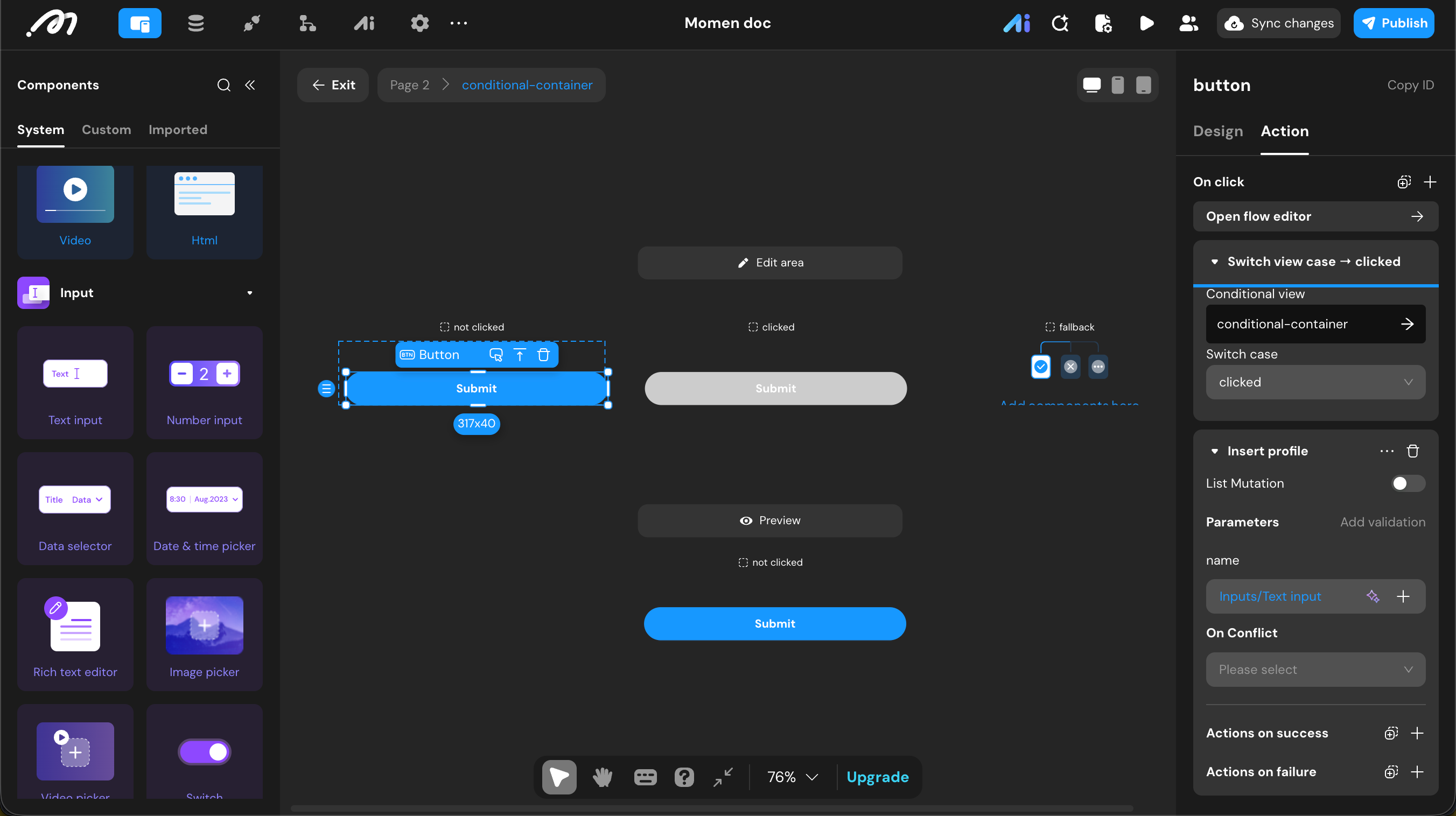
Best Practice: How to Prevent Double Submission
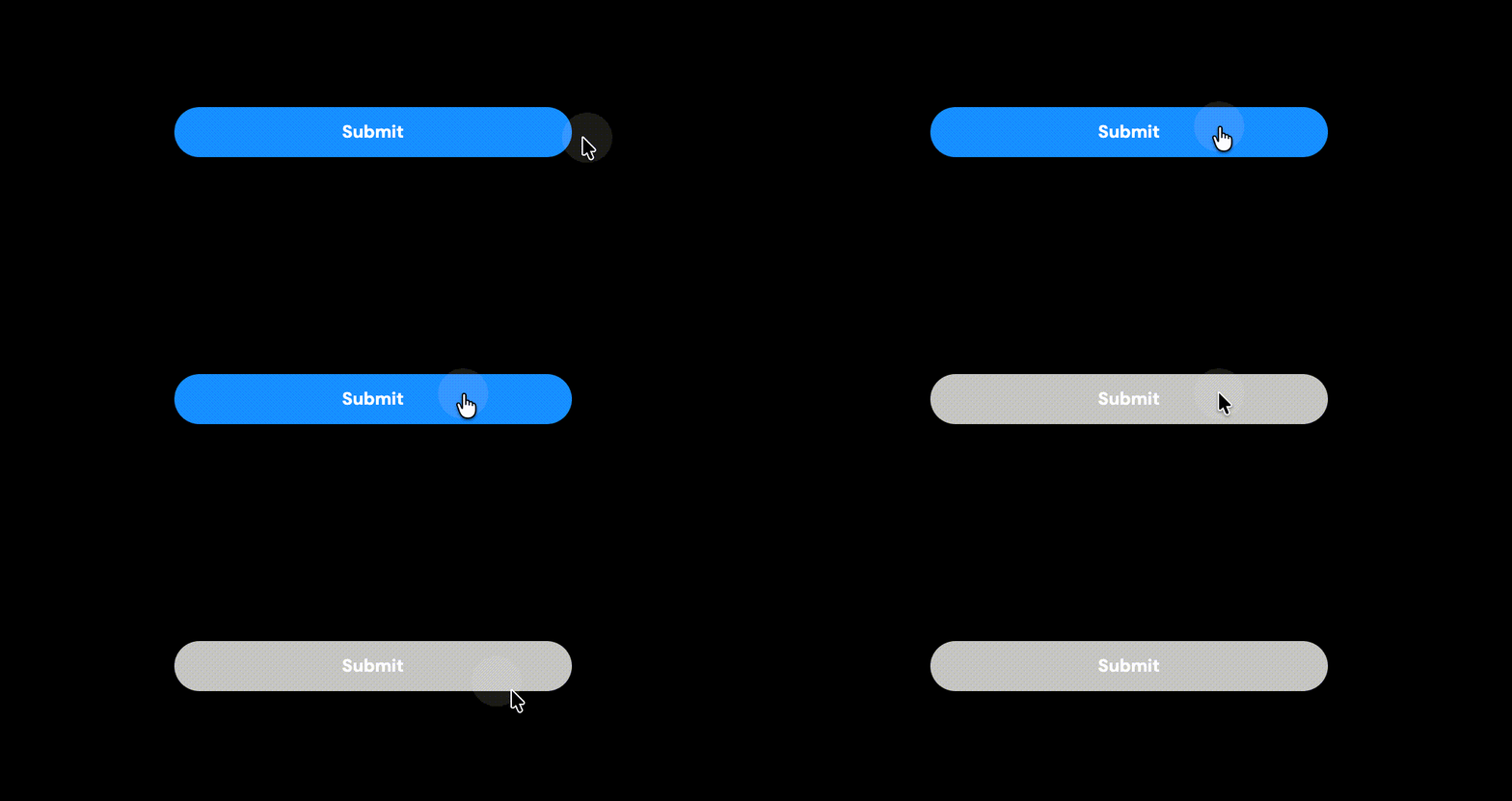
To avoid duplicate actions from repeated clicks, use a conditional container with two states: “not clicked” and “clicked”.
a. In the conditional container, add two child states: “not clicked” and “clicked”. b. In “not clicked”, add a button with two actions in order: (1) switch to “clicked”, (2) run the main action (e.g. add a record). c. In “clicked”, add a disabled-looking button with no actions bound.
Once the button is clicked, it switches to “clicked” and prevents further clicks.
On Hover
Fires when the pointer hovers over the component. Only animation-related actions are allowed: slide, scale, fade, flip, pulse, blink, bounce.
-
Supported Components: Button, Text, Image, View, List item, Tab view item, Conditional view item.
-
Typical Use Cases:
- Hover on a button to play a bounce animation and draw attention
- Hover on an image to zoom for detail
- Trigger Timing:
Fires when the pointer hovers over the component.
Hover is determined by the browser’s native pointer events: when the pointer enters the component’s visible bounds, the trigger fires.
- The pointer enters the component: the hover trigger fires once.
- The pointer stays inside: the trigger does not fire again.
- The pointer leaves: the trigger does not fire.
- Trigger Context Data
No context data is available. Actions under this trigger cannot bind data.
- Event Handling Rules:
- Overlap
When sibling components overlap, only the topmost component’s hover trigger fires.
- Nesting
If both parent and child have hover actions:
- Hovering only on the parent fires only the parent’s hover trigger.
- Hovering on the child fires both the parent’s and the child’s hover triggers.
Scroll Into Viewport
Fires when the target component enters the viewport. Only animation-related actions are allowed: slide, scale, fade, flip, pulse, blink, bounce.
-
Supported Components: Text, Button, Image, Video, View, List item, Tab bar item, Conditional view item.
-
Typical Use Cases
- Create a “growth” effect: make a component appear from nothing when it enters the viewport
- Make data engaging: when static content enters the viewport, use motion to draw attention
- Trigger Timing
This trigger is implemented through real-time listening to the browser’s native scroll event , combined with spatial geometry calculations.
After this trigger is configured on a component, the runtime continuously captures scroll behavior in the background. On each scroll event, the engine computes the component’s current physical position and compares it against the viewport bounds.
The viewport is the visible rectangular area of the page in the browser, including the rendered content and scrollbars. It does not include all the visible graphical user interface (GUI) elements surrounding the webpage content, such as address bar, tabs, bookmarks, and menu bars.
Once the component edge crosses the system-defined trigger-start threshold, the engine determines that the component has entered the viewport and fires the trigger immediately:
- The trigger fires when the component enters the viewport from any side (top, bottom, left, right).
- The trigger also fires if the component is visible in the viewport when the page loads.
- Trigger Context Data
No context data is available. Actions under this trigger cannot bind any data.
While Scrolling in Viewport
Fires when a component scrolls within the viewport. This trigger currently supports only Scroll Interaction actions.
-
Supported Components: Text, Button, Image, Video, View, List item, Conditional view item.
-
Typical Use Cases
- Draw attention by fading or translating components with page scroll
- Improve visual polish with scale and rotation effects during scrolling
- Trigger Timing
It is also based on the browser’s native scroll event , but with a more continuous and fine-grained calculation model. When a component is in the viewport, the engine computes a real-time dynamic scroll progress ratio from 0 to 1 based on the component’s current physical position.
Because this ratio updates continuously with user scrolling, the system can directly map it to opacity, scale, rotation, or translation. This proportional mapping from scroll distance to animation progress enables smooth, seamless parallax-style motion effects.
- Trigger Context Data
No context data is available. Actions under this trigger cannot bind any data.
State Change Triggers
On Value Change
Fires when the value of an input component changes.
-
Supported Components: Text Input, Number Input, Data Selector, Custom Selector, Date & Time Picker, Switch.
-
Typical Use Cases
- Input validation: validate after the user types and show feedback
- Form linkage: refresh other components’ data sources when the value changes to keep data in sync
- Trigger Timing
- Text & Number Inputs: Fires when the value changes, whether by typing, paste, or drag-and-drop.
- Data Selector: Fires when a value is selected (even if the same value is selected again).
- Custom Selector: Fires when an option is selected (even if the same option is selected again). It also fires when the selection is cleared.
- Date & Time Picker: Fires when a date or time is selected (even if the same value is selected again).
- Switch: Fires when the switch state toggles.
- Trigger Context Data
This trigger uses the same context as Shared Context Data for Component Triggers.
- Event Handling Rules
- Input Method (IME)
For input fields using an IME (Input Method Editor), the trigger does not fire during composition; it fires once when composition is committed.
- Debouncing
Input can change very quickly. To avoid firing on every keystroke, use the Debounce duration (in milliseconds) option. After a value change, the system waits for the specified duration. If the user changes the value again within that period, the timer resets. The trigger runs only after the value has been stable for longer than the debounce duration.
With a 1000-ms debounce set on the input, the trigger runs 1000 ms after the user stops typing.
Note: The debounce logic only checks that input activity has stopped; it does not compare the current value to the initial value (no dirty checking). Therefore, even if the user reverts the value to the original within the debounce window, the trigger still fires once the input has been idle for the configured delay.
On Blur
-
Supported Components: Text Input.
-
Typical Use Cases:
- Deferred search: run the search after the user finishes typing
- Input state feedback: show different styles while the user is typing vs after they finish
- Trigger Timing:
Fires when the input loses focus.
Both of the following conditions must be met:
- The input loses focus.
- The app’s JavaScript is still running.
Will fire:
- User clicks outside the input (except when closing or refreshing the window, which tears down the script).
- User presses Enter.
- User tabs to another control or switches to another window.
Will not fire:
- While selecting IME candidate words
- User closes the browser window (script is destroyed).
- User refreshes the page.
- Trigger Context Data
This trigger uses the same context as Shared Context Data for Component Triggers.
On Play Start
Fires when the video component starts playing.
-
Supported Components: Video.
-
Typical Use Cases
- Video play analytics: record how many times the user has played the video
- Play feedback: when the video starts, adjust page style to draw attention
- Trigger Timing
- Fires on first play.
- Fires when resuming from pause or stop.
- Trigger Context Data
This trigger uses the same context as Shared Context Data for Component Triggers.
On Upload Success
Fires when an image or video upload completes successfully.
-
Supported Components: Image Picker, Video Picker.
-
Typical Use Cases
- Upload analytics: record how many images the user has uploaded
- Upload feedback: when upload completes, show a success message
- Trigger Timing
Fires once per successful image or video upload. If the component allows multiple images (max count > 0), the trigger fires once for each successful image upload.
- Trigger Context Data
This trigger uses the same context as Shared Context Data for Component Triggers.
On Progress Change
Fires whenever the progress bar’s value changes.
-
Supported Components: Progress bar.
-
Typical Use Cases
- Progress feedback: notify the user when progress changes
- Trigger Timing
Fires when the progress value changes.
- Trigger Context Data
This trigger uses the same context as Shared Context Data for Component Triggers.
On Complete
Fires when the Lottie animation component finishes playing.
-
Supported Components: Lottie animation.
-
Typical Use Cases
- Animation complete feedback: when the animation ends, notify the user
- Trigger Timing
Fires when the animation finishes playing.
- Trigger Context Data
This trigger uses the same context as Shared Context Data for Component Triggers.
Lifecycle Triggers
Lifecycle triggers cover the full app and page lifecycle from creation through teardown.
The complete lifecycle trigger sequence is shown below:
On App Launch
Fires when the app root component is mounted for the first time (DOM/native view rendered on screen). It runs only once during the app lifecycle.
- Typical Use Cases
- Initialize client-side variables on app load
- Start silent login or fetch device information
- Trigger Timing
This trigger fires when the app root is mounted for the first time.
Runtime execution order:
- User-configured actions run.
- The system appends an implicit query to fetch Current user data.
- After that query succeeds, current user data is refreshed.
Because user-configured actions run in step 1, while current-user data becomes available only after step 2, actions under this trigger cannot access logged-in user data (including id).
Also, because this trigger runs before any page is entered, page variables, modal variables, page params, and page data sources are out of scope.
Will fire:
- Entering the app’s first page by any means: direct link, navigation from another page, or browser back/forward
- Refreshing the page
Will not fire:
- Navigating between pages within the app (opening a page in a new tab counts as re-entering the app)
- Trigger Context Data
Native trigger context
Data directly available at the instant the trigger fires.
| Data | Description |
|---|---|
| Variables | Client variables only |
| Constants | Empty value, empty text, empty array, current date, current time, current datetime |
| Formula data | Data produced by formulas such as ARRAY_MAPPING and ARRAY_FILTER |
| Environment constants | Page url, Web referrer, User agent, Is logged in |
Flow execution context
Data generated by preceding nodes or during runtime execution.
| Data | Description |
|---|---|
| Action result | Output of actions that provide success callbacks |
| Loop item | Available only inside loop actions; the current item |
On Page Load
On Page Load fires when the page UI completes its first mount (DOM/native view rendered on screen). At this moment, remote data is not yet guaranteed to be available, so component outputs and data sources cannot be referenced.
- Typical Use Cases
- Initialize page variables on load
- Record when the user visited the page
- Trigger Timing
Page loading consists of two concurrent paths:
- UI rendering path: page components mount -> this trigger fires, and configured actions are queued in the runtime engine.
- Data request path: page and component data sources (remote queries and full current-user data) start fetching independently after mount.
These two paths do not wait for each other, so this trigger cannot rely on remote data being ready.
User data is fetched automatically during App Initialization, but On Page Load does not guarantee that the data has returned yet. Logged-in user data is therefore unavailable here, except for user id (special-cased by the system).
Will fire:
- Entering the page by any means: direct URL, in-app navigation, or browser back/forward
- Refreshing the page
- Trigger Context Data
Native trigger context
Data directly available at the instant the trigger fires.
| Data | Description |
|---|---|
| Current user id | Logged-in user id only; all other fields are unavailable |
| Variables | Client variables, page variables |
| Page and modal inputs | Page path params, query params, and modal input |
| Formula data | Data produced by formulas such as ARRAY_MAPPING and ARRAY_FILTER |
| Environment constants | Page url, Web referrer, User agent, Is logged in |
Flow execution context
Data generated by preceding nodes or during runtime execution.
| Data | Description |
|---|---|
| Action result | Output of actions that provide success callbacks |
| Loop item | Available only inside loop actions; the current item |
On Page Unload
On Page Unload fires when the current page component enters its unmount phase. At this stage, page data is typically initialized, so existing page data can usually be read.
- Typical Use Cases:
- Record how long the user stayed on the page
- Clean up client variables that are valid only on the current page
- Trigger Timing:
This trigger is reliable only when page unmount is caused by in-app route changes. Closing the browser, refreshing the page, or navigating to an external site destroys the JavaScript execution context immediately, so execution is unreliable and treated as not triggered.
Will fire:
- Navigating to another page via a navigation action (not “open in new tab”).
- Browser back/forward to another page of the same app.
Will not fire:
- Closing the browser.
- Refreshing the page.
- Navigating to a page outside the app.
- Opening a page in a new tab (the original page is still alive and not destroyed)
- Trigger Context Data
Native trigger context
Data directly available at the instant the trigger fires.
| Data | Description |
|---|---|
| Current user | All fields of the logged-in user |
| Variables | Client, page, modal, and component variables (including read-only variables written by data sources) |
| Page and modal inputs | Page path params, query params, and modal input |
| Data sources | Current-page data source outputs, including remote query results |
| Constants | Empty value, empty text, empty array, current date, current time, current datetime |
| Formula data | Data produced by formulas such as ARRAY_MAPPING and ARRAY_FILTER |
| Environment constants | Page url, Web referrer, User agent, Is logged in |
Flow execution context
Data generated by preceding nodes or during runtime execution.
| Data | Description |
|---|---|
| Action result | Output of actions that provide success callbacks |
| Loop item | Available only inside loop actions; the current item |
Backend Triggers
Supported backend Actionflow triggers: On Database Change, Webhook, and Schedule.
Actionflows triggered by “On Database Change” or “Schedule” are considered automated and are subject to usage limits:
-
Monthly free quota (resets on the 1st day of each month):
- Free: 1,000 runs/month
- Basic: 10,000 runs/month
- Pro: 50,000 runs/month
-
Overage: $10 for 10,000 runs.
On Database Change
Runs an Actionflow when data in the database changes (insert, update, or delete). Use it to automate business logic.
- Typical Use Cases:
- Workflow automation: e.g. upgrade a user to a member when total payment reaches a threshold, or run follow-up logic when order status changes.
- Monitoring: e.g. alert on anomalies or write audit logs on change.
- Pre-aggregation: e.g. update sales or analytics when an order is completed.
- Trigger Timing:
When: Fires after a data change has been written to the database. If the triggered Actionflow fails, the original data change is not rolled back.
Granularity: Row-level. Each affected row triggers the Actionflow once. For example, a single request that updates 10 rows will trigger the Actionflow 10 times.
- Configuration Instructions:
-
Operation Type
Choose one or more:
- Insert
- Update
- Delete
- Insert or update
-
Table
The table to watch, including all visible system tables.
-
Trigger Timing
Optional filter. The Actionflow runs only when this condition is true. The condition can reference the inserted data, the data before update, the data after update, the deleted data, and their related table data.
-
Actionflow Inputs
Configure Actionflow inputs from the following data:
Trigger Type Available Data On insert Inserted data On update Data before update + data after update On insert or update Inserted or updated data On delete Data before deletion System time constants and Secret are also available as Actionflow input values.
For data consistency, related-table data cannot be used directly as Actionflow input here, because related data may have changed by the time the Actionflow executes.
- Event Handling Rules
-
Cycles
Actionflows can trigger each other in a nested way via database triggers or “Run Actionflow” nodes. To prevent infinite loops, each Actionflow can run at most once in a single trigger chain.
Suppose Actionflow A is triggered when a record in the Account table is updated, and its action updates a record in the Orders table.
Meanwhile, Actionflow B is triggered by updates to the Orders table, and its action updates the Account table.
This creates a cycle: Account update -> Triggers A -> Order update -> Triggers B -> Account update -> Triggers A again. To prevent an infinite loop, the system blocks the second execution of Actionflow A.
-
Data Import
In Data management → Import, an “Enable triggers” option controls whether bulk imports fire these triggers.
-
No-op Updates
“On update” and “On insert or update” still fire when the new row is identical to the old one (no actual data change).
- Best Practices
-
How to Avoid Row Locks and Deadlocks
Database triggers run in new transactions after commit, so they do not block the original operation. Under high concurrency, however, multiple async triggers updating the same related tables in different orders can cause row-level lock contention or deadlocks. To avoid them:
- Consistent order: Always modify tables in a fixed, global order (e.g. orders first, then inventory, then finance) so triggers never compete for locks in different orders.
- Keep logic minimal: Use triggers only for the minimal, necessary data changes. Avoid complex logic and nested triggering.
-
How to Trigger Only When a Specific Column Changes
To run the Actionflow only when a certain column changes, set a trigger condition such as:
Before-update data.column_namenot equal toupdated data.column_nameThe Actionflow then runs only when that column’s value has changed.
Webhook
Receives HTTP callbacks from external systems to trigger an Actionflow.
- Typical Use Cases
- Receiving payment callbacks from Stripe
- Syncing external data with Airtable
- Triggering automated workflows via Zapier
- Receiving real-time messages or events from Discord
- Trigger Timing
The Actionflow runs when a request is received and all of the following conditions are met:
- The HTTP method is either POST or GET. (Otherwise, the sender receives a “Method Not Allowed” error.)
- The request body structure (field names and types) matches the trigger’s Request Body configuration. (If a field type is incorrect, the sender receives a “parameter: callback-request-body does not match schema” error.)
- Configuration Instructions:
-
URL
The Webhook URL.
-
Type
Request body type: Default webhook, or Stripe payment webhook. For payment types, the body schema is preconfigured; for Default, configure it manually. Use Default unless this Webhook is for Stripe payment callbacks.
-
Request Body Mapping
In the editor, Webhook request body fields are defined under a fixed root key:
callback-request-body. This key is used by the platform as an internal mapping container for schema definition and validation.Important:
callback-request-bodyis only used in platform configuration. External systems do not need to include this wrapper in real callback requests. Send the properties defined undercallback-request-bodydirectly at the JSON root, and the platform will normalize and validate the body against the configured schema. Only object-type bodies are supported.Editor-side configuration (mapping schema):
{
  "callback-request-body": {
    "order_id": "1234567890"
  }
}
Actual HTTP request body (no
callback-request-bodywrapper):{ "order_id": "1234567890" } -
Actionflow Inputs
Configure Actionflow inputs from the following data:
Data Domain Description Webhook request body Fields in the request body Constants Empty value, empty text, empty array, current date, current time, current datetime -
Response Body
Optional response to the caller. Supported types: application/json, text/plain, text/html. You can bind Actionflow output to the response.
Schedule
Runs an Actionflow on a fixed schedule.
-
Typical Use Cases: Use this trigger for periodic tasks such as closing expired orders or sending renewal reminders.
-
Trigger Timing:
After the server is updated, the schedule runs according to the configured plan.
Misfire policy: If the server is upgraded or goes down, the trigger resumes when the server is back and continues on the original schedule. Runs that were missed during downtime are discarded; no compensation or catch-up execution is performed.
- Configuration Instructions:
All date and time values in the configuration use UTC+0.
| Option | Type | Default | Description |
|---|---|---|---|
| Start At | Datetime | Current DateTime | Start of the trigger’s active window. Together with End At, this defines when the schedule is valid. The Actionflow will only trigger within this time window. |
| End At | Datetime | Current DateTime | End of the active window. Must be after Start At. |
| Type | Enum: Quick Setup, Cron | Quick Setup | How to define the interval: Quick Setup for simple intervals, Cron for arbitrary schedules. |
| Trigger Frequency | Enum: EVERY_YEAR, EVERY_MONTH, EVERY_WEEK, EVERY_DAY, EVERY_HOUR, EVERY_MINUTE | EVERY_YEAR | (Quick Setup) Interval between runs. |
| In Which Months | Integers 1–12 | None | (Quick Setup) Which months to run; multi-select. |
| In Which Days | Integers 1–31 | None | (Quick Setup) Which days of the month; multi-select. If the month has no such day (e.g. Feb 31), the run is skipped. |
| In Which Weekday | 0–6 (0 = Sunday, 1 = Monday, …) | None | (Quick Setup) Which weekdays to run; multi-select. Only when frequency is EVERY_WEEK. |
| At What Time | Time | Current time | (Quick Setup) Time of day to run. |
| At Which Second | 0–59 | None | (Quick Setup) Second within the minute. Only when frequency is EVERY_MINUTE. |
| Cron Expression | String | None | (Cron mode) Cron expression in 6-field format (Second, Minute, Hour, Day of Month, Month, Day of Week). You can use the tool Freeformatter to generate it, or have AI generate it. |
| Actionflow Inputs | Object | None | Configure Actionflow inputs using constants: empty value, empty text, empty array, current date, current time, and current datetime. |