Airwallex Payment Configuration Guide
Momen currently supports One-Off Payments and recurring subscription payments via Airwallex.
Enable Payments
Before configuring, understand the basic principles and steps of Momen’s payment feature. See the Payment Feature Overview for details, and follow the instructions to create an order table and activate payment.
Configure Merchant Information
Access the Dashboard
Airwallex provides both a Sandbox Environment and a Production Environment . Log in to the corresponding dashboard first.
Create API Keys
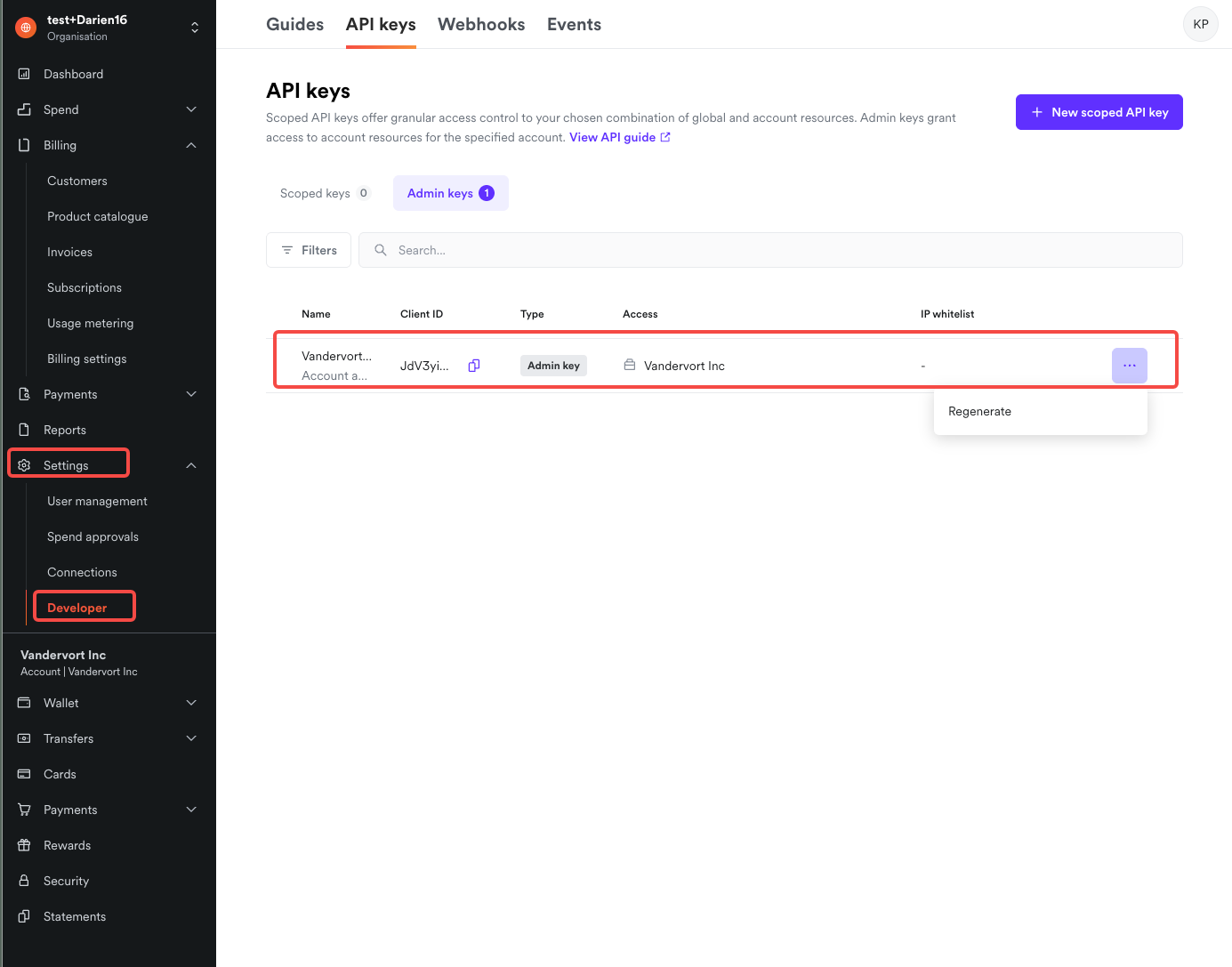
In the dashboard, click Settings -> Developers -> API Keys to create a new API key.
Get API Key and Client ID
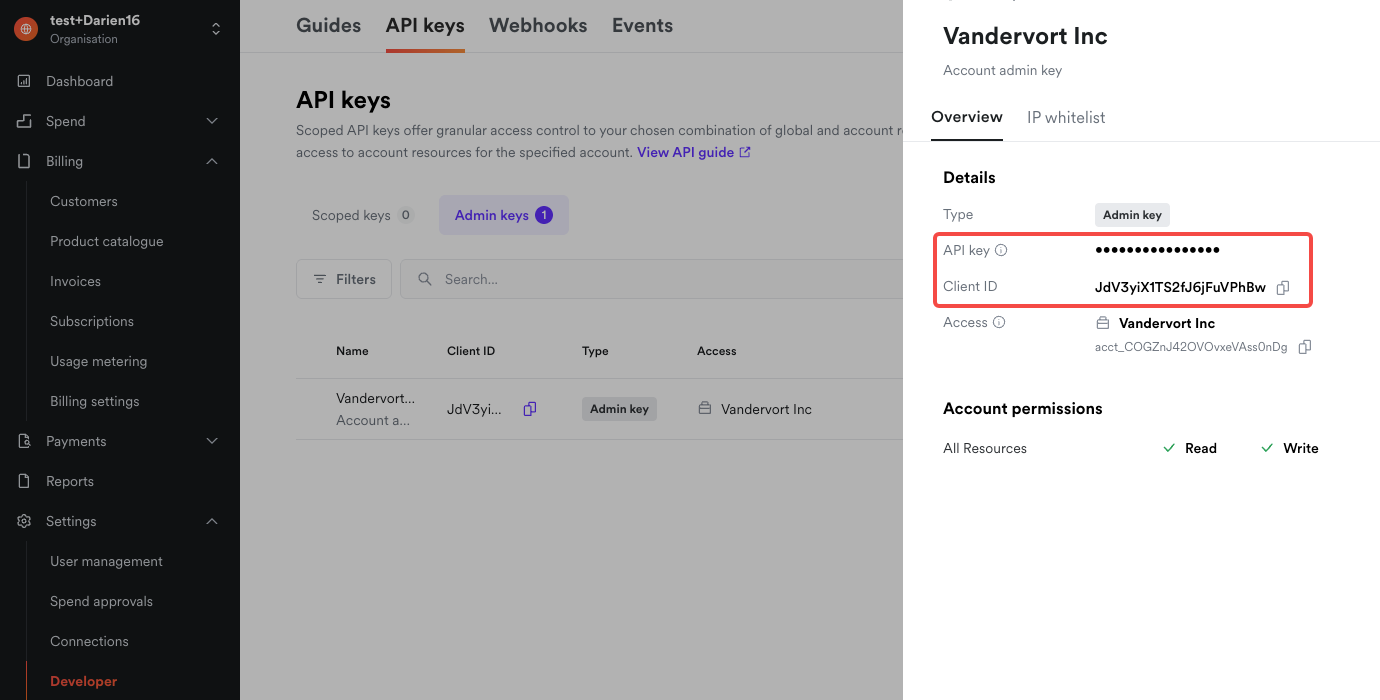
After creating the API key, the system automatically generates a Client ID. The API key is only visible upon creation. If you forget it, click Regenerate to create a new one.
Configure Legal Entity ID and Linked Payment Account ID
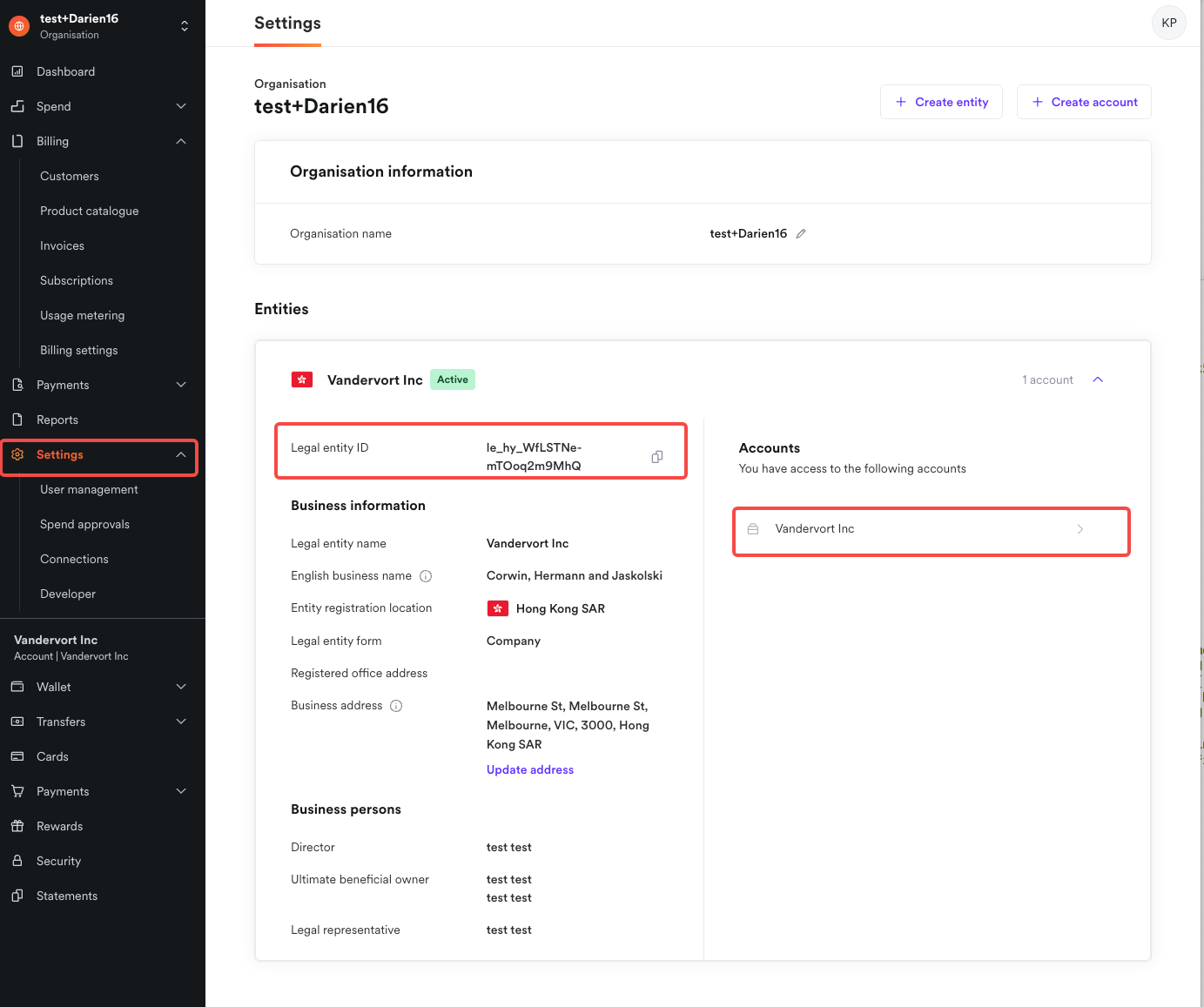
In the dashboard, click Settings -> Entities to create a new legal entity.
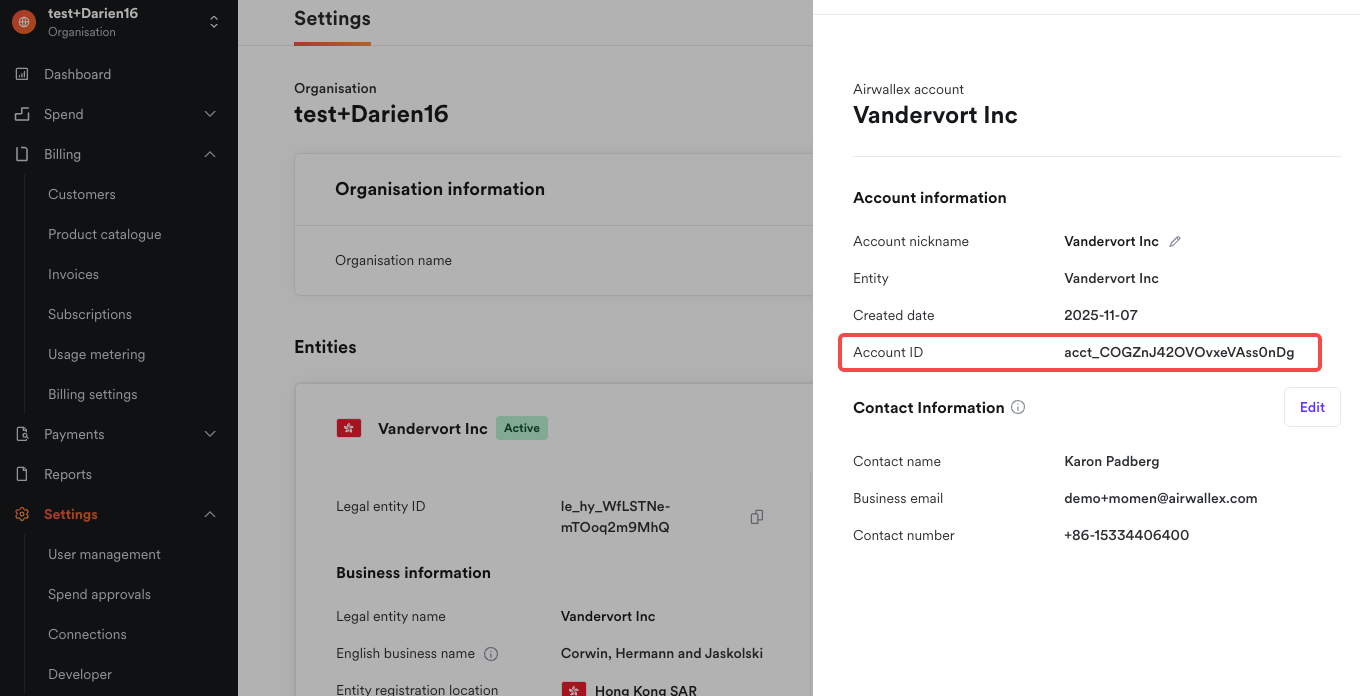
Create Webhooks
In the dashboard, click Settings -> Webhooks, then click New Webhook.
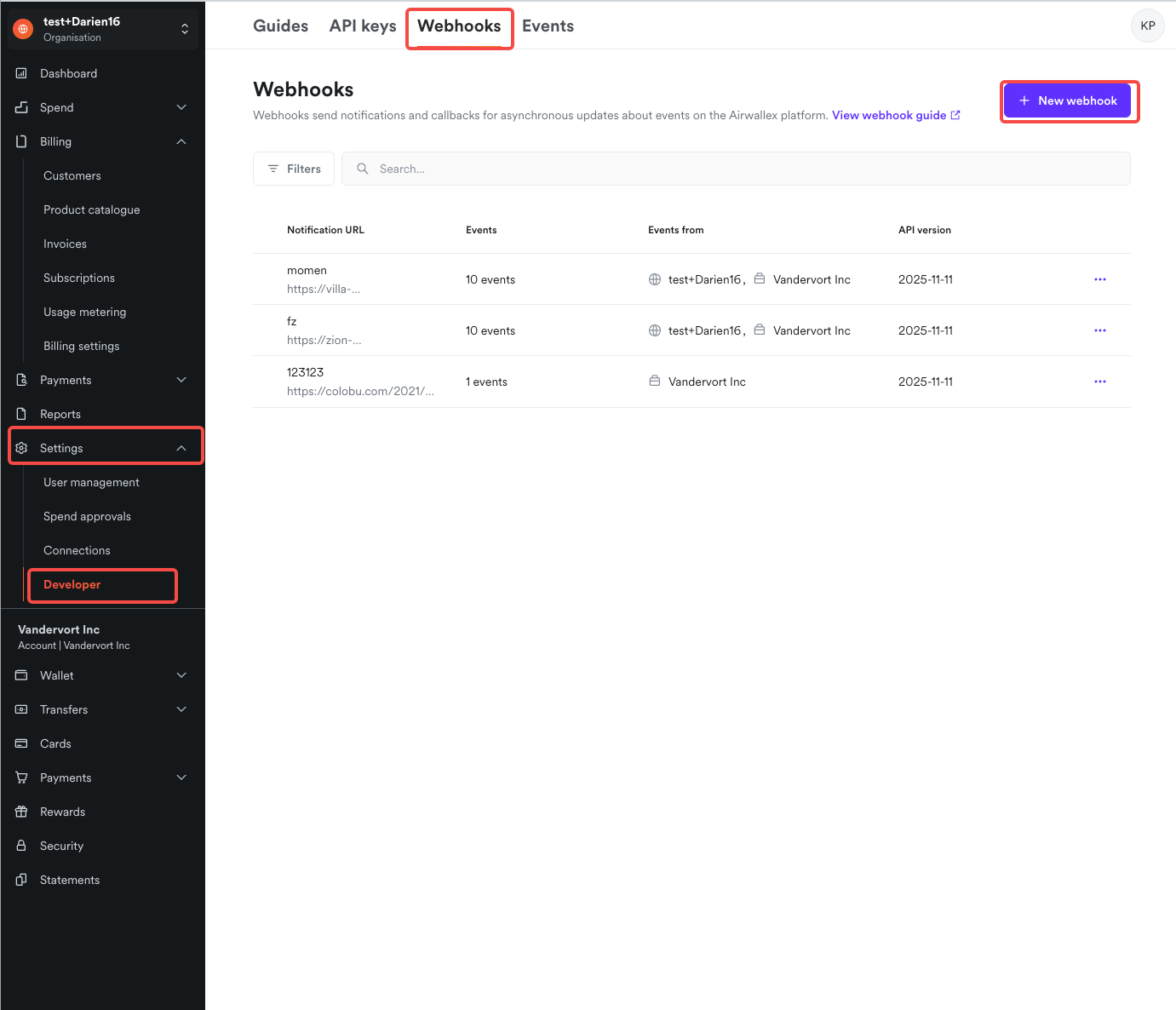
Configure Webhooks
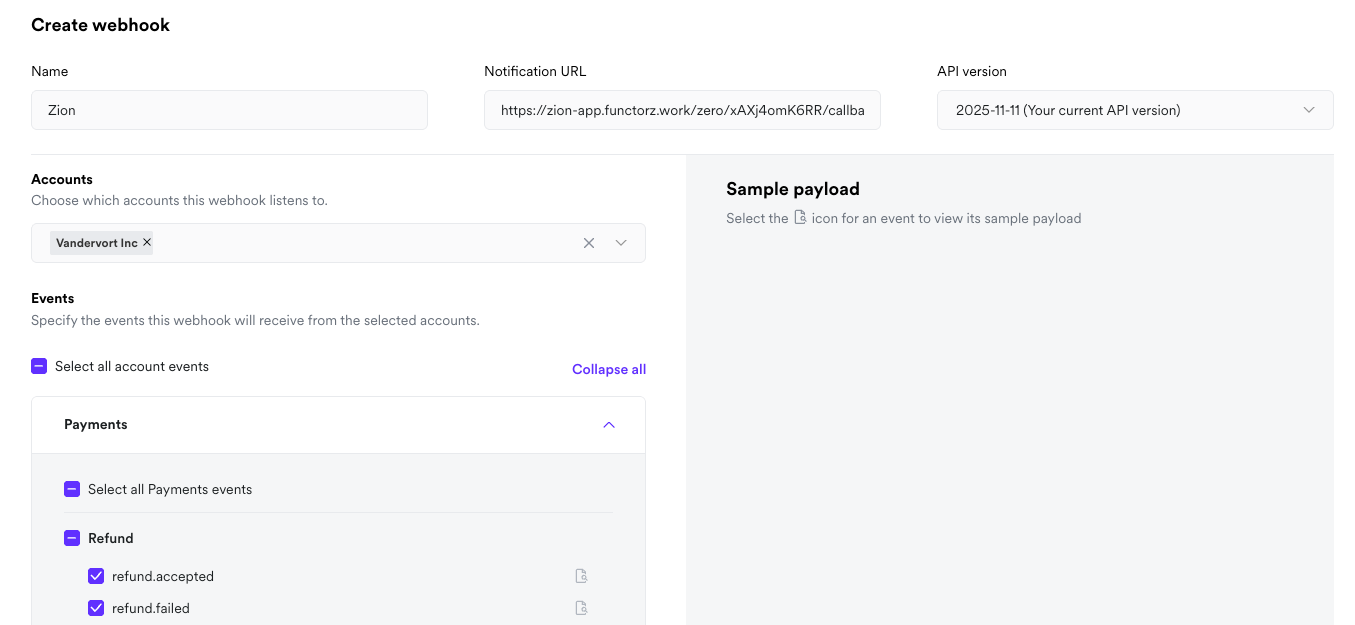
For the API version, enter the fixed value 2025-11-11.
For the account, select the account corresponding to the Linked Payment Account ID in your payment configuration.
Check the following events:
payment_intent.succeededpayment_intent.cancelledinvoice.finalizedsubscription.in_trialsubscription.activesubscription.unpaidsubscription.cancelledsubscription.modifiedrefund.acceptedrefund.failed
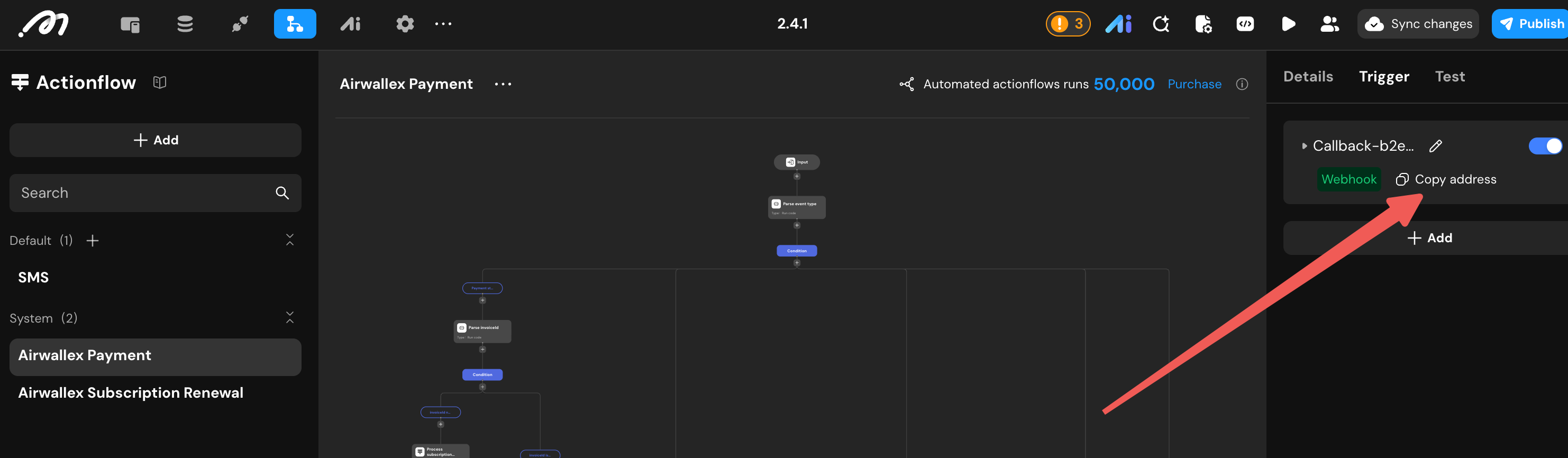
For the notification URL, enter the Webhook URL of the Airwallex Payment Processing actionflow in Momen. To get this URL: Click Action in the top navigation bar of the Momen editor, find the system-generated Airwallex Payment Processing actionflow in the left sidebar, click the trigger node at the top, and copy the Webhook URL from the right panel.
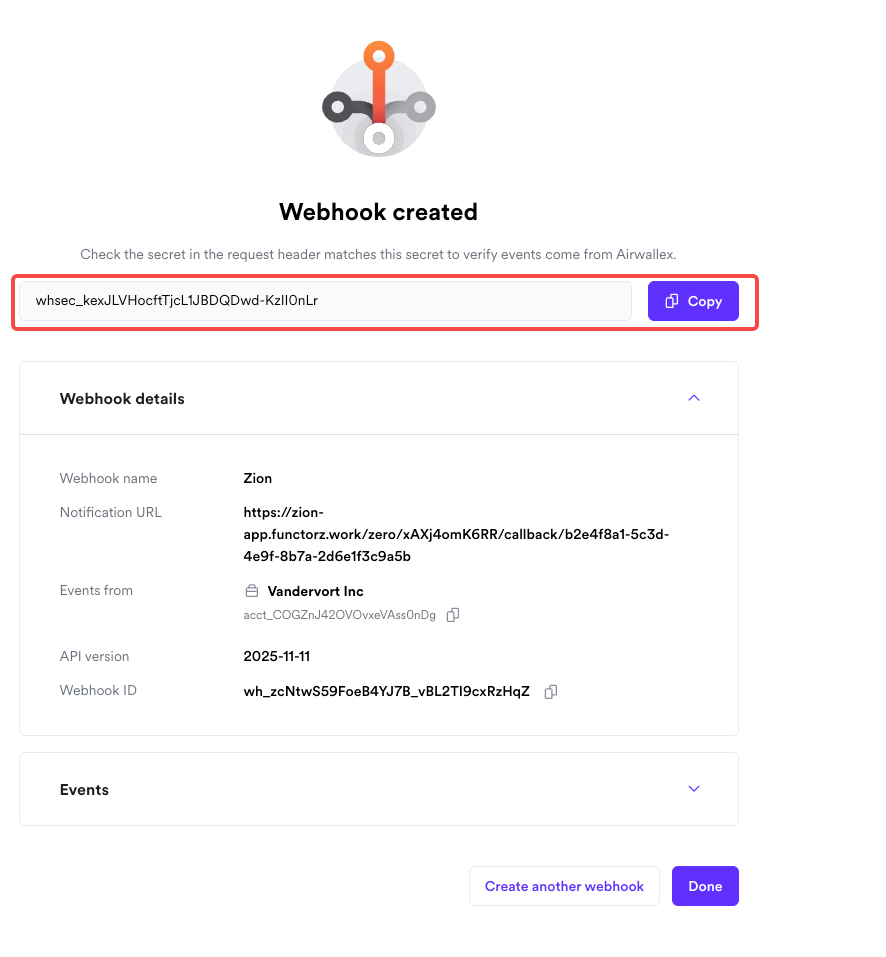
Click Create, and copy the Webhook Secret shown in the image below.
Enter Parameters into Momen’s Payment Configuration
| Configuration Item | Required | Description |
|---|---|---|
| Environment | Yes | Select DEMO for the test environment and PROD for real payments. |
| Client ID | Yes | The Client ID obtained in step 3 above. |
| API Key | Yes | The API Key obtained in step 3 above. |
| Webhook secret | Yes | The Webhook Secret obtained in step 6 above. |
| Legal entity ID | No | The Legal Entity ID obtained in step 4 above. |
| Linked payment account ID | No | The Linked Payment Account ID obtained in step 4 above. |
Global Webhook Architecture Overview
In the Momen platform, all Airwallex payment, refund, and subscription events share the same system-generated Airwallex Payment Processing actionflow as the Webhook receiver. The system automatically routes the request to the corresponding processing branch (such as One-Off Payment status change, refund status change, subscription status change, etc.) based on the parsed event type.
Concurrency and Idempotency Guarantee The underlying Momen platform
handles Webhook concurrency lock issues through database row locks and unique
index mechanisms. When configuring the actionflow, simply check the
alreadyProcessed indicator output by the system to determine the status. You
do not need to implement complex concurrency interception logic yourself. The
platform automatically guarantees absolute idempotency to prevent duplicate
shipping or deductions.
Configure One-Off Payments
One-Off Payments are suitable for scenarios where users purchase goods or services on a per-order basis. Configuring One-Off Payments requires setting up frontend actions and backend callback processing.
Add One-Off Payment Action
In the click event of the payment button on the Momen frontend page, add the Airwallex Payment action and select One-Off Payment as the payment type.
Frontend Debounce and Race Condition Interception We strongly recommend disabling the payment button immediately after clicking it, or using debounce logic until the payment action returns a result or the checkout closes. This effectively prevents users from clicking repeatedly during network delays, which could trigger the checkout multiple times or initiate multiple invalid payment intents.
Action Parameters:
| Parameter | Type | Required | Description |
|---|---|---|---|
| Order id | BigInt | Yes | Must be the id of a specific row in the bound order table. We recommend creating the order first using the Create Record action, and then passing the returned id to this parameter. |
| Amount | Decimal | Yes | Must be greater than 0, and the number of decimal places must comply with the specifications of the corresponding currency (e.g., USD allows up to 2 decimal places). |
| Currency | Text | Yes | Must be the uppercase currency code (e.g., USD, HKD). |
Configure Airwallex Payment Processing Actionflow
When a user completes or cancels a One-Off Payment, the system-generated Airwallex Payment actionflow triggers automatically. Its processing logic is as follows:
- Determine Payment Type: The Parse Event Type code block node parses the event type as
payment_intent.succeeded(successful payment) orpayment_intent.cancelled(cancelled payment), and enters the payment status change branch. - Sync Payment Status: The Sync Payment Status node automatically queries the payment record, updates its status to successful or cancelled, and records the
alreadyProcessedindicator to prevent duplicate callback triggers caused by network retries. This node outputs 5 parameters:
| Parameter | Type | Description |
|---|---|---|
| orderId | Long Integer | The ID of the order record corresponding to the payment record. |
| paymentId | Long Integer | The Payment ID. |
| recurringPaymentId | Long Integer | The ID of the subscription renewal record. |
| paymentStatus | Text | Payment status: SUCCESSFUL indicates a successful payment, FAILED indicates a failed payment. |
| alreadyProcessed | Boolean | Used to avoid duplicate execution. false indicates the first trigger; true indicates a duplicate trigger. |
- Check if Payment Record Exists: Verify if the payment record is found by checking if the Payment ID is empty. If empty, it means the record was not found, and generally no action is taken; if not empty, proceed to the next branch.
- Determine Payment Status: Confirm the final payment status by checking the payment status and the
alreadyProcessedvalue.- If the payment status is
SUCCESSFULandalreadyProcessedisfalse, the payment is successful, and it enters the “Success” branch. - Otherwise, the payment failed or was cancelled, and it enters the “Other” branch.
- If the payment status is
- Configure Custom Business Logic: Configure the business logic after a successful payment in the Success branch, such as changing the order status to paid using the Update Record action.
Usage Example
1. Submit a One-Off Payment Order
-
Requirement: A user clicks the buy button on the product details page. The system first creates an order record in the database, and then brings up the Airwallex checkout to complete the payment.
-
Configuration Process:
- Preparation:
- Create a product details page.
- Place a buy button on the page.
- Select Component: Select the buy button on the product details page canvas.
- Add Action: Switch to the Action tab in the right configuration panel, and click add action directly under the On Click event.
- Configure Create Order Action:
- In the action selection dropdown, search for and select Add Record.
- Select the order table as the target table, configure the order amount and account ID, and set the order status to pending payment.
- Configure Payment Action:
- Below the Add Record action, click add action again, search for and select Airwallex Payment.
- Select One-Off Payment as the payment type.
- Bind the Order Table ID to the
idreturned by the Add Record action in the previous step. - Bind the Amount to the actual payment amount of the order, and enter
USDfor the currency.
- Configure Actionflow:
- In the Airwallex Payment Processing actionflow, configure the logic for the “Success” branch: update the order status to paid.
- Preparation:
-
Execution Result: After the user clicks the buy button, the system generates the order and then pops up the Airwallex payment interface. After the user completes the payment, the backend Airwallex Payment Processing actionflow triggers automatically and updates the order status to paid.
Configure Refunds
Refunds allow merchants to return partial or full funds for successfully paid orders.
Add Refund Action
On the Momen page, add the Airwallex Payment action. Select Refund as the payment type.
Refund Amount Limit Interception Multiple refunds can be initiated for the
same payment, but the total refund amount cannot exceed the total payment
amount. Before calling the refund action, you can use the Query Multiple
Records action to find all successful refund records under this Payment ID,
and use a code block to calculate the total refunded amount. If the total
refunded amount plus the current refund amount exceeds the original payment
amount, display a prompt and terminate subsequent actions. If not intercepted,
the Airwallex API will return an error, and the system will proceed to the
refund.failed actionflow branch.
Action Parameters:
| Parameter | Type | Required | Description |
|---|---|---|---|
| Payment id | BigInt | Yes | The id of the payment record. |
| Refund Amount | Decimal | Yes | The unit is the primary currency unit. Must be greater than 0, and the number of decimal places must comply with the specifications of the corresponding currency. |
Configure Callback Processing for Refund Success and Failure
When a refund succeeds or fails, the Airwallex Payment actionflow triggers automatically. Its processing logic is as follows:
- Determine Refund Type: The Parse Event Type code block node parses the event type as
refund.acceptedorrefund.failed, and enters the refund status change branch. - Sync Refund Status: The Sync Refund Status node automatically queries the refund record, updates its status to successful or failed, and records the
alreadyProcessedindicator. This node outputs 6 parameters:
| Parameter | Type | Description |
|---|---|---|
| orderId | Long Integer | The ID of the order record corresponding to the refund record. |
| refundId | Long Integer | The Refund ID. |
| paymentId | Long Integer | The Payment ID. |
| recurringPaymentId | Long Integer | The ID of the subscription renewal record. |
| status | Text | Refund status: REFUNDED indicates a successful refund, FAILED indicates a failed refund. |
| alreadyProcessed | Boolean | Used to avoid duplicate execution. false indicates the first trigger; true indicates a duplicate trigger. |
- Check if Refund Record Exists: Verify if the refund record is found by checking if the Refund ID is empty. If empty, it means the record was not found, and generally no action is taken; if not empty, proceed to the next branch.
- Determine Refund Status: Confirm the final refund status by checking the status and the
alreadyProcessedvalue.- If the status is
REFUNDEDandalreadyProcessedisfalse, the refund is successful, and it enters the Success branch. - If the status is
FAILEDandalreadyProcessedisfalse, the refund failed, and it enters the Failure branch. - Otherwise, it indicates other situations, and generally no action is taken.
- If the status is
- Configure Custom Business Logic: Configure the business logic after a successful or failed refund in the Success and Failure branches, such as updating the order status to refunded.
Configure Recurring Payments
Recurring payments are used for scenarios that require regular automatic deductions, such as subscription services and installment payments. Recurring payments involve steps like initiating a subscription, automatic renewal, and user cancellation.
Create Products and Prices in the Airwallex Dashboard
Before initiating a recurring payment, you must configure the corresponding products and pricing plans in Airwallex.
- Log in to the Airwallex dashboard, and click Billing -> Products in the left menu.
- Click Create Product, and fill in the product name and description.
- In the Pricing module of the product, click Add Price.
- Select Recurring for the billing model, and set the amount and billing cycle (e.g., monthly, annually).
- After saving, copy the generated
price IDfrom the price list. You will need this ID when initiating a subscription in Momen.
Add Recurring Payment Action
On the Momen page, add the Airwallex Payment action. Select Recurring Payment as the payment type.
Action Parameters:
| Parameter | Type | Required | Description |
|---|---|---|---|
| Type | Text | Yes | The type of recurring payment: Initiate, Cancel. |
| Order Table ID | Long Integer | No | The ID of the associated order record in the database. Required when the type is Initiate; not required when the type is Cancel. |
| Price ID | Text | No | The identifier for the recurring price. Enter the Price ID obtained from the Airwallex dashboard in the previous step. Required when the type is Initiate; not required when the type is Cancel. |
Execution Mechanism:
- When executing the action, the system prepares the subscription data on the backend and pops up the checkout for the user to authorize card binding and recurring deductions.
- Successful or failed authorization will trigger the corresponding branch on the frontend, but the actual activation confirmation of the subscription must be handled via the backend Webhook.
Handle Recurring Payment Status Changes
When a user’s recurring payment undergoes status changes such as trial, active, unpaid, renewed, or cancelled, the Airwallex Payment actionflow triggers automatically. Its processing logic is as follows:
- Determine Subscription Status: The Parse Event Type code block node parses the event type as one of the following:
subscription.in_trial(trial period),subscription.active(active),subscription.unpaid(unpaid),subscription.cancelled(cancelled), orsubscription.modified(modified), and enters the subscription status change branch. - Sync Subscription Status: The Sync Subscription Status node, which is the first node in the branch, automatically queries the subscription record and updates its status to trial period, active, unpaid, cancelled, or modified. This node outputs 2 parameters:
| Parameter | Type | Description |
|---|---|---|
| recurringPaymentId | Long Integer | The ID of the subscription record. |
| status | Text | Subscription status: IN_TRIAL indicates trial period, ACTIVE indicates active, UNPAID indicates unpaid, CANCELLED indicates cancelled, MODIFIED indicates modified. |
- Check if Subscription Record Exists: Verify if the subscription record is found by checking if the recurring payment ID is empty. If empty, it means the record was not found, and generally no action is taken; if not empty, proceed to the next branch.
- Determine Subscription Status: Confirm the final subscription status by checking the value of status.
- If status is
ACTIVE, it indicates active, and enters the Active branch. - If status is
CANCELLED, it indicates cancelled, and enters the Cancelled branch. - Otherwise, it indicates other situations, and generally no action is taken. If developers need to handle other statuses, they can add corresponding branches themselves.
- If status is
Handle Recurring Payment Deductions
When an automatic renewal notification is received, the Airwallex Payment actionflow triggers automatically. Its processing logic is as follows:
- Determine if it is a Recurring Payment: If the event type is
invoice.finalized, it indicates a recurring payment, and enters the subscription renewal branch. - Parse Invoice id: The Parse Invoice id node automatically parses the Invoice ID.
- Process Subscription Renewal: The Process Subscription Renewal node calls the Airwallex Subscription Renewal actionflow and passes the parsed Invoice id as an input parameter.
Processing logic of the Airwallex Subscription Renewal Processing actionflow:
- Determine if it is an Automatic Renewal: Confirm if it is an automatic renewal by checking if the actionflow input parameter Invoice id is empty. If not empty, enter the Invoice id Not Empty branch.
- Get or Create Renewal Payment Record: The built-in Custom Code node automatically generates or retrieves the Payment ID for the current renewal payment record based on the Invoice ID, and simultaneously returns the recurring payment ID corresponding to the subscription and the first order ID of the first associated order.
- Check if Subscription Record Exists: Confirm that the renewal has a valid subscription record by checking if the recurring payment ID is not empty, and enter the Found Subscription Record branch.
- Get Payment Record: Use the Get Single Record node to query the detailed data of the current renewal payment record using the Payment ID output in the previous step.
- Check if Order ID Exists: Determine if the payment record is already associated with an order (i.e., the Order ID is empty). If empty, it means a new corresponding order has not yet been generated, and it enters the Create Order and Associate Payment branch; otherwise, it enters the Already Associated, Skip branch to avoid creating duplicate orders.
- Get First Order: The system uses the previously obtained first order ID to query the original order data created when the user first subscribed.
- Create Order (Requires Manual Configuration): Find the Create Record node used to create the order in the system-generated template. Developers must manually configure field assignments to assign the business data queried in the Get First Order node to the new order. For example, bind the order amount of the new order to
Get First Order.Order Amount, and bind the user ID toGet First Order.User ID. - Update Order ID in Payment Record: The built-in Custom Code node automatically updates the newly created Order ID to the payment record of the current renewal, thereby completing the binding of the new order and the current renewal deduction.
Configure Permissions
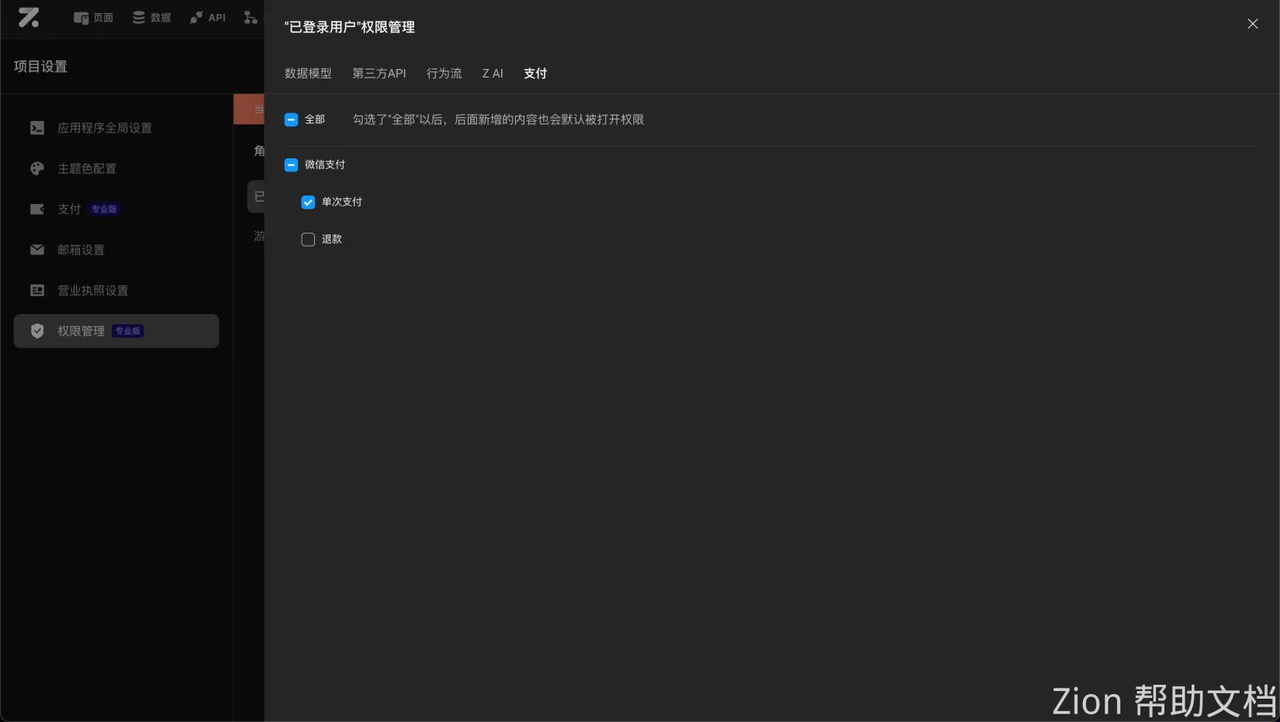
You can configure action permissions in the permission system. In particular, the refund action (permission is disabled by default) is recommended to be disabled for regular users, otherwise it may cause financial loss. A safer approach is to create a new administrator role and only open the refund permission to that role.