AI Spam Detector
Project Access Link
https://editor.momen.app/tool/9G6nZlvlrrq/WEB?code=i5JhYOLP8pDh5&ref=0562398
Tutorial Video
https://www.youtube.com/watch?v=NFnv1V7sHCM
Introduction
- Goal: Create an automated moderation system that identifies spam comments (gibberish, repetitive text, or low-quality content) using AI.
- Applicable Scenario: Comment sections, forums, or any user-generated content platform where manual moderation is inefficient.
- Core Logic: A user submits text via a UI input -> An asynchronous Actionflow triggers an AI Agent -> The AI returns structured data -> The result is saved to the Database.
Steps
Data Storage
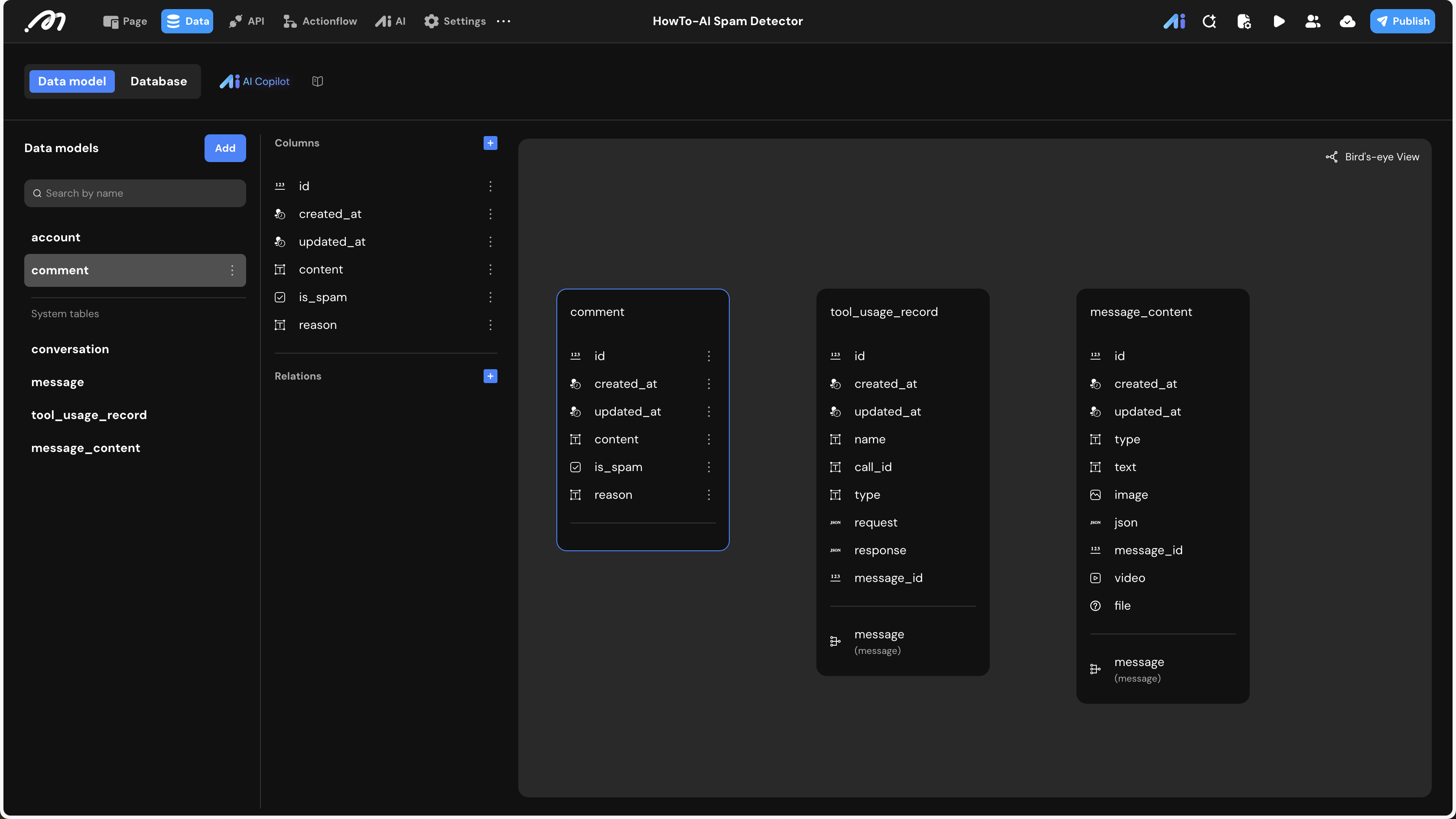
First, we need a table to store the submitted comments and the AI’s moderation results.
- Data Model: Go to the Data tab and create a table named
comment.
| Field Name | Type | Note |
|---|---|---|
content | Text | The original comment text submitted by the user. |
is_spam | Boolean | true for spam; false for normal content. |
reason | Text | The specific reason provided by the AI for flagging the content. |
AI Agent Configuration
The AI Agent acts as the “brain” that analyzes the text based on your specific criteria.
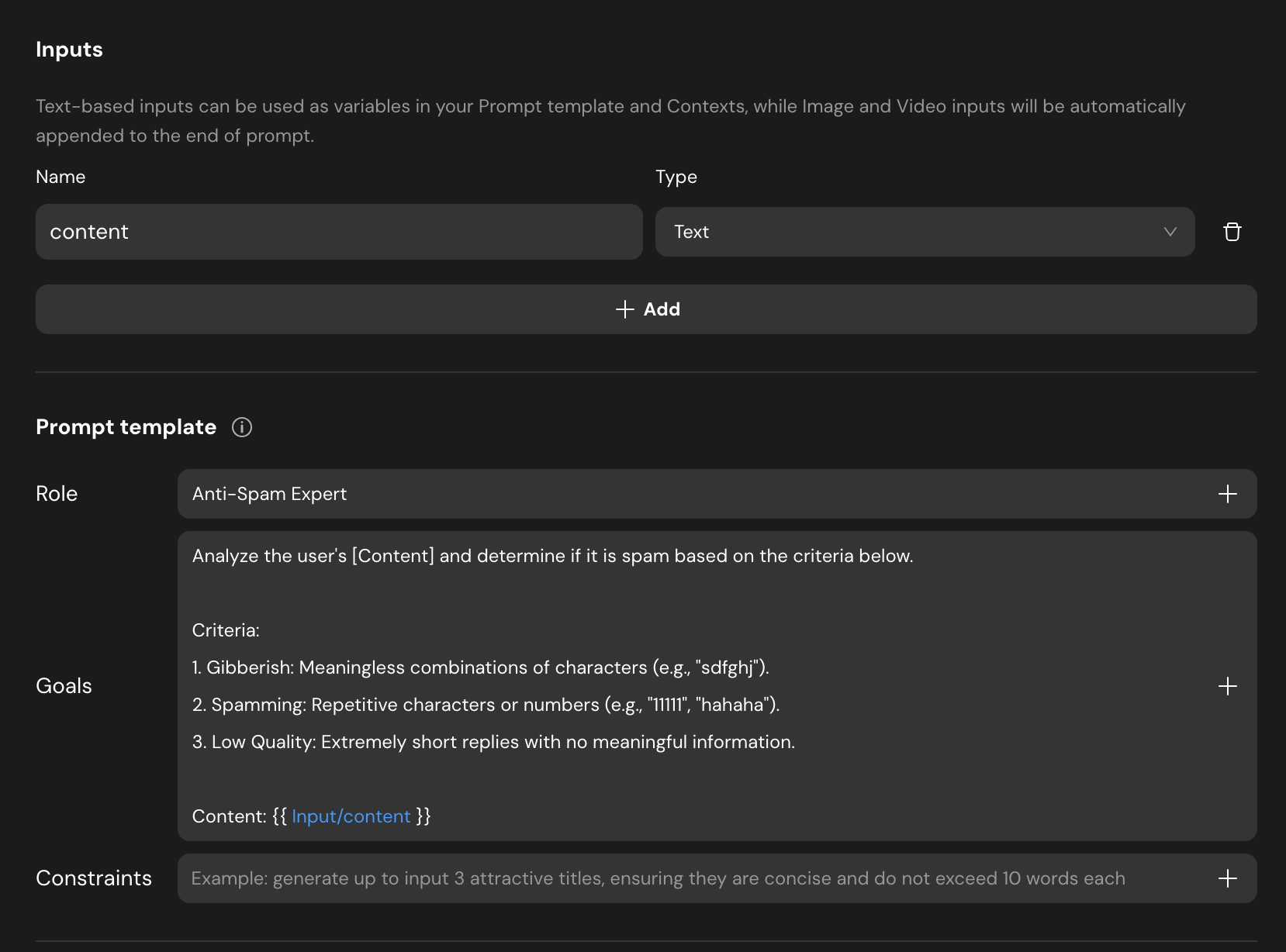
- Create Agent: In the AI tab, add a new agent named
Agent_spam_detector. - Inputs: Add a Text input variable named
content. - Prompt Template:
- Role:
Anti-Spam Expert - Goals: Define your moderation criteria (e.g., Gibberish, Spamming, Low Quality).
- Content Reference: Use the variable
\{{Input/content}}to pass the user’s input to the model.
- Role:
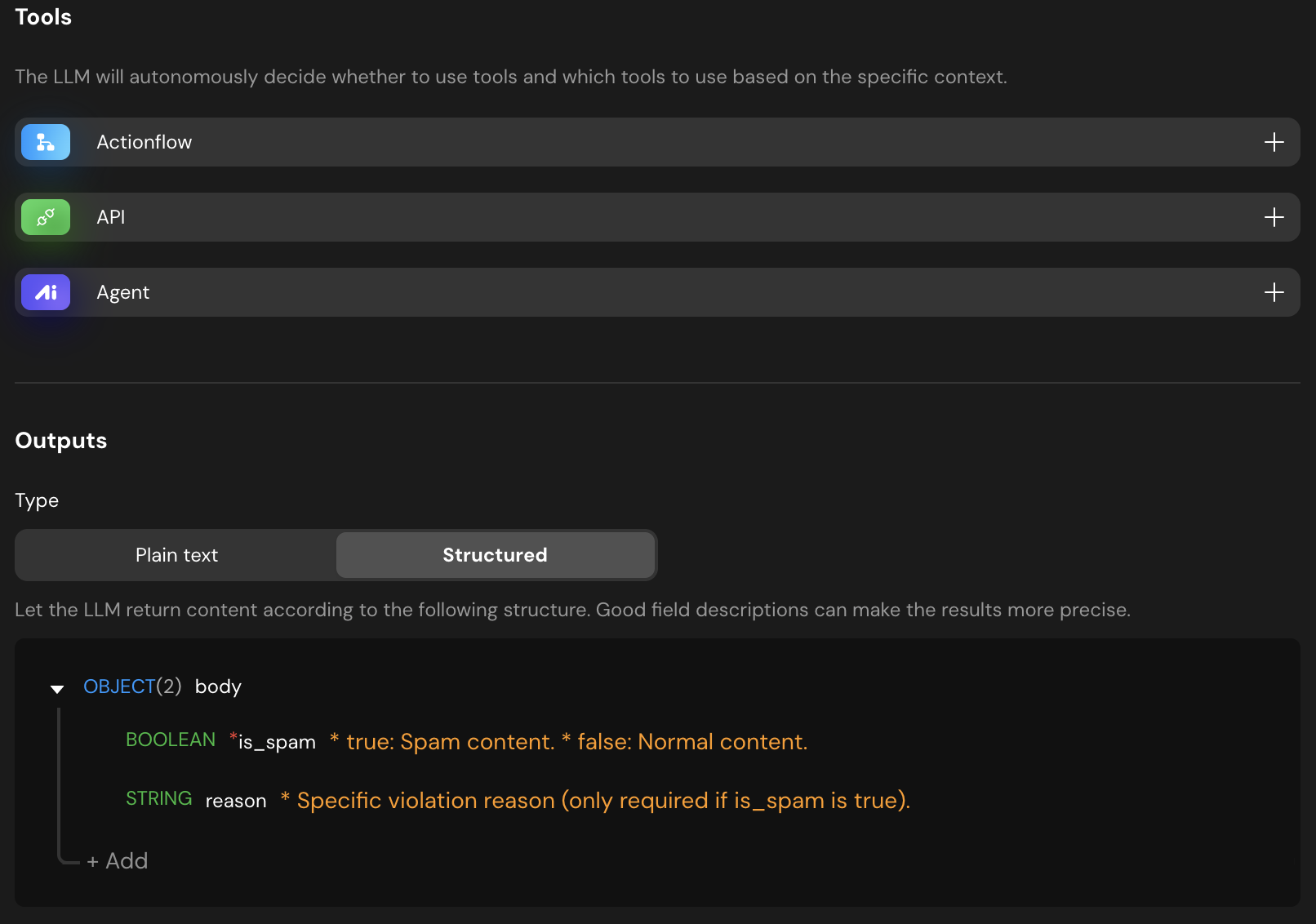
- Output Settings: Switch to Structured output to ensure the AI returns data that the database can understand.
is_spam(Boolean): Description:true: Spam content; false: Normal content.reason(String): Description:Specific violation reason (only required if is_spam is true).
Actionflow Construction
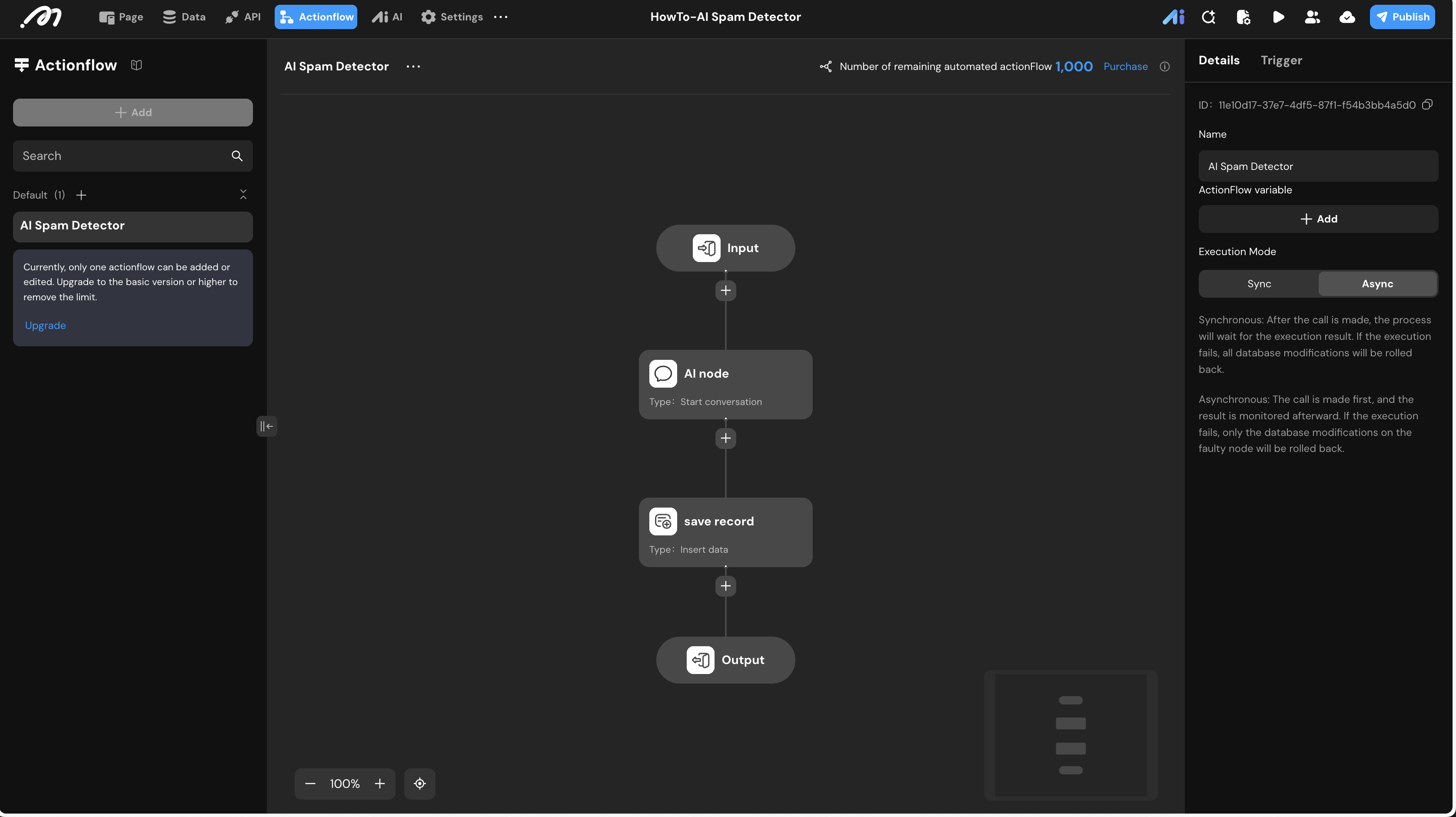
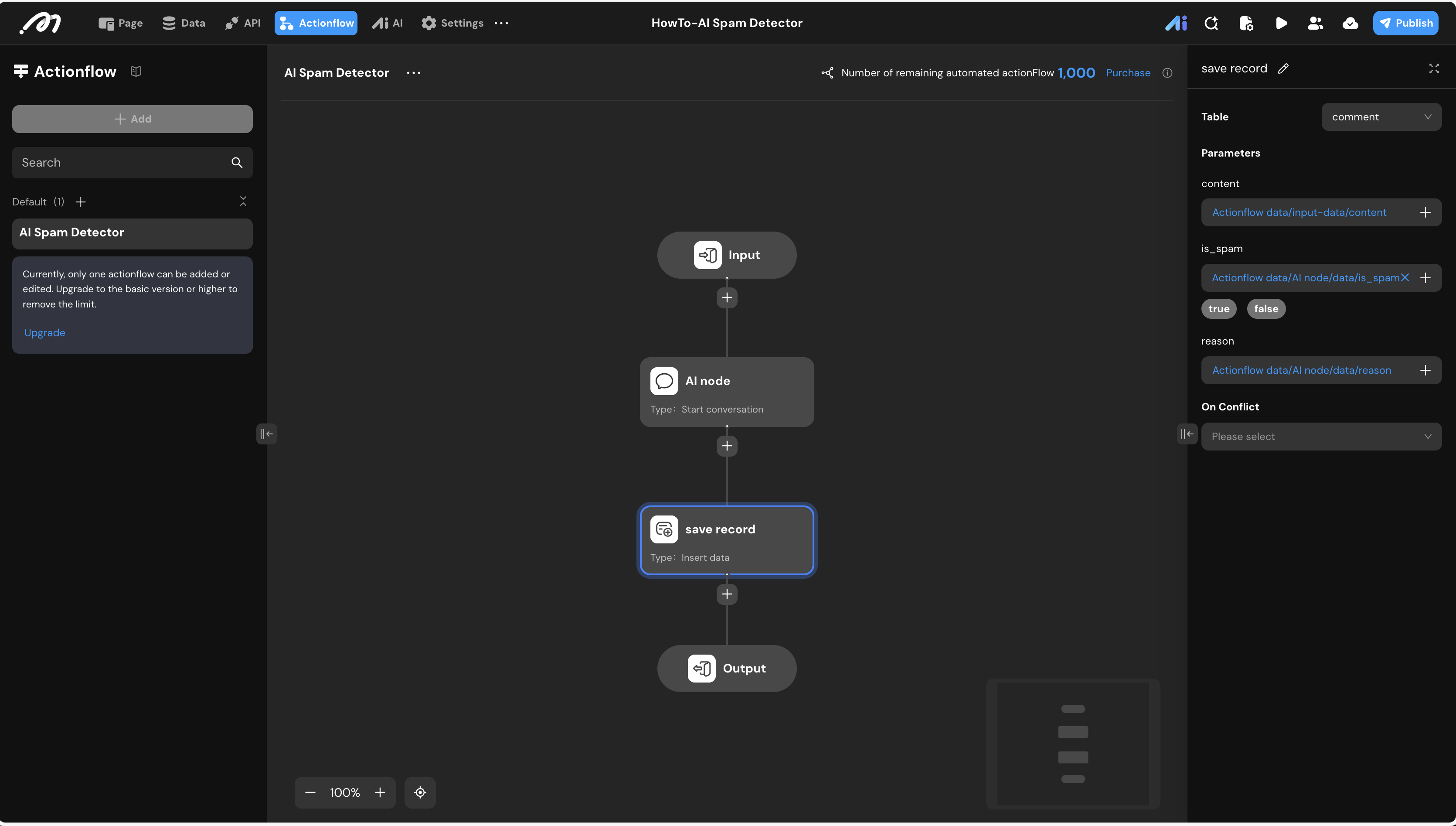
- Create Actionflow: Go to the Actionflow tab and create one named
AI Spam Detector. - Input: Define a text input named
content. - Execution Mode: Set the mode to Async.
- Logic Nodes:
- AI Node: Select “Start conversation” and choose your
Agent_spam_detector. Map thecontentinput to the agent’s input. - Database Node: Select “Insert data” for the
commenttable.content: Map fromActionflow data -> input-data -> content.is_spam: Map fromActionflow data -> AI node -> data -> is_spam.reason: Map fromActionflow data -> AI node -> data -> reason.
- AI Node: Select “Start conversation” and choose your
UI Construction & Interaction
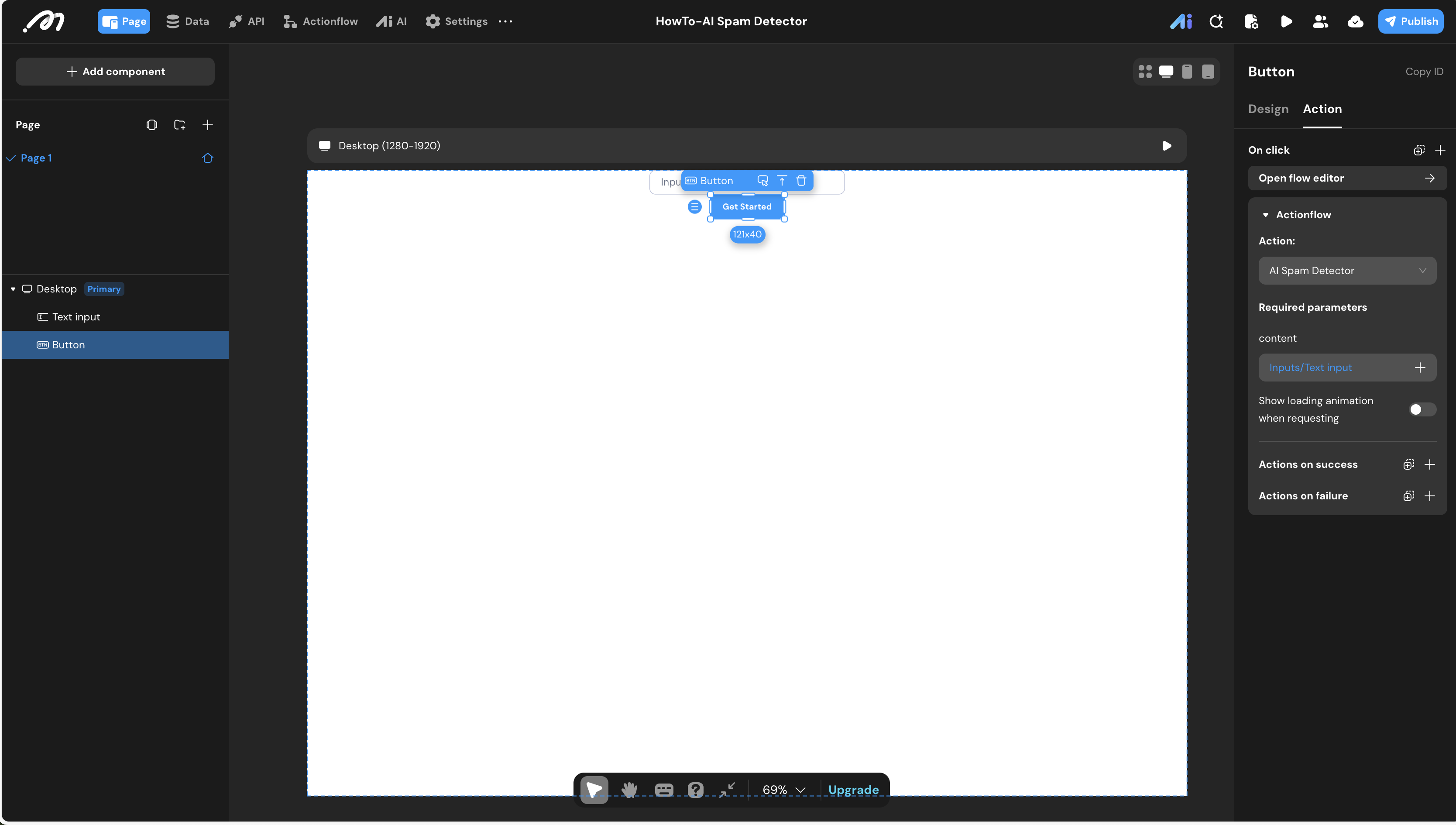
- Components: Drag a Text Input and a Button onto the canvas.
- Interaction:
- Select the Button.
- In the Action panel (Right Sidebar), add an On click event.
- Select the
AI Spam DetectorActionflow. - Parameter Binding: Bind the
contentparameter of the Actionflow to the value of the Text Input component.
Verification
- Preview: Click the Preview button in the top right.
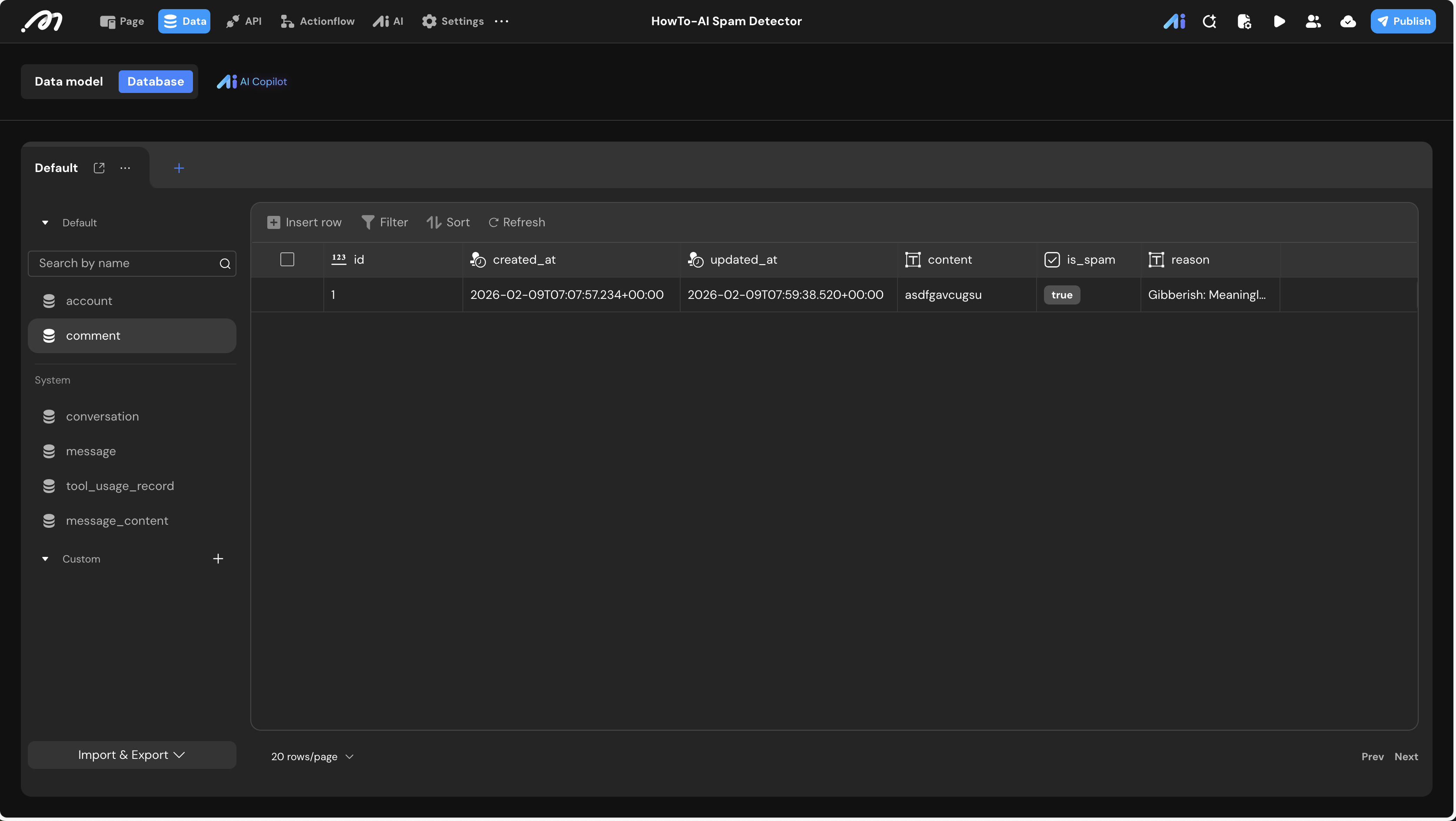
- Test Case: Enter a gibberish string like
asdfgavcugsuand click the button. - Check Database: Return to the Data Source -> Database view. You should see a new record where
is_spamistrueand thereasonexplains it is “Gibberish.”
Last updated on